 Figpea
What's New in Figpea v4.3.0: Constraints Inside Groups, a Readable Properties Panel, and Undo That Keeps Up
Figpea opens and edits design files — Adobe XD, Photoshop (PSD/PSB), SVG, PDF, Figma, and more — right in your browser. Nothing installs, nothing uploads, and you don't need an account just to look at a file.
This is a minor release: one genuinely new authoring capability, the per-control pass on the properties panel that last release's theme work set up, three correctness fixes in places that were quietly wrong, and a docs section that finally reads like a help centre. Here's the whole of it.
Constraints now work inside groups and folders
Last release brought Figma-style constraints to pages. The gesture people actually reach for, though, is grabbing a group or frame and watching its children reflow. That works now.
A group or folder's Layout section has a three-way Resize choice:
- Content — the default, and exactly what groups did before: interactive resize scales the children uniformly. Constraints are inert here, so nothing you already have behaves differently.
- Viewport — a fixed frame that clips its contents; children are untouched when you resize it.
- Constraints — a fixed frame whose children reflow according to each child's own horizontal and vertical constraint.
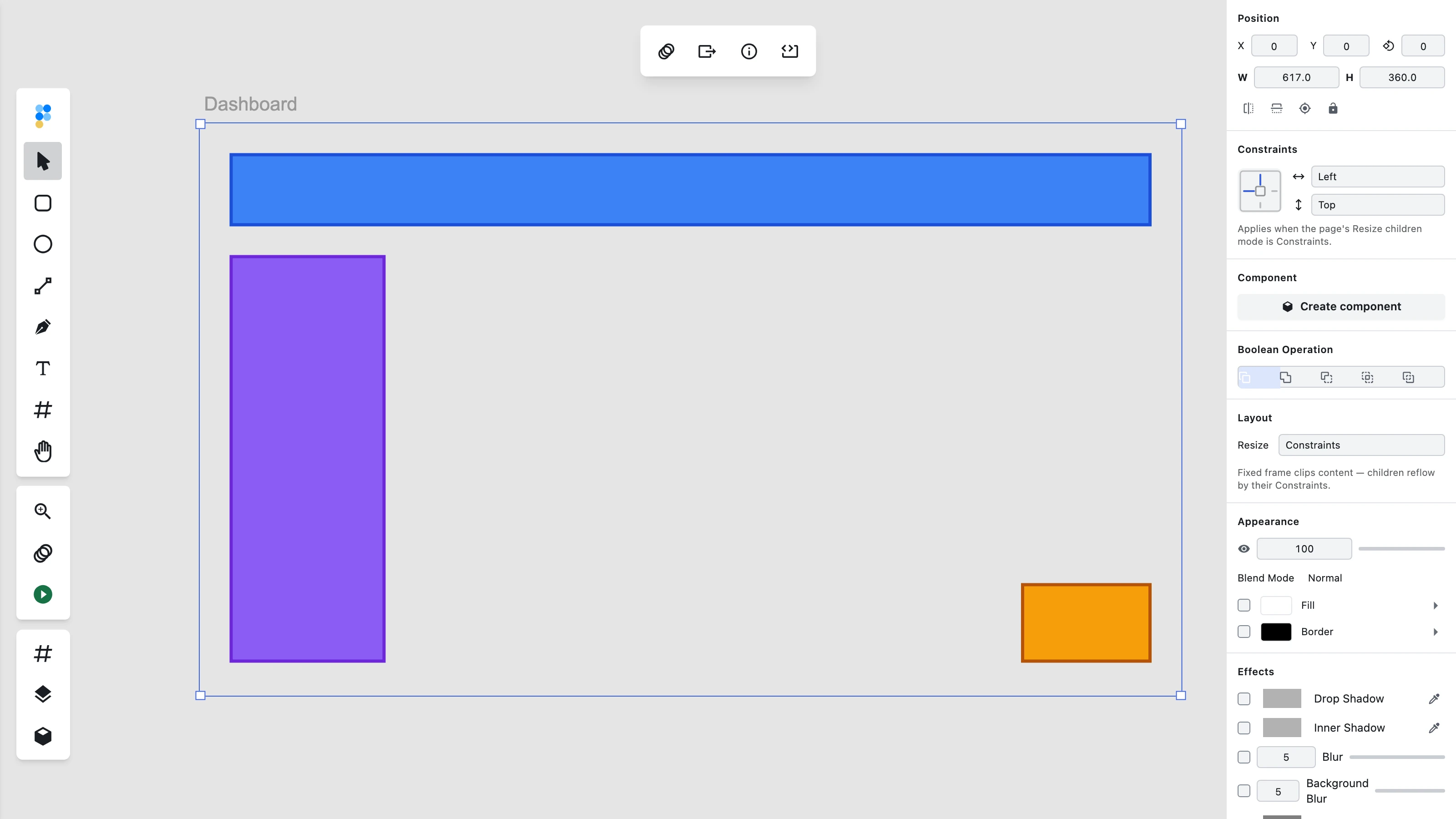
The per-child options are the same set as on pages — Left, Right, Left and right (stretch), Center and Scale horizontally; Top, Bottom, Top and bottom, Center and Scale vertically — and the two axes are independent, so a layer can be Right + Bottom and track the corner. A few details worth knowing:
- Constraints mode gives the group a fixed frame, and that frame clips. Like Viewport, anything that ends up outside the frame is cut off rather than spilling out. That's the trade for having well-defined edges to pin against.
- Nesting resolves level by level. A Constraints group inside a Constraints page reflows correctly at both levels: the group follows its own constraint against the page, and its children then reflow against the group's new width.
- The whole reflow is one undo step. Drag a group wider, press undo once, and the frame plus every child that moved revert together.
- Every layer still defaults to Left + Top, so an all-default group in Constraints mode behaves like a Content one. You opt in twice — once for the container, once per layer you actually want to move.
Two things are deliberately not in this build: constraint mode on component instances (instance resize interacts with the override model, so it's a separate piece of work), and reading or setting constraints from the scriptable window.figpea API.
And to be clear about imports: constraints are something you set in Figpea. XD, Figma and PSD files don't carry pin data Figpea can read, so an imported file won't arrive with constraints already applied.
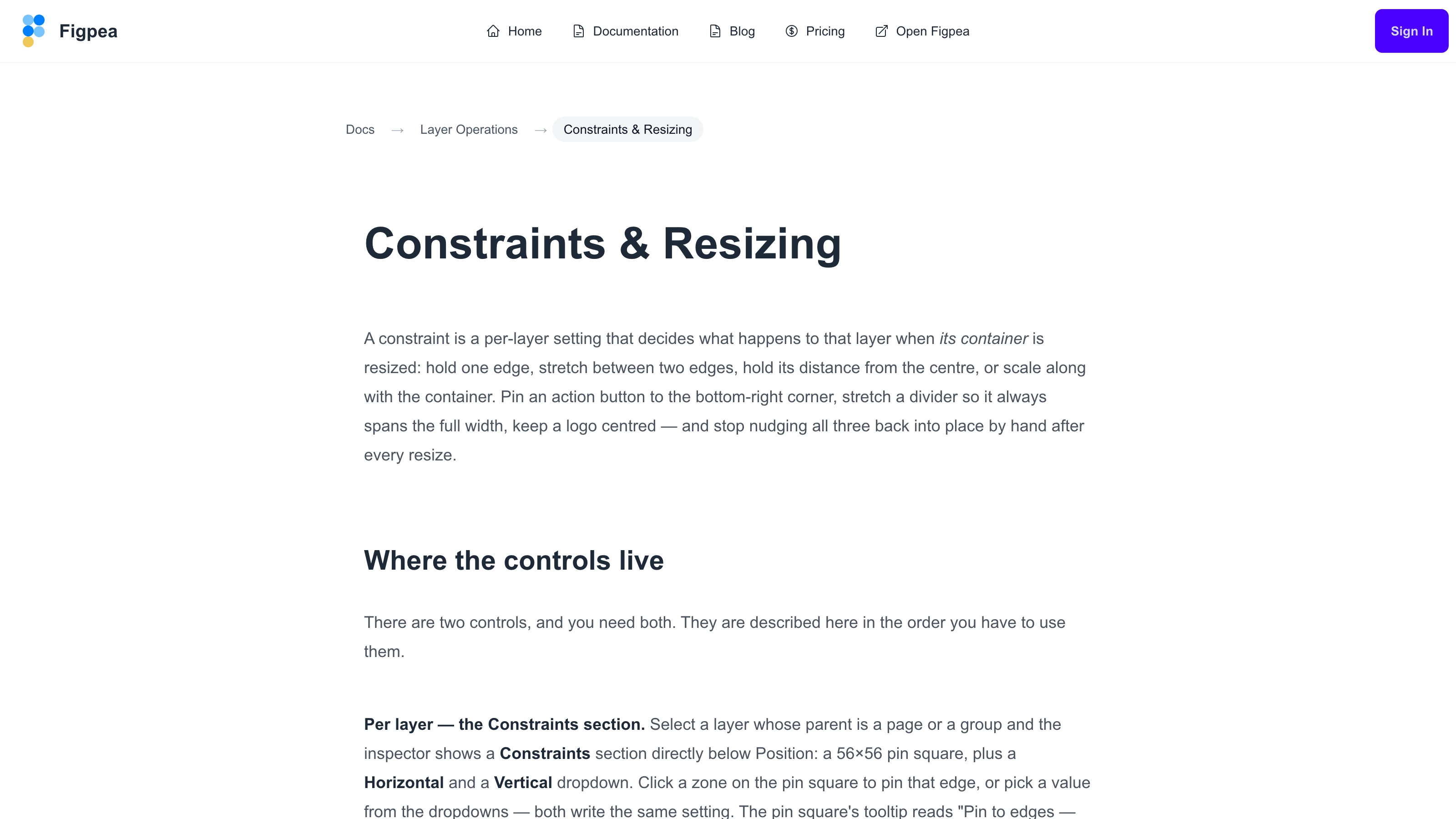
There's now a docs page for all of it — Constraints & Resizing — covering both container types, all five horizontal options worked through with examples, the vertical set, nesting, undo and persistence.
The properties panel, refit
Last release gave the editor its own light and dark themes, but deliberately stopped at the token layer — no markup changed. This release does the per-control work in the right-hand properties panel, which is the surface the original complaint was actually about.
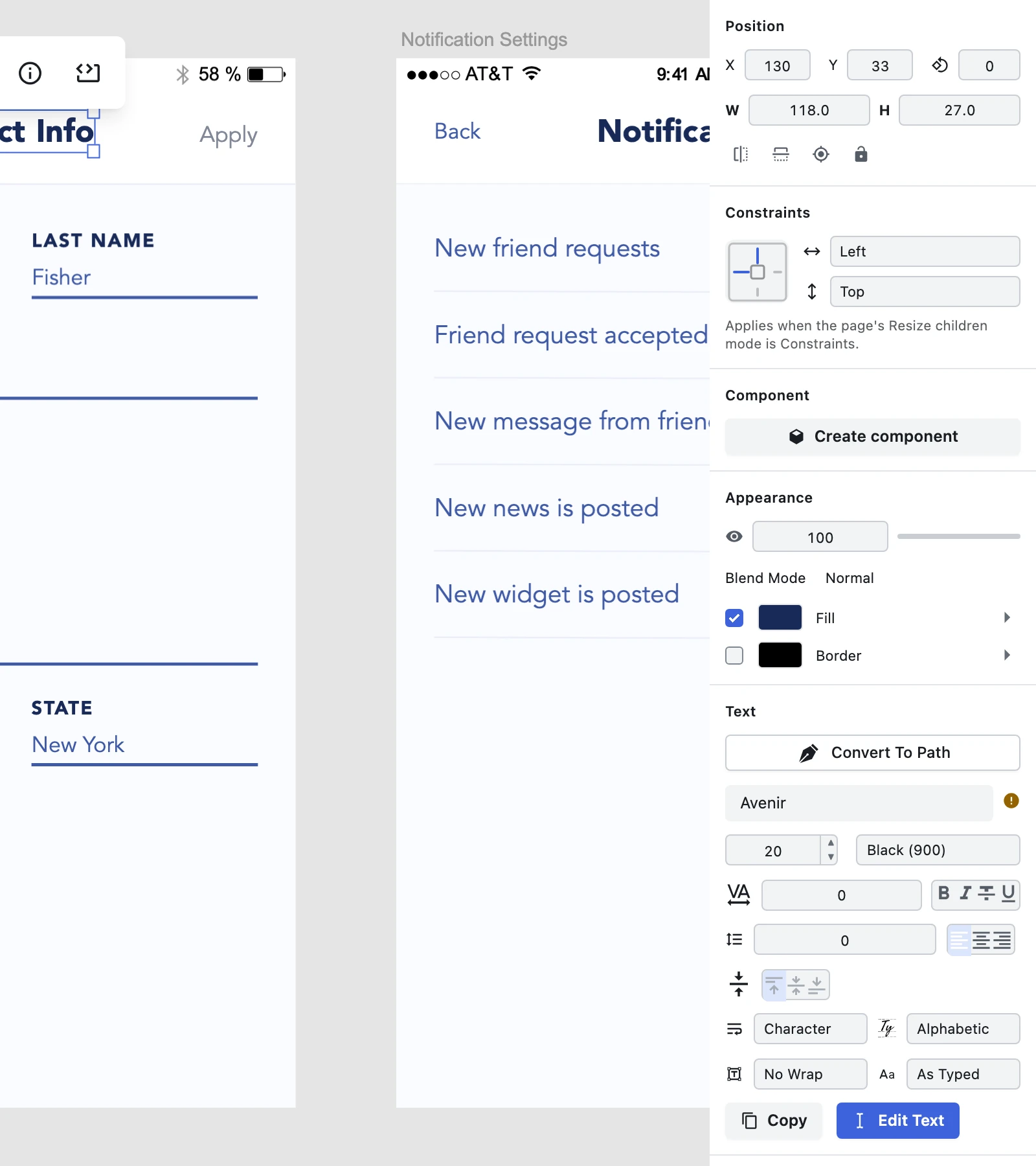
What was wrong, and what it is now:
- Section headers were rendering at font-weight 100 at around 12px on a dark ground — the single worst "soft" offender, and the reason the panel looked faded. They now read at 11px, weight 600, in the primary text colour, with consistent casing.
- Labels no longer clip. "Character", "Alphabetic" and "As Typed" used to cut off at the panel edge; every select, label and button caption now fits at the panel's standard 252px width.
- Numeric fields are one thing. 24px tall, 4px radius, a real 1px border, and
tabular-nums— so X/Y/W/H, opacity and font-size digit columns stop shifting as you drag. The stepper arrows are now a cap inside the field boundary instead of two divs floating outside it. - Selected state reads as pressed, not as an action. The blue action fill used to mean four different things at once — "click me to do something", "this is currently on", "this row is expanded", and (for the hidden-layer eye) "error". Toggles like bold, italic, text alignment, flip and lock now use a raised neutral with
aria-pressed; 39 uses of the action fill to express state are gone. - At most one accent-filled action per section, so the one real action in a section is obvious. "Convert To Path" is now a secondary button.
- The hidden-layer eye is grey with a slash, not red. A hidden layer was never an error.
- One checkbox shape everywhere — 14px, 3px radius. The Effects rows' circular variant is gone, so Effects, Fill and Border finally match.
- Control heights sit on a 4px grid, with 12px section padding, an 8px row gap and 1px dividers replacing the 2px smudge that produced the washed-out banding between sections.
- Keyboard focus is visible — a distinct accent ring on
:focus-visible— and every refitted control keeps the keyboard behaviour it had.
This pass is presentation only: no control changed what it does, no default moved, and no layer behaviour changed. One thing is still queued behind it: tooltips can clip at the panel edge, which is a follow-up rather than part of this change.
Two undo fixes
The layer list follows undo again. Undo a structural change — create, delete, reorder, reparent — and the canvas updated correctly while the left layer list kept showing the pre-undo rows. The panel and the canvas disagreed about the same document, which is exactly the kind of thing that makes you stop trusting undo. The cause was narrow: the list only re-rendered on the two events that live editing emits, and undo replays a structural change through a different channel entirely, so the list never heard about it. It listens to that channel now, for both root-level layers and layers nested inside an expanded folder. Undoing a plain property edit (a rename, a visibility toggle) always worked and still does.
One drag inside a component instance is one undo step. Resizing a layer inside a component instance was being recorded as a separate undo step per drag frame, so pressing undo once rolled back only the final frame and the layer "restored a little bit". Getting back to where you started took many undos. The identical edit inside a plain group was always correctly one step.
The cause is a good example of a read having a side effect: the properties panel's override indicator re-rendered on every drag frame, and on each render its reconcile opened and closed an undo batch — which sealed the current undo bucket and started a fresh one, every frame, whether or not the reconcile actually wrote anything. A continuous resize or move drag is now exactly one undo step, and one undo restores the exact pre-drag size or position. The override indicator still shows the override afterwards.
Figma component-instance charts render their content
Open a .fig dashboard whose charts are Figma component instances and most of the chart graphics went missing: bar charts, donut charts and several marker-line charts came up as empty space, while text, avatars, card backgrounds and directly-drawn charts rendered fine. Component instances are how real design-system files are built — charts, KPI cards, icon sets are almost always components — so this made a whole class of Figma import look broken.
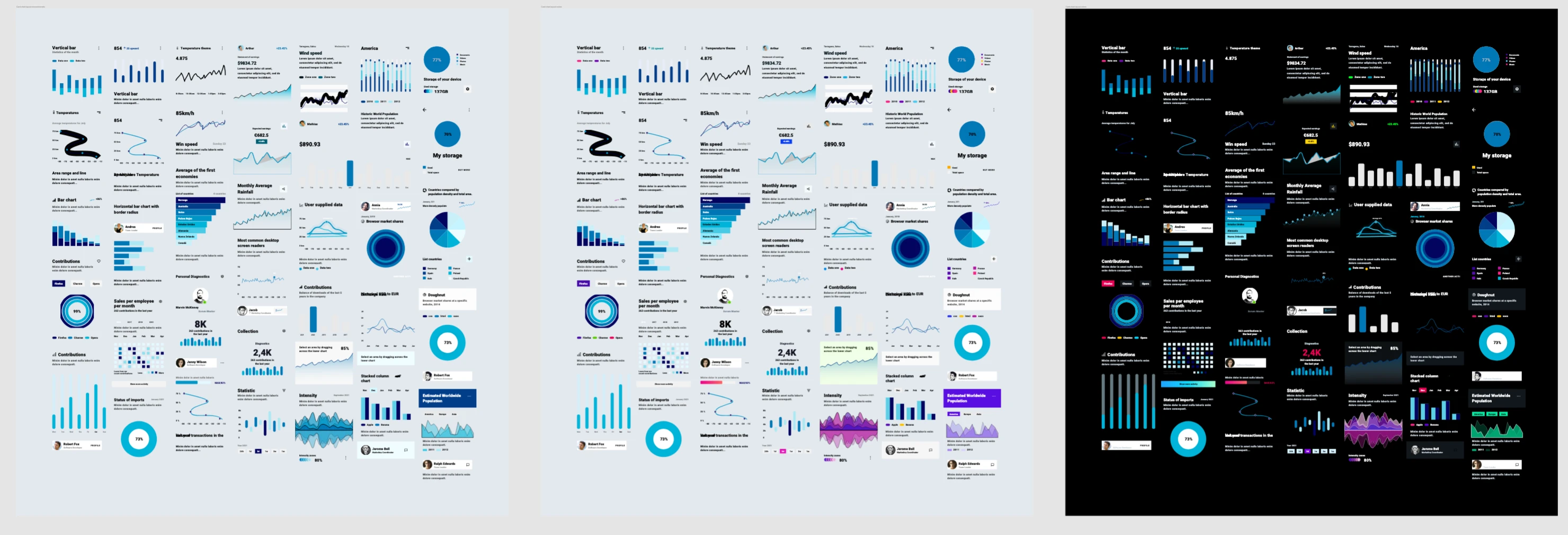
The loss was entirely in the step that bridges an instance to the component it points at. Two problems compounded: that step resolved a nested master in place, on the shared master layer, so the first instance to bridge left the master partly consumed for every later instance and every later-processed layout; and the override path could hand an already-bridged copy back as "not yet resolved", after which it got forced into an empty, unnamed folder. In the test file we used, three structurally identical dashboard cards imported with 503, 150 and 83 shapes respectively — a sixfold spread — and 97 chart bodies were empty folders.
Each instance now bridges from a cached, pristine resolution of its master, the override path no longer un-bridges anything, and bridged layers carry their name and transform across. The same three cards import at 503, 503 and 503 shapes with zero empty placeholders, and the result no longer depends on the order the layouts happen to be processed in.
One related thing is not fixed and is worth being straight about: gradient and image stroke paint. In the file above, one line chart still draws its stroke flat black instead of its gradient. That's a separate, known gap in stroke painting, not part of this fix.
Docs, rebuilt as a help centre
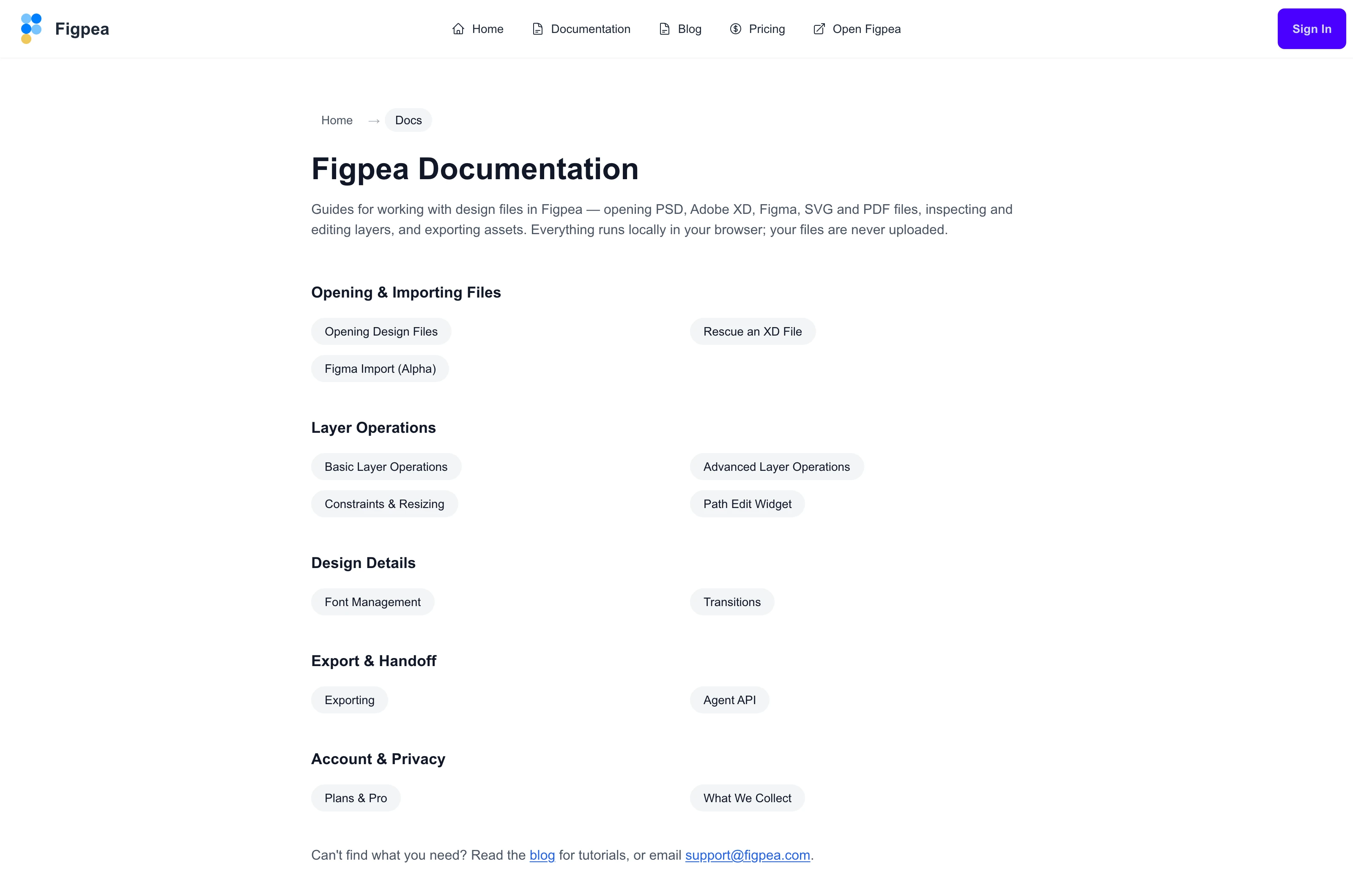
/docs is a two-column pill grid. The index already had the right structure — a short intro and five named sections, no sidebar — but rendered each section as a single-column bulleted list of blue text links. Each section's articles now sit in a two-column, row-major grid of rounded pills: no bullets, no link-blue, no icons, and each pill's width hugs its own label so a short title stays a short pill. They're real links (/docs/<slug>), not buttons, so middle-click and open-in-new-tab keep working and crawlers still see them. A breadcrumb pill trail — Home, then Docs — sits above the heading. On a narrow viewport the grid collapses to a single column with no horizontal scrolling, and dark mode has its own tokens for pills, headings and breadcrumb.
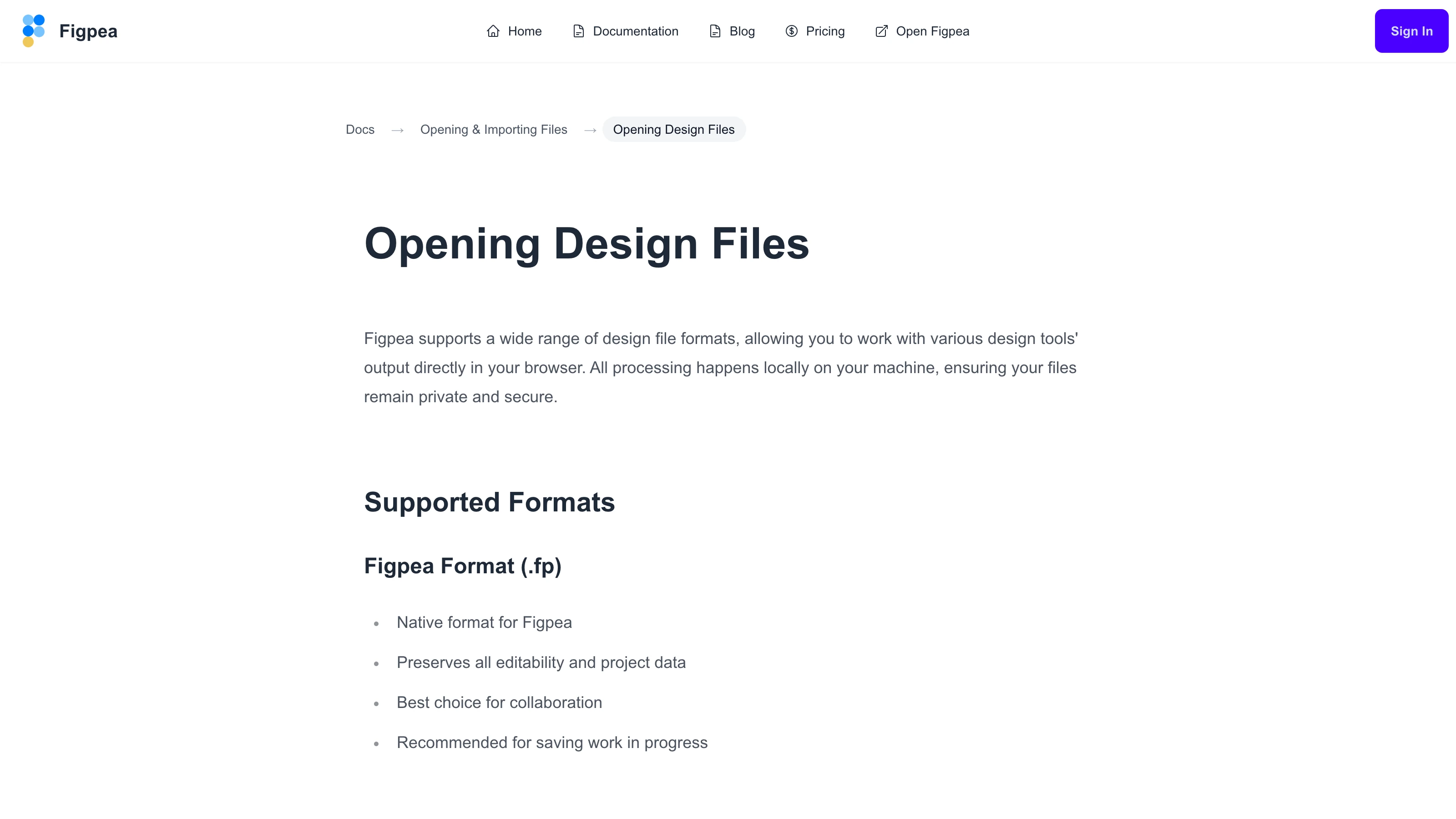
Article pages have section-aware breadcrumbs. Every individual doc page used to carry a permanent left column listing all the articles with no grouping, plus a mobile hamburger to open it. Both are gone. In their place, a breadcrumb at the top of the article: Docs, then the section, then the article — "Docs" goes back to the index, and the section name takes you to that section on the index and scrolls it into view. Article URLs and article bodies are untouched; only the navigation around them changed.
The PSD pages lead with what's actually different
"Runs locally, nothing uploaded, no signup" stopped being a differentiator on PSD. A cluster of PSD-only viewers indexed this year use copy that is nearly word-for-word the same. It's still true of Figpea, and still worth saying — it just doesn't distinguish us any more.
What does: Figpea isn't only a PSD viewer. The same tool opens Adobe XD (our strongest, highest-fidelity parser), Figma, SVG and PDF. None of the PSD-only lookalikes do that.
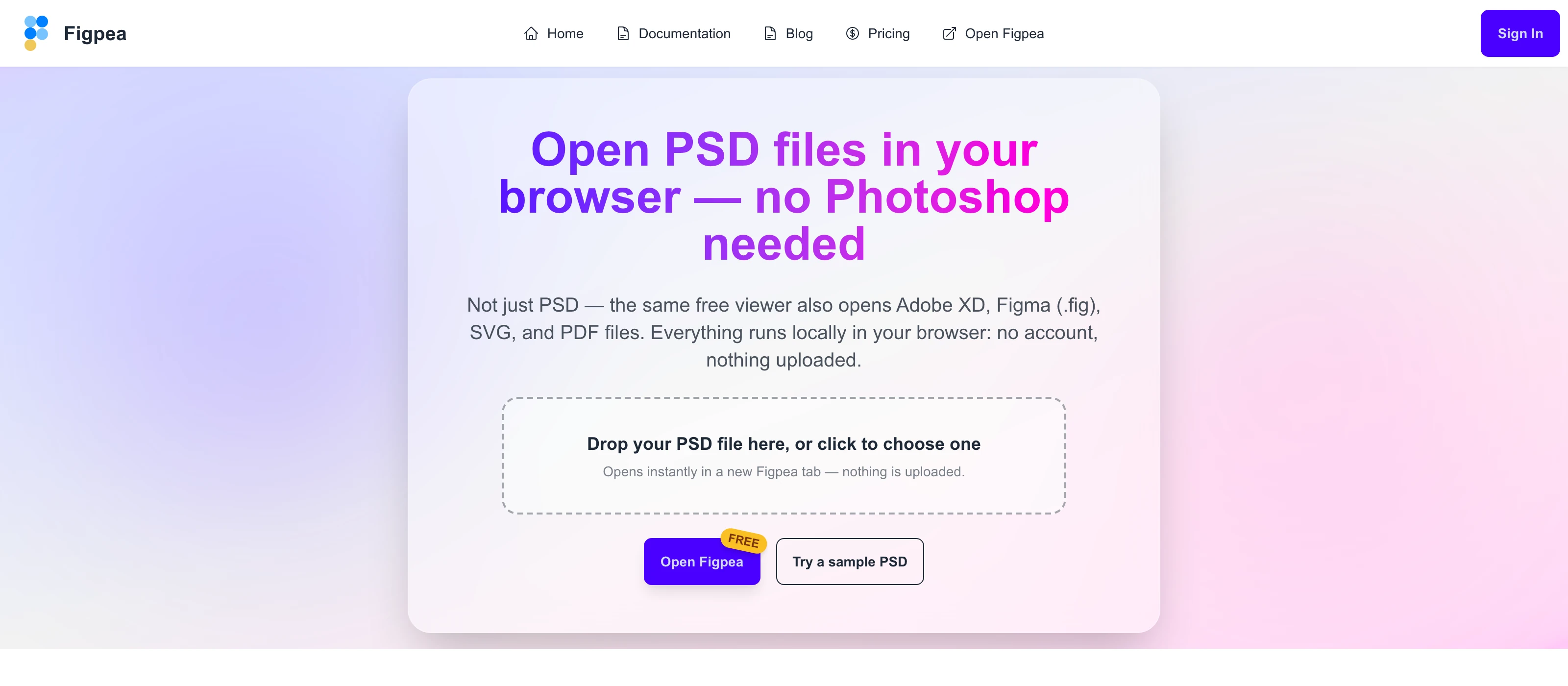
So /psd-viewer and /open-psd-online now lead with both halves of the pitch instead of privacy alone. Nothing was taken away — the local-processing and no-account claims are still in the subheadline and the FAQ, and the PSD capability claims themselves are unchanged.
Smaller things
- One more dead legacy-brand blog URL redirects instead of returning a 404: the old
export-images-from-psd-and-adobe-xd-designs-in-psdetchpath now permanently redirects to Export layers in Figpea. If you arrived here from an old link or a listicle, that's why it worked. - Two test-infrastructure fixes with no product-visible change: a long-standing gap in the headless canvas mock that made the unit-test run report failure with zero failing tests, and a blog-corpus test whose expected post count had to be hand-edited every time we published a post.
Try it
Everything above is live now. Open Figpea, drag in an XD, PSD, SVG, PDF, or Figma file — or load a built-in sample — and have a look. It's free to open, inspect, and edit; when you need batch export, any-scale asset extraction, and unlimited presentations, Pro has you covered.