 Figpea
Your AI agent, meet a real design canvas.
Point Claude Code, Codex, Cursor, or any MCP-compatible agent at Figpea to author layers, inspect PSD/XD/Figma files, and export assets — 100% local, nothing uploaded.
What Your Agent Can Do in Figpea
A comprehensive programmatic command surface for structured layout creation, inspection, and asset extraction.
Author & Edit Real Layers
Create shapes, text, frames, vectors, and pages; adjust transforms, styles, fills, gradients, and corner radii in a live canvas.
Inspect Stranded Design Formats
Open existing PSD, Adobe XD, SVG, and .fig files and let your agent query the layer tree (`session.layerTree()`, `session.find()`).
Screenshot & Self-Verify
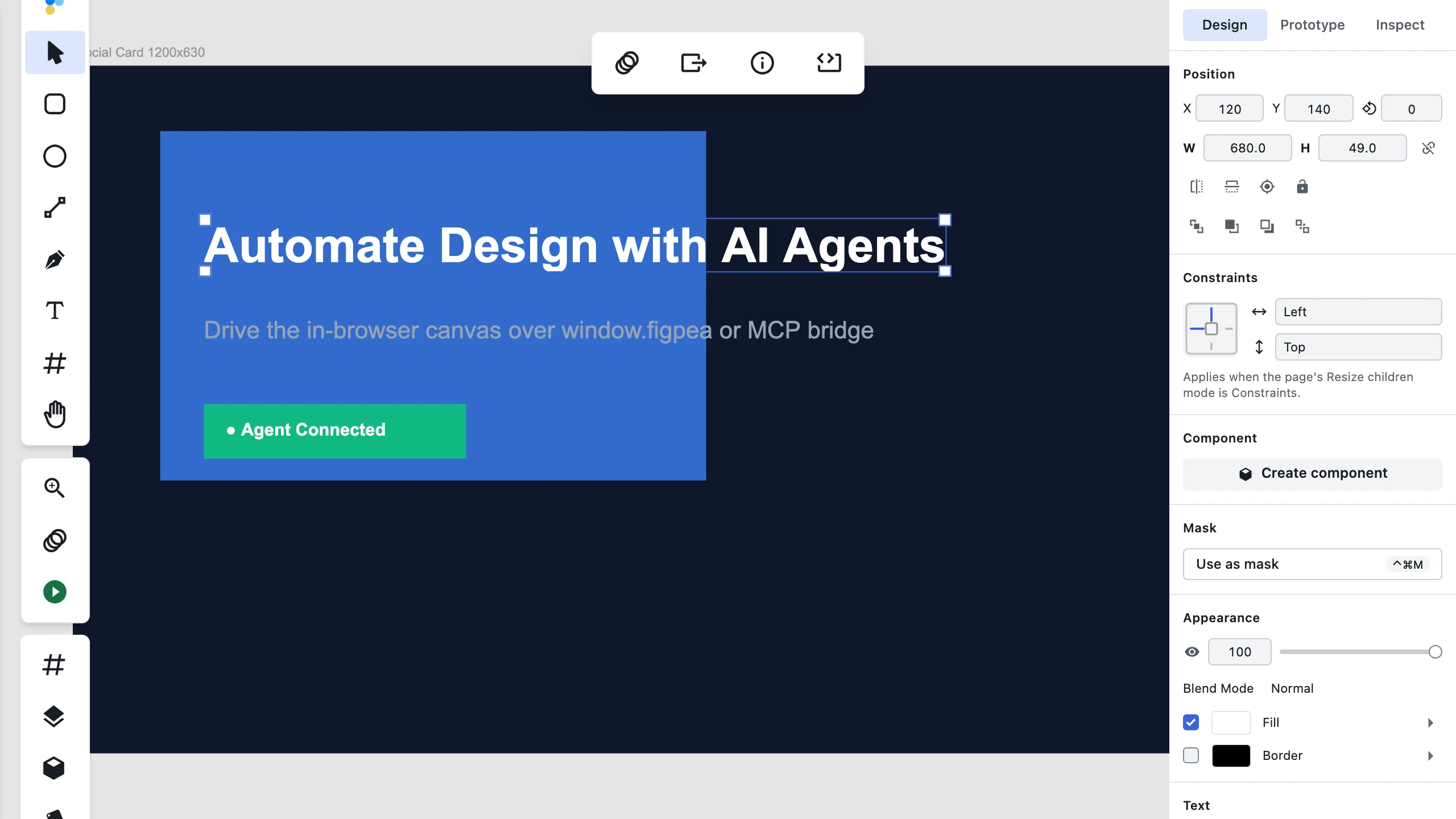
Live canvas screenshots (`canvas.screenshot()`, `canvas.fit()`) give vision-enabled models immediate feedback to check layout work.
Developer Handoff & Export
Export PNG, SVG, PDF, WebP assets, developer spec bundles, CSS tokens, or asset harvest ZIPs.
How It Works in 3 Steps
From zero setup to programmatic canvas control in seconds.
Open an Editor Tab
Visit https://editor.figpea.com/?agent=1 or let `figpea-mcp` launch an editor instance automatically.
Agent Discovers & Authors
The agent calls figpea.describe() to learn the live surface, then issues structured JSON commands over window.figpea.
Observe, Verify & Iterate
The agent captures canvas screenshots, inspects layer trees, refines positioning and styles, and exports completed assets.
Set Up Your Client
Configure your preferred MCP client or connect via raw browser automation.
MCP Client Configuration
Add the following JSON configuration to your MCP client settings file (e.g., claude_desktop_config.json or project MCP settings):
{
  "mcpServers": {
    "figpea": {
      "command": "npx",
      "args": [
        "-y",
        "figpea-mcp"
      ]
    }
  }
}
Verify Connection

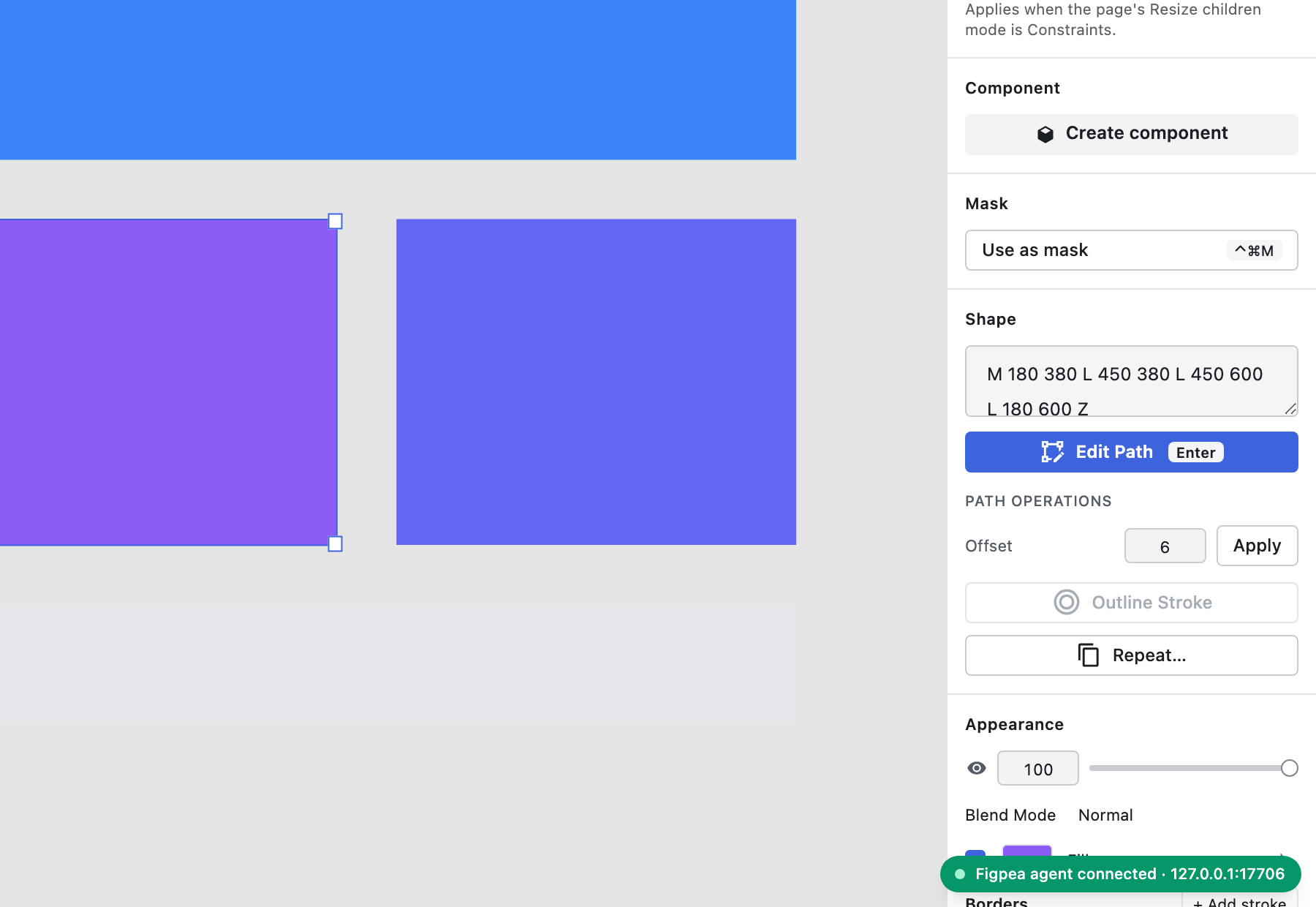
Once connected, check the bottom-right corner of your Figpea editor tab for the emerald status pill:
Raw Browser Automation Path
No MCP client required? You can drive Figpea directly using Playwright or Puppeteer by launching the editor with ?agent=1 and executing commands via page.evaluate():
await page.goto("https://editor.figpea.com/?agent=1");
await page.waitForFunction(() => window.figpea !== undefined);
const status = await page.evaluate(async () => {
  return await window.figpea.describe();
});
console.log(status);
Example Prompts
What you can ask your AI agent to build or inspect.
"Create a 1200x630 social card with a dark gradient background, headline in top-left, logo bottom-right, and export at 2x PNG."
"Open this Adobe XD design file, inspect all text layers, and extract the full copy deck as markdown."
"Open this PSD file, find all button layers, and export their bounding rects and CSS styles."
"Open this .fig file locally and list all top-level artboard names."
Why Figpea for Agents
Built from the ground up for privacy, local execution, and human-agent handoff.
Real Editable Canvas
Produces native design layers rather than flat mockups or raw code; a human designer can take over editing in the browser tab at any time.
Speaks Stranded Formats
Opens PSD, Adobe XD, SVG, and .fig files locally without requiring cloud uploads or vendor accounts.
100% Private & NDA-Safe
Everything runs locally in your browser; no design data or files are sent to external servers.
Unified Command Surface
Identical window.figpea JSON API whether driven through figpea-mcp or raw browser automation.
Go Deeper
Explore full technical specifications, skill packages, and machine references.
Frequently Asked Questions
Does Figpea upload my design files when an agent runs?
No. Figpea runs entirely in your local browser tab. Design files and agent commands stay on your machine.
Can my AI agent save changes back to a .psd, .xd, or .fig file?
No. Figpea exports PNG, SVG, PDF, and WebP assets. No encoder exists to overwrite original source design files, keeping your original files untouched.
Which AI agents and clients are supported?
Claude Code, Codex, Cursor, Windsurf, any MCP-compatible client, or custom automation scripts via Playwright and Puppeteer.
Is the AI agent capability free?
Authoring, inspecting, and editing layers are 100% free. Asset exports follow standard plan entitlements (e.g., 1x PNG export is free, scaled or PDF exports require a Pro plan or Rescue Pass).
Does it work offline?
Yes. Figpea's editor and agent bridge run locally in your browser without requiring an active internet connection.