 Figpea
Your Projects & Restore
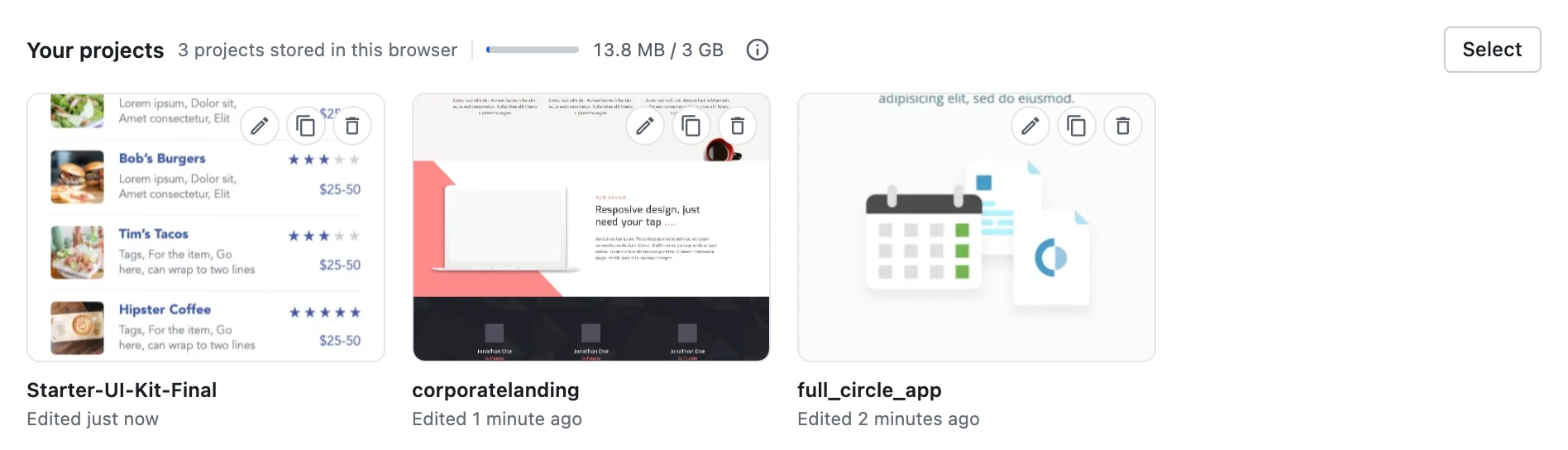


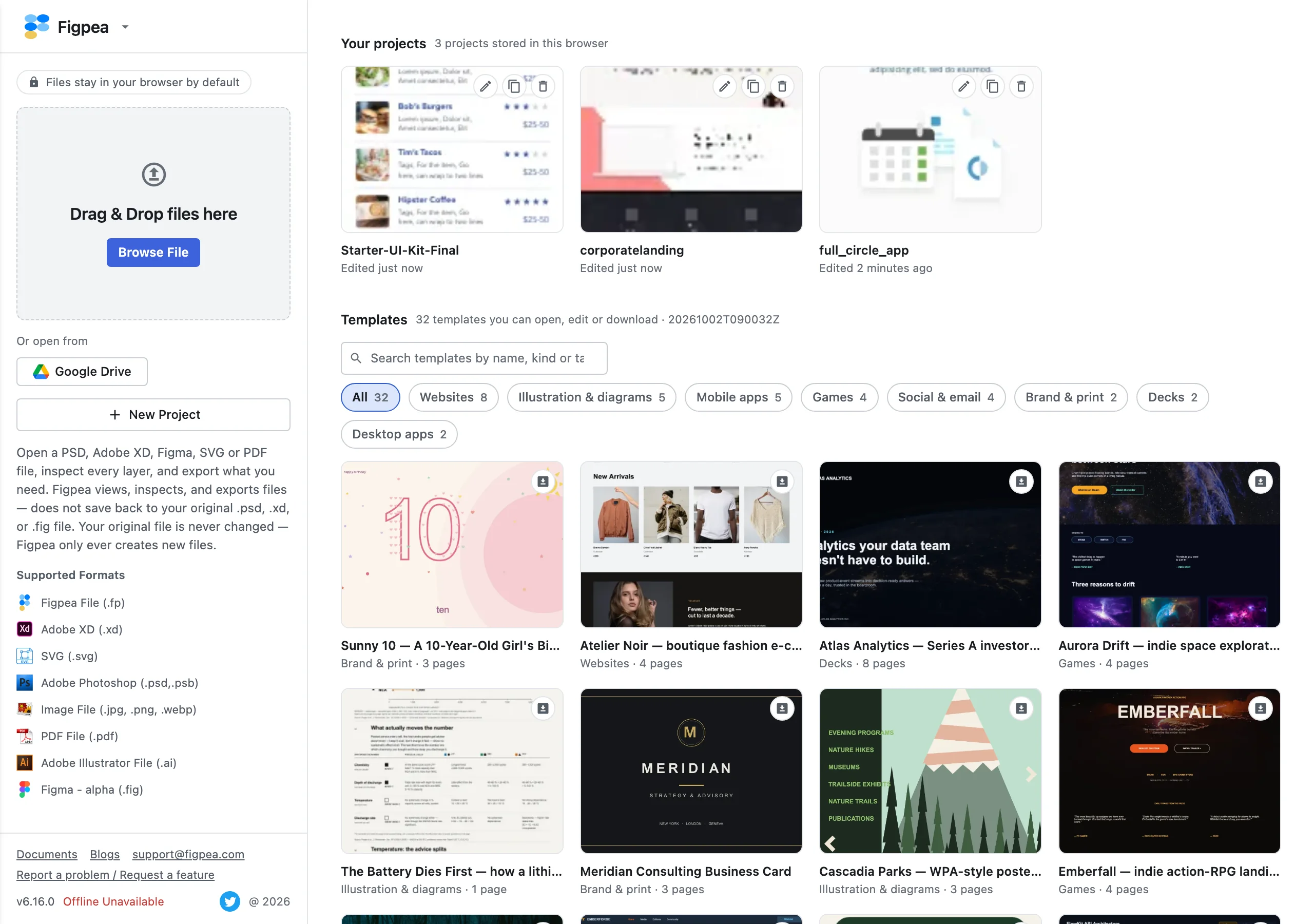
The welcome screen opens on a Your projects section: the designs Figpea has captured in this browser. Every project you start and every file you open arrives there on its own — there is no save step — with a preview, its name and when you last edited it. Open one and it comes back editable; rename, duplicate or delete it from the tile — or tick several and remove them together.
What appears in Your projects
One tile per project, newest first. Each tile carries a preview of the design, the project name, and a line saying when it was last edited — "Edited just now", "Edited 5 minutes ago", "Edited 3 days ago", and past a week the date itself.
The list is built from a small index of the projects — their names, edit times and previews — rather than from the designs themselves, so a crowded library still shows the welcome screen quickly. A project whose preview has not been captured yet shows a placeholder instead of a broken image.
Managing a project

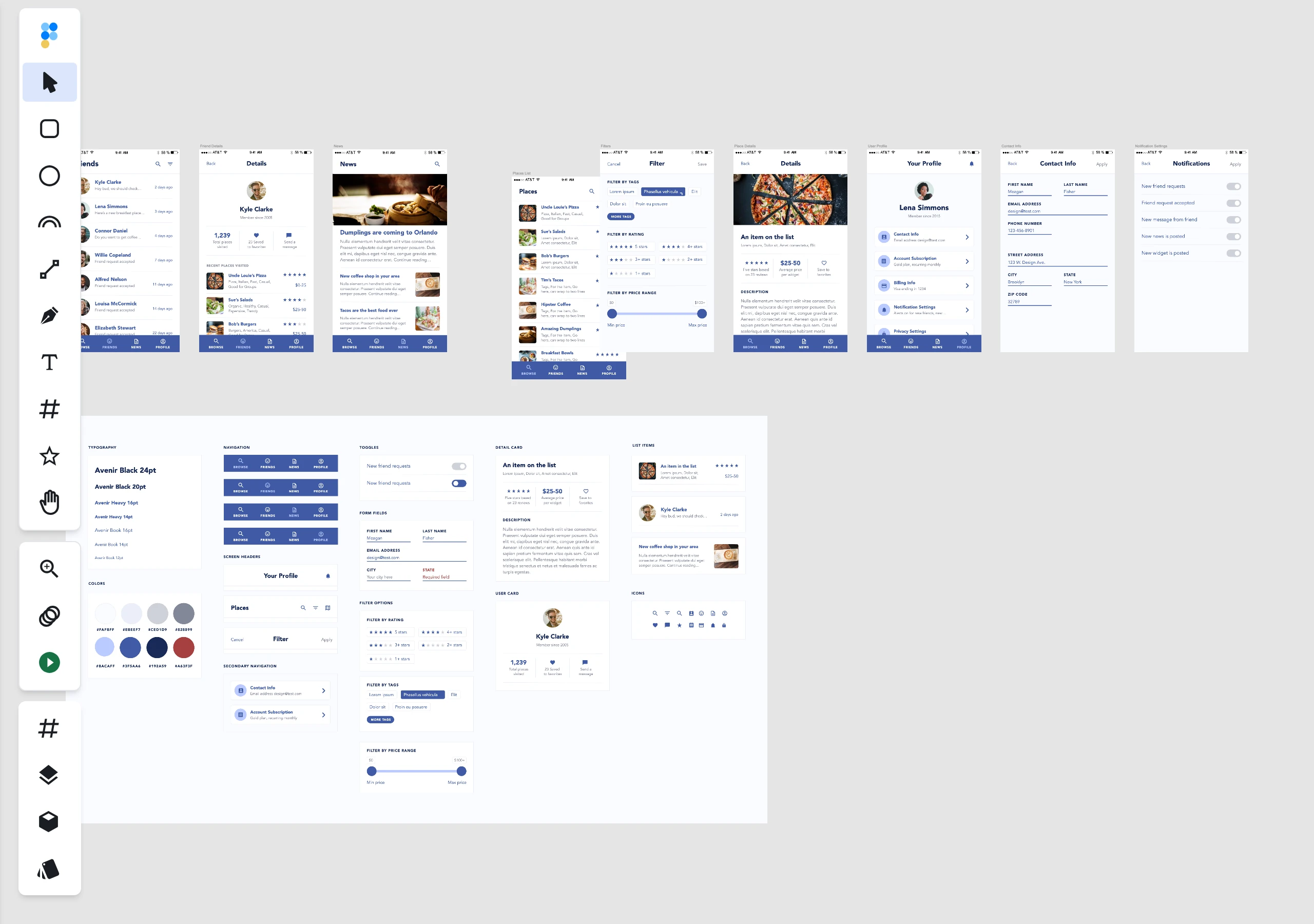
Click a tile to open it. The project restores editable, with the layers and structure you left behind. While it opens you get the same progress card a file open shows — a centred card that starts on Rendering…, with a progress bar and a short status note that changes as the design is drawn — and it clears once the canvas is complete. On a long wait the card steps aside to a bar in the bottom corner rather than holding the screen. The tile also carries three actions, in the top-right corner:
- Rename — change the name on the tile. The new name is stored with the project.
- Duplicate — makes an independent copy you can edit on its own. The copy is named "name copy", and the original is untouched.
- Delete — removes the project from the list and from this browser's storage. Figpea asks you to confirm first, naming the project, because the deletion cannot be undone.
Deleting removes the project from this browser only. An exported .fp file is a separate copy and is not affected. To remove more than one at a time, use Select — see Deleting several projects at once.
Deleting several projects at once
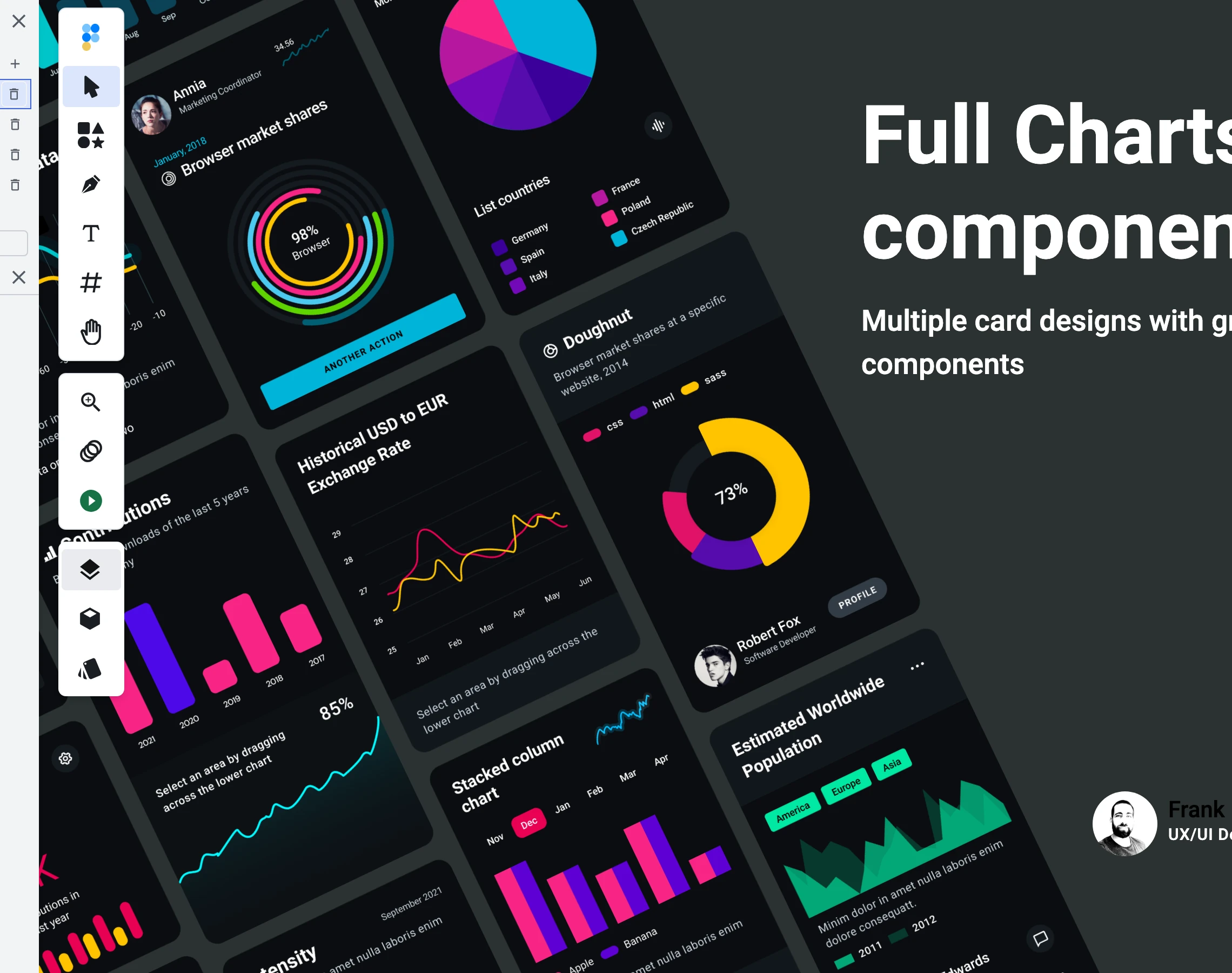
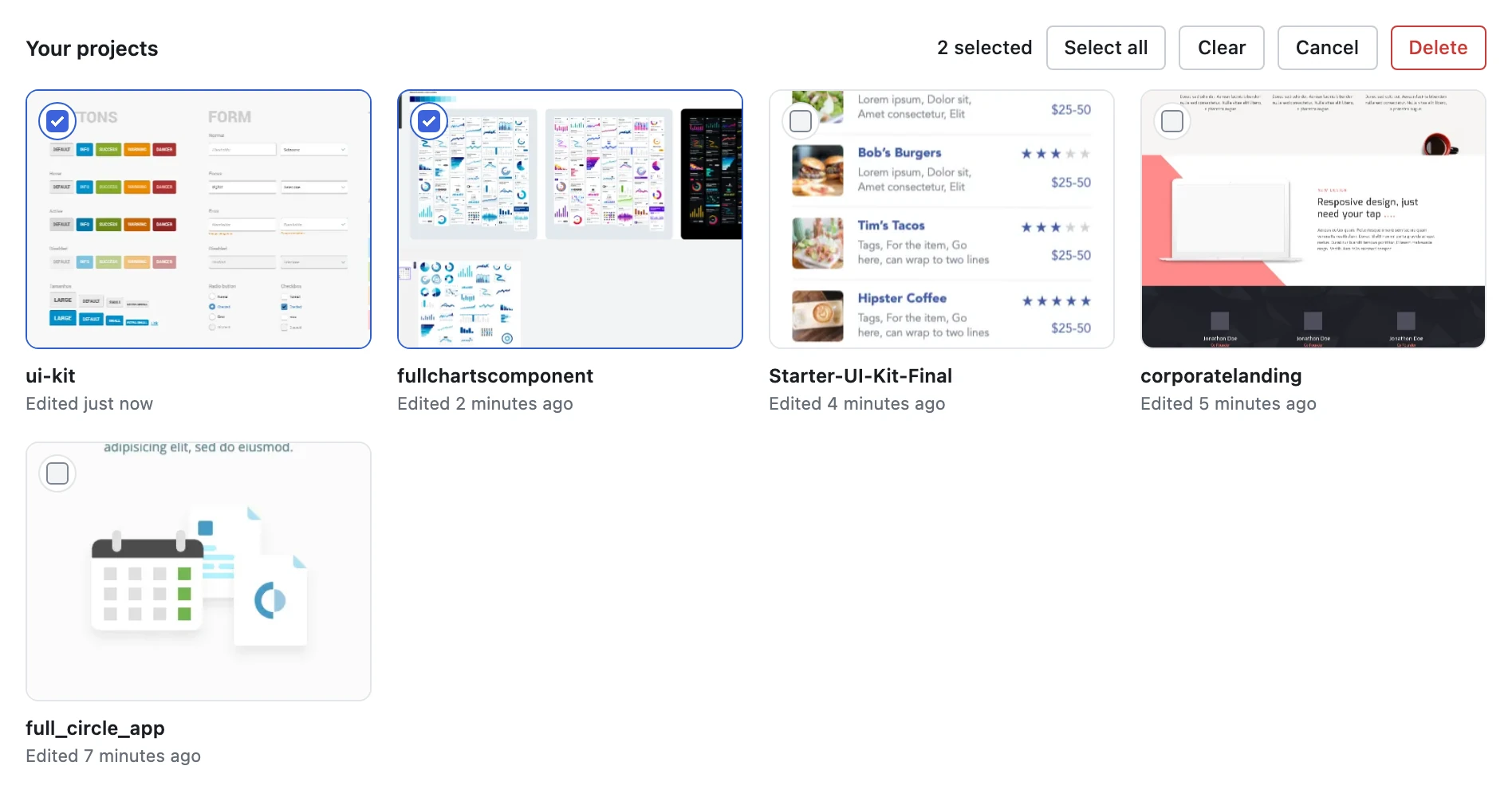

Tidying up eventually means more than one project — a pile of experiments, or five copies of the same file. Turn on Select in the Your projects header, and the grid stops opening projects and starts ticking them instead.
- Every tile grows a checkbox. While Select is on, clicking anywhere on a tile ticks it, and nothing opens.
- The bar above the grid keeps a live count — "2 selected" — and carries Select all, Clear, Delete and Cancel.
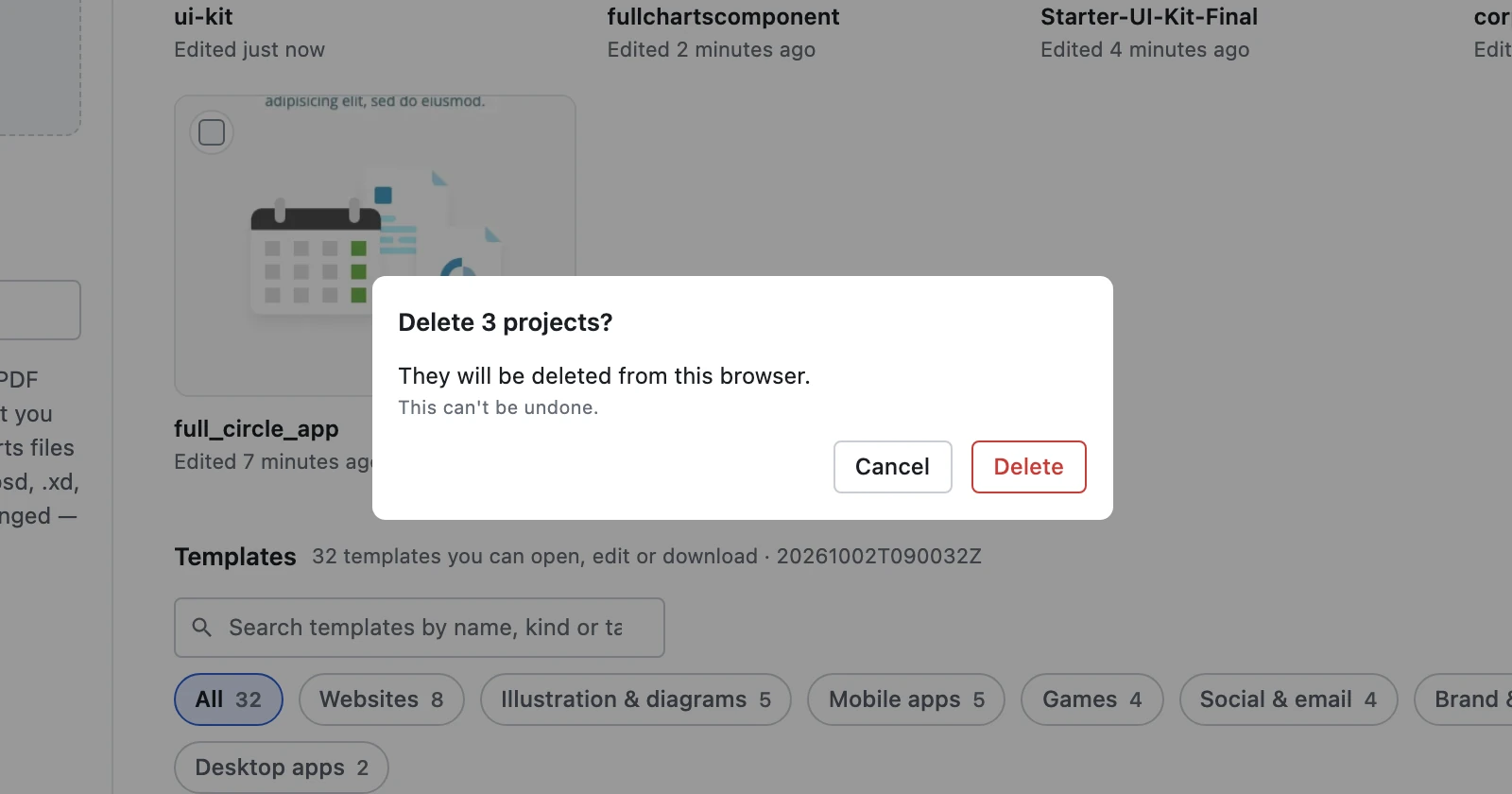
- Delete asks once, for the whole selection: it says how many projects are going, that they go from this browser, and that the removal cannot be undone.
- The tiles stay on screen while the deletes run, each showing its own progress, and the bar counts down — "Deleting 2 of 3" — as each one finishes.
- Cancel, or Escape, leaves Select and clears whatever was ticked.
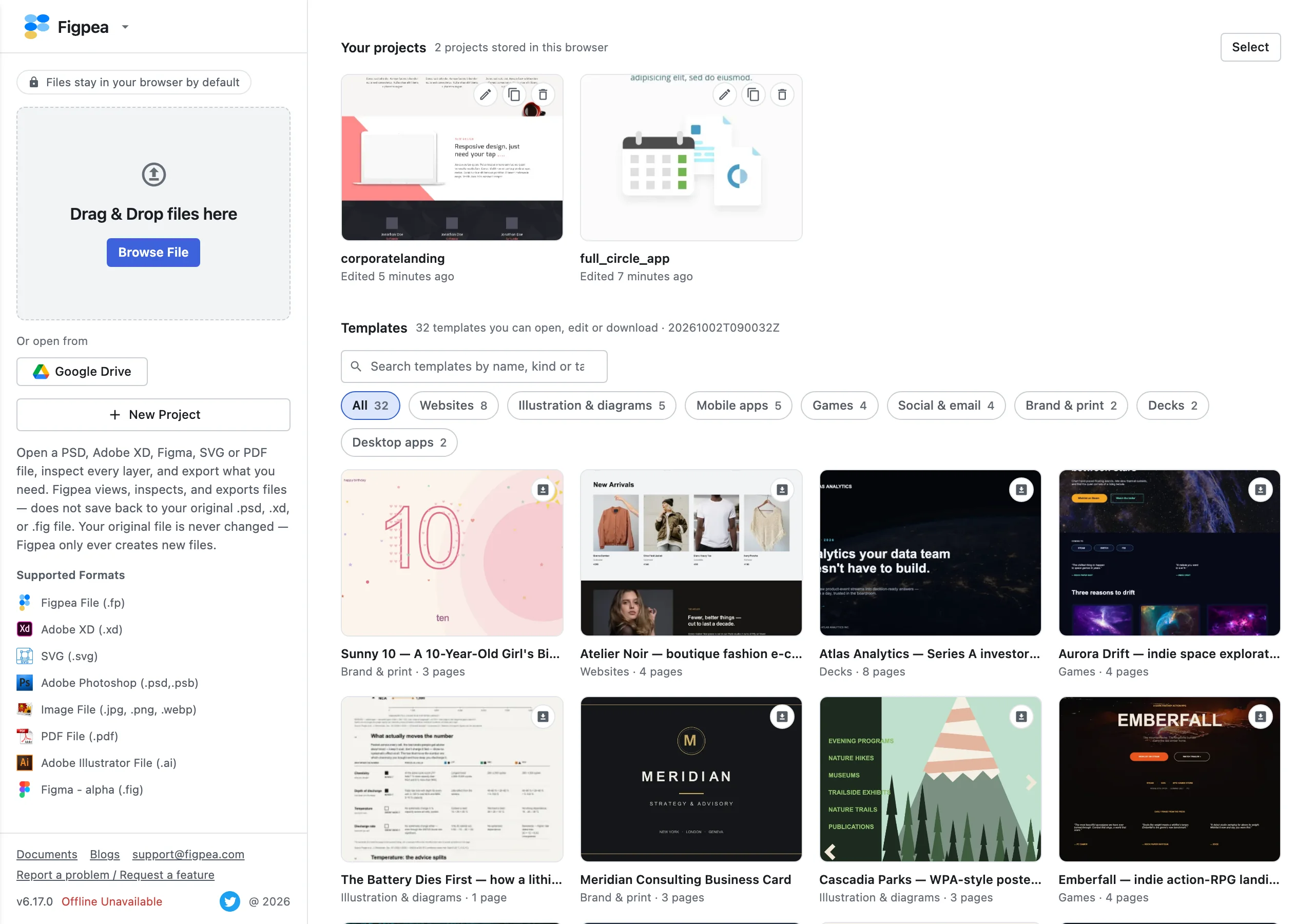
A batch is still one delete per project. If one of them cannot be removed, the rest still go, and Figpea names the one that stayed in a single note; a project another tab already removed simply counts as gone. It keeps running if you open a project before it finishes — come back to the welcome screen and you get the finished list.
When it saves
Automatically, with nothing to press. Figpea writes the project into this browser a moment after you stop editing, and flushes once more when you close the tab. An hour's work in a tab is no longer an hour with no copy kept anywhere.
Using the same project in two tabs
Open the same project in a second tab — duplicate the tab, or open the project's tile again — and the two tabs stay together. An edit you make in one is picked up by the other without a reload: move, resize or restyle a layer, or add one or delete one, and the other tab's canvas catches up. Nothing to press, and no reload needed.
The one rule to know is that the first tab to save a layer owns that layer. Each layer is written as a whole, so if you edit the same layer in both tabs at the same moment, the tab that saves first wins and the other tab adopts what was saved — its own version of that layer is dropped. Editing different layers in two tabs is never a conflict: both edits survive and the tabs end up agreeing.
This is a same-browser, same-computer thing. Your projects live in this browser (Where your work lives), so a tab in a different browser, or on a different computer, is a separate copy of the project rather than a third tab on this one.
A change arriving from the other tab never enters your undo history: undo in this tab steps back through the edits you made here, not through the other tab's.
The address names your project
When you open or create a project, Figpea writes its id into the address bar — ?projectId=<id> — and clears it again when you close the project back to the welcome screen. That is what makes a reload keep you where you were: the address still names the project, so Figpea opens it again — with the same progress card as opening a tile, so a slow reopen reads as work in progress rather than a welcome screen that has stopped.
Open Figpea at a bare address, with nothing named, and you land on the Your projects screen. Figpea does not open a project for you.
The address is not a shareable link: the id names a project saved in this browser, so sending the address to someone else will not open your project for them. The Back and Forward buttons walk between the welcome screen and the projects you have visited, switching the view to match.
After a crash
If the browser goes away without letting Figpea finish — a crash, a force-quit, a tab the system killed — the work you had flushed is still in Your projects. Nothing is announced, and nothing needs to be: no notice tells you a rescue happened, and the only thing you see is the usual progress card while the project opens. Open the tile and the project comes back holding the last state Figpea wrote. If the browser reopens the tab at the same address, Figpea opens the project straight away, because the address still names it.
The honest shape of this is recovery of what was written, not a backup. Capture runs on a short debounce, and recovery reads whatever Figpea last wrote rather than depending on anything a dying tab managed to run. So a hard kill can drop the last second or so of edits. For anything you would be upset to lose, export a copy — see Getting a copy you own.
The mechanics behind capture and the address bar — and how they are described to agents driving the editor — are in the Durability note in the Agent API reference.
Where your work lives (and where it doesn't)
Your projects live in this browser, on this device — inside the browser's own storage for the site. Three things follow from that:
- It is not a cloud save. Your projects do not follow you to another browser, another computer or another person, and nothing is uploaded.
- It is bounded by your browser's storage quota. Projects share that space with everything else the site keeps, so a very large library can eventually reach the limit — the storage readout in the Your projects heading row shows where you stand.
- Clearing your browser's site data removes it. When you clear site data — "cookies and other site data" in Chrome, "Website Data" in Safari — the local library goes with it. That is a browser action rather than something Figpea offers, and there is no undo.
One boundary does not move: Figpea still does not write back to the .psd, .xd, .fig, .svg or .pdf you opened. Your projects are Figpea's own structured data, held separately; the file on your disk is never modified. For how files open in the first place, see Opening Design Files.
How much space Figpea is using in this browser
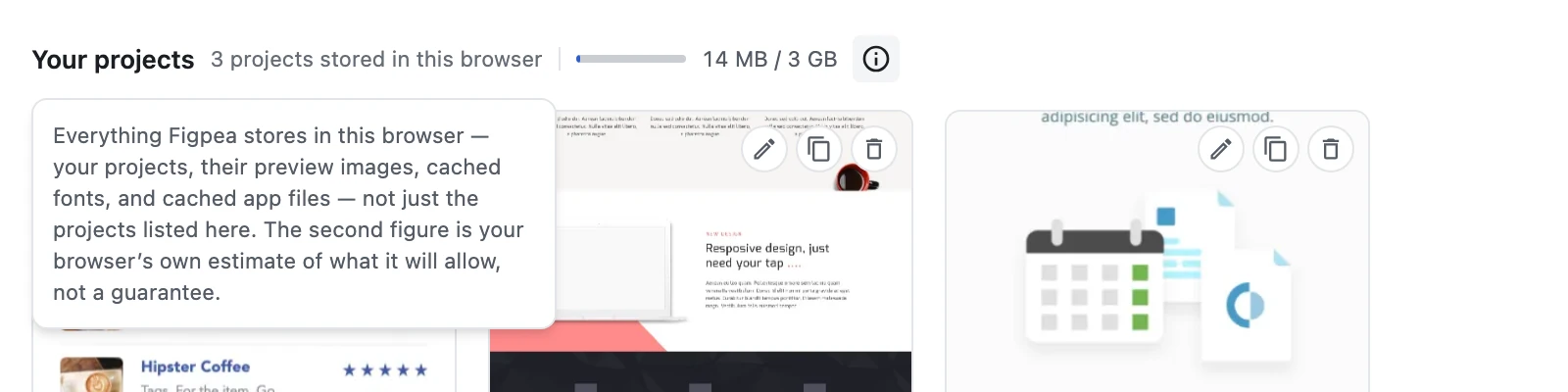
The Your projects heading row on the welcome screen carries a storage readout beside the project count: a thin bar, then how much room Figpea is using in this browser, then how much the browser will allow. The figures are read again every time you come back to the welcome screen, so a project you have just deleted shows up in them straight away.

- The figure is about this site in this browser, not about the projects listed beside it. It covers everything Figpea stores for this site: your projects, their preview images, fonts the editor has cached, and any app files it has cached. It is not a total of the tiles in the list.
- The second figure is what your browser reports it will allow. That is the browser's own estimate for this site, worked out from the room it can find on your computer — it is not a limit Figpea sets, and it is not the room left on your computer as a whole. It can be much larger or much smaller than you would guess, and it can change on its own as the computer fills up. Read it as an indication of the ceiling, not as a promise about it.
- The bar carries nothing the text does not. Both figures read on their own, and the bar is clamped between empty and full, so it is never the only way to read the proportion.
- Nothing is shown when the browser will not answer. No zero, no "unknown", no error message — the rest of the heading row is untouched. A missing readout means the browser declined to report a figure, not that something is wrong with your projects.
- It is not the size of one project. Figpea does not show how much one project takes on its own.
The i beside the figures opens the same explanation in the product, on hover and on keyboard focus.
Getting a copy you own
The local library is a convenience kept by one browser. An exported .fp file is the copy you own: a self-contained archive of the project's layers, styles and structure that survives clearing browser data, moving to another machine, or handing the work to someone else.
Use Export → Figpea to write one, and reopen it any time by dropping it back onto the editor. See Exporting for the formats and what each one keeps.
Common questions
Where does Figpea save my work?
In this browser, on this device, automatically. Every project you create and every file you open is captured into the browser's own storage and shows up in the Your projects list on the welcome screen — there is nothing to save by hand.
Is my work synced to my other devices?
No. Your projects are local to this browser on this computer. They are not a cloud save, they do not follow you to another browser or another machine, and nothing is shared with anyone else. Two tabs on the same project in this browser stay together — that is local to this browser, not a cloud sync.
What happens if I have the same project open in two tabs?
Your two tabs stay together: an edit in one shows up in the other without a reload, and adding or deleting a layer shows up too. If both tabs edit the same layer at the same moment, the tab that saves first wins and the other adopts it — only that one layer's later version is dropped. Changes coming from the other tab never enter your undo history.
Can I delete more than one project at a time?
Yes. Turn on Select in the Your projects header, tick the projects you want gone — or use Select all — and press Delete. Figpea asks once, for the whole selection, and says how many projects it removes. If one of them cannot be deleted, the others still go and Figpea names the one that stayed. Like a single delete, this removes the projects from this browser only, and it cannot be undone.
What happens to my project if the browser crashes?
The next time you open Figpea, the project is in Your projects, holding the last state Figpea had written. If the browser reopens the tab at the same address, Figpea opens the project straight away, because the address names it. Because capture is flush-based rather than tied to the tab's unload event, a hard kill can drop the last second or so of edits. Treat restore as recovery of what was written and an exported .fp as the copy you keep.
Does Figpea save changes back to my PSD, XD or Figma file?
No. The library stores Figpea's own project data, not your source file, and the .psd, .xd, .fig, .svg or .pdf you opened is never modified.
How much space is Figpea using in my browser?
The Your projects heading row on the welcome screen shows how much room Figpea is using in this browser against how much the browser will allow. The figure covers everything Figpea stores for this site in this browser — your projects, their preview images, cached fonts and cached app files — so it is larger than the projects you can see listed. It is read again each time you come back to the welcome screen.
Why is that storage figure bigger than my projects?
Because it is not a total of your projects. Figpea also keeps their preview images, the fonts the editor has cached, and any app files it has cached, and all of it sits in the same space and is counted together. The number is about this browser as a whole; the size of one project on its own is not something Figpea shows.
The storage figure is missing from the welcome screen. Is something wrong?
No. Some browsers, and some privacy settings, will not report a figure. When yours does not, Figpea shows nothing at all rather than an error or a zero, and the rest of the welcome screen behaves as usual.