 Figpea
What's New in Figpea v5.2.0: Photoshop Files That Composite Like Photoshop, and Designs Opened Straight from Google Drive
Figpea opens design files — Adobe XD, Photoshop (PSD/PSB), SVG, PDF, Figma and more — right in your browser. Nothing installs, nothing uploads, and you don't need an account just to look at a file. Your original file is never changed; Figpea only ever creates new files.
This release is mostly about Photoshop. A PSD is a compositing document, and Figpea had been treating parts of it as a picture: eleven blend modes silently fell back to Normal, four layer effects were read and then not painted, three colour modes decoded to plausible but wrong colours, and every paragraph in a text layer inherited the first paragraph's alignment. All of that is fixed here, measured against a real corpus.
Outside Photoshop, the headline is that you can now open a file straight out of Google Drive without downloading it first. There's no breaking change in this release — nothing you scripted against 5.1 stops working.
Photoshop: all 27 blend modes, and Subtract that actually subtracts
The browser's canvas gives you sixteen blend modes for free. Photoshop defines twenty-seven. The other eleven — Dissolve, Linear Burn, Darker Color, Linear Dodge (Add), Lighter Color, Vivid Light, Linear Light, Pin Light, Hard Mix, Divide and Subtract — had no native equivalent, so they fell through to Normal.
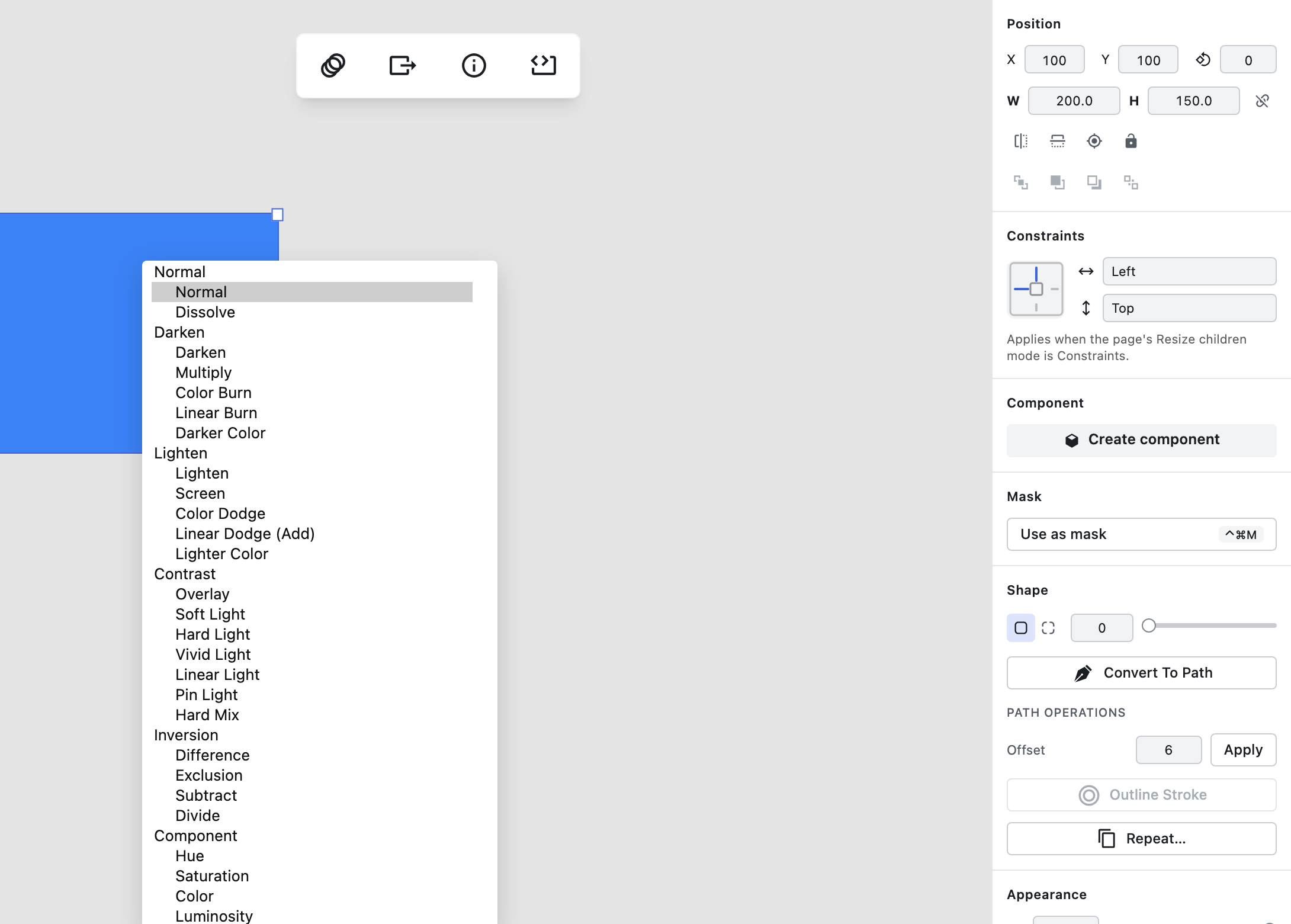
All eleven now run through a real per-pixel compositor, and each one is checked against the mode's own formula rather than eyeballed. Subtract is the one to know about, because it wasn't missing — it was wrong. It had been mapped to Difference, which is |a − b|; subtract is clamp(b − a). A layer set to Subtract rendered a believable, incorrect image with nothing to tell you so. Dissolve, which is stochastic by definition, is seeded per layer, so the same document renders identically twice.
The sixteen modes the browser already has stay on the fast native path — the compositor only runs for a layer that actually uses one of the new ones, which in our corpus is a small handful of layers per file. And where SVG or CSS export has no equivalent operator, the affected layer is rasterised into an image fill so it still looks right, with a warning recorded on the project's diagnostics rather than a silent difference.
Photoshop: four more layer effects, and effects that stop leaking down a group
Gradient overlay, pattern overlay, outer glow and inner glow are decoded out of Photoshop's lfx2 layer-style data and painted on the canvas. In the inspector each one appears as a read-only summary row — its swatch, its key parameters and an enable toggle — rather than a full editor; if you want to change the parameters today, figpea.layer.stylePatch() on the scriptable API takes all of them.
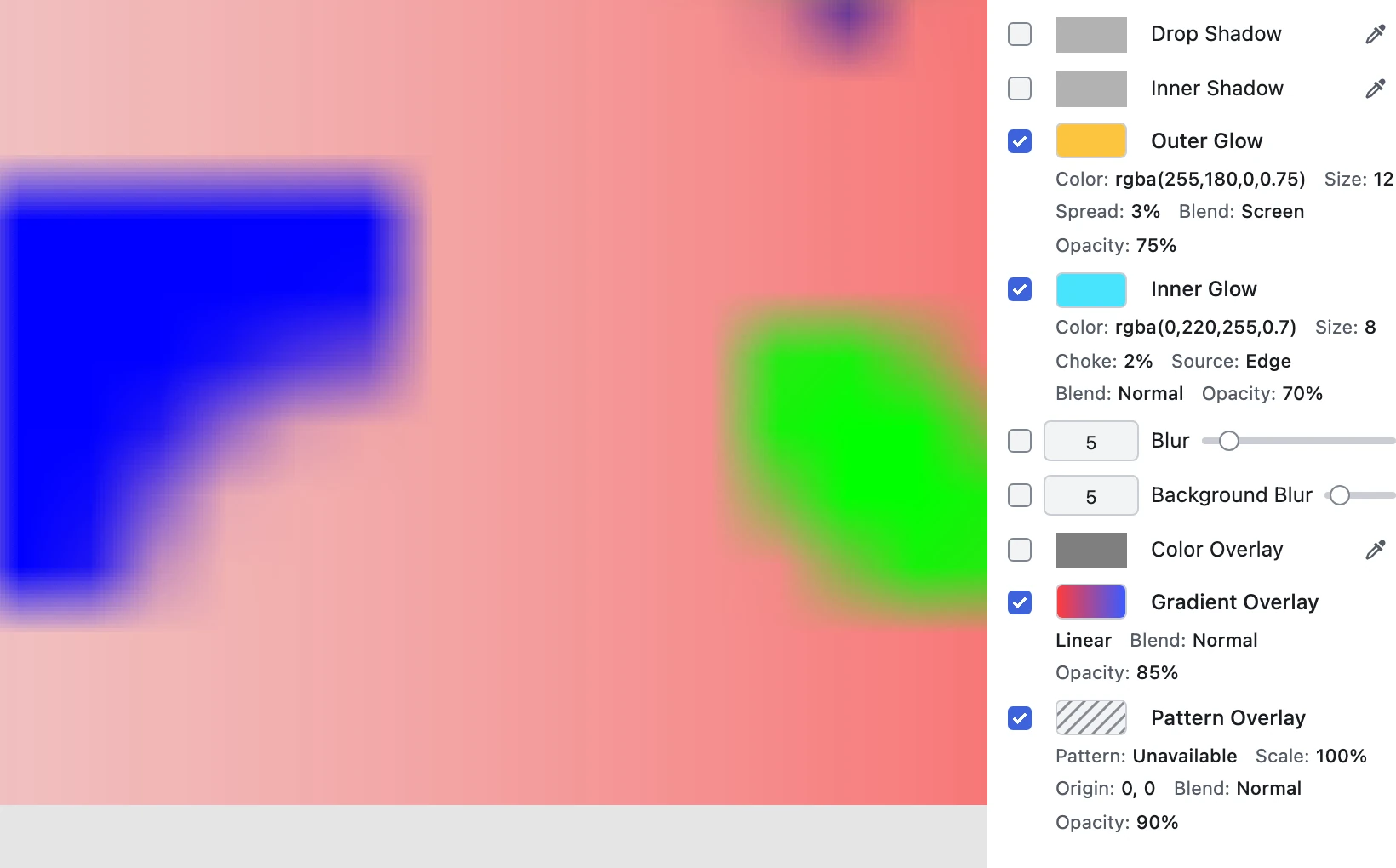
Two structural defects on the same surface went with them.
A group's effects were being applied to every layer inside it. In Photoshop a group's layer style applies once, to the group's composited result. Figpea resolved a layer's effects by walking up to the nearest ancestor that had any — so a group with a drop shadow gave that same shadow to every child, and then painted it once more on the group itself. A group's effects are now the group's alone.
Photoshop's multi-instance effect lists are read properly. You can stack up to ten drop shadows, inner shadows, colour overlays, gradient overlays or strokes on one layer. Figpea read only the drop-shadow list, and only its first enabled entry — so a second shadow disappeared, and a stroke or inner shadow expressed as a list disappeared entirely. All five lists are now read, and every enabled entry is painted in file order.
Photoshop: colour modes that were quietly wrong
Channel decoding used to branch on how many channels a file had rather than on the colour mode it declares. Three modes came through confidently wrong, with no warning:
- Lab files were decoded as if they were RGB — L*a*b* values painted straight into red, green and blue. The result looks like a picture. It is not your picture.
- Indexed files were decoded as greyscale, because the palette lives in a section of the file Figpea never parsed.
- Duotone files were likewise flattened to a grey ramp, ignoring the ink specification.
All three now read the colour mode, parse the section that carries the palette and ink spec, and convert to sRGB. CMYK files, which previously threw an opaque "couldn't open this file", now open with converted colour — approximate, because Figpea does no ICC colour management yet, and the warning says so rather than implying print accuracy. A mode still outside this list (Multichannel) opens using the embedded composite with a warning naming the mode. RGB and greyscale files decode byte-identically to before.
The rule we applied throughout: a thrown error is honest and a warning is honest; a confidently wrong picture in a tool whose whole value is fidelity is not.
Photoshop: text where every paragraph keeps its own alignment
Three text defects, all common enough to hit ordinary files.
Only the first paragraph's properties were read. A text layer's paragraph properties are a run array, one entry per paragraph, and Figpea took index 0 for the whole layer — so a centred heading followed by left-aligned body text rendered entirely centred. Every paragraph now carries its own properties, including indent and space-before/space-after.
Justified text rendered ragged-left. Only "right" and "centre" were mapped; the four justify variants all defaulted to left. They're now mapped and rendered.
Point text was forced into a fixed-width box. Photoshop distinguishes point text (auto-sizing, no wrap) from paragraph text (a box that wraps), and Figpea gave every text layer a box the width of its Photoshop-rendered bounds. Since a PSD embeds no fonts, the moment a font was substituted the text re-wrapped where Photoshop hadn't. Point text is now left unboxed; paragraph text still wraps at the file's own box width. Vertical writing, text warp and text-on-path aren't rendered — the file opens and a warning names the construct, instead of the layout quietly going wrong.
Open a file straight from Google Drive
If the file you want to look at is already in Google Drive, you no longer have to download it first.
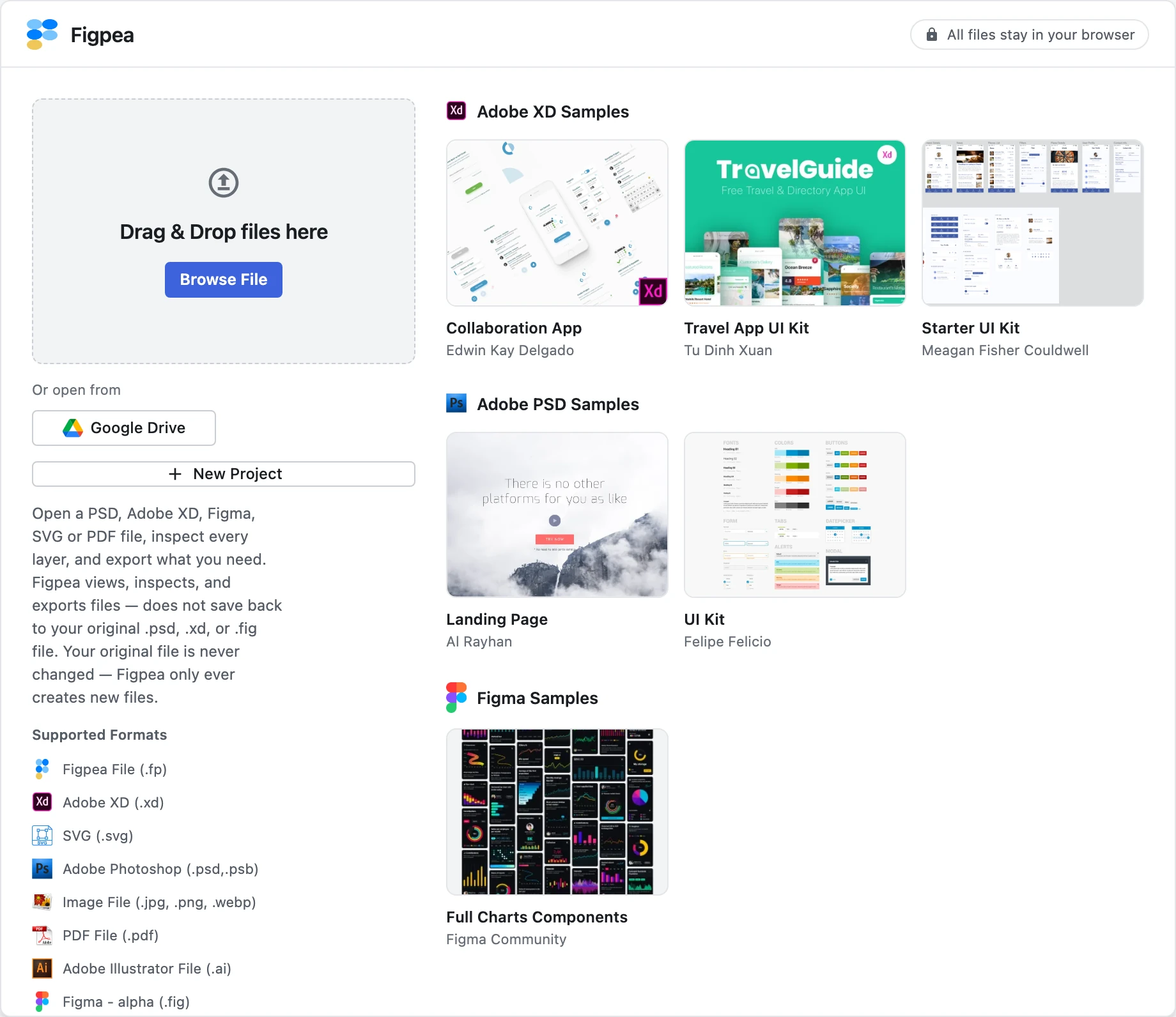
Click Google Drive on the welcome screen, pick a file, and Figpea fetches its bytes directly from Google into your browser and hands them to the same decoder a drag-and-drop open uses. The file still never reaches a Figpea server — this is a browser-to-Google fetch, not an upload.
The permission Figpea asks for is Google's narrowest: drive.file, a per-file grant covering only the files you pick with the picker. There's no Drive-wide read access, no refresh token and no background access — the token is used for the one fetch and nothing else.
Two honest limits. This is the Figpea-side picker only. Figpea does not yet appear in Drive's own right-click "Open with" menu; that needs a Google Workspace Marketplace listing, which is a separate, external review process and isn't part of this release. And OneDrive isn't live — the adapter and button ship inert and don't render, because there's no Figpea-owned Microsoft account to register the app against yet. If you're wondering where the OneDrive button went: it was never switched on.
Repeat can produce linked copies
Repeat lays a shape out along a path, around a ring, or in a grid. Until now every copy was an independent clone, so changing the pattern meant editing each copy by hand.
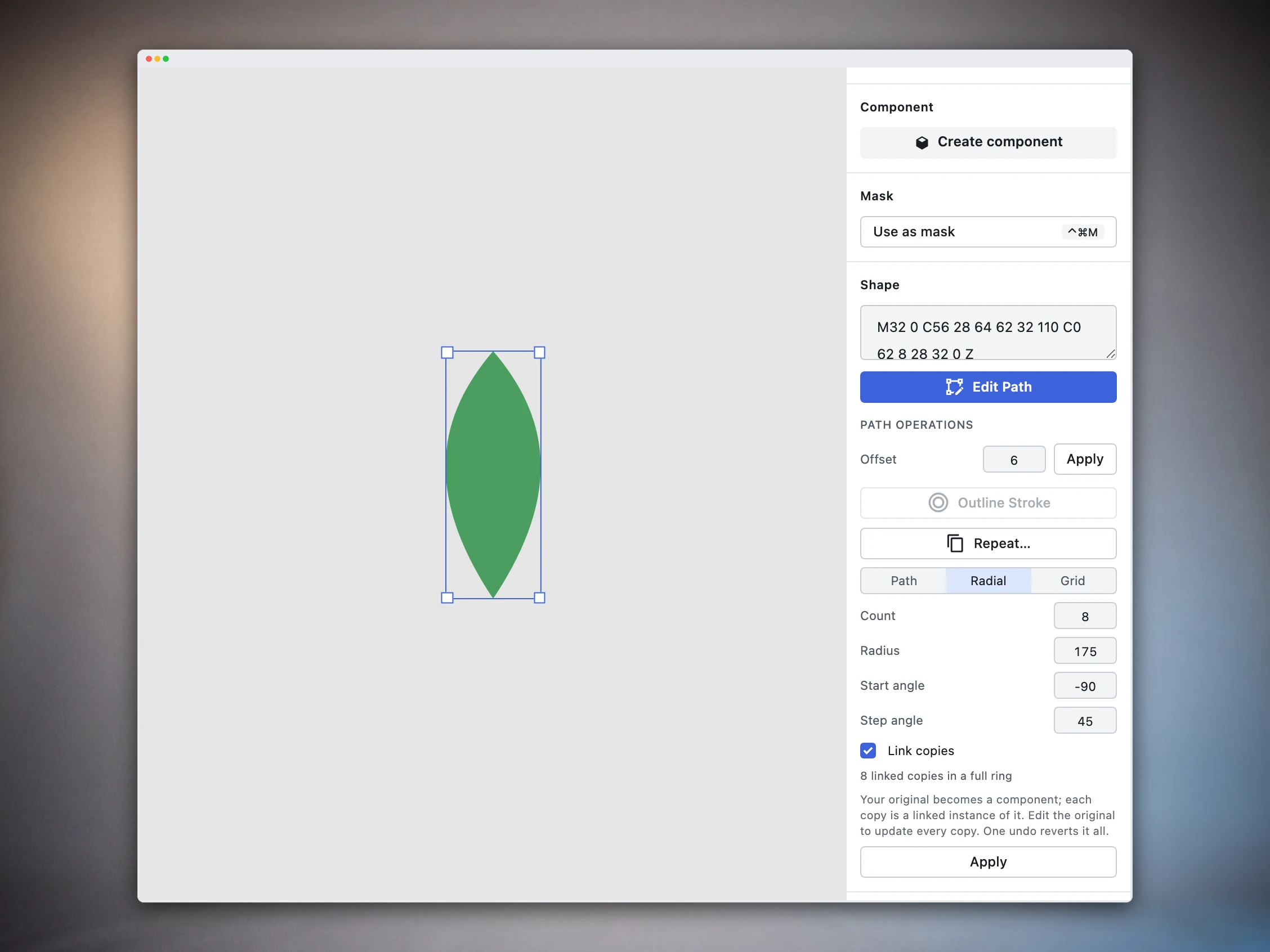
Tick Link copies before you apply, and the source converts into a component master in place while the generated group is filled with linked instances of it. Recolour the original, change its path, and every copy follows. If the source is already a component master — or an instance of one — that master is reused rather than a second one being created.
The toggle is off by default, so the un-ticked behaviour is byte-for-byte what 5.1 shipped, and the copies land at identical transforms either way. One undo removes the whole group and reverts the source from a component back to the plain layer it was, in a single step. The layout itself is still placed once, not live: moving or resizing the master doesn't re-flow the copies — only its content propagates.
Make same width, make same height
The Align section gained two operations that resize instead of reposition.
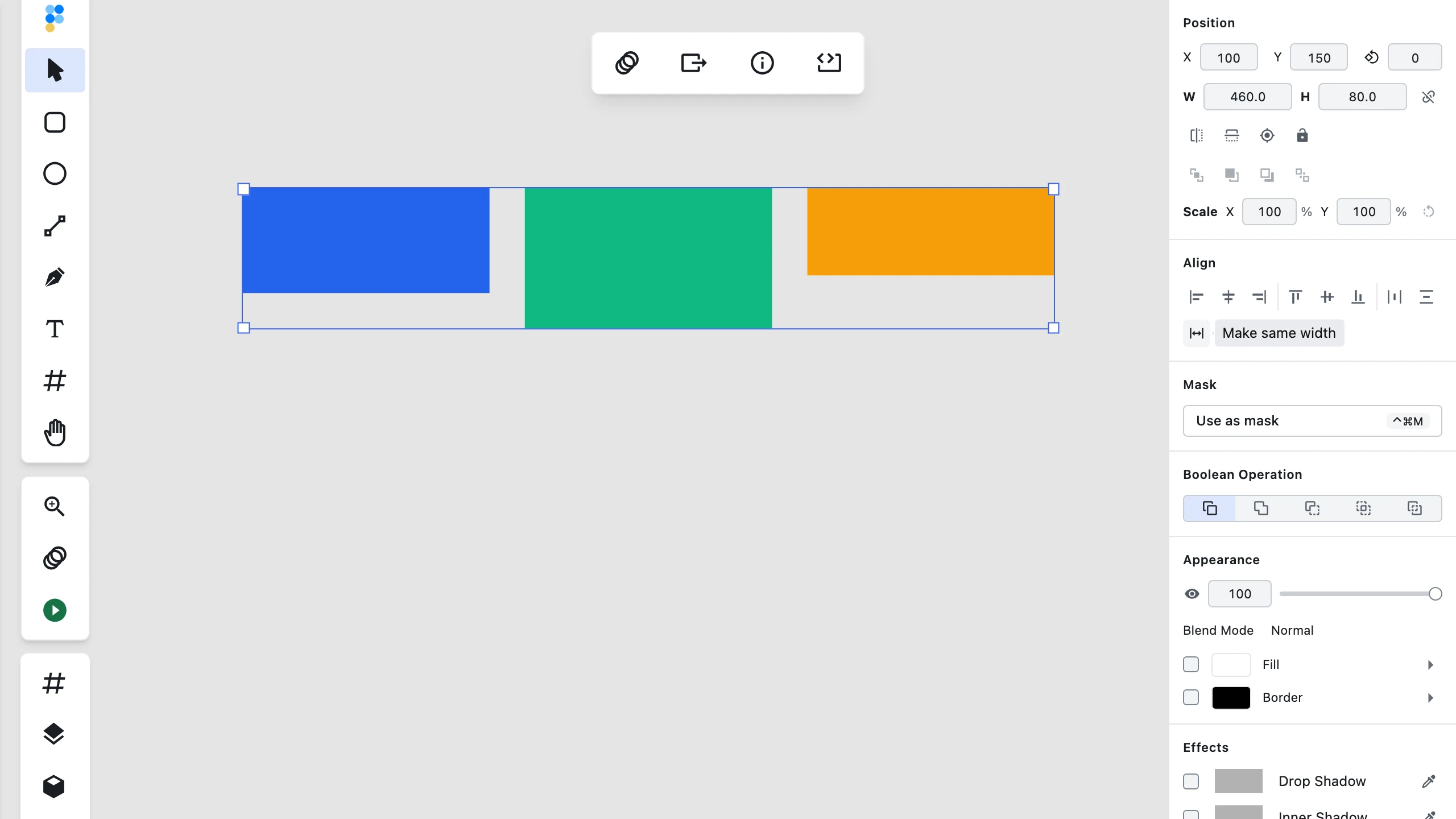
Select two or more layers — or a folder with at least two children — and Make same width / Make same height resizes every one of them to match the largest in the selection. Only the targeted axis changes; the other is left exactly as it was, so nothing is quietly stretched. Each layer keeps its top-left corner fixed, so equalising sizes doesn't also move things around. Locked and hidden layers are skipped, and don't count toward the maximum either. It's one undo step however many layers resized, and if everything already matches, clicking does nothing and creates no undo entry.
A group's scale is finally visible — and resettable
Resize a folder or group in the default Content layout mode and the scale factor lands on the group's own matrix, where children inherit it. That's the right rendering strategy, and it used to leave the group carrying an accumulated, unbounded, completely invisible multiplier. After a few drags a group could sit at 173% × 41% with nothing in the interface willing to tell you, and every downstream number — child sizes, stroke widths, rendered font sizes — meaning something different from what the panel said.
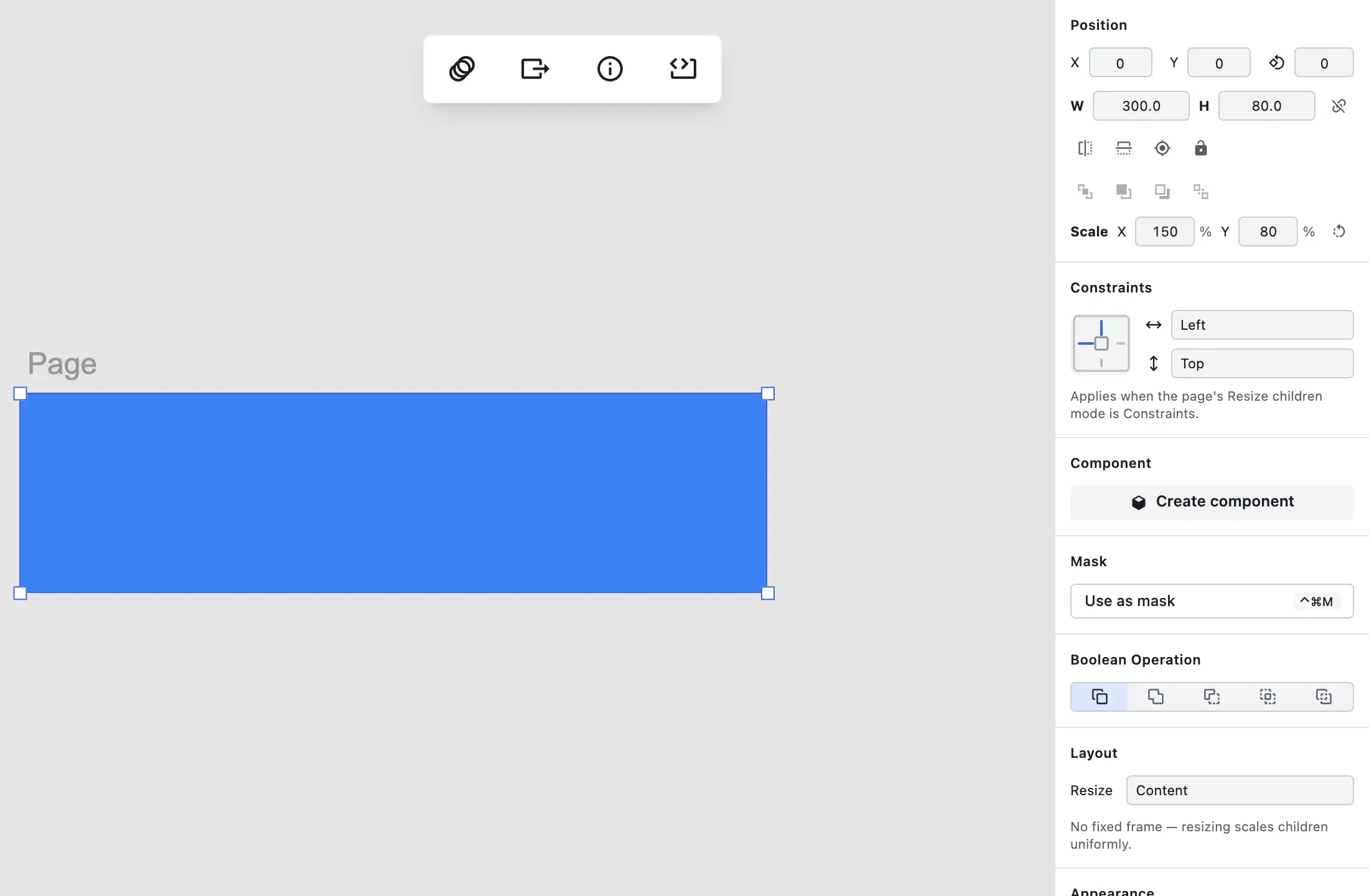
The Position section now shows Scale X and Scale Y as percentages you can read and type into, plus a Reset Scale button. Reset means revert, not bake: the group snaps back to its natural, unscaled content size and every child's own transform and geometry is left byte-identical. Rotation and position survive — only the scale components change — and each set and each reset is one undo step. The button disables itself at exactly 100% × 100%. For a group in Viewport or Constraints mode the controls appear only when a residual scale is actually there, so an old file's leftover multiplier is still visible and still repairable.
Radial gradients rotate
A radial gradient's field is stretched by the layer's aspect, so on any non-square layer it renders as a visibly elongated ellipse — and until now that ellipse was locked to the horizontal. There was no way to turn it: not on canvas, not in the panel, and the Rotate 90° button was greyed out with "not available for radial".
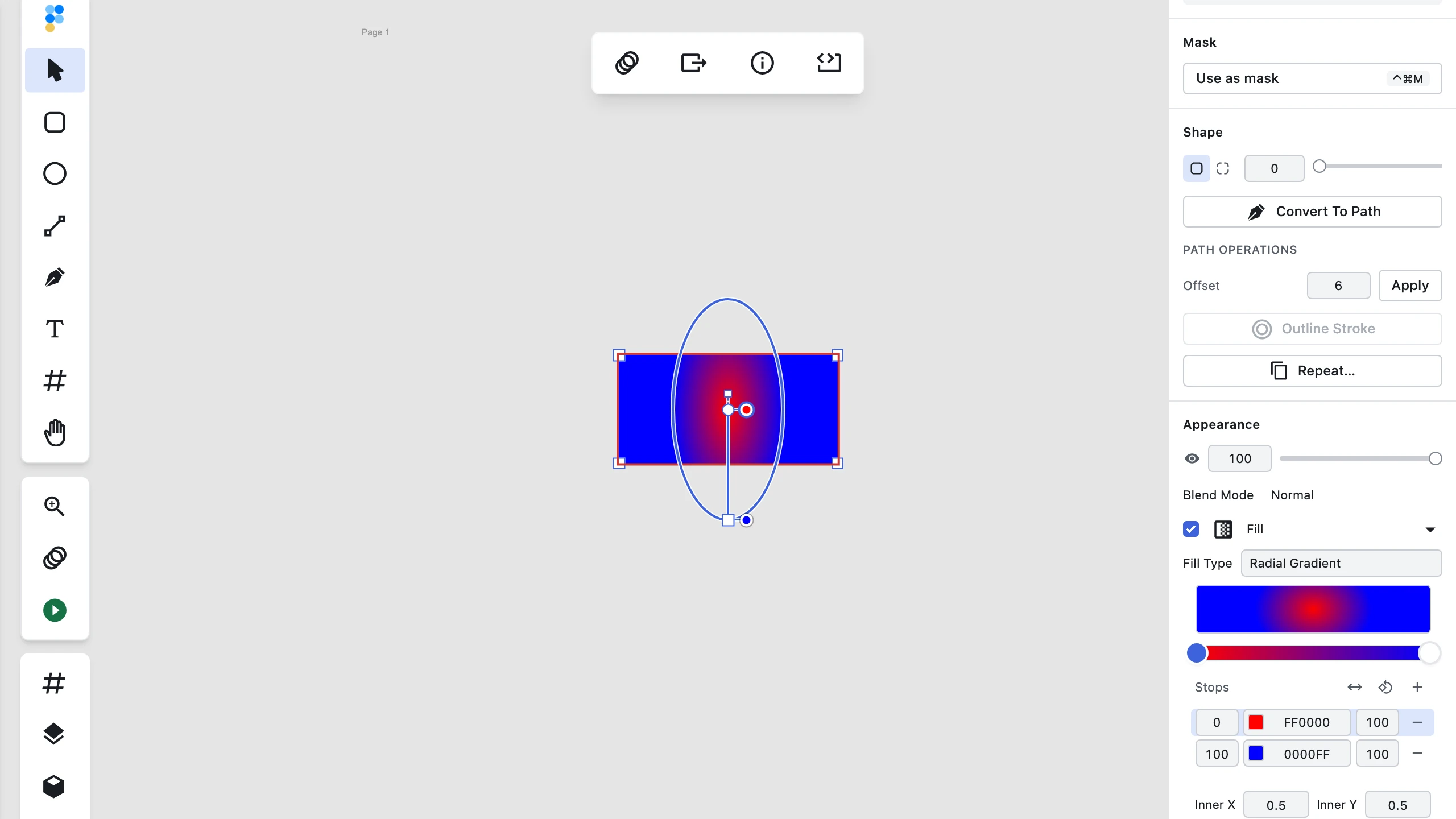
The inner and outer radius handles the tool already draws are now free-direction: their angle about the centre sets the rotation and their distance sets the radius, and the overlay's axis line, hairline and both ellipses redraw at that angle so you can see what you're doing. There's an Angle (Deg) field in the panel's Radial section for an exact value, and Rotate 90° is enabled for radial and advances a quarter turn.
The rotation is rigid — the ellipse turns as a body and keeps its shape, rather than spinning and re-elongating as a naive matrix rotation would. A gradient imported with genuine shear keeps that shear; only its angle moves, and the degrees field reads back the matrix's true rotation instead of pretending it's zero. Each rotation gesture is one undo step, and the angle survives an SVG export round-trip.
No new handle was added for any of this, deliberately. The rule now holds across all three gradient types: rotation is never its own anchor — the handles that already define the gradient's geometry carry it.
One gesture removed: dragging the layer body no longer redefines the gradient
While a gradient is being edited, a drag anywhere over the layer's body used to rewrite the gradient's geometry outright — both linear endpoints replaced, or a radial's centre jumped to where you started with its inner circle collapsed onto it. There was no modifier and no mode: the same pointer-down on the same pixels meant "adjust this" or "start over" depending only on whether it happened to land on a handle. A carefully placed gradient could be discarded by one stray three-pixel drag.
That gesture is gone. The handles are the only thing that authors a gradient. A click or drag on the layer body does nothing at all — and, importantly, still doesn't dismiss the overlay. Escape and a click outside the layer close it exactly as before, and the crosshair cursor that advertised the removed gesture is gone with it. Every handle behaves identically to 5.1.
Adding an asset follows your selection
Clicking Add to canvas on an Assets-panel image used to place it on "the page you're looking at" — the page under your viewport centre, or failing that the most-visible page, which could be off-screen. With a page anywhere on screen you could never get an image onto the root canvas, and panning could land one somewhere you weren't looking.
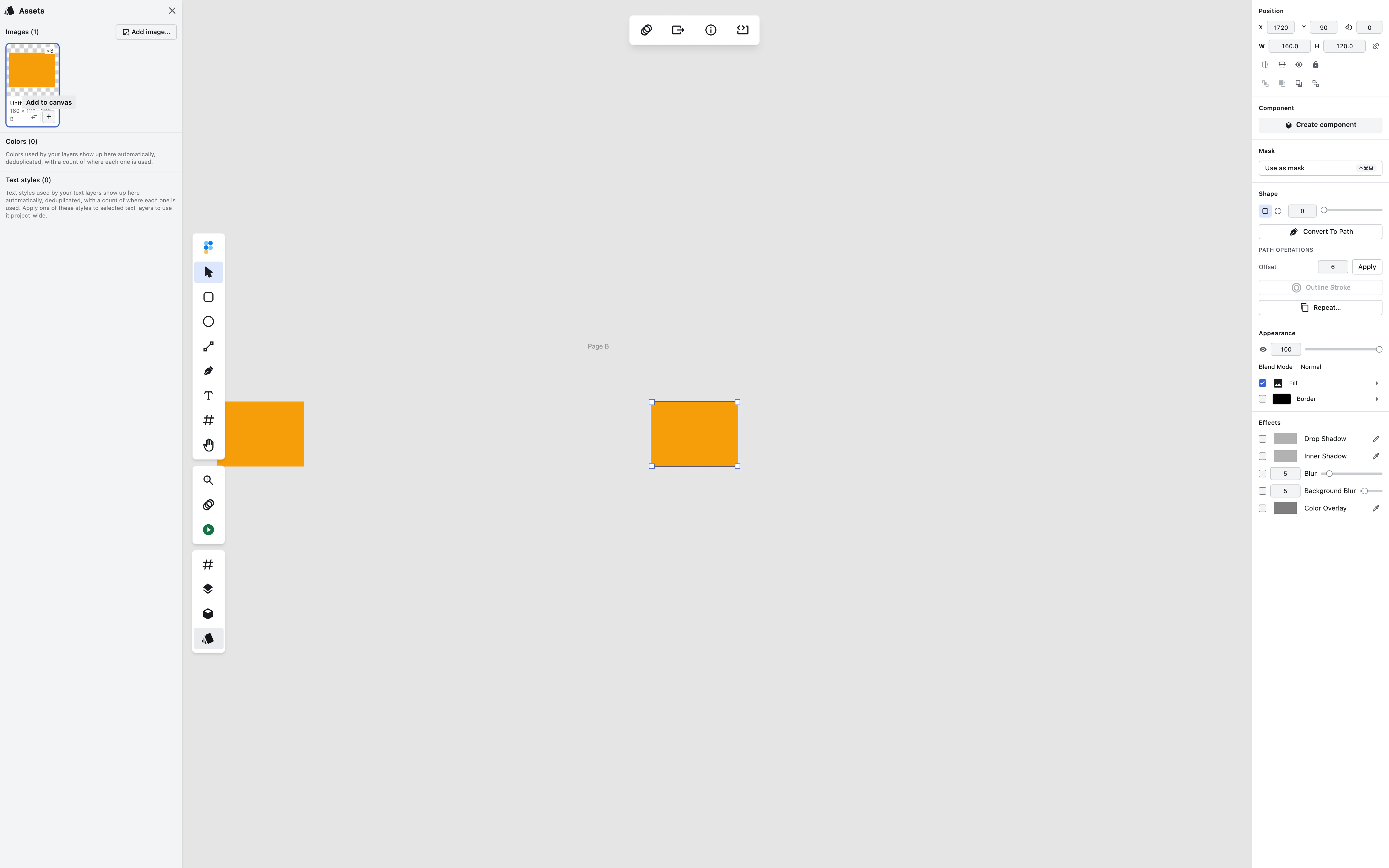
Now your selection decides. A selected page, or a selected layer inside one, puts the image on that page — even when a different page sits under the viewport centre. Nothing selected puts it on the root canvas at your viewport centre. A multi-select that resolves to one page lands there; one spanning pages goes to the root. The camera never moves, and it's one undo step. figpea.layer.placeProjectImage on the scriptable API follows the same rule, so a script places assets exactly where the button does.
One thing the docs are now careful about: the layer is always parented correctly, but it's only guaranteed visible when its placement point is in the viewport. Add to a selected page that's off-screen and it lands correctly on that page — you may have to pan to see it.
Figma cards get their fills back
Opening .fig files, every dashboard card on a real Figma community file rendered with no background fill, no corner radius and no drop shadow — content floating on the page background. The same loss hit buttons, pills, chips and tooltip badges, leaving their labels apparently orphaned in mid-air. On one artboard the missing white card fills alone accounted for roughly half the page.
Container frames now render their fill, corner radius and drop shadow, and the button, pill, chip and badge fills come through with them. The nested fills that already rendered correctly are unchanged.
For scripts and agents
figpea.component.removeStateandrenameStateclose a one-way door: a script could add a component state and then had no programmatic way to remove or rename it, so every mistake was permanent for the rest of the session. Both reject an instance target with a real error rather than quietly mutating the master and every sibling instance you never named — states are authored on the master by design. Their undo behaviour is documented from a measurement, not an assumption:renameStatecosts one undo step,removeStatecosts none.- The public agent-API reference caught up with the contract.
/docs/agent-apinow documents the fullfigpea.componentsurface including the six instance-override methods, the complete blend-mode enum with the HSL modes, and the full set of interaction triggers and actions — all of which had shipped in the editor without ever being written down publicly. Thefigpea-agentskill published on the site is now verified byte-identical to the editor's own canonical copy on every build. - The scriptable API is explicit that the UI's trial graces don't apply to it. The editor lets a Free user take a few scaled exports and page through the first few presentation screens before the paywall fires; programmatic export calls enforce entitlements strictly, with no such allowance. Both pages now say the same thing.
Assets panel: the Text styles defect we flagged last release is fixed
Last release's notes admitted, in writing, that the new Text styles section listed many styles twice — one row's caption ending · ls 0 and the other omitting it — because it treated "letter spacing unset" and "letter spacing 0" as two different styles, and that with line height in play one style could square into four rows. That's fixed.
Style identity is now normalised before it's compared, so unset and 0 are one style, and a colour written as #2463d9 and the same colour written as rgba(36,99,217,1) are one style too. Two related defects went with it: a text run that overrides only its size no longer loses the layer's font family and shows up as a blank specimen, and a run that overrides only its colour is no longer dropped from the list entirely.
Site: what Figpea does with your file, said plainly
Word-of-mouth and social listening kept showing people arriving expecting Figpea to edit an .xd or .fig and save back into the original file. It doesn't — there is no .xd encoder, and there never has been. Better that you read that before you invest an afternoon in a document than after.
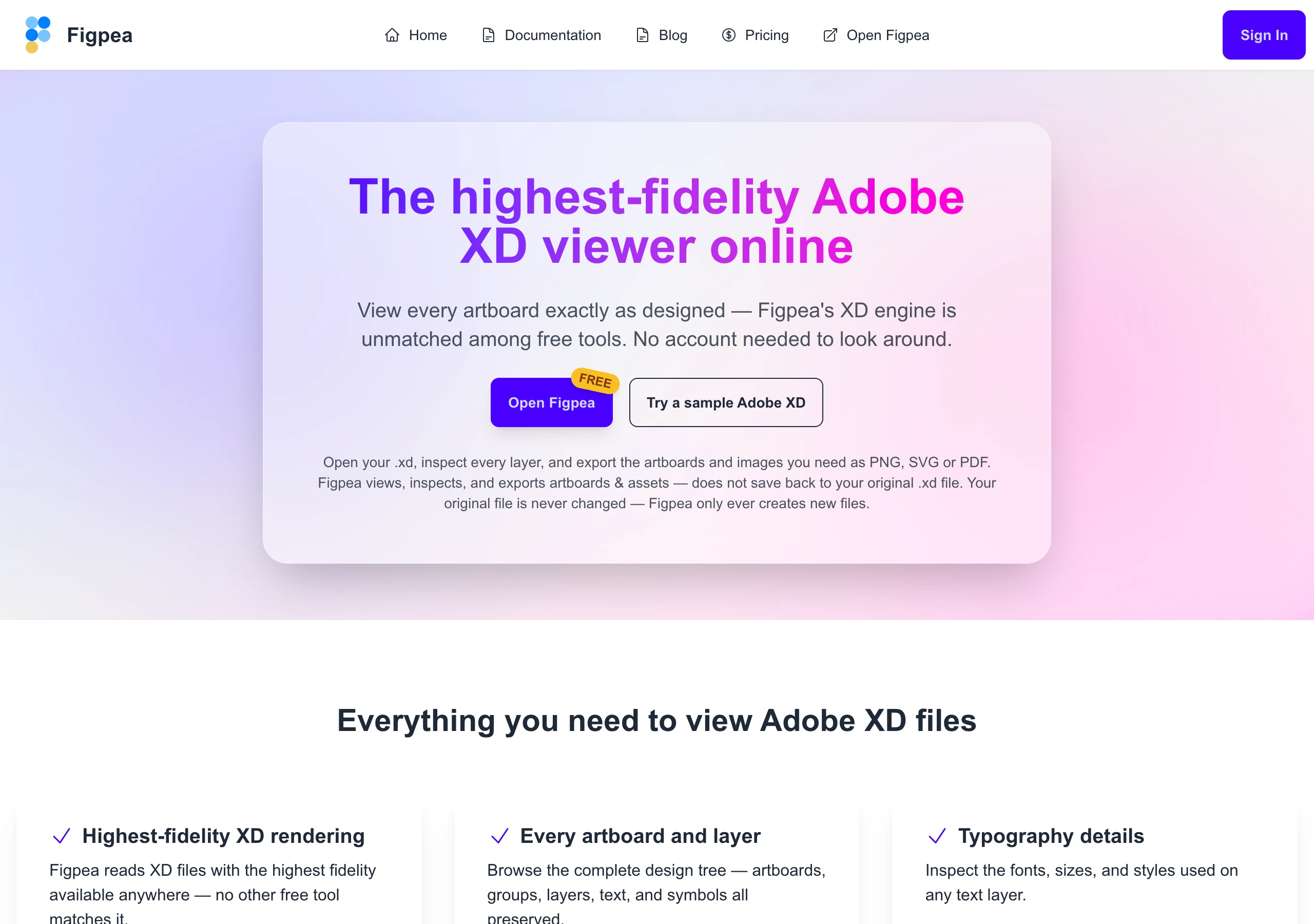
The /xd-viewer, /psd-viewer and /figma-viewer landing pages now state it directly, and so does the editor's own empty state. What Figpea gives you is the file opened faithfully, every layer inspectable, and clean exports — PNG, SVG, PDF, ZIP, JSON — that are new files alongside your original.
Those same three landing pages also gained SoftwareApplication and FAQPage structured data, because a growing share of our visitors now arrive from an AI assistant that read the page rather than from a search result a human clicked.
And a batch of documentation caught up with the product: the 27 blend modes and the four new layer effects are documented with real captures from the running editor; the "Smart Objects" section is rewritten in Figpea's own component-and-instance vocabulary instead of borrowed Photoshop terms; the XD rescue guide finally mentions the health report's Import issues section, which is the part of that report that actually tells you whether your rescue was faithful; and /docs/plans now discloses the Free trial graces — six scaled exports per session, the first few presentation screens — instead of describing a boundary the app doesn't enforce.
Two corrections worth naming, because both were us claiming something untrue. The advanced layer-operations page listed "Blend if conditions" as a shipped capability; Photoshop-style tonal-range sliders have never been implemented in Figpea, and the line is gone. And two blog posts carried hero images that were AI-generated illustrations with visibly garbled, misspelled type — "RESITE", "ROTOTE" — which are now real screenshots of the running editor. Every image in this post, and in our docs, is a capture of the actual product.
Fixes worth naming
- A
.zipcontaining nothing openable no longer hangs the open. It now fails cleanly and tells you what the archive actually holds. - An Adobe XD file missing an expected entry decodes anyway. A single absent zip entry used to abort the whole decode.
- A Figma boolean-operation folder with no children no longer produces a storm of unhandled errors.
- The project report shows an error in the error colour. Errors were being painted with the warning styling, which made a genuine failure read as a caution.
- Snapping no longer clobbers a zero-delta move, and a resize keeps the corner you're dragging from fixed.
- The canvas coordinates are right when the top banner is showing — everything used to sit at a vertical offset.
- A conic gradient's overlay no longer draws a duplicate circle, and a fresh radial gradient's overlay ring is drawn at the radius the renderer actually paints.
Reliability
One paragraph, because none of it is visible. The site's sitemap is regenerated and its lastmod values come from a committed source, so two builds of the same content produce byte-identical output and a new page can't silently go missing from it. A guard now fails at development time if a new docs article isn't reflected in the production smoke checks, instead of the rot being found after a deploy. Twenty-two requirements whose smoke specs failed against real production last cycle were worked through one at a time — each classified on the record as a spec bug or a product bug, never batch-greened. And a test-isolation defect that let one test's dev server write into another test's snapshot window is gone.
Try it
Everything above is live now. Open Figpea, drag in an XD, PSD, SVG, PDF or Figma file — or pick one straight out of Google Drive — and have a look. It's free to open, inspect and edit, and a single 1× asset export is free too; when you need batch export, any-scale extraction or presentation playback, Pro covers it.