 Figpea
What's New in Figpea v5.1.0: Gradients You Can Drag, Real Masks, and a Removal from the Scriptable API
Figpea opens design files — Adobe XD, Photoshop (PSD/PSB), SVG, PDF, Figma and more — right in your browser. Nothing installs, nothing uploads, and you don't need an account just to look at a file. Your original file is never changed; Figpea only ever creates new files.
This release is mostly about editing what you've opened: gradients you shape by dragging on the canvas instead of typing coordinates, masks that are finally a real named property, alignment, repetition, path operations, and arithmetic in every numeric field. Photoshop import also got substantially more faithful.
It also removes two pairs of parameters from the public scriptable API, which is the one thing here that can break something you already built. That's next, so you can't miss it.
Breaking: layer.create no longer takes a shape's own origin
If you script Figpea or drive it from an AI agent, read this before you upgrade. If you only use the editor by hand, nothing you do changes — skip to the gradients.
On window.figpea, layer.create no longer accepts a shape's own origin. rect's x and y, and ellipse's cx and cy, are gone from the published schema. A call that returns {ok: true} on 5.0 returns {ok: false} here, and creates nothing:
// 5.0: {ok: true}.  5.1: {ok: false, code: "invalid_transform"}, nothing created.
await figpea.layer.create("rect", { parentId, x: 172, y: 86, rwidth: 14, rheight: 17 })
// → 'create("rect"): these props do not apply to kind "rect": x, y.'

// The one supported way to place a layer: create its extent, then position it.
const rect = (await figpea.layer.create("rect", { parentId, rwidth: 14, rheight: 17 })).value
await figpea.layer.setPosition(rect.id, { x: 172, y: 86 })
// bounds → { left: 172, top: 86, right: 186, bottom: 103 }
The same applies to create("ellipse", {cx, cy, rx, ry}). The error names the offending props rather than silently ignoring them, and nothing is created — so a script that hasn't been updated fails loudly instead of quietly placing a layer at the origin.
What to change: drop x/y (or cx/cy) from the create call and add a setPosition call after it. A script that already positions with setPosition is unaffected.
This is the second half of the change 5.0 started. In 5.0, setPosition began acting on a layer's visible box, which fixed the symptom while leaving the cause — a shape could carry its position in two different places at once. Now a shape's local geometry always begins at (0, 0) and placement lives entirely in the layer transform, so no verb has to know about two origins and the next verb we add can't reintroduce the same class of bug.
A .fp project saved before this change migrates when you open it: shape offsets move into their transforms exactly once, geometry unchanged. A project saved after it still opens in an older build.
Be clear-eyed about the version number: this is a removal from a published API shipping in a minor release. The product's own version understates it. The API's contract version does not — it went to 1.0.0, and figpea.version reports that, so tooling that needs to gate on the contract can.
Gradient editing, on the canvas
Defining a gradient used to mean typing numbers between 0 and 1 into text boxes and checking the result. Pick a gradient fill now and its handles appear over the layer itself: a line with an anchor at each end for a linear gradient, a centre and a radius ring for a radial one, a centre and an angle dial for angular, plus one draggable handle per colour stop.
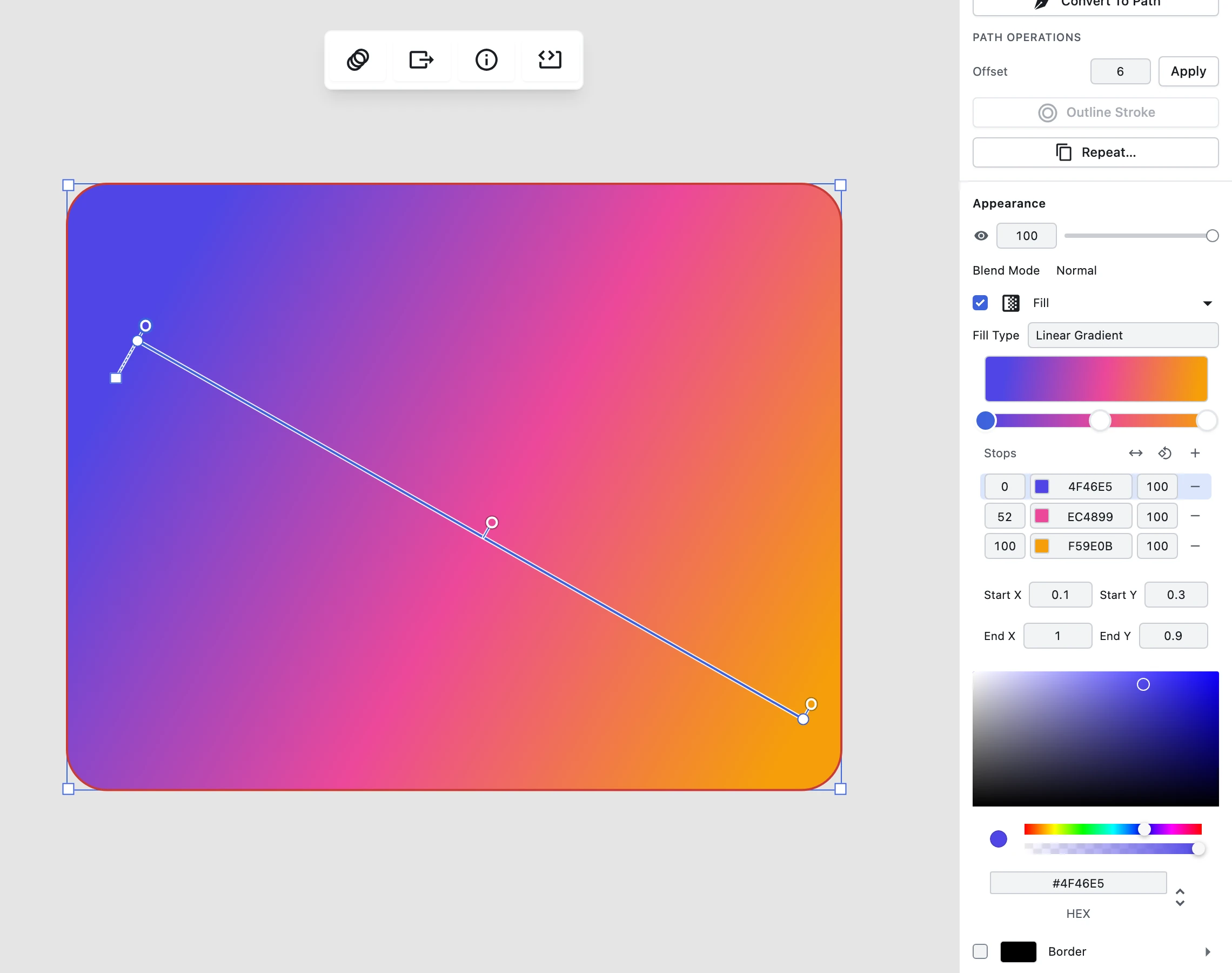
Drag across the layer as you pick the type and the gradient is defined in one stroke. Slide a stop along the line to move it, and the fill updates live while you drag. A third, perpendicular handle on a linear gradient widens or skews the colour band. Escape closes the overlay, the handles keep the same on-screen size at any zoom and on a rotated or scaled layer, and each gesture is a single undo step.
The panel side got the other half: the gradient section now lists one row per stop with a numeric offset, a hex readout and a per-stop opacity you can type, a visible remove button — deleting a stop used to be an undiscoverable right-click — a visible add button, and Reverse and Rotate 90° actions on the header. The ramp preview is drawn by the same code that paints the canvas, so a radial previews as a radial, an angular as an angular, and a vertical linear vertically, instead of always showing a left-to-right strip.
Underneath, the renderer's three gradient types now agree on one interpretation of a gradient's matrix and one unit convention. That's what makes a skewed band, a rotated angular sweep and an imported PSD gradient's offset land where the file says they should. It also fixes the overlay on imported art: for an angular or radial fill carrying a transform — which every SVG and Figma radial import has — the ring used to be drawn at the stored centre while the paint converged tens of pixels away, and dragging the centre made the handle run away from the pointer. The overlay now reads the renderer's own geometry, so handles land on the painted field and a drag puts the painted centre under the cursor. Switching a linear gradient to Angular also no longer carries the linear width/skew matrix across, which used to leave an invisible shear the panel gave you no way to clear.
Align and distribute
Select two or more layers — or select a group or folder — and a new Align section appears in the properties panel.
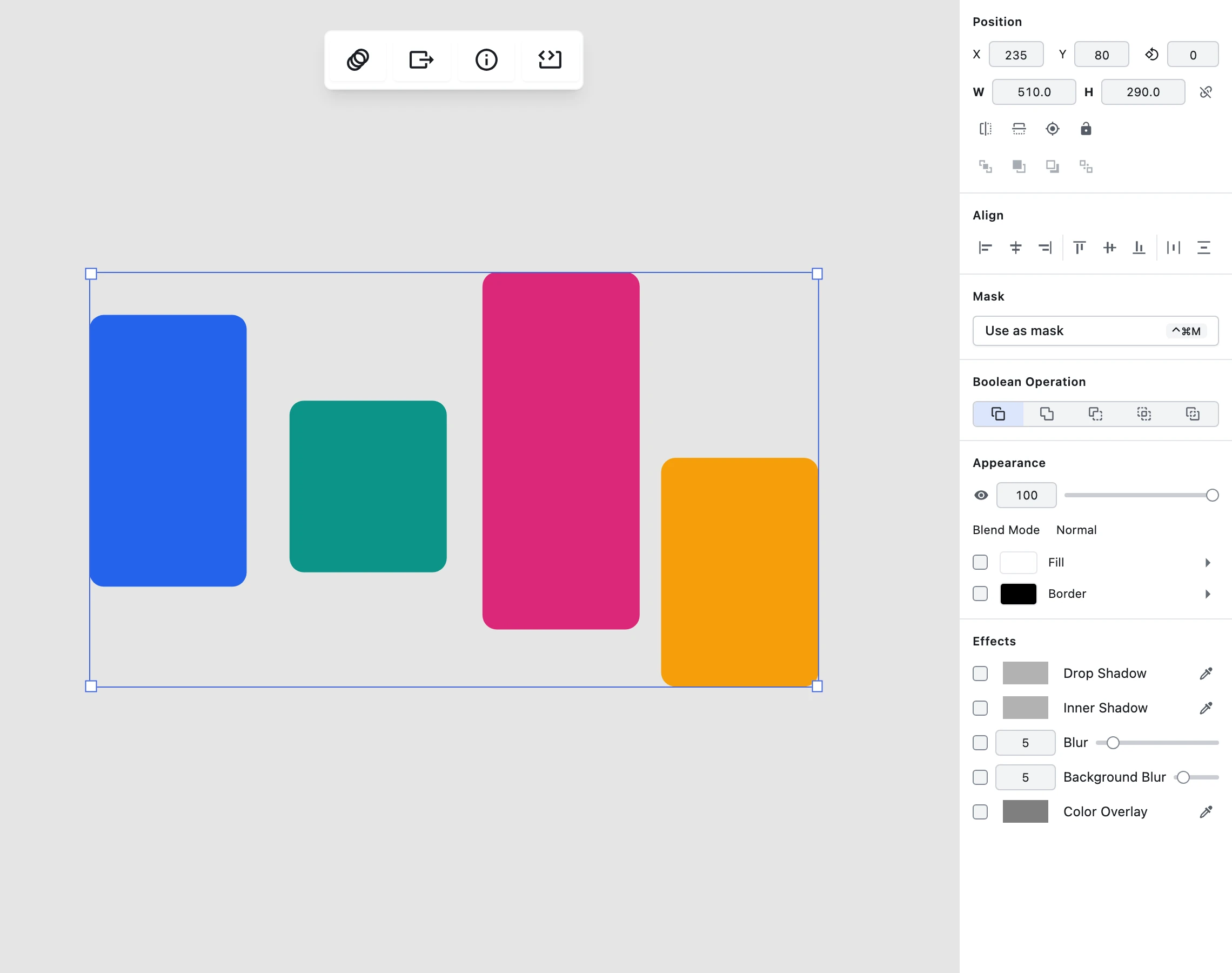
It aligns left, horizontal-centre or right edges, and top, middle or bottom edges; with three or more selected it distributes them with equal gaps while the two outermost stay put. Everything is measured on each layer's on-screen bounding box, so rotated layers behave predictably. Locked and hidden layers are left out of both the move and the measurement. Each operation is one undo step however many layers moved.
Masks are a real, named property
This is the biggest structural change in the release. Which kind of masking a layer got used to be inferred from incidental geometry — a rectangle that happened to carry an image fill was silently given an alpha mask instead of the rectangular clip you asked for. Now you declare it.
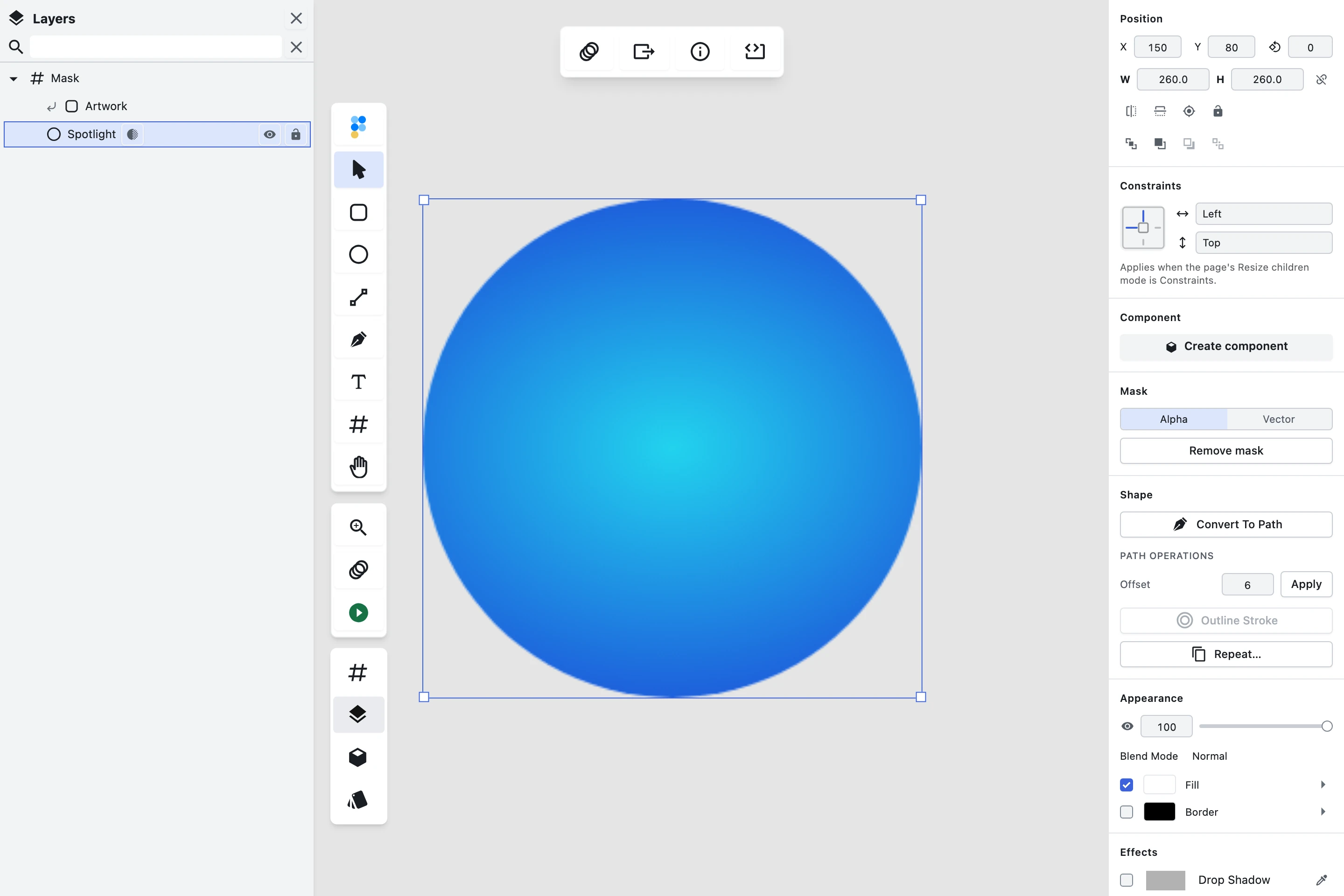
Use a layer as a mask with an explicit Alpha or Vector type, from the new Mask section in the properties panel or with ⌃⌘M / Ctrl+Alt+M, and remove it from the same place. Alpha carves the covered content with the mask's own alpha, so a semi-transparent, gradient or image-filled mask gives a soft result; Vector clips to the mask's geometry, hard-edged, and the fill is irrelevant. Each operation is one undo step.
The layer list finally shows all of it: the mask layer's row is marked, every row the mask affects carries its own marker, the Alpha and Vector variants are visually distinct and labelled, and activating a marker reveals the counterpart. A mask outline can be shown on canvas without changing the document. The old paperclip clip chip and its row buttons are retired in favour of this.
One rule worth knowing, because it decides what a mask does: a mask affects the layers in front of it inside the same parent, and stops at the next mask. Masks imported from PSD, SVG, XD and Figma files read into the same model and are indicated correctly with no authoring on your part — including the common Photoshop case where the base sits at the bottom of its group, which previously resolved to no mask at all.
There's a docs page for the whole model: Masks.
Layer ordering without the layer list
Bring forward, send backward, bring to front and send to back are now buttons in the properties panel, keyboard shortcuts (Cmd/Ctrl+] and Cmd/Ctrl+[, with Shift for front and back), and a right-click menu on the canvas — the editor's first context menu.
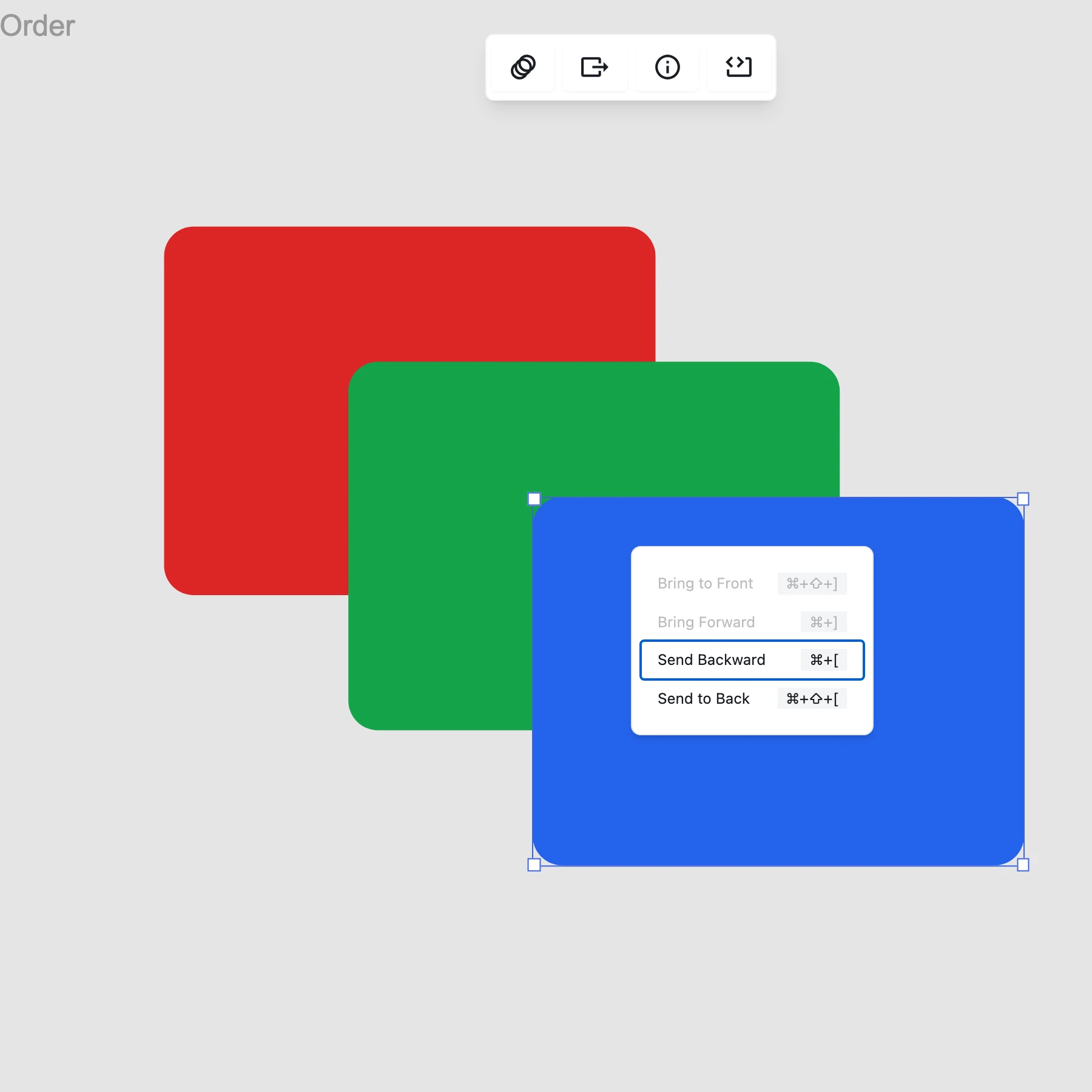
Right-clicking an unselected layer selects it first. A control that would do nothing is disabled rather than silently no-op — in the shot above the blue rectangle is already front-most, so Bring to Front and Bring Forward are greyed out. Escape or a click away dismisses the menu without reordering anything, and every reorder is one undo step.
Repeat
Take a shape and repeat it along a path with every copy oriented to the curve, around a ring with a count and step angle, or across a grid with rows, columns and spacing.
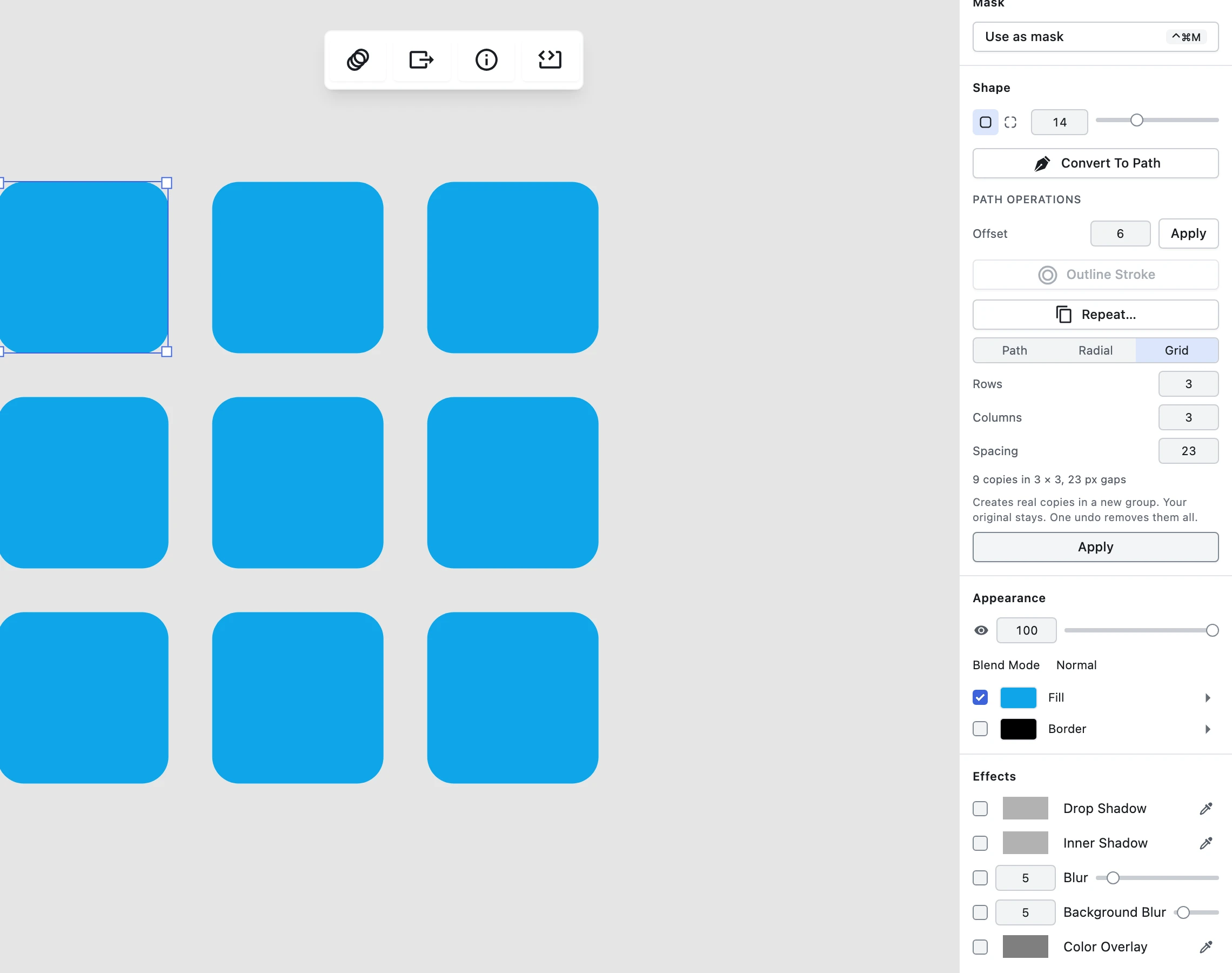
The copies are real, editable layers, not a live effect — the editor says so before you commit, and one undo removes the whole set. The defaults are evenly spaced rather than raw engine output.
Offset Path and Round Corners
Offset Path joins Outline Stroke in a new Path Operations group in the inspector's Shape section, moved out of the Border cluster where Outline Stroke used to sit on its own.
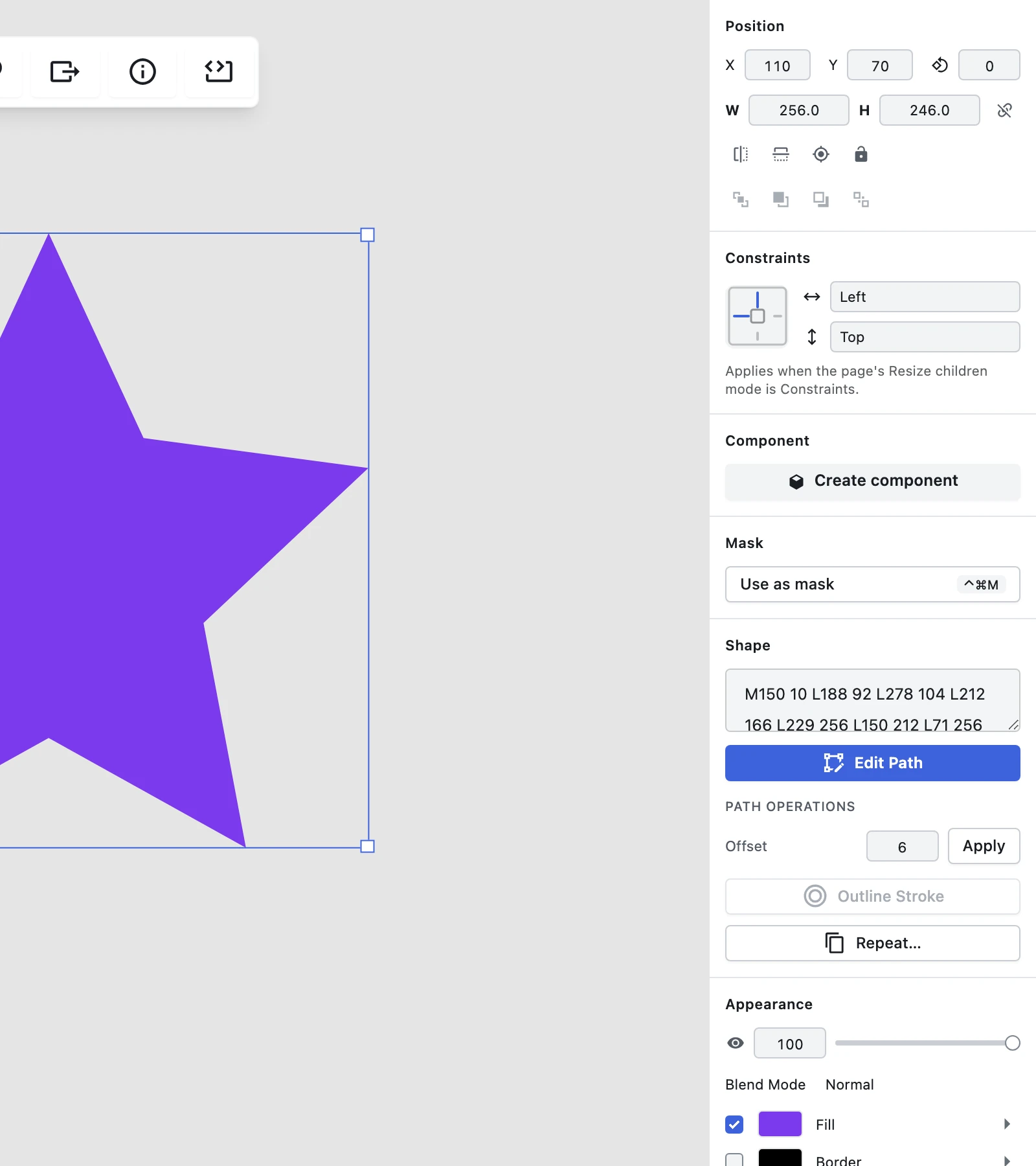
Offset Path grows or shrinks a shape's outline by a distance you type — negative to shrink — keeps rounded corners as true arcs, and leaves the layer anchored where it was rather than jumping to the origin.
Round Corners rounds the path anchors you have selected, by a radius: select anchors while editing a path and the control appears. It clamps a radius a segment can't accommodate instead of producing self-intersecting geometry, and declines a corner whose sides are already curves rather than emitting something broken.
Both are destructive edits of the real geometry, and both are a single undo step. Outline Stroke's refusals are unchanged from 5.0 — in the shot above it's greyed out because the layer has a fill and no border.
The pen draws curves in one motion
Press and drag as you place an anchor and the drag pulls out a bézier handle, so the segment you just drew is a curve instead of a straight line you have to go back and double-click afterwards. A press-and-release with no drag still places a straight segment, byte-identical to before. Holding Shift mirrors the handle for a symmetric curve, the handle and its control line follow the cursor live with the path previewing as you move, and the whole placement — anchor and curvature together — is one undo step even when you drag slowly. It works the same when adding to an existing open path in path edit.
Numeric fields accept arithmetic
Type 100+50, 1920/2, (1440-16)/2 or 2^3 into X, Y, width, height, rotation, corner radius, font size, stroke width or an effect parameter, and it evaluates when you commit — so you can halve a width or subtract a gutter without reaching for a calculator. A leading operator works relative to the current value: *2 doubles a width, +50 adds to it.
Anything that isn't valid arithmetic reverts the field and changes nothing — with one documented exception, the two blur radius fields, which reset to 0 instead of reverting. No value is ever infinite or not-a-number, and a field with a limit still clamps the result, so committing 0-5 into a corner radius lands at 0. Percentages, units and named functions aren't supported: 50%, 20px and min() are all invalid input rather than something to guess at. The evaluator is a self-contained parser, so nothing you type is executed as code.
Duplicate
Cmd/Ctrl+D duplicates the selected layer or page in one action instead of copy-then-paste, cloning the whole subtree with fresh ids while a duplicated component instance still points at its original main component. It's one undo step, and so is the existing copy-paste path.
The same primitive is on the public API as figpea.layer.duplicate(id), so a script or agent can duplicate a template screen several times and fill in each copy — the missing link for agent-authored decks and multi-screen prototypes. One thing to know when you use it that way: cloned interactions carry fresh ids but still point at the original targets, so re-point them if each copy should navigate to its own successor.
Dropping a .zip opens the design files inside it
An archive holding one supported file opens that file directly. An archive holding several shows a picker with each one's name, type and size. An archive with nothing openable now names what it actually contains — "this archive contains only .txt and .mp4 files" — instead of claiming that ZIP is a format Figpea doesn't support.
A file whose extension is missing or wrong is identified by its content. .xd, .fig and .fp files, which are themselves ZIP containers, still go straight to their own decoder. This was the largest single bucket of "unsupported format" failures in the product, and design packs and hand-offs almost always arrive as archives.
The Assets panel gained Colours and Text styles
Last release introduced the Assets panel with an Images section. It now has two more sections and two project-wide operations.
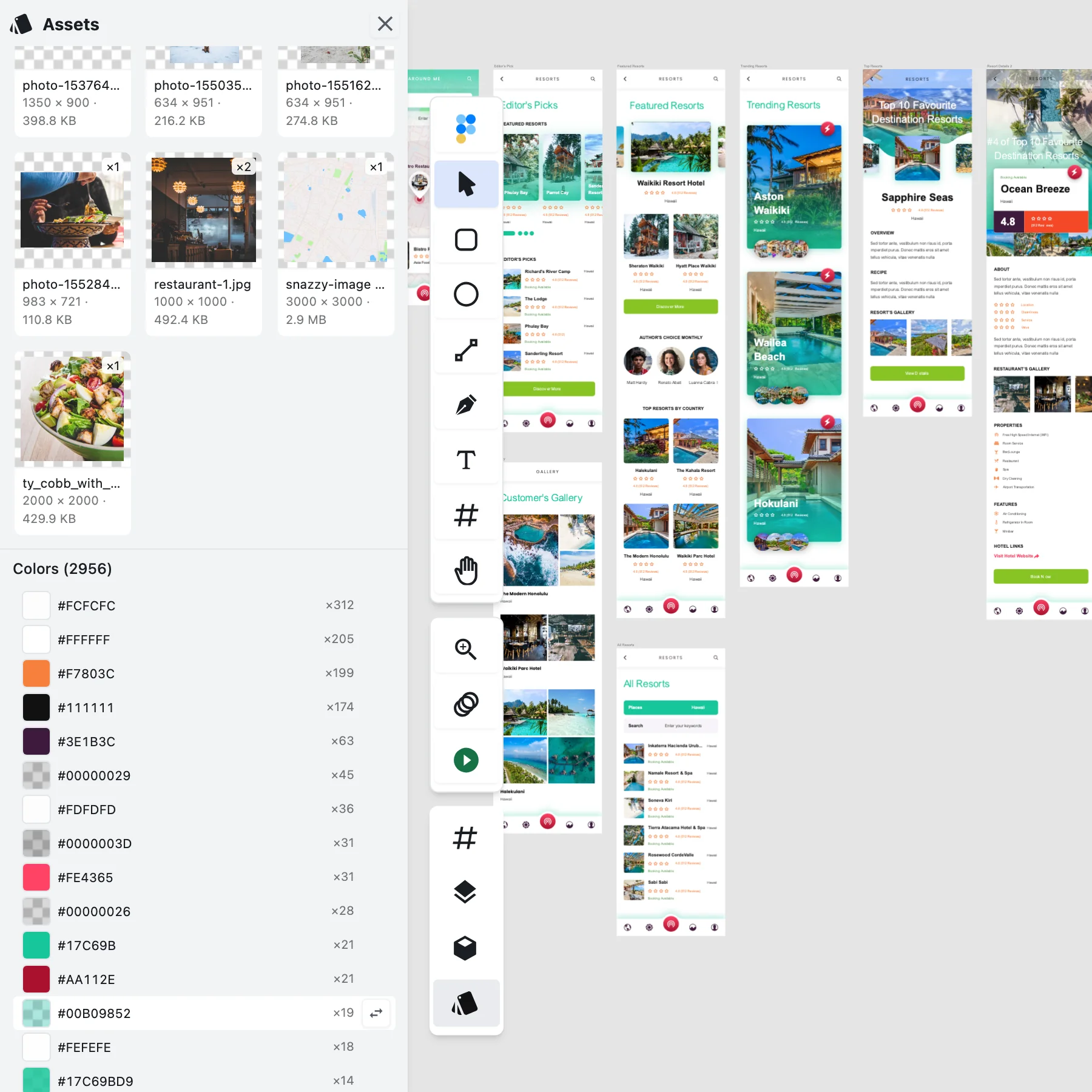
Colours lists every colour the project actually uses — fills, enabled strokes, gradient stops, shadow and overlay colours, and per-run text colours, inside component masters as well as on pages — deduplicated, so #ff0000 and rgb(255, 0, 0) are one swatch with a usage count of two. Click a swatch to select every layer using it, or replace that colour everywhere in a single undo step.
Text styles lists the project's typography the same way, down to individual runs inside one text layer. Click a style to select its users, or apply it to the current selection in one undo step.
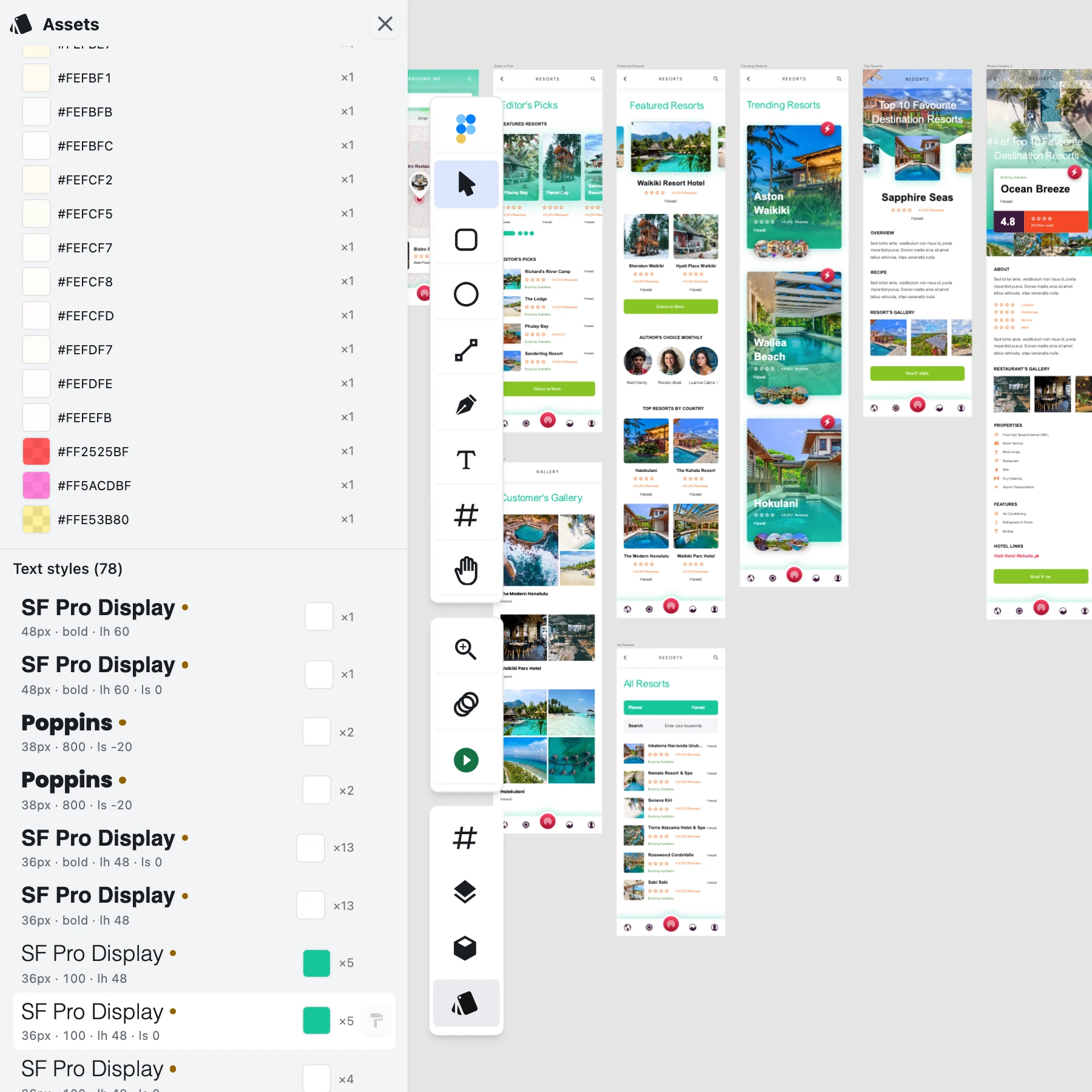
Two honest caveats about Text styles, both visible in that screenshot. First, many styles are listed twice, one row's caption ending · ls 0 and the other omitting it — the section treats "letter spacing unset" and "letter spacing 0" as two different styles. With line height in play the same split can square, turning one style into four rows. It's a real defect, we know exactly where it is, and it is not fixed in this release. Second, the marker that's meant to flag a style whose font isn't available on your machine currently fires on every row, because the local-font library it checks starts empty — so it tells you nothing yet. Both are tracked and neither affects the rest of the panel: selecting a style's users and applying a style work correctly.
On the Images side: a layer's fill picker can now pick an image the project already contains instead of making you find the file on disk again — and it reuses that image rather than adding a second copy to memory and to every export. Replace… on a tile swaps one image for another across every layer that uses it in one undo step, asking first when more than one layer is affected, keeping each layer's own scale mode, repeat, image transform and size, and changing nothing at all if the replacement can't be decoded. Add to canvas now places the new layer on the active page where you can actually see it, instead of at the project root at a stray position, and a tile always reports the image's real dimensions even for an image that had never been rendered on screen before you opened the panel.
Browsing all of this is free-tier editing. The one genuinely Pro thing on this surface is recovering an image's original bytes, which is an export.
Move a layer into a page on the canvas
Drag a layer over a page, hold still for about a second, and the editor proposes that page as the new parent; release and the layer becomes its child with its on-screen position unchanged. Dragging back out onto empty canvas proposes moving it to the project root the same way. Moving off the page before you release withdraws the proposal, a hidden page is never a candidate, and one undo restores both the original parent and the original position. Until now the layer list was the only place a layer's parent could be changed.
Relatedly: a shape drawn inside a page now belongs to that page. A rectangle, ellipse or text drawn with the pointer over a page used to be appended at the project root as a sibling of the page, so it looked like it had landed there but didn't move, clip or export with it. It now parents to the page under the pointer — the topmost one where two pages overlap — while a selected folder inside that page still wins, and drawing over empty canvas still goes to the project root. Paste follows the same rule.
Photoshop files import a lot more faithfully
Four separate fixes, all measured against a real corpus.
Layer masks. A mask was only picked up when its author happened to have changed its density or feather, so 62% of the masks across our test corpus were silently dropped and most files came through with none at all — content that should have been hidden by its mask rendered fully visible the moment you turned PSD-compatible rendering off. Masks are now read whenever the file carries one, a mask explicitly disabled in Photoshop is still ignored, and a per-file pixel-fidelity score is measured on every build so this can't quietly regress.
Group blending. A group's Pass Through mode was discarded entirely — 18% of the groups in our corpus use it — and whether a group composited into its own buffer before blending was decided by how many layers it happened to contain rather than by its declared blend mode, so two documents identical apart from layer count rendered differently. A group with a real blend mode now always composites into its own buffer, a Pass Through group never does, and layer count only affects performance.
Shape layers, which are 56% of all layers in the corpus and so the most common kind in a PSD: an open pen-tool path stays open instead of being closed and filled, a shape built from two concentric contours fills solid the way Photoshop draws it instead of having its centre punched out, and a photo carrying a vector mask keeps its pixels and is clipped by the path instead of vanishing into an empty shape. A path the geometry engine genuinely can't resolve now degrades to a named import warning with the rest of the file intact, instead of taking the layer — or the whole open — down with it.
Export. Exporting a PSD to PNG, JPG or WebP renders the design instead of re-photographing Photoshop's baked preview. Asking for 2× or 3× used to upscale a fixed-resolution bitmap, so the extra pixels carried no extra detail, and turning off PSD-compatible rendering fixed the canvas while export ignored the setting completely. With compatibility off you now get a real render at the scale you asked for; with it on the baked composite is still used deliberately; and a document that carries no baked preview exports exactly as before.
And one that reads worse than anything above: undo right after opening a PSD no longer blanks the canvas. Pressing Cmd/Ctrl+Z with no edit made emptied the entire render — which looks exactly like losing your file on the very first keystroke, even though the document was untouched — because the undo history had stored an unusable copy of the page's bitmap. That undo now leaves the render exactly as it was.
A redesigned welcome screen
The editor's front door has a real hierarchy now: one clear primary action instead of two competing buttons 200px apart, a single type scale in place of the three that used to collide in one card, sample tiles that are all the same size with their previews fit to a consistent frame, a grouped and aligned list of supported formats rather than a row of mismatched logos, and a layout that reflows properly from a narrow editor window up to a wide desktop.
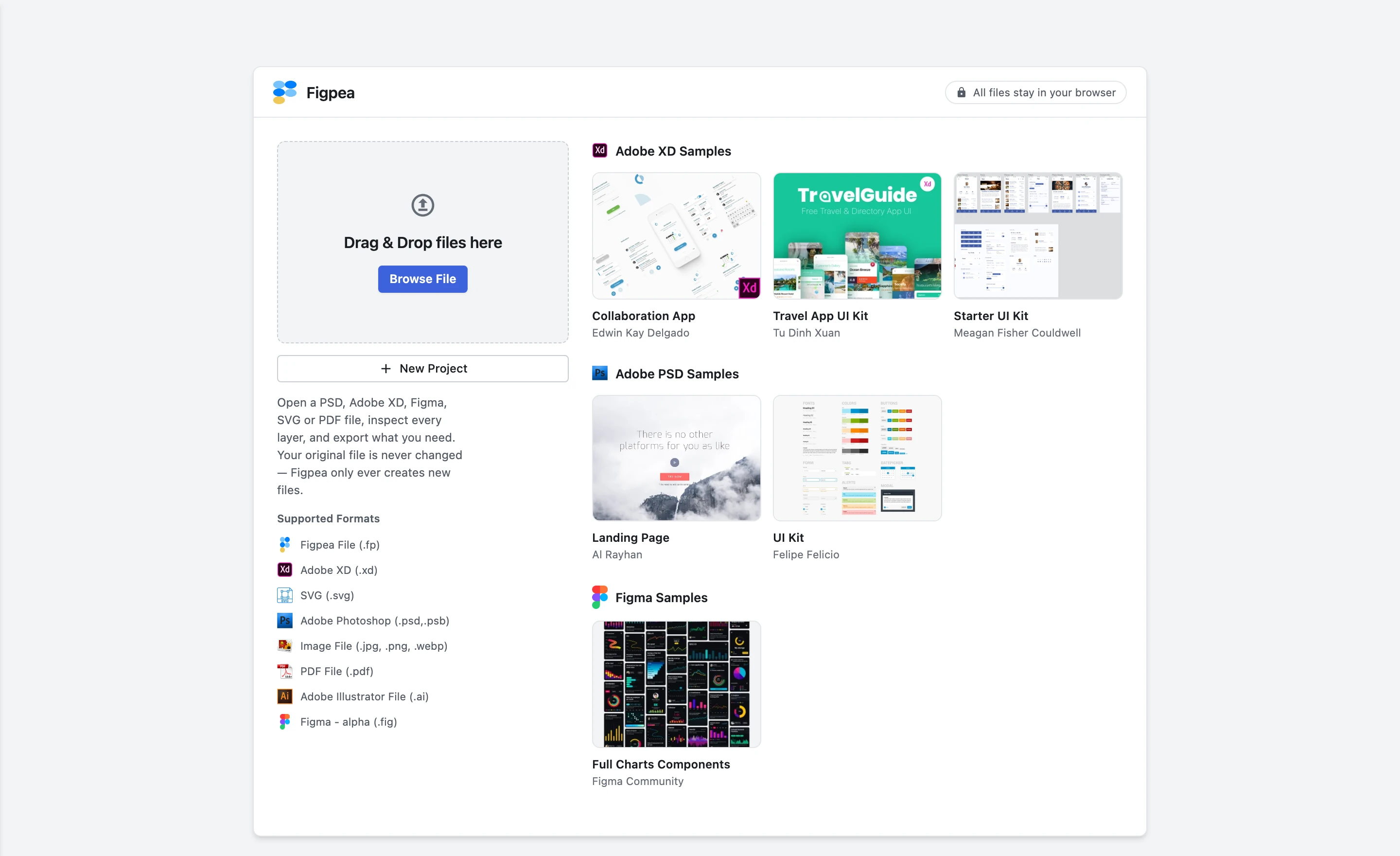
Everything it did before it still does, every tile and button is reachable by keyboard with a visible focus ring and an accessible name, and a tile whose sample is still downloading dims and spins instead of looking inert.
It also states plainly what happens to your file: Figpea opens it and exports from it, and your original is never changed — Figpea only ever creates new files. We added that because our own word of mouth had started telling people they could "edit their XD files" in the sense of saving them back, which is not what Figpea does. Better that you read it here than discover it after investing time in a document. The same sentence now appears on the homepage and on the format landing pages.
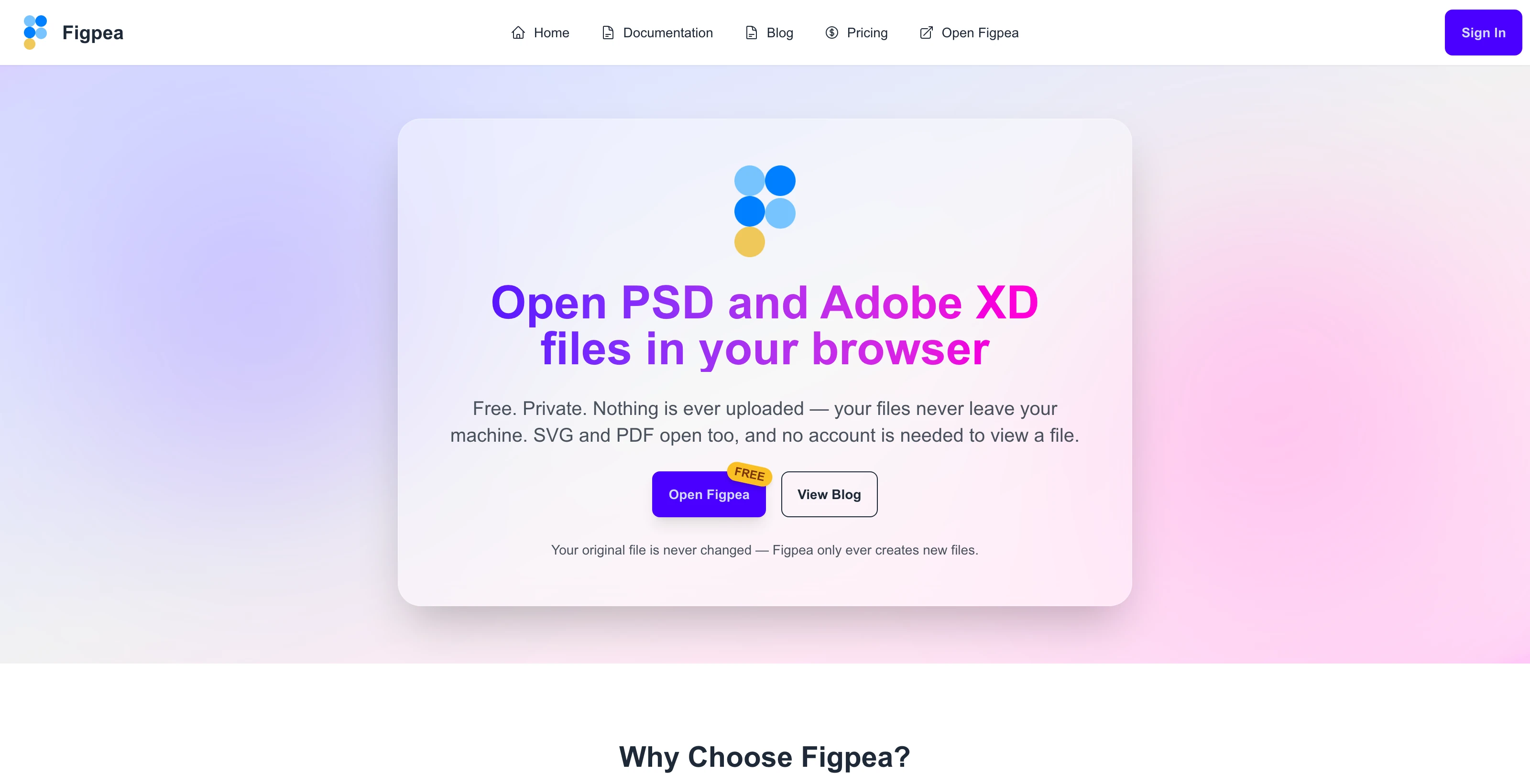
The editor chrome is legible and consistent again
On the light theme a selected control was white on a very pale blue — a 1.26:1 pairing that made segmented controls, inspector toggles and tool buttons unreadable exactly when they were on. Every selected state now clears its contrast floor in both themes, two icons in the same on state resolve to the same colour, and the Stop Editing control no longer paints in a raw framework brown.
The left tool rail, the zoom button, the main-menu logo and the floating layer toolbar all adopt the roomier panel-tab button shape they sit beside, so the left column reads as one thing rather than four. Inspector numeric fields no longer blow out to full width and squash their labels to nothing — the Repeat editor showed three or four identical unlabelled boxes where Rows, Columns and Spacing should have been — and segmented controls no longer overlap their own segments, overrun their well or sit their glyph flush-left. Tooltips near the panel's right edge, and the one inside an Assets tile, were clipped or rendered nothing at all; every tooltip in the inspector and the Assets panel now shows in full, with a test that fails if a future refactor silently breaks twenty of them again. The colour picker sits flush in its panel instead of floating as a white card with a drop shadow, and follows the theme down to its hex field.
The remaining surfaces — layer panel, toolbar, menus, popups, export dialog, project report, canvas overlays — moved onto one theming mechanism, so behaviour, control geometry, keyboard order and copy are unchanged while an explicit light/dark toggle becomes possible.
Editing fixes worth naming
- Selecting layers no longer changes them. Selecting two or more layers wrote opacity 100% onto every one of them, destroying whatever transparency they carried, and left a phantom entry in the undo history so your next
Cmd/Ctrl+Zundid your previous edit. Selecting is now inert. - A drag is one undo step even when you drag slowly. Panning and rotating a layer, and editing an image fill's transform, relied on a 300 ms timer to group their steps, so a slow gesture could split into several. Each gesture is now explicitly one step from pointer-down to pointer-up.
- Undoing a shape you just drew also deselects it. The layer left the canvas but stayed selected, so the transform handles kept drawing over empty space. Undoing a move, where the layer is still there, correctly keeps it selected.
- "Fit layer to image" works after "Reset Transformation." Clicking the two adjacent buttons in the obvious order did nothing at all, with no error and no feedback.
- Placing a component instance leaves the camera alone. The canvas used to pan to centre every new instance, so the design jumped under you on each placement. A script that does want to frame the new instance can still ask for it.
- Switching a group from Content to Viewport or Constraints keeps its size and clears the hidden scale multiplier that used to make the frame you dragged not the rectangle you saw.
- One malformed interaction no longer makes a whole Adobe XD file unopenable. A single corrupt entry threw before anything was decoded and surfaced as the generic "couldn't open this file", taking every other layer with it. It's now an import warning in the project report and the rest of the file decodes as if it weren't there.
- The scriptable API refuses input it used to accept in silence. A fill type outside its own published list was stored verbatim and rendered the layer invisible, and geometry belonging to a different shape kind was ignored while the call still reported success. Both are now rejected by name, and the validated set is derived from the published schema so a newly added property can't fall out of validation. Pages created through the API are also laid out side by side the way the editor's own add-page action does, instead of every artboard stacking at the origin — which used to make per-page screenshots come back identical while reporting success for each one.
- A batch of small display defects: an XD symbol instance shows the instance icon instead of a folder icon; an XD-imported component's active state shows its checkmark; the Blend Mode list exposes its six groups properly instead of using disabled rows as separators; a letter-spacing value derived from a percentage reads as a short pixel value rather than a seventeen-digit float; the Project Report's prototype-flow preview is capped at its intended height; and the transition popover no longer shows an auto-animate preview for a Dissolve transition.
A lighter first load
The production bundle is no longer put through an obfuscator that protected nothing measurable while costing size, build time and readable stack traces. The crypto library behind entitlement checks — about 62 KB — no longer has to be fetched before the welcome screen can paint. Sign-in state and the offline-cache check now settle just after first paint instead of holding it up; the state you end up in, the Pro prompts you see and the cache refresh itself are unchanged.
Site: a new landing page, and claims we got wrong
If your .xd file won't open, there's now a page for exactly that. Adobe XD refuses a file saved by a newer version, and a damaged file just fails with an error. Figpea reads the .xd structure itself and reports every artboard, font and text layer it can find, plus anything it couldn't import.
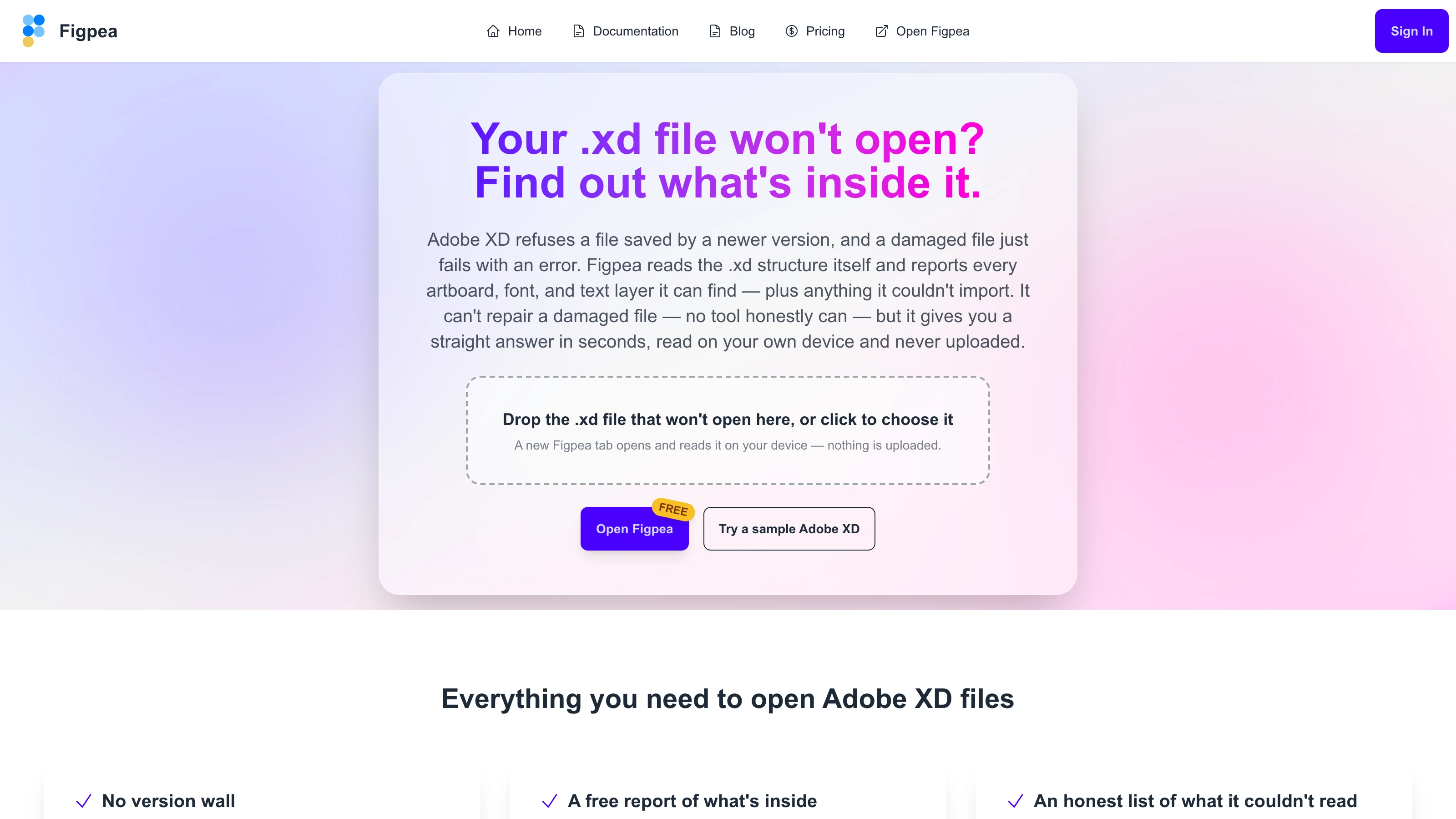
The page is explicit about the limit, because this is where a false promise would hurt most: Figpea can't repair a damaged file — no tool honestly can. What it gives you is a straight answer in seconds, read on your own device and never uploaded, and the diagnostic itself isn't behind a paid plan.
Update, Figpea 5.11.0: SVG export is now part of Pro on every plan — see Plans. This post records the release it was written for.
We were wrong about SVG export, in four places. Docs, two blog posts and a landing page all said SVG export was a Pro feature. It isn't — a single 1× SVG export is free on every plan, the same as PNG, JPEG and WebP. One of those instances sat inside a page's FAQ structured data, which is often the only part of a page a search engine shows verbatim, so it was reaching people who never loaded the page. All four are corrected. A false paywall is worse than no claim at all, and this one pointed the wrong way round — telling you to pay for something you already had.
The PSD landing pages retracted three overclaims and gained a job router — four routes into what you're actually here to do. The pages no longer claim that layer masks or layer effects render as part of the document view, no longer claim blend modes are preserved, and no longer make an unqualified "at any scale" export claim. Each is asserted mechanically now, so the strings can't come back unnoticed.
/docs/what-we-collect finally documents the editor's analytics events, not just the website's, with every parameter checked against the shipped event set. Relatedly, a file whose name contains no dot no longer sends that name to analytics: the code reporting which format failed to open fell back to the entire file name when there was nothing to split on, which contradicted both our own rule that file names never reach analytics and the claim published on that page. It now reports a safe placeholder, while a normal .xd or .psd still reports its real extension.
The editor's Login button reaches the sign-in page. It pointed at an address that has never existed on the website, so the only route to signing in from the editor answered 404 in production. The link is corrected, the old path permanently redirects for editor builds already cached in a browser, and every address the editor points at the website is now checked against the site's real routes on every build — so the next page rename can't silently break another one.
Every blog post now carries its own meta description. The layout was reading a frontmatter field that no post actually sets, so every post fell through to one generic sentence.
Reliability
One line, because none of it is visible: the release's own production smoke tests no longer assert things the product never guaranteed — two of them failed every release for non-defects. The editor's test hooks are stable identifiers instead of random ones regenerated on every page load. The end-to-end harness refuses to run its development lane against a production build rather than reporting a screenful of mysterious timeouts. A geometry baseline's regeneration recipe works again, a self-check that shelled out to git close to its own timeout no longer fails under load, the dependency-audit gate no longer passes vacuously when npm's audit endpoint errors, and the guidance we ship to AI agents is now checked against the live API contract so it can't silently go eight versions stale.
Try it
Everything above is live now. Open Figpea, drag in an XD, PSD, SVG, PDF or Figma file — or a .zip full of them — and have a look. It's free to open, inspect and edit, and a single 1× asset export is free too; when you need batch export, any-scale extraction or presentation playback, Pro covers it.