 Figpea
Masks
Opened a PSD, Adobe XD, Figma, or SVG file and want to see or change a mask? Figpea shows you which layer is a mask, which layers it affects, and lets you create, retype, or remove one — free, in your browser, nothing uploaded.
Reading a mask in a file you opened
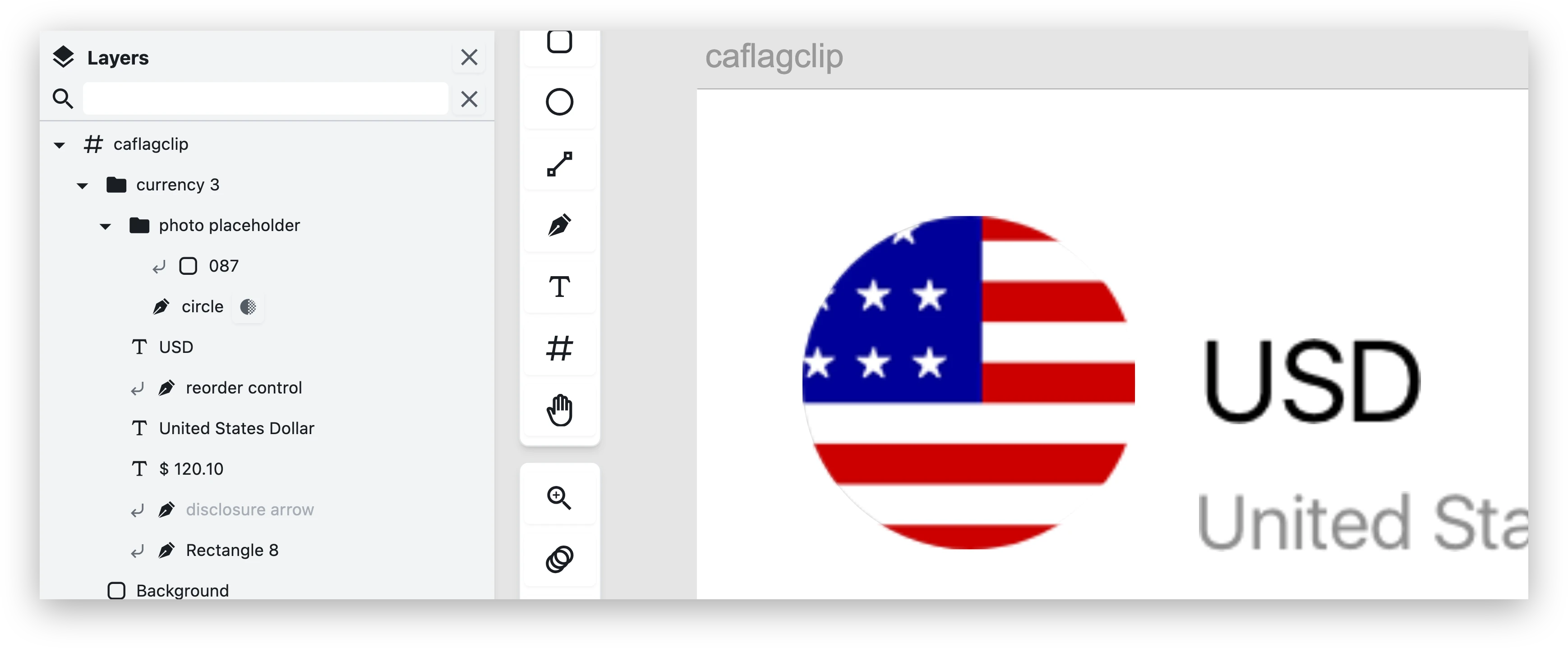
A mask layer carries a mask indicator on its row in the layer list. Every layer the mask affects carries its own masked-marker, so you can see the relationship at a glance without opening anything. Alpha and vector masks look different from each other, and clicking either marker jumps you straight to its counterpart layer.
The scope rule: a mask affects the layers in front of it inside the same parent, and stops at the next mask.
Alpha vs Vector
Figpea has two mask types. Alpha carves the masked content with the mask's own transparency. Vector clips the masked content to the mask's shape.
Make a mask — Use as mask
Select a layer that isn't already a mask and click Use as mask in the inspector's Mask section, or press ⌃⌘M (macOS) / Ctrl+Alt+M (Windows). With several layers selected, the back-most one becomes the mask and the rest become its targets. The whole action — including any folder Figpea creates to group the selection — is one undo step.
Change a mask's type
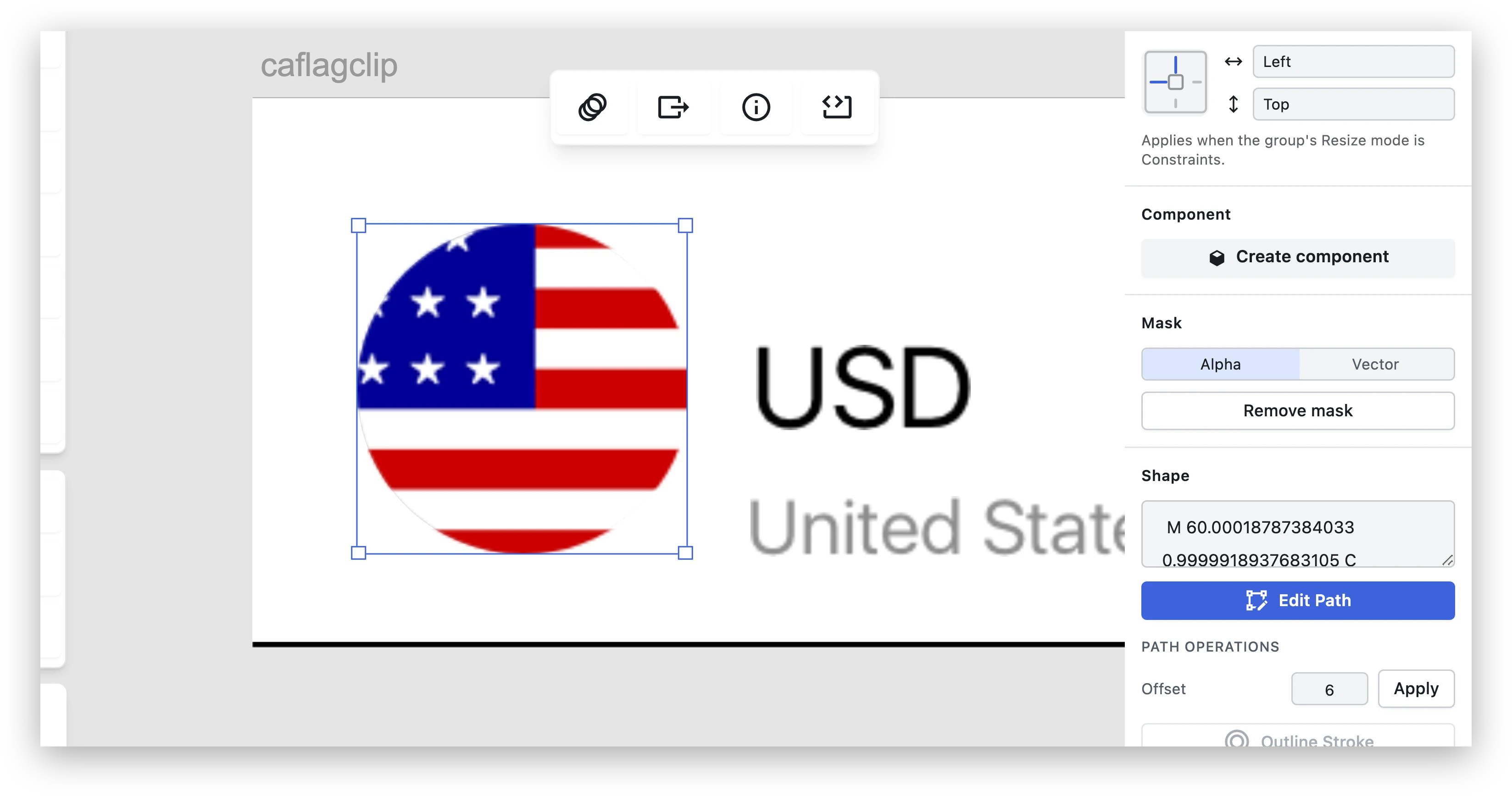
With a mask selected, the Mask section's Alpha / Vector control switches its type live. This is one undo step.
Remove mask
Click Remove mask in the same Mask section. Masking stops immediately, every layer it affected renders unmasked, and one undo restores it.
Show mask outlines
A mask is consumed by the layers it masks — its own fill usually isn't part of the composite you see, which is the single most common source of confusion ("where did my mask go?"). Turn on Mask Outlines from the main menu's Edit flyout to draw a thin outline around every mask in the document, whether or not its fill is visible.
Mask Outlines is a view setting: it changes nothing in your document and is not an undo step.
What imported files bring
Masks in files you open are indicated automatically, with no work from you, carrying the type the format meant. A PSD clipping run, an Adobe XD mask, a Figma mask node, or an SVG clip path all show up with their mask indicator and masked-markers already in place.
Some importers group masked content into a folder Figpea creates to represent the relationship faithfully — this can mean the layer tree you see gains a group your original file didn't have. That's the importer being explicit about the mask relationship, not a change to your artwork.
Frequently asked questions
Why did my layer disappear when I used it as a mask? It didn't — a mask is consumed by the layers it masks, which is exactly what a mask does. Turn on mask outlines to see where it is.
What's the difference between an Alpha mask and a Vector mask? Alpha carves the masked content with the mask's own transparency. Vector clips the masked content to the mask's shape.
Can I save the mask back into my PSD or XD file?
No. Figpea doesn't write .psd, .xd, or .fig files. Your mask lives in the Figpea project and in what you export.
Does Figpea support luminance masks? Not yet — Alpha and Vector are the two mask types today.
Is "Clip content" the same thing as a mask? No. Clip content is a page setting that hides anything outside the page's own frame. A mask is a layer-to-layer relationship inside the layer list, unrelated to page clipping.
Related docs
- Basic Layer Operations — layer order: a mask sits behind what it masks
- Advanced Layer Operations — vector path operations
- Path Edit Widget — reshape a vector mask's outline
- Opening Design Files — opening PSD, XD, Figma and SVG files
- Exporting — how to export your result
- Constraints & Resizing — the Clip content page setting