 Figpea
Export a Responsive SVG (ViewBox Only, No Width or Height)
An SVG is responsive when it has a viewBox and no width or height. That is the whole trick: the viewBox says how the drawing is laid out, and with no fixed pixel size the element takes the size of whatever box it is placed in. Two attributes out, and an image that used to fight your layout now follows it.
Here is the before and after, on the root element of the same icon:
<!-- Fixed: the size is baked into the file -->
<svg xmlns="http://www.w3.org/2000/svg" width="200" height="150" viewBox="0 0 200 150">
  <path d="…" />
</svg>

<!-- Responsive: the size comes from CSS -->
<svg xmlns="http://www.w3.org/2000/svg" viewBox="0 0 200 150" preserveAspectRatio="xMidYMid meet">
  <path d="…" />
</svg>
preserveAspectRatio="xMidYMid meet" is the SVG default; it is written explicitly here so the file says what it means: centre the artwork, fit it inside the box, never distort it.
The viewBox is the part you keep
The viewBox carries four numbers: minimum x, minimum y, width and height of the coordinate system the artwork was drawn in. Everything inside the file — every path, every transform — is expressed in that space.
That is what makes the two exports above the same drawing. The fixed one maps that coordinate space onto a 200 × 150 pixel box. The responsive one maps the identical coordinate space onto whatever the page gives it. Delete the viewBox instead of the width/height and you lose the mapping: shapes fall back to raw user units with no reference, and the file renders at the wrong scale or not at all.
Sizing it with CSS
With no width/height, an SVG has no intrinsic pixel size and the browser lays it out at 100% of its container. That is usually what you want, and it is also the one thing that surprises people: if the container has no height, neither does the image.
The safe default for an inline image:
.icon { width: 100%; height: auto; }
For an <img>, width: 100%; height: auto works the same way; max-width in px gives you a ceiling at large sizes while still shrinking on narrow screens. Inside a flex or grid row, give the element a definite track (a column width, a min-height) rather than relying on the SVG to invent one.
One more consequence worth knowing: because the file no longer states a size, a scale multiplier applied at export time changes nothing in it — it is the only thing that moves the root's width/height, and this root has neither, so a 2x responsive export is byte-identical to a 1x one. If you need the artwork bigger, size the container in CSS.
Doing it in Figpea
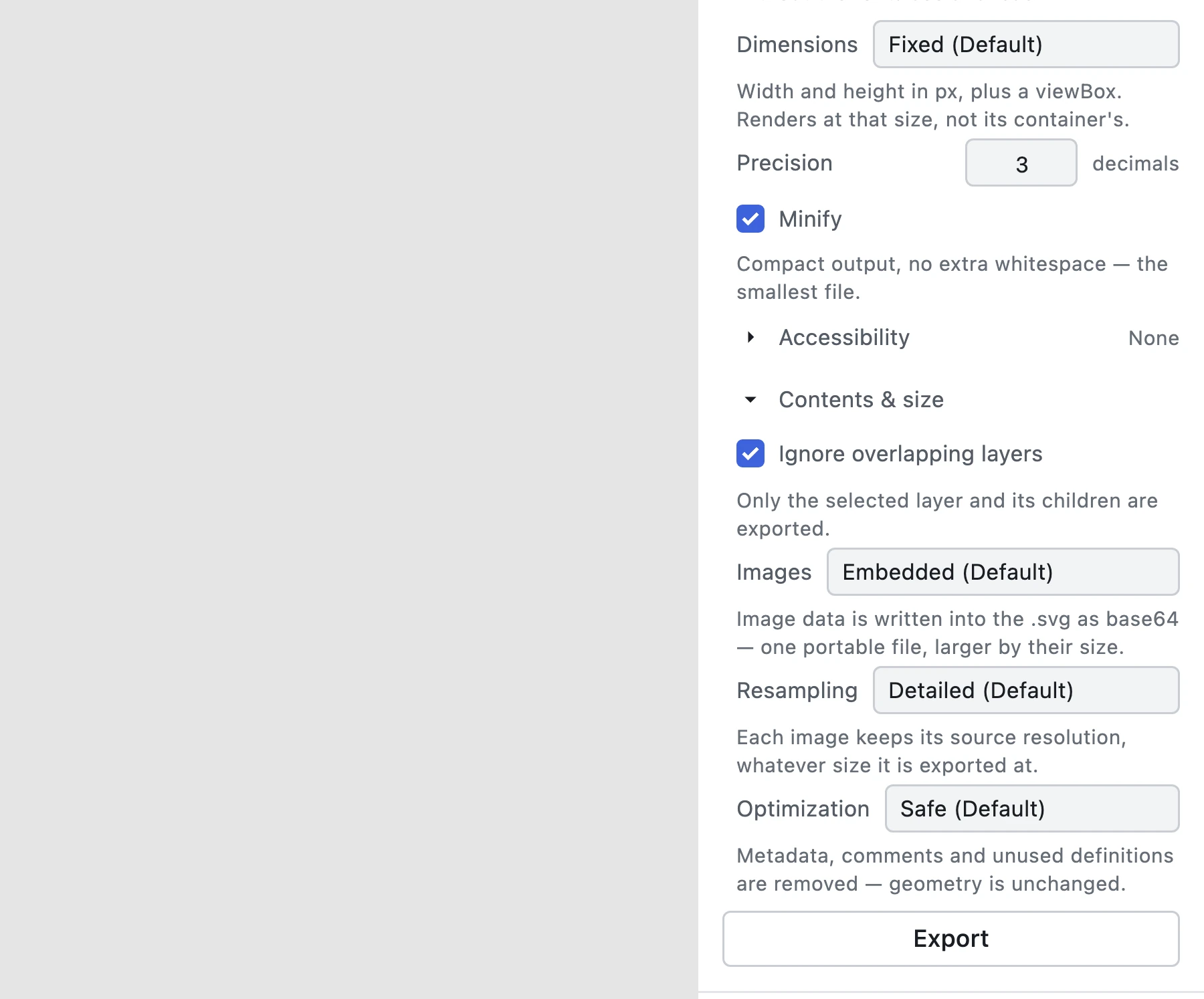
Open a design file — PSD, Adobe XD, Figma, SVG or PDF — select the layer you want, go to the Design tab, open the Export section, and set that row's format to SVG. Four output rows appear under it:
- Dimensions — choose Responsive for the viewBox-only root above, or keep Fixed (the default) for today's width + height + viewBox behaviour.
- Precision — how many decimals the root's numbers carry. The default is 3, and the range is 0–10; trailing digits are dropped, so integral geometry prints as integers.
- Minify — on by default: no comments, no whitespace between elements, one compact line. Turn it off for indented markup you can read or hand-edit.
- Accessibility — optional title, description and ARIA label, described next.
Then press Export and open the file. The root element is the one shown at the top of this article. The full reference, including which combination suits which job, is on the SVG export options page.
Minify and responsive are independent: the round-trip profile's data-figpea-* channel survives minification exactly as it survives an external SVGO pass, so an icon can be both viewBox-only and one compact line.
Accessibility metadata, briefly
Three fields on the same row write three things into the root element:
- Title becomes
<title>, the root's first child — the element a screen reader announces first. - Description becomes
<desc>, right after it. - ARIA label becomes an
aria-labelattribute on the root.
If you set both a title and an ARIA label, the label is what assistive technology announces; the title still supplies the browser tooltip. Pick one unless you have a reason for both. A field you leave empty is left out of the file entirely — no empty <title>, no title="".
An honest framing: these are the attributes you supply. They are the raw material an accessible document is built from, not a certificate — writing a title does not make a document conform to anything by itself.
Frequently asked questions
How do I make an SVG responsive?
Remove width and height, keep the viewBox, and size the element with CSS. In Figpea that is one setting: Dimensions → Responsive.
Why does an SVG need a viewBox?
It is the coordinate system that makes scaling possible. Without it there is nothing to map onto the element's box.
How do I add a title and description for accessibility?
<title> and <desc> as the root's first children, or an aria-label on the root. Figpea's three metadata fields emit exactly those.
What decimal precision should I use? 3 is a sane default. Lower shrinks the printed text, higher keeps sub-pixel detail — and precision only touches the root's numbers, never path data.
Does minifying strip Figpea's layer data?
No. The data-figpea-* channel is inert attributes on the elements, and minify only removes comments and inter-element whitespace.
Does exporting an SVG upload my file? No. The encode runs in your browser. Nothing leaves the machine.
Try it
Open Figpea and drop in a PSD, Adobe XD or Figma file: it opens in the browser, free and local, and nothing is ever uploaded. SVG export is part of Figpea Pro at every scale — open and inspect your file free, subscribe (or take the one-time Rescue Pass) to export it — see pricing.
If you want the wider picture first, exporting covers the three SVG profiles, and optimizer durability explains why the round-trip channel survives both Figpea's Minify and an external SVGO pass. For scripting the same options, the agent API takes them as export.layer input keys, and exporting layers in Figpea walks through the Export section itself.