 Figpea
SVG Export Options
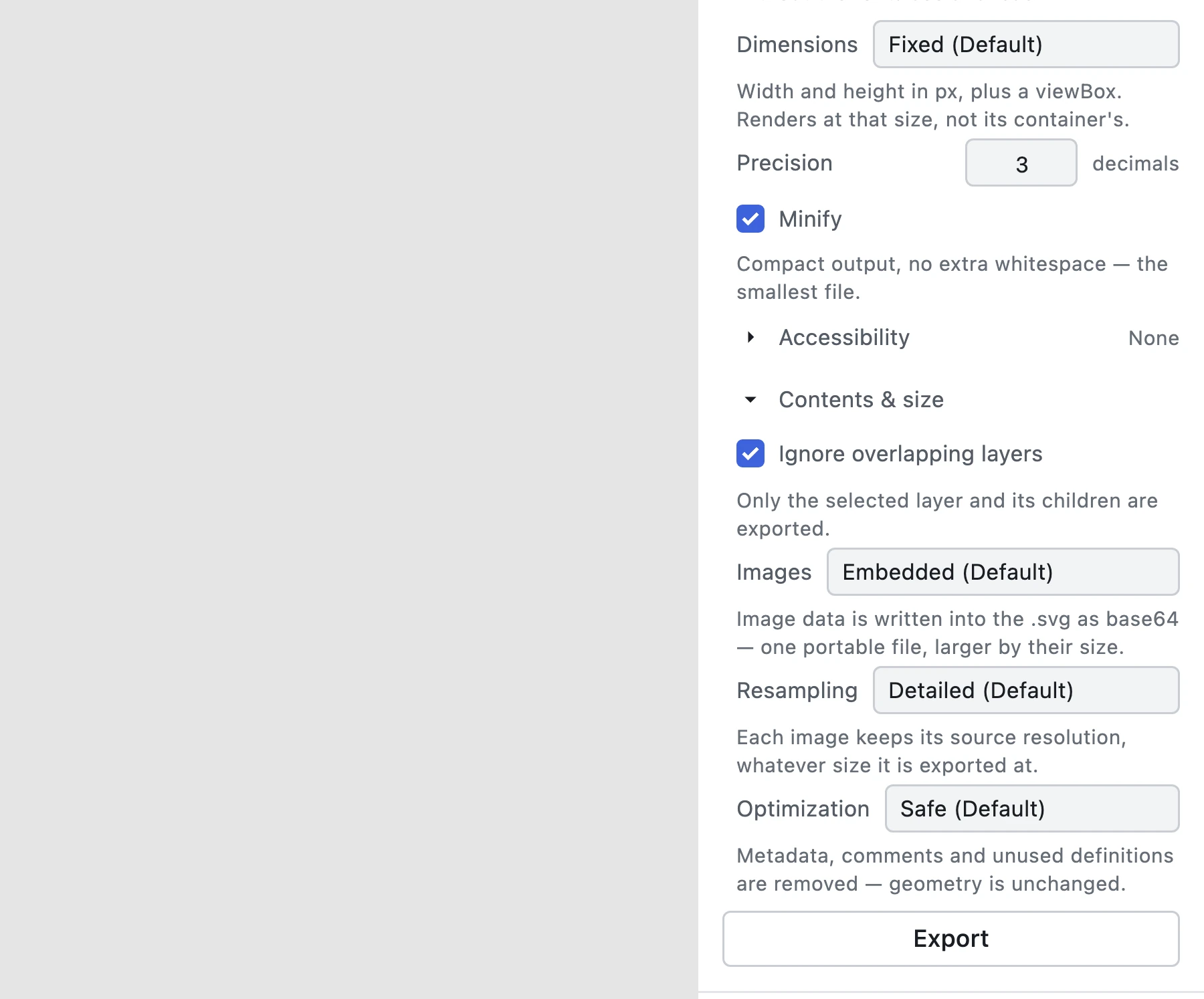
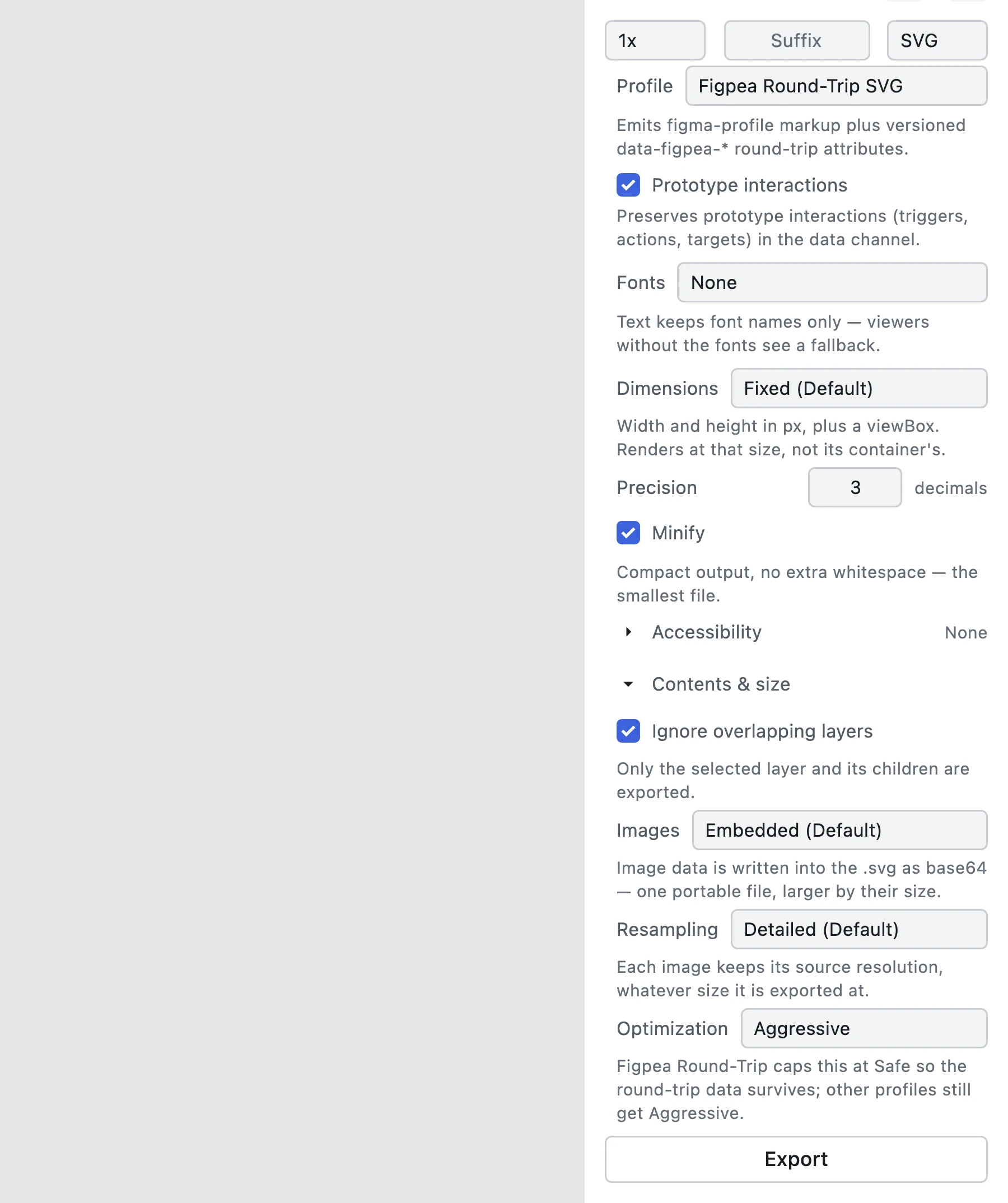
Every SVG row in the inspector's Export section carries its output options below the content options (Profile, Prototype interactions, Fonts — which now carries Subset fonts, see Fonts and file size). In panel order they are Dimensions, Precision, Minify, Accessibility, and — inside the collapsed Contents & size group — Ignore overlapping layers, Images with Resampling, and Optimization.
They live on the row itself, so they apply to every SVG profile — Plain, Figma-Tuned and Figpea Round-Trip — and each row can hold its own combination. Three of them — Ignore overlapping layers, Resampling and Optimization — also sit in Export Project → SVG, where a single value covers every artboard of the export; the rest are per-row only. Like the rest of the export section they persist on the layer, so the row shows the same choices the next time you select it. None of these options changes what the artwork looks like on the canvas — they shape the file that leaves Figpea. The one that changes what the file contains is Ignore overlapping layers: turned off, it adds layers you did not select (see below), so the export shows artwork the canvas selection did not.
Where to find them: select a layer → open the inspector's Export tab → set the row's format to SVG. The options appear under that row. For a whole project, the same three are in the Export Project dialog's SVG format.
SVG export is a Pro capability on every plan, for a single asset and for a project alike — see Plans. These options are included with it.
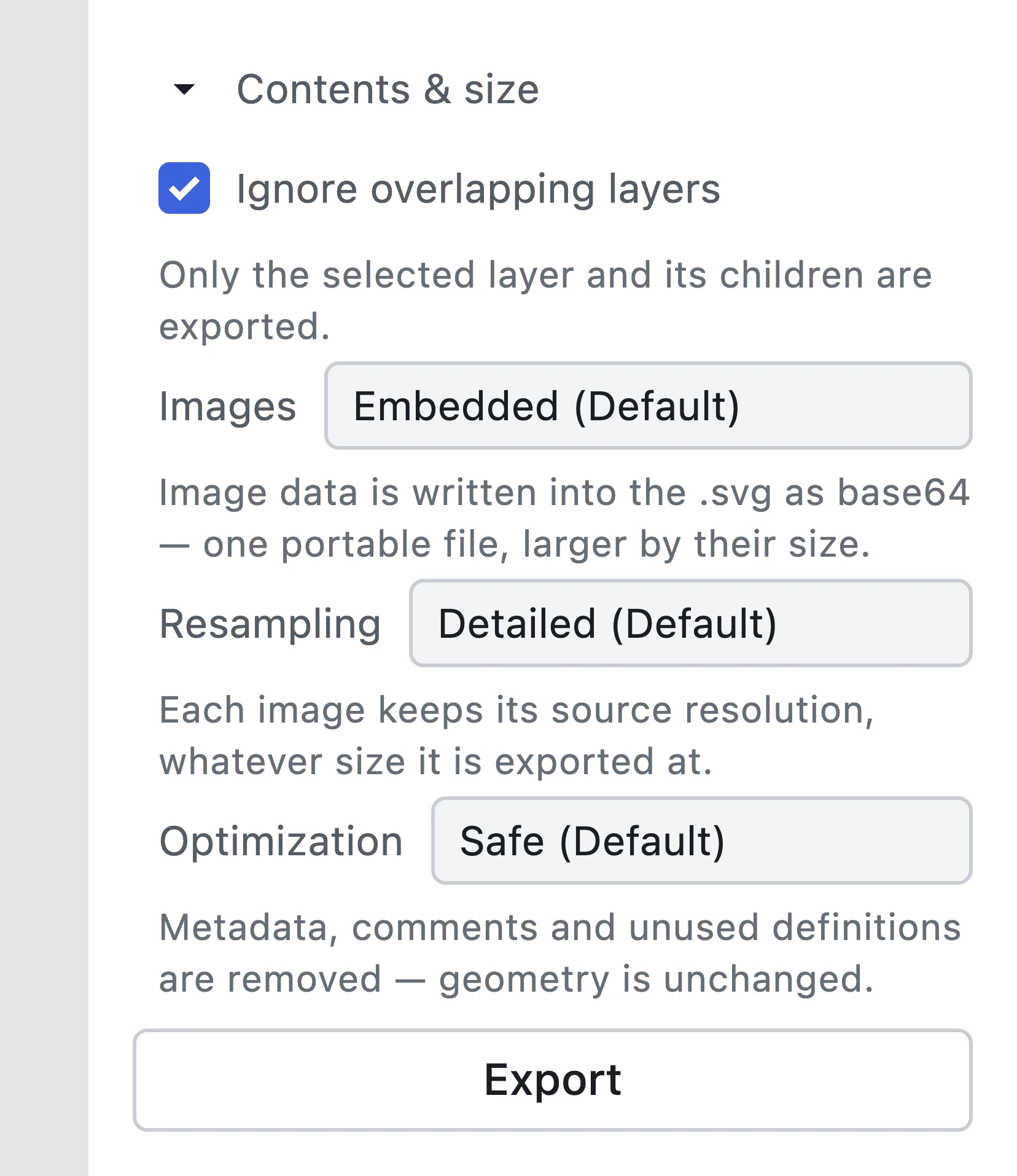
The three content options live together in one collapsed Contents & size group at the bottom of the block — closed it costs a single row, and closing it never hides a choice you made:
Fixed or responsive dimensions
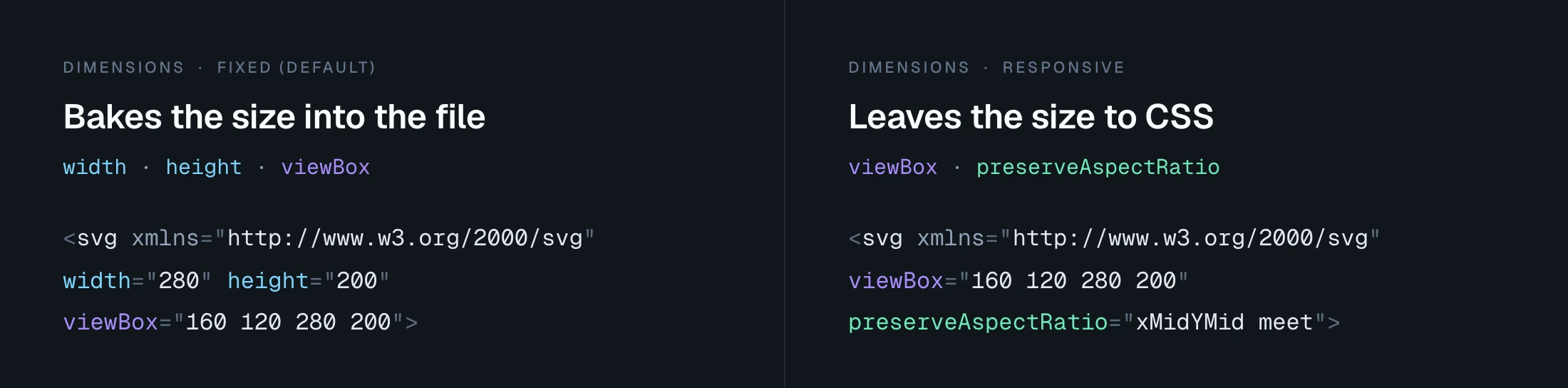
Fixed (Default) is the output Figpea has always produced: the root <svg> carries width, height and a viewBox. The rendered size is baked into the file, in pixels.
Responsive drops width and height and keeps the viewBox, plus an explicit preserveAspectRatio="xMidYMid meet". The file no longer states its own size, so it has no intrinsic pixel size and the browser lays it out at 100% of whatever box it lands in — sized by your CSS. That is the same rule as stripping the two attributes by hand, which is why a designer who used to hand-edit every handoff file no longer has to.
The root elements side by side:
<!-- Fixed (default) -->
<svg xmlns="http://www.w3.org/2000/svg" width="200" height="150" viewBox="0 0 200 150">…</svg>

<!-- Responsive -->
<svg xmlns="http://www.w3.org/2000/svg" viewBox="0 0 200 150" preserveAspectRatio="xMidYMid meet">…</svg>
Both keep the viewBox: it is the coordinate system that makes scaling possible, and without it there is nothing to scale from.
One consequence worth knowing, because it is the support ticket we would otherwise get: with no width/height, CSS owns the rendered size — and the row's scale multiplier changes nothing in the file. It is the only thing that moves the root's width/height, and a responsive root emits neither; the viewBox is never multiplied by it. So a 2x responsive export is byte-identical to a 1x one, and the size comes entirely from your CSS. Both controls stay independent on purpose, so nothing is silently disabled — under Fixed, scale still resizes the file itself.
Decimal precision
Precision rounds the root element's own numbers — the four viewBox values and any emitted width/height — to the number of decimals you choose. The default is 3, and the field accepts a whole number from 0 to 10.
It does not touch path data, transforms or per-element coordinates: those stay exactly as the canvas rendered them, so precision is a file-shape decision, never a fidelity one — unless you choose Aggressive optimization, which simplifies path data. See Optimization below. Trailing zeros are dropped, so an integer geometry stays byte-identical to what earlier versions wrote.
Lower values shrink the printed text; higher values preserve sub-pixel detail. How much a given file shrinks depends on its geometry — measure your own file rather than trusting a percentage from someone else's.
Markup: minified or pretty-printed
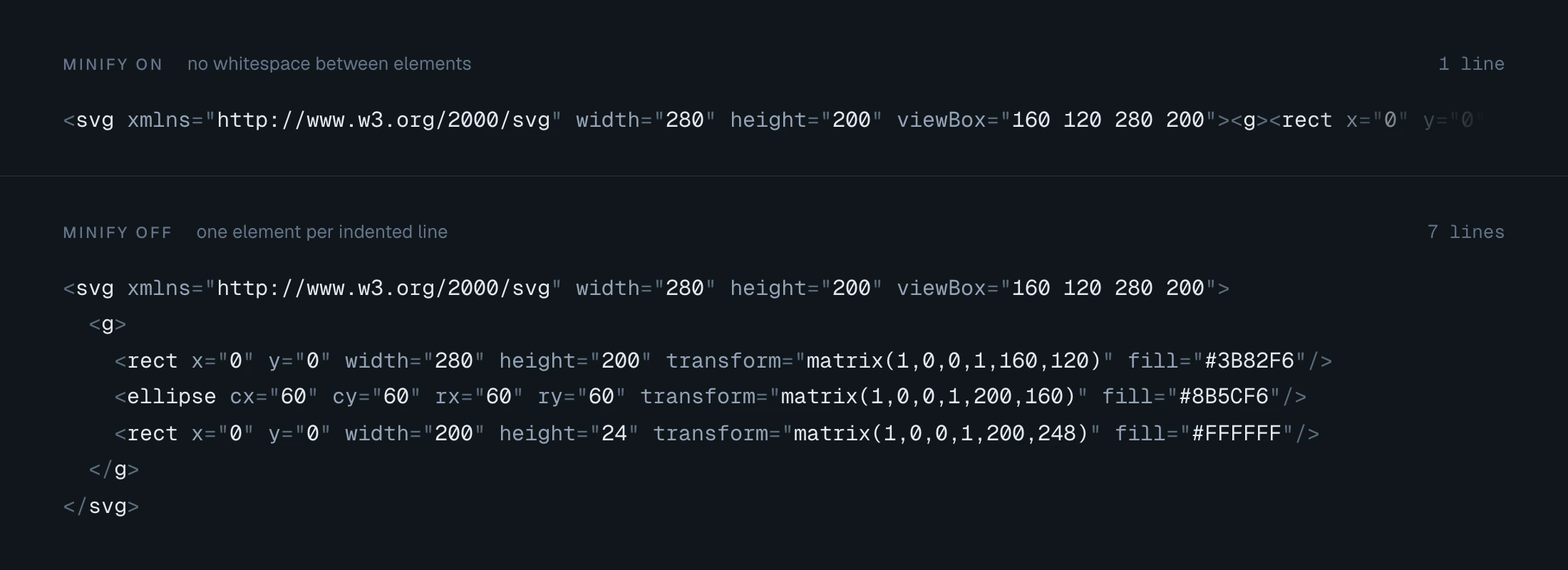
Minify is on by default. Minified output carries no XML comments and no whitespace between elements: one compact machine line, which is what you want to ship.
Turning it off pretty-prints the file — one element per line, indented — which is what you want when you are reading a handoff file, reviewing a diff, or hand-editing it.
Formatting never rewrites content. <style> blocks (including embedded @font-face payloads), <text> and <tspan> content, <title> and <desc> are copied verbatim, so the markup style cannot change what renders or what Figpea reads back on re-import.
That guarantee is Minify's alone: Minify only reformats. Removing elements is a different row — Optimization — and it is described below; the two are independent and can be combined freely.
The Figpea Round-Trip profile's data-figpea-* channel survives Minify exactly as it survives an external SVGO pass — see Optimizer Durability. It also survives Figpea's own Optimization row at every setting: under the Round-Trip profile, Optimization is never applied past Safe, whatever the row says (see The Figpea Round-Trip cap).
Accessibility metadata
Three optional fields land on the root <svg>:
- Title becomes
<title>, emitted as the root's first child — the element a screen reader announces first. - Description becomes
<desc>, emitted after the title. - ARIA label becomes an
aria-labelattribute on the root.
Each field you leave empty is left out of the file entirely: no empty <title>, no title="". Whitespace-only counts as empty. Filled fields are XML-escaped, so an ampersand or an angle bracket in your copy stays text.
One rule the caption in the panel also states: aria-label replaces the <title> for screen readers. With both set, assistive technology announces the label; the <title> still provides the browser tooltip. Use one or the other unless you have a reason for both.
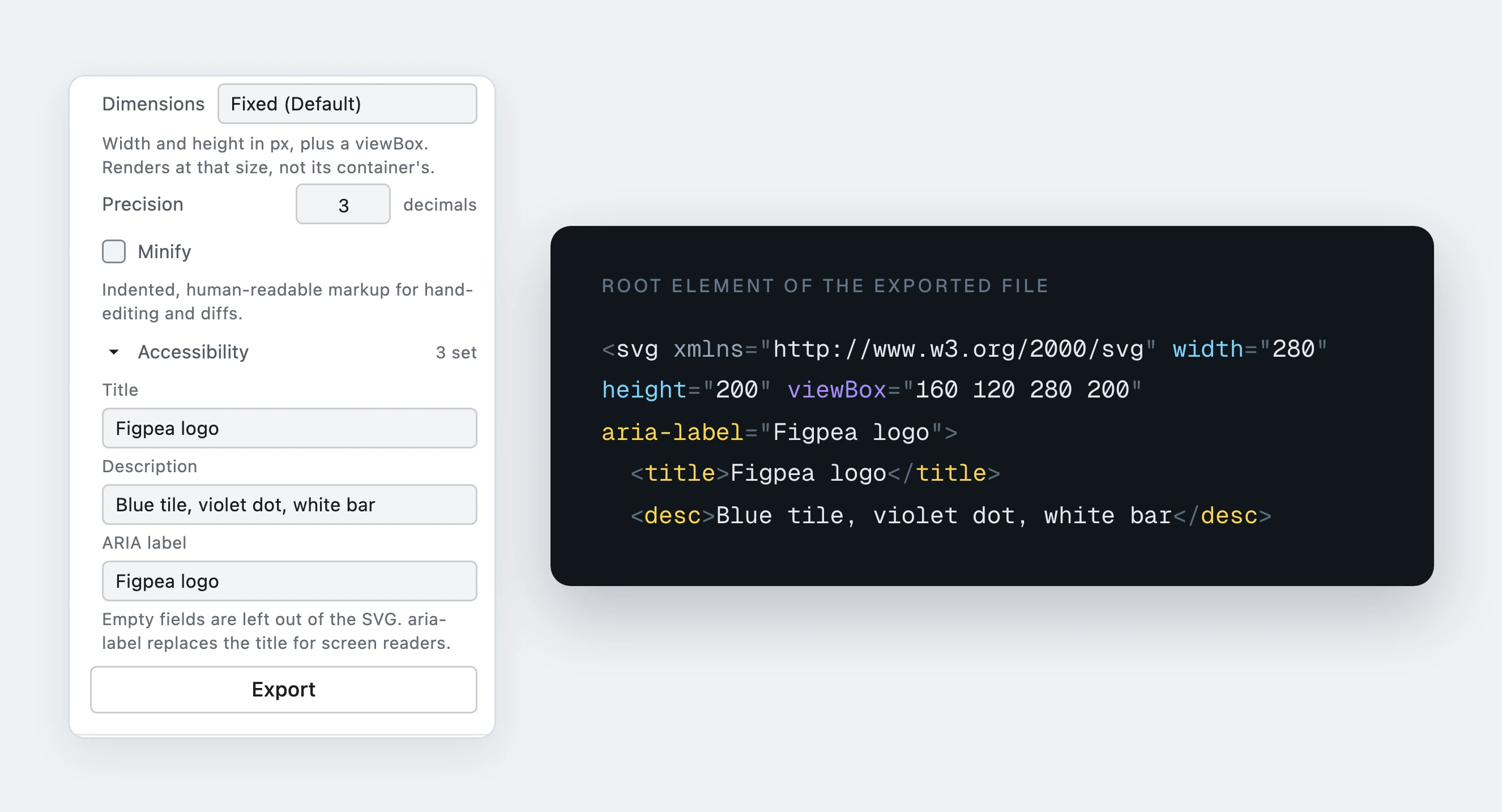
An honest framing: these are the attributes you supply, nothing more. They are the raw material an accessible document is built from — they are not a conformance claim, and Figpea does not audit what you write into them.
Below those four, the same row carries the fidelity options — how the file describes its strokes, its colors, its styles and its text framing. They ride the same Pro entitlement as SVG export itself (extract.svg) — every SVG export needs Pro, and these options are included with it — and, like every other option on the row, they only apply to a format: "svg" export: a raster format refuses them with invalid_params rather than ignoring them.
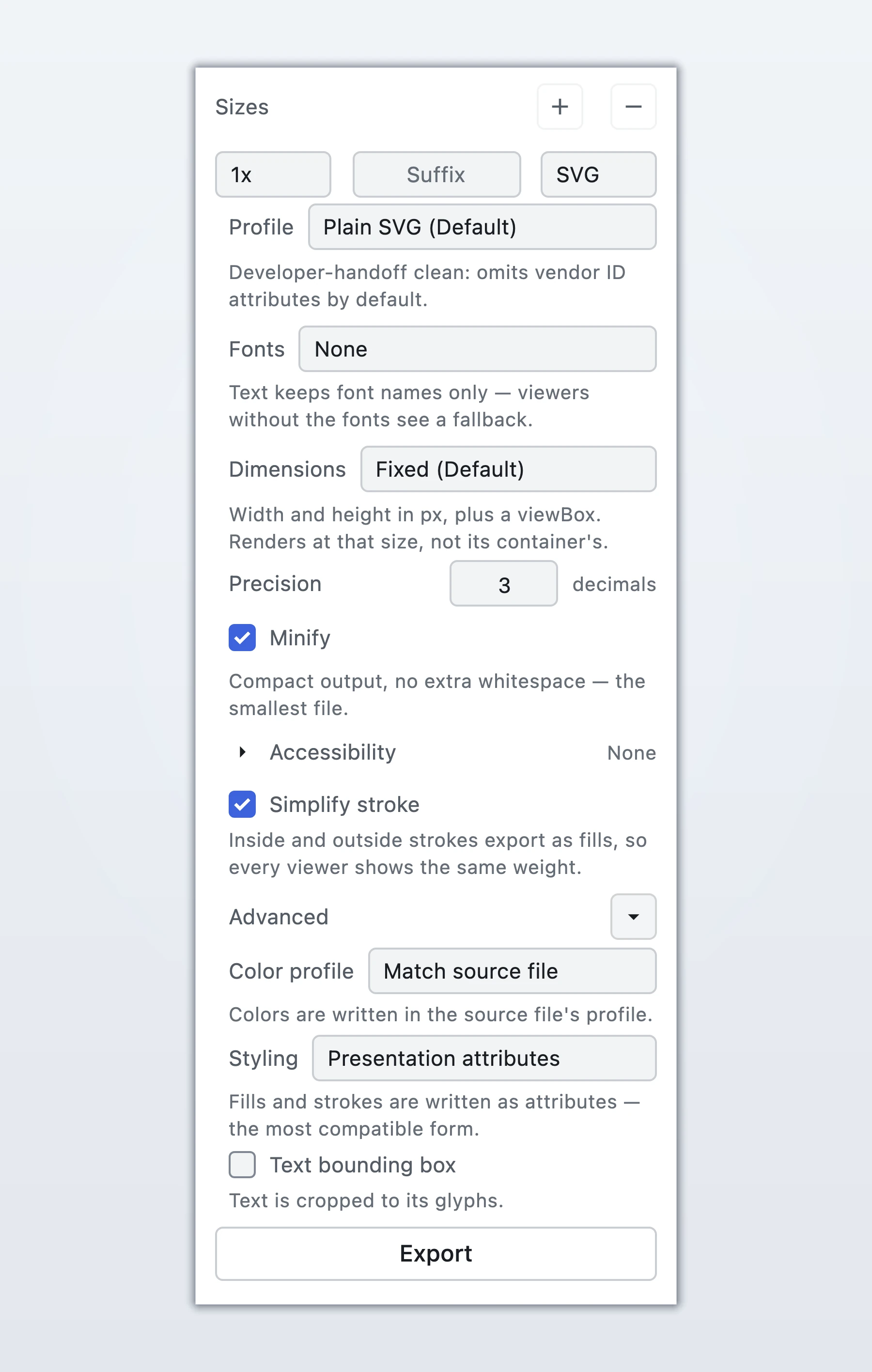
Stroke and text fidelity
Simplify stroke

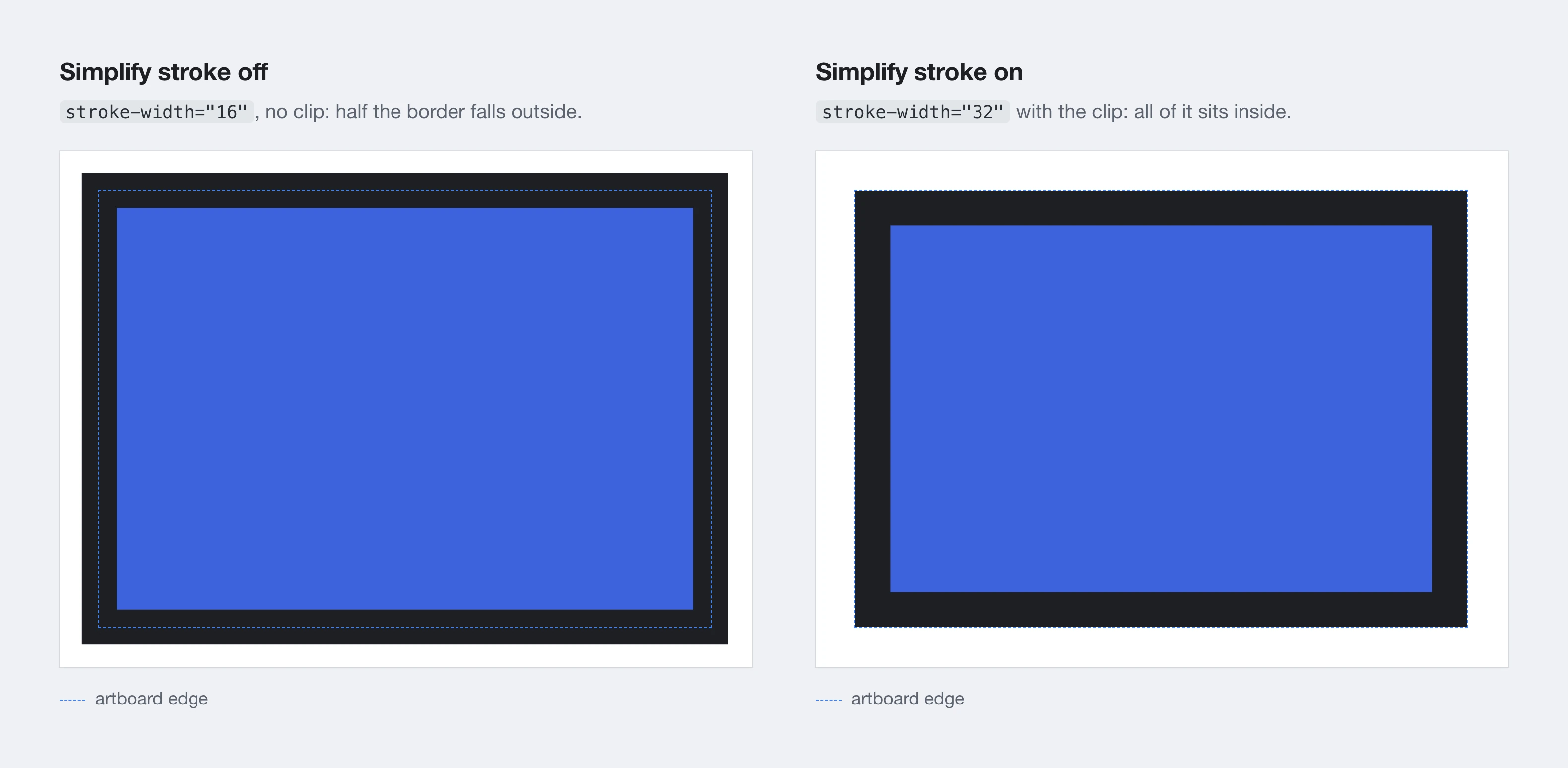
On by default. Standard SVG has no inside or outside stroke alignment — it only draws a stroke centred on the path. So an inside or outside border drawn in Figpea is converted on export: the file carries a wider stroke plus a clip (or, for an outside border, a mask) that trims it back to the side you drew, so the border keeps the same visual weight in any standard SVG viewer instead of losing half its width outside the shape.
Turn Simplify stroke off to get the previous, unsimplified markup. Three kinds of layer keep the unsimplified output regardless: a text layer (its stroke needs the glyph outlines to clip against, which the exporter does not build), a layer with a non-scaling stroke under a scaled group, and a layer that has its own clip path.
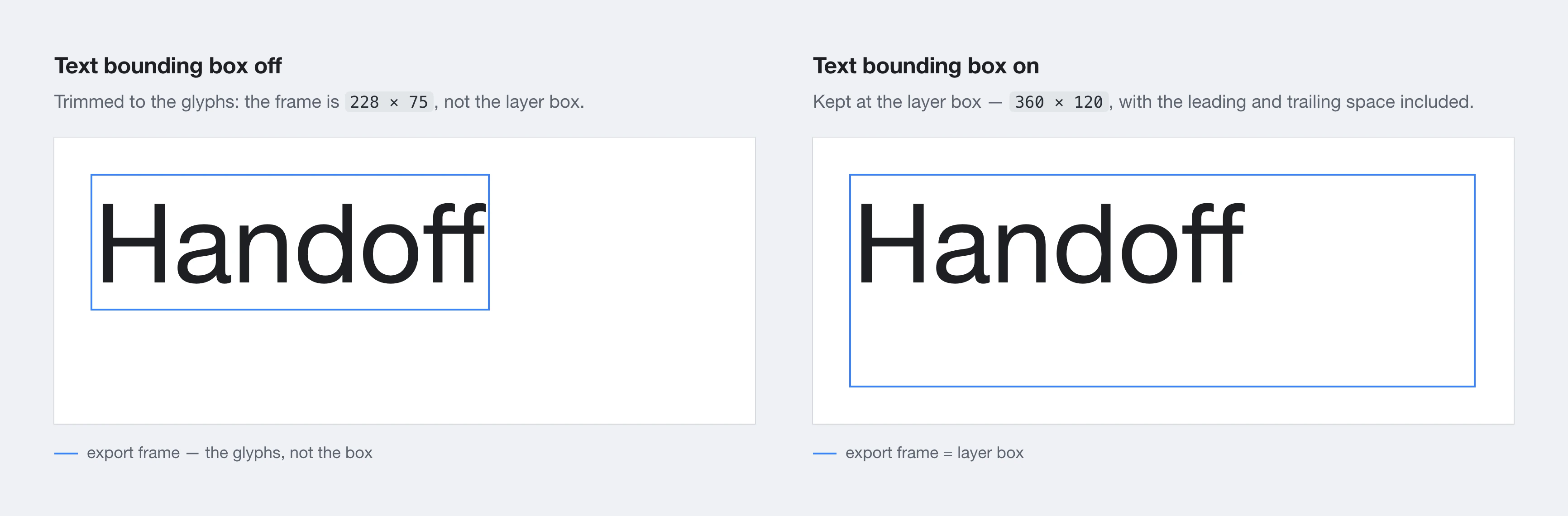
Text bounding box
Off by default. An SVG export frames the artwork to what is drawn, so a text layer exported on its own is tightened to its glyphs. Turn Text bounding box on to keep the text layer's own box instead — the frame you laid the text out in, leading included.
That is the framing an SVG export of a text layer produced before this option existed, so if you framed artwork against the old box — two exports butted up side by side, or a build that expects the old viewBox — this gives it back exactly. The box is modelled on Figma's own text framing; the tightened box is a measurement of the glyphs this build renders, so it can differ by a pixel or two from another tool's measurement.
Color space
Match source file by default.
- Match source file writes color values exactly as they are stored in the design — the same output exporting produced before this option existed.
- sRGB writes every color as an explicit sRGB value and declares the color space on the root element.
- Display-P3 converts every color to the wider Display-P3 space and declares it in the values themselves.
The trade-off is one sentence long: viewers that understand the declared profile render the wider gamut, and viewers that do not fall back — so a Display-P3 export is not a guarantee of identical color everywhere.

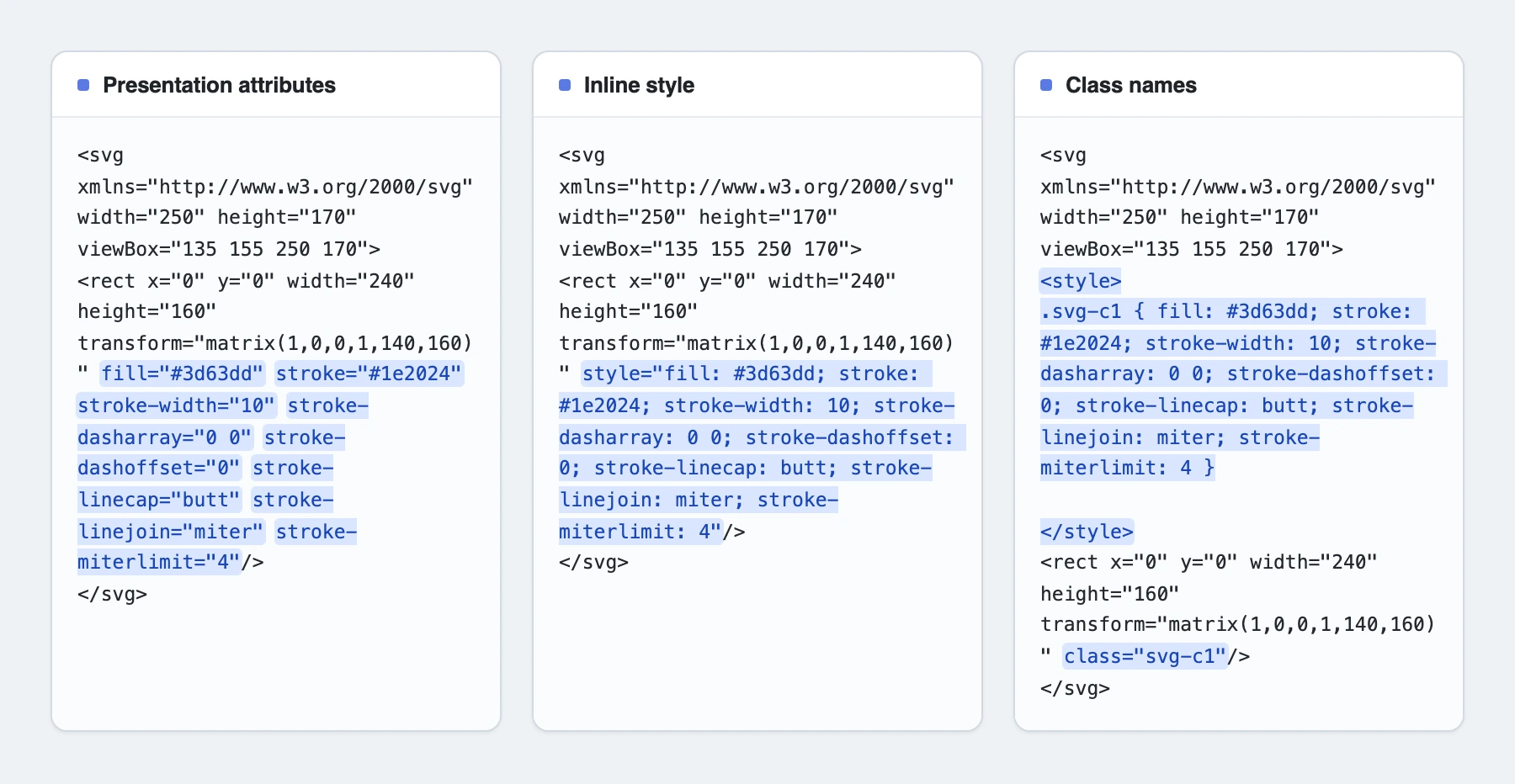
How styles are written
Presentation attributes by default.
- Presentation attributes writes one attribute per property (
fill="…" stroke="…"). This is the most portable form and the output Figpea has always produced. - Inline style merges the same paint into a single
style="fill: …; stroke: …"attribute. - Class names writes one deduplicated
<style>rule per distinct paint set plus aclass="…"reference on each element — the smallest result, and the one for a codebase managed by CSS.
Blend modes and the pointer-events setting stay inline in all three modes. Class names depends on the <style> block surviving your own build or SVG-optimizer pipeline — if that pipeline strips it, the paint goes with it, which is exactly why presentation attributes remain the default.
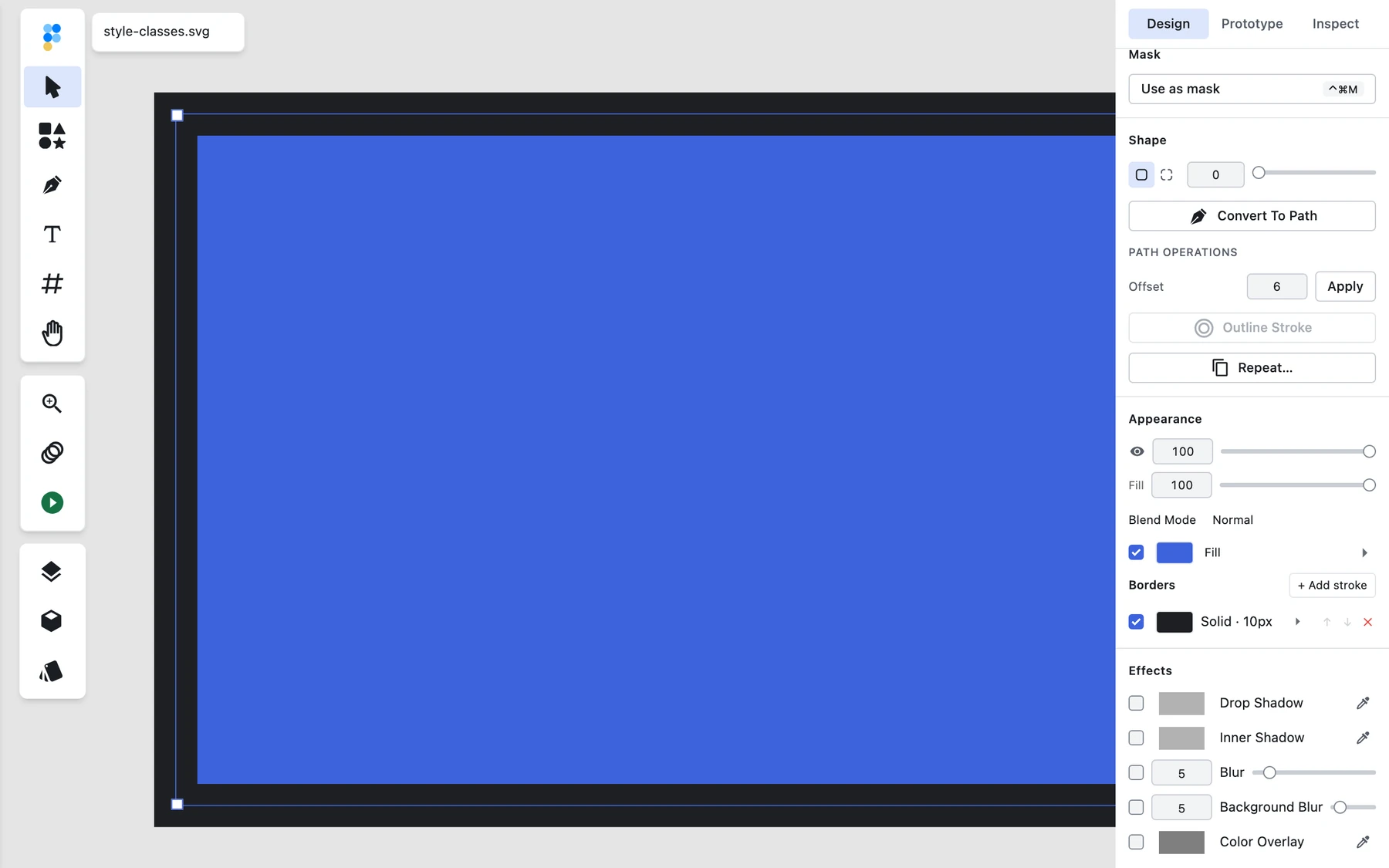
Ignore overlapping layers

On (Default) the export contains the selected layer and its children, and nothing else. This is what Figpea has always done, so a pre-existing export row renders exactly as it did before this option existed.
Off also includes any other layer on the page whose bounds intersect the exported area. It works at every level of the tree: a sibling of your selection, a sibling of any group it sits in, and an entire group whose own bounds intersect the export (that group comes along whole, subtree and all). Included layers keep the page's paint order, so a background paints behind your selection and a foreground paints in front of it. Hidden layers are left out, and another page's layers are never included — a page is a different artboard.
On the project export the same row sits in Export Project → SVG and applies to every artboard: the same rule holds, so an artboard's file gains the content whose bounds overlap it, and its own box still frames the file.
The framing does not change. The root viewBox and the emitted width/height stay the selection's own box in both settings, so anything the option adds that falls outside that box is cropped exactly as out-of-bounds content already was. Turning it off widens what is in the file, never where the file is framed — which also means the export does not silently re-frame itself when unrelated content moves.

A few design tools work this way. We describe the behaviour rather than the comparison: what you get is the selection plus whatever it was sitting on.
Images: embedded, linked or omitted
Raster content reaches an SVG in one of three ways, and Images picks which.
Embedded (Default) writes every image into the file as a base64 data: URL in its <image href>. One self-contained file, and this is what Figpea has always done — an existing row that sets nothing here exports exactly as before.
Linked writes the images as separate files and references them by relative path: an export holding one image downloads as a .zip containing the .svg plus images/image-1.jpg — the files are numbered, the extension comes from the image's own type (.jpg for a JPEG, .png for a PNG), and one image used twice is one file. That archive is not a quirk of the download — an SVG cannot carry externally referenced images inside itself, so the .svg on its own will not render them. Keep the .svg and its images/ folder together at the same relative paths, or the artwork renders with holes where the images were.
Omitted leaves the <image> elements out entirely. The rest of the artwork still renders; where the images were, there is nothing. Nothing tells you afterwards that they were dropped — no warning, no placeholder — so this is a choice to make deliberately, not a default to fall back on.
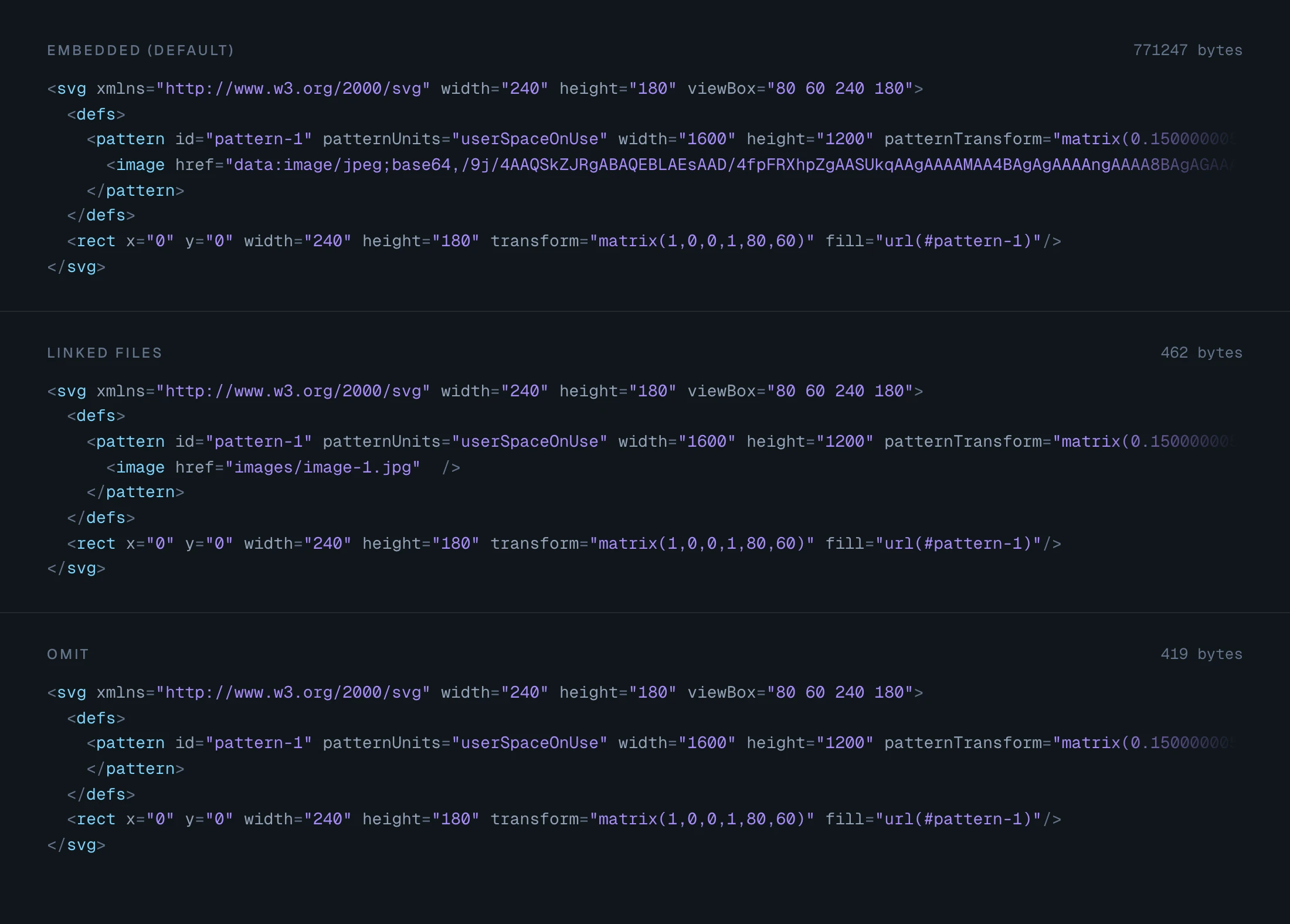
The difference is in the markup, not in a picture — which is why the figure above shows the files themselves: the same photo-filled layer, exported three ways.
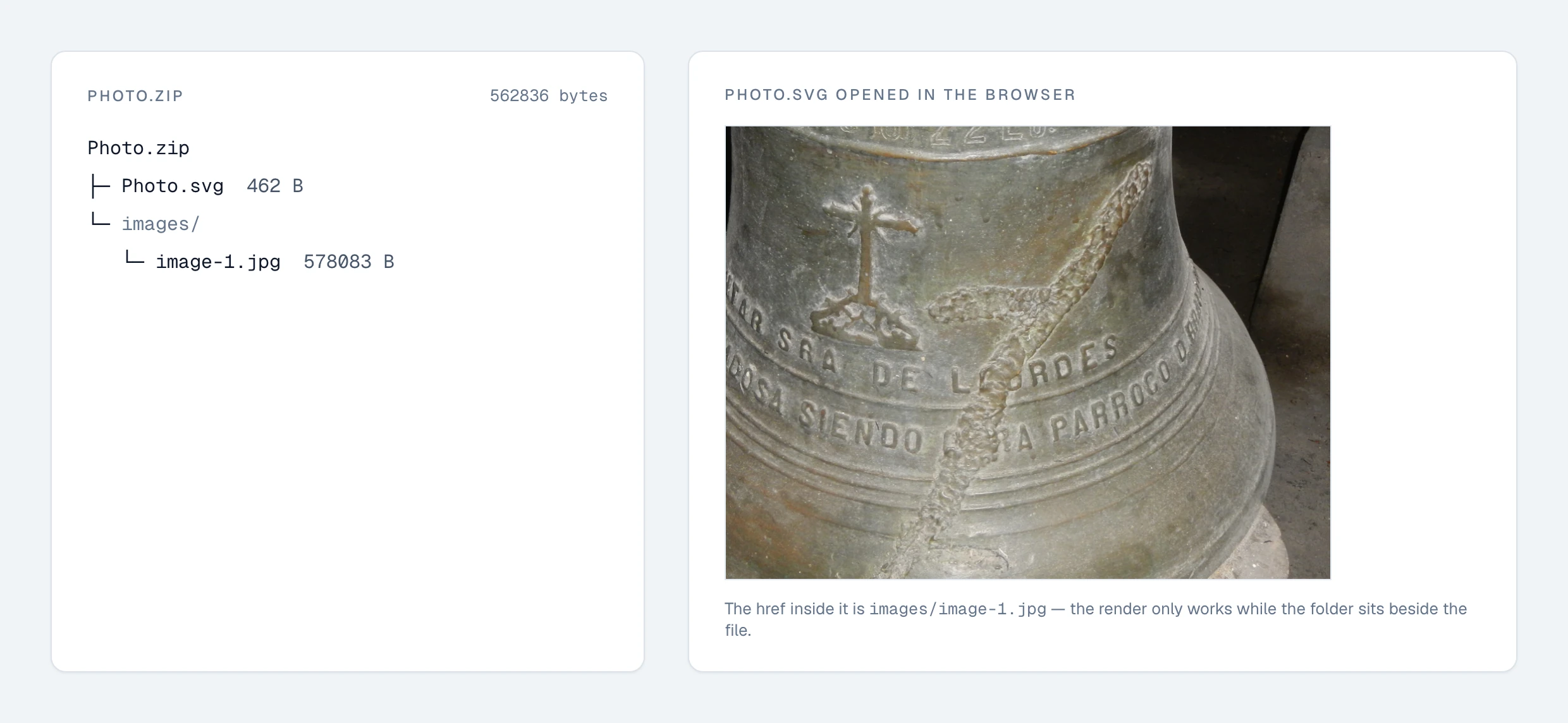
The .zip is the download whenever Linked is chosen, even when the selection happens to hold no raster at all: the file type stays predictable instead of depending on the artwork.
One caveat for Figpea Round-Trip exports: a linked export does not bring its images back on re-import. The relative references have no base to resolve against inside the reopened document, so the shapes survive and the images do not. If the images have to survive the trip back, keep Embedded.
Resampling
Resampling only applies to the images the export actually re-encodes — pattern fills and rasterised blend-mode fallbacks.
Detailed (Default) embeds each image at its own source resolution: a 4000 px photo stays 4000 px however small the export is. That is today's behaviour.
Basic resamples the image down to the size the export actually resolves — the pattern's target pixel size at the row's scale, or 1× for a rasterised fallback. A photo in a 200 px icon stops carrying twenty times the pixels it needs.
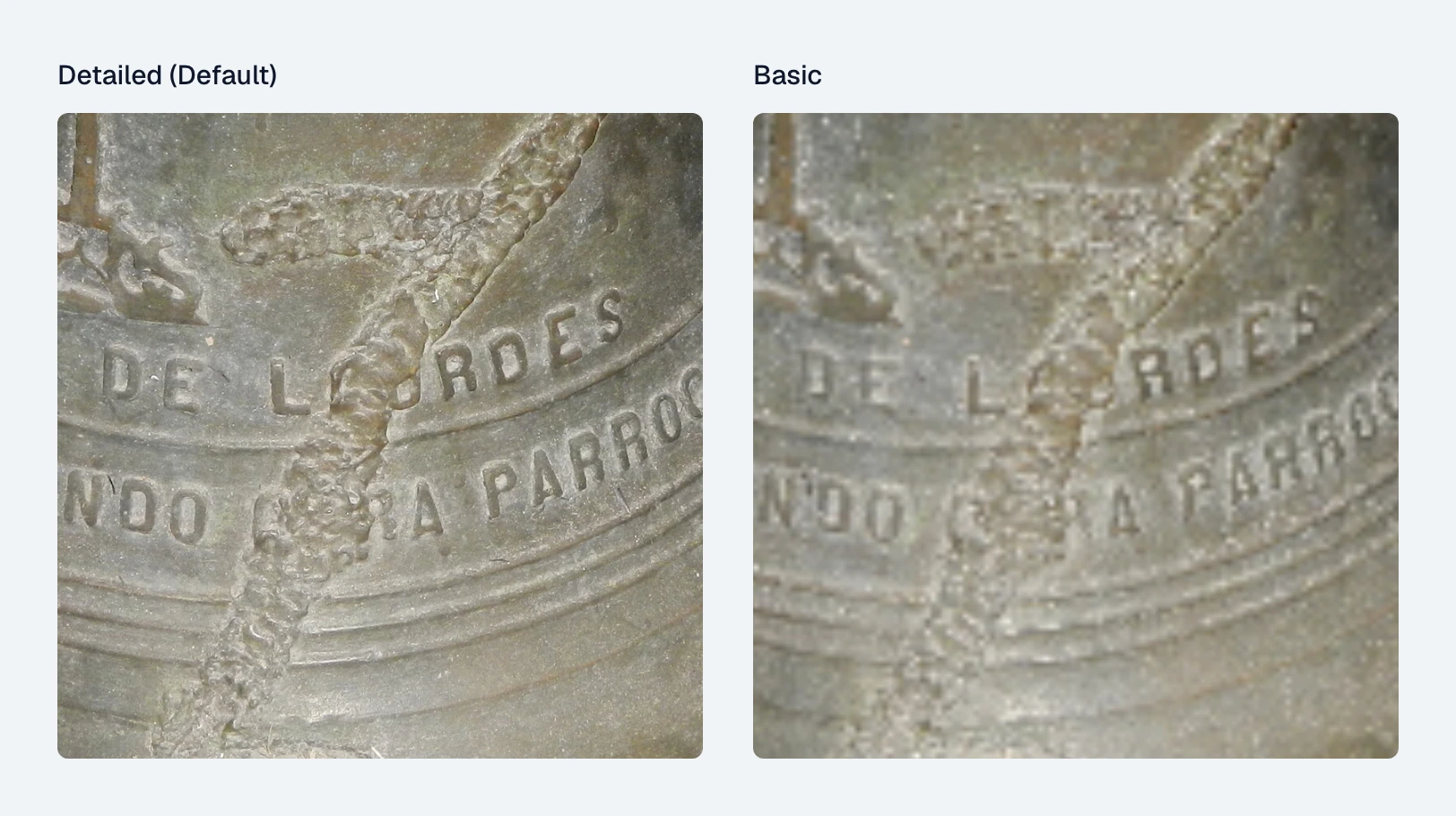
It never upscales: at or above the source's own size the bytes pass through untouched, so Basic is a no-op on a small image rather than inventing pixels. And the trade is one-way — zoom the exported SVG up and the image is soft. Your source file is untouched either way. The project export carries Resampling but not Images: it always embeds each artboard's images, so on that lane the setting reaches the pattern fills and the blend-mode stand-ins, which it draws at 1×.
Optimization: none, safe or aggressive
Optimization decides how much is removed from the finished document. It runs before formatting, so it is independent of Minify.
None writes the document exactly as the encoder produced it. Nothing is removed.
Safe (Default) removes metadata blocks, XML comments, <defs> entries that nothing in the document references, and unused namespace declarations. Geometry is untouched: every element, path and transform stays exactly as the canvas rendered it, so the picture is identical. Because Safe is the default, a document that carried a definition nothing referenced comes out without it — the only way this default can change an existing export's bytes, and it never changes what renders.
Aggressive does everything Safe does, and then simplifies path data: coordinates are rounded to two decimals and redundant segments are dropped, staying inside a 0.05 px floor. It is lossy but bounded — an outline can move inside that tolerance, so compare the render before you ship a file where that matters. It is never "visual-lossless". The project export carries the same row, with one difference: it has no profile switch, so nothing caps it at Safe — leave it on Safe yourself if the file has to come back into Figpea.
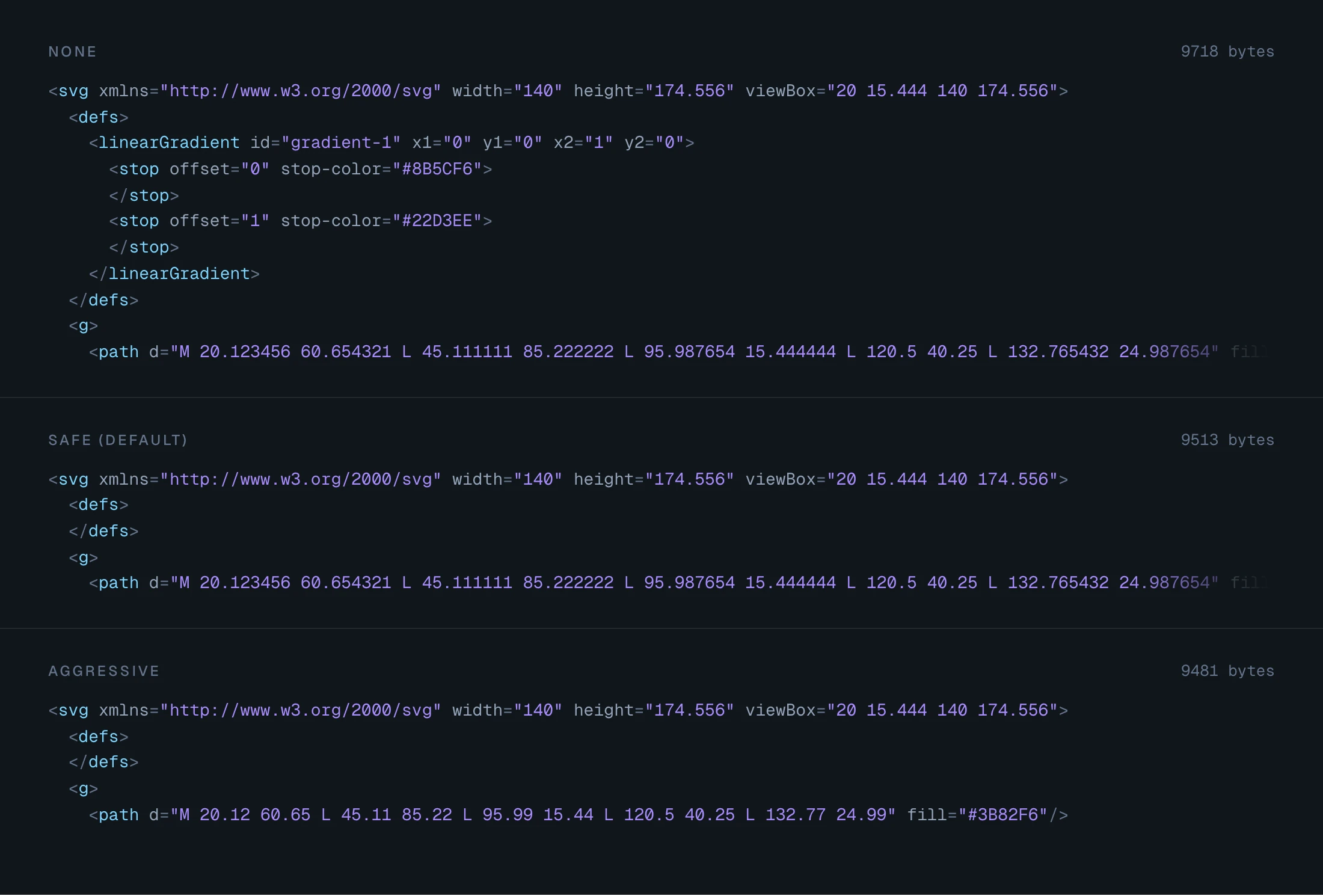
Minify and Optimization are different rows and are easy to conflate: Minify only reformats (comments and whitespace), Optimization removes structure, and at Aggressive it rewrites path data. See Markup: minified or pretty-printed.
The Figpea Round-Trip cap
Under the Figpea Round-Trip SVG profile, Optimization never goes past Safe, whatever the row is set to. The data-figpea-* channel is what makes re-import work, and aggressive path simplification would rewrite the geometry that channel describes. That is the guarantee, so it lives next to the option rather than in a changelog.
The panel does not silently rewrite your choice: the selector keeps Aggressive selected, the caption under it states that Safe is the level actually applied, and the collapsed Contents & size summary repeats it as Aggressive (Safe applied). Switch the row's profile back to Plain or Figma-Tuned and Aggressive applies again, unchanged.
Fonts and file size
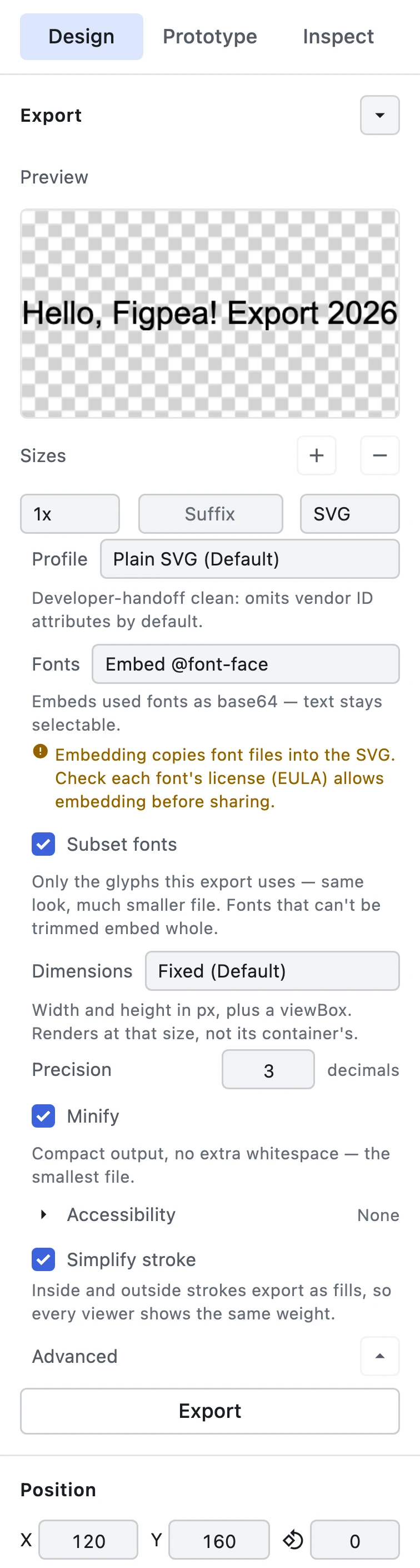
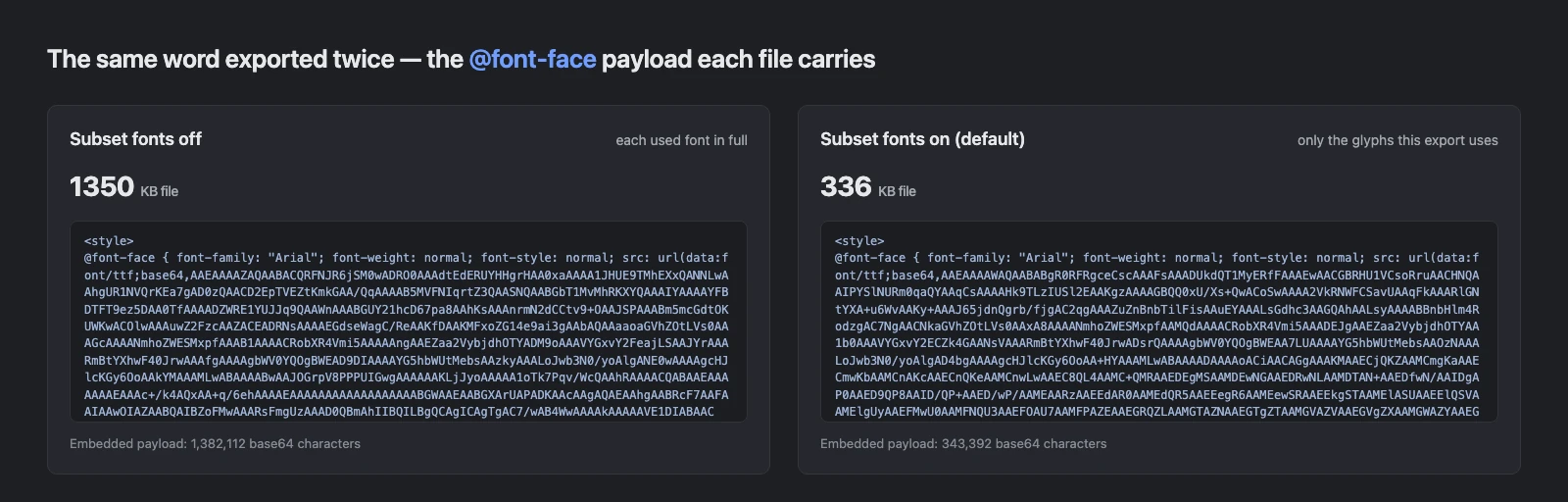
Embedding a font in an SVG export writes the font's own bytes into the file. Subset fonts decides how much of it goes in. On by default.
With it on, each embedded font is trimmed to the glyphs that export actually uses — the letters, digits and marks in your text, and nothing else. With it off, each used font goes in whole, which is what every export produced before this option existed.
The trimming only happens where it can be done: a font whose file Figpea cannot rewrite that way is embedded in full, exactly as before.
Subsetting never makes a file larger — on a design whose fonts cannot be trimmed, it changes nothing.
Only meaningful with Embed @font-face. With None no font data is written at all, and with Convert to outlines the text is already paths — there is nothing left to trim in either case.
The trimmed font is written as an uncompressed TrueType payload with its own MIME type. The saving is still substantial, but it is not the smallest a dedicated font compressor could produce.
How small depends on the font and on how much text you exported — a headline is a very different case from a paragraph. Measure your own file rather than trusting a percentage from someone else's.
The trimming runs in your browser as part of the export — the same rule as every other export in Figpea, nothing leaves the machine.
Trimming the embedded data does not change the licence question: check that each font's licence permits embedding before you share the file.
Which combination for which job
| Job | Dimensions | Precision | Minify | Images | Optimization | Metadata |
|---|---|---|---|---|---|---|
| Web handoff (icon or illustration that must scale) | Responsive | 3 (default) | On | Embedded | Safe (default) | Title, ideally a short one |
| Icon set dropped into a sprite or a component library | Fixed | 2–3 | On | Embedded | Safe (default) | None — the surrounding code names it |
| Design review / hand-editing a file | Either | 3 | Off | Embedded | None — comments and structure stay in the file | Title, so the file is self-describing |
| Round-trip back into Figpea | Fixed | 3 (default) | Either — the data channel survives | Embedded — a linked export does not carry its images back | Safe at most — the profile caps it there | Optional |
| Icon or card whose photo sits on a background shape | Fixed | 2–3 | On | Embedded | Safe (default) | None |
| Every artboard on one sheet, for a review or a spec doc | Fixed | 3 (default) | On | Embedded | Safe (default) | Optional — see SVG Export (Pro) for the combined layout, its include toggles, and its Optimization, Resampling and overlap rows |
| Site with a shared image folder and an asset pipeline | Either | 3 | On | Linked (.zip) | Aggressive, after comparing the render | Title |
| Debugging a file that renders wrong somewhere else | Either | 3 | Off | Embedded | None — comments and structure stay in the file | Title |
Frequently Asked Questions
How do I make an SVG responsive?
Strip width and height, keep the viewBox, and size the element with CSS. Figpea does the stripping for you: set Dimensions to Responsive and the export keeps the viewBox while omitting both attributes.
Why does an SVG need a viewBox?
The viewBox is the coordinate system the artwork is drawn in, and it is what makes scaling possible: the browser maps that box onto whatever space the element occupies. Without it there is nothing to scale from, which is why the responsive option keeps it.
How do I add a title and description to an SVG for accessibility?
<title> and <desc> belong on the root element, as its first children, and aria-label is the alternative announcement. The Export panel's Accessibility fields emit exactly those three, and each one you leave empty is omitted.
What decimal precision should an SVG use? 3 is a sane default: it keeps sub-pixel detail without printing noise. Lower it toward 0 when the geometry is integral and you want the smallest text, raise it when curves need the detail. Precision only affects the root's numbers, not path data.
Does minifying an SVG strip Figpea's layer data?
No. The data-figpea-* channel is inert attributes on the elements themselves, and Minify only removes comments and inter-element whitespace. A Round-Trip export can be minified and still re-import with its stroke position, lock state and shape metadata intact.
Does exporting an SVG upload my file? No. The encode runs in your browser and nothing leaves the machine — the same rule as every other export in Figpea.
Why did my SVG export download as a .zip?
Because Images is set to Linked: an SVG cannot carry externally referenced images inside one file, so the export ships as a .zip containing the .svg plus its image files. Keep them at the same relative paths or the artwork renders with holes. Set Images to Embedded for a single file.
Is Aggressive optimization lossless? No. It removes metadata, comments, unreferenced definitions and unused namespaces, then simplifies path data within a 0.05 px tolerance, so an outline can move slightly. Safe — the default — leaves geometry untouched. The Round-Trip profile never goes past Safe.
What is the difference between Minify and Optimization?
Minify only reformats: no comments, no whitespace between elements, nothing else changes. Optimization removes things from the file — metadata, comments, unreferenced <defs>, unused namespaces — and at Aggressive it rewrites path data. They are independent rows and can be combined freely.
What does Ignore overlapping layers do? On (the default) exports only the selected layer and its children. Off also includes other layers on the page whose bounds intersect the export, so a shape exports with the background it sits on. Turn it off when you want a self-contained piece of the design.
Why is an exported SVG so large when it contains text? Because the font goes into the file. With Fonts set to Embed @font-face, a text export carries the font's bytes so the text stays selectable and renders without the font installed. Subset fonts, on by default, trims that to the glyphs you used; turn it off to embed each used font whole.
Does subsetting change how the text looks? No. Only glyph outlines the export does not use are removed, and the font's spacing and kerning data stays in the file. A font Figpea cannot trim is embedded in full instead, so the text renders the same either way.
Related
- Exporting — the full export surface, including the three SVG profiles and Optimizer Durability.
- Exporting → SVG Export (Pro) — the project-level export: one SVG per artboard in a ZIP, or every selected artboard on one combined page.
- Export a Responsive SVG — the technique end to end, with the
viewBoxexplained from first principles. - Agent API — the same options as
export.layer/export.artboardinput keys (svgDimensions,svgPrecision,svgMinify,svgTitle,svgDesc,svgAriaLabel,svgSimplifyStroke,svgColorProfile,svgStyleMode,svgTextBoundingBox,svgIgnoreOverlapping,svgImageEmbedding,svgImageResampling,svgOptimization,svgFontSubsetting— andexport.projecttakes the same keys for a whole export, plus the layout keys). - Exporting layers in Figpea — a walkthrough of the Export section itself.
- Font management — installing, aliasing and using the fonts an export embeds.