 Figpea
Exporting
Learn how to export your work from Figpea, whether you need to export individual layers as assets or share entire projects with others. This guide covers all export options and best practices for different scenarios.
Layer Export
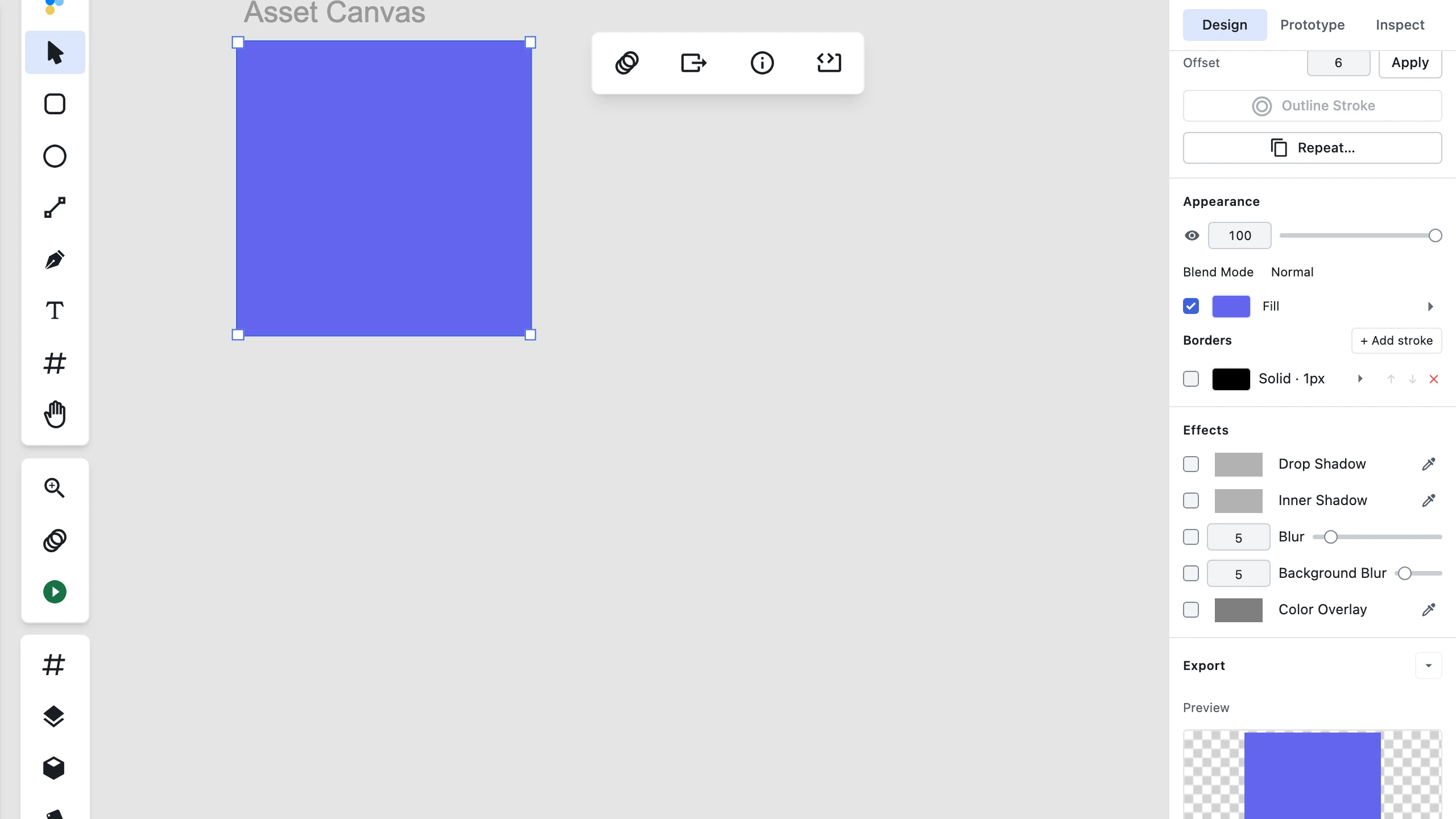

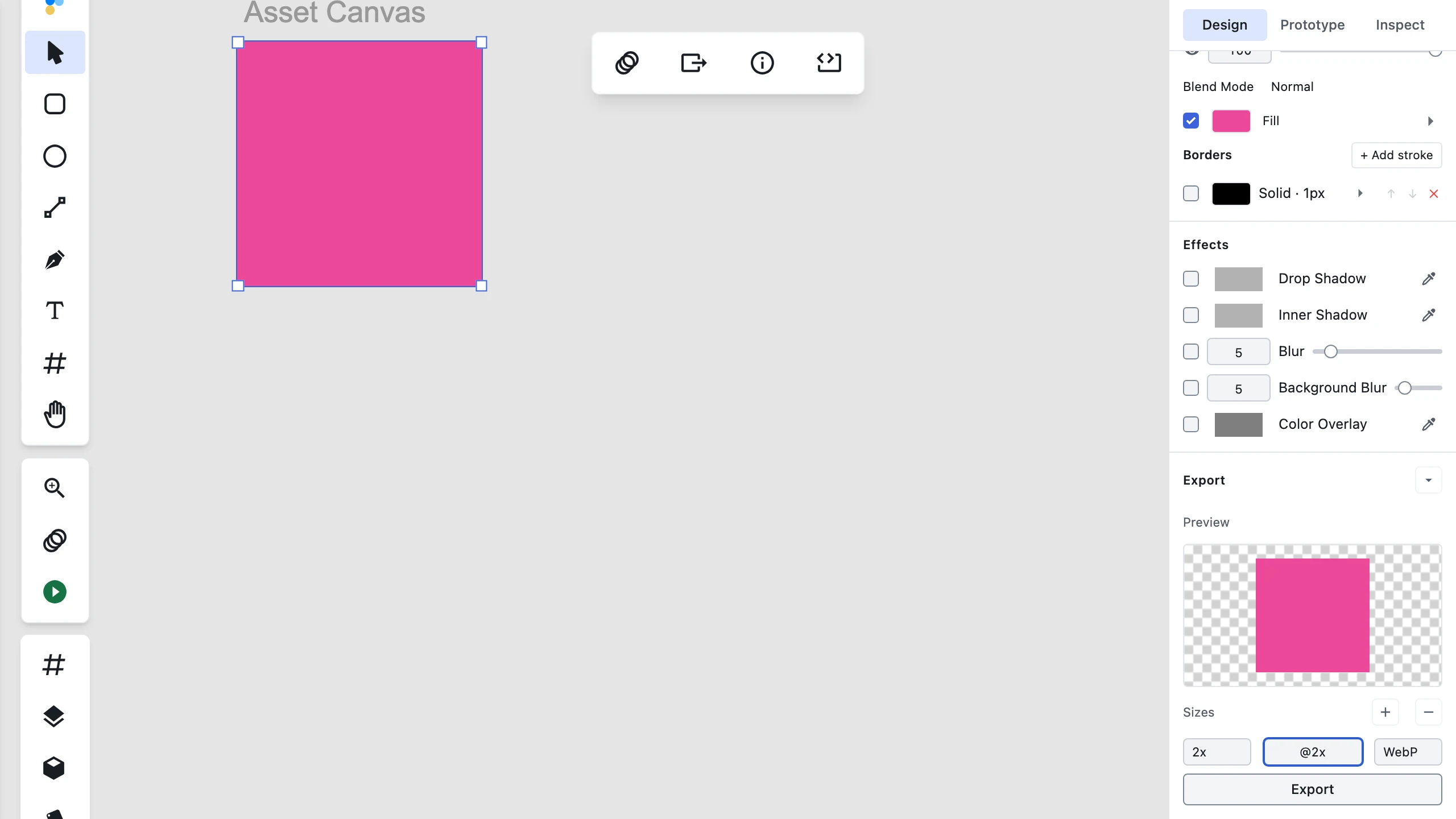

Export individual layers or groups of layers for use in other applications. In v3, per-layer asset export is permanently housed inside an Export section at the bottom of the inspector's Design tab (collapsed by default). Unlike the old floating popover where export configurations were discarded on close, export rows configured here persist on the real layer proxy across collapses and selection changes.
Supported Formats
- PNG: Perfect for images with transparency
- JPEG: Ideal for photographs
- WebP: Modern format with superior compression
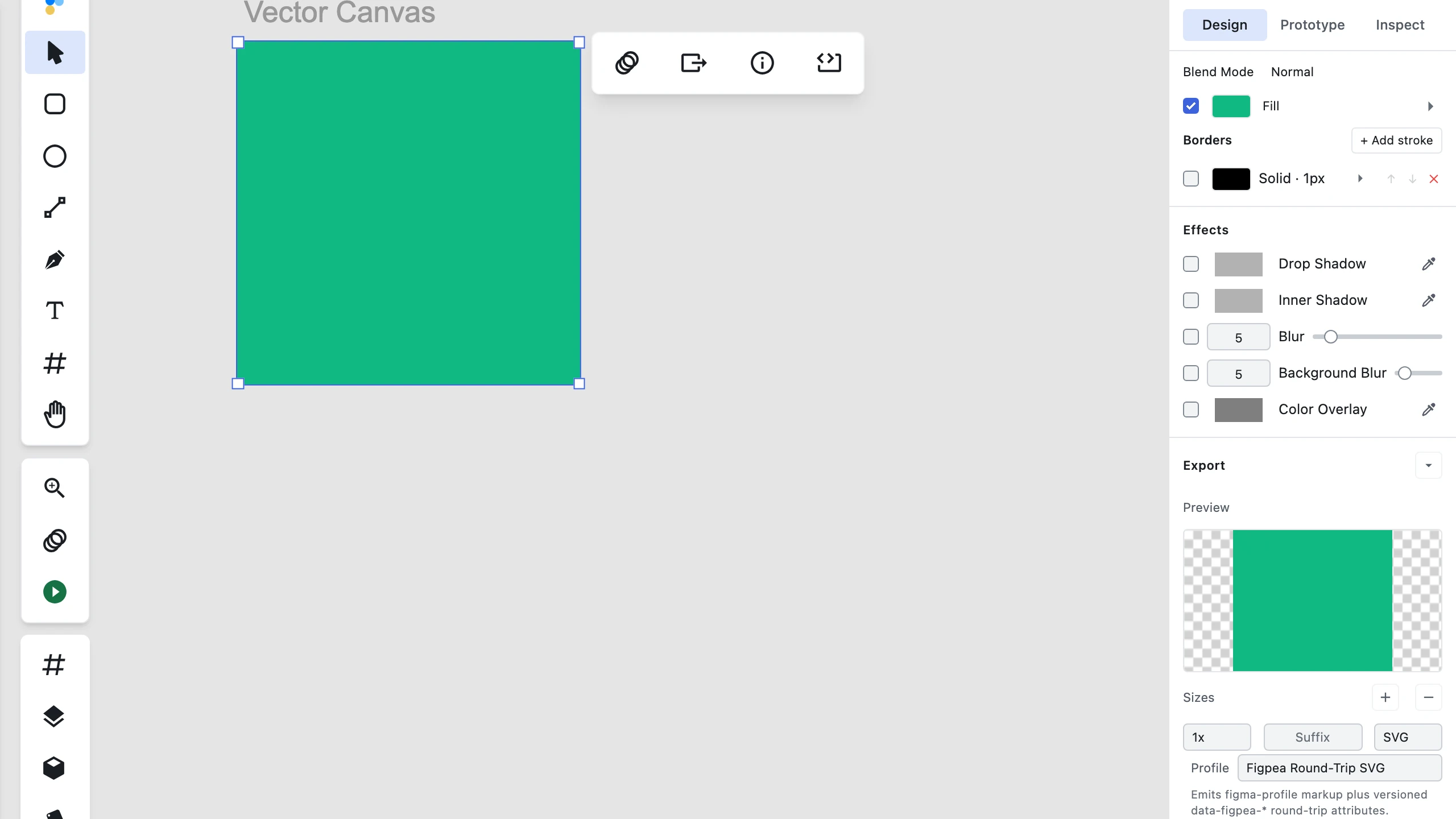
- SVG: Vector format for scalable graphics — free at 1x, like PNG/JPEG/WebP
Page background in an export
Exporting a page brings the page's own background with it. If the page has a background color set in the inspector's Page section, that color is the ground of the exported image and the image's alpha is opaque — the page is not exported floating on transparency or on a black plate. Set the page's fill type to None and it exports transparent instead, which is what you want when the page is a component meant to sit on a background you have not chosen yet.
A background color is not a substitute for a rectangle when you need one: a rectangle is a layer you can move, mask and animate, and a page background is the ground behind everything on the page. See Page Sizes & Presets to set it.
Learn more: Export Layers in Figpea
Export Settings
Scale Options
- 1x export is free on every plan
- Any other scale — preset (0.25x, 0.5x, 0.75x, 1.5x, 2x, 3x, 4x) or custom — is a Pro feature
- High-quality scaling with proper antialiasing
Format-Specific Options
-
PNG Settings:
- Transparency support
- Web optimization
- Color profile handling
- Compression level
-
JPEG Settings:
- Quality level (0-100)
- Progressive loading
- Color profile
- Metadata options
-
WebP Settings:
- Quality adjustment
- Lossless option
- Alpha channel support
- Metadata preservation
-
SVG Options:
- Responsive attributes (width/height and viewBox)
- CSS styling (inline vs presentation attributes)
Variable-width strokes (added via the Variable Width tool in Path Edit Widget) export to SVG as a filled outline whose document framing includes the full widened extent — the exported SVG matches the on-canvas tapered render without clipping.
SVG Export Profiles
Figpea offers three export profiles for SVG output, tailored to different development and design workflows:
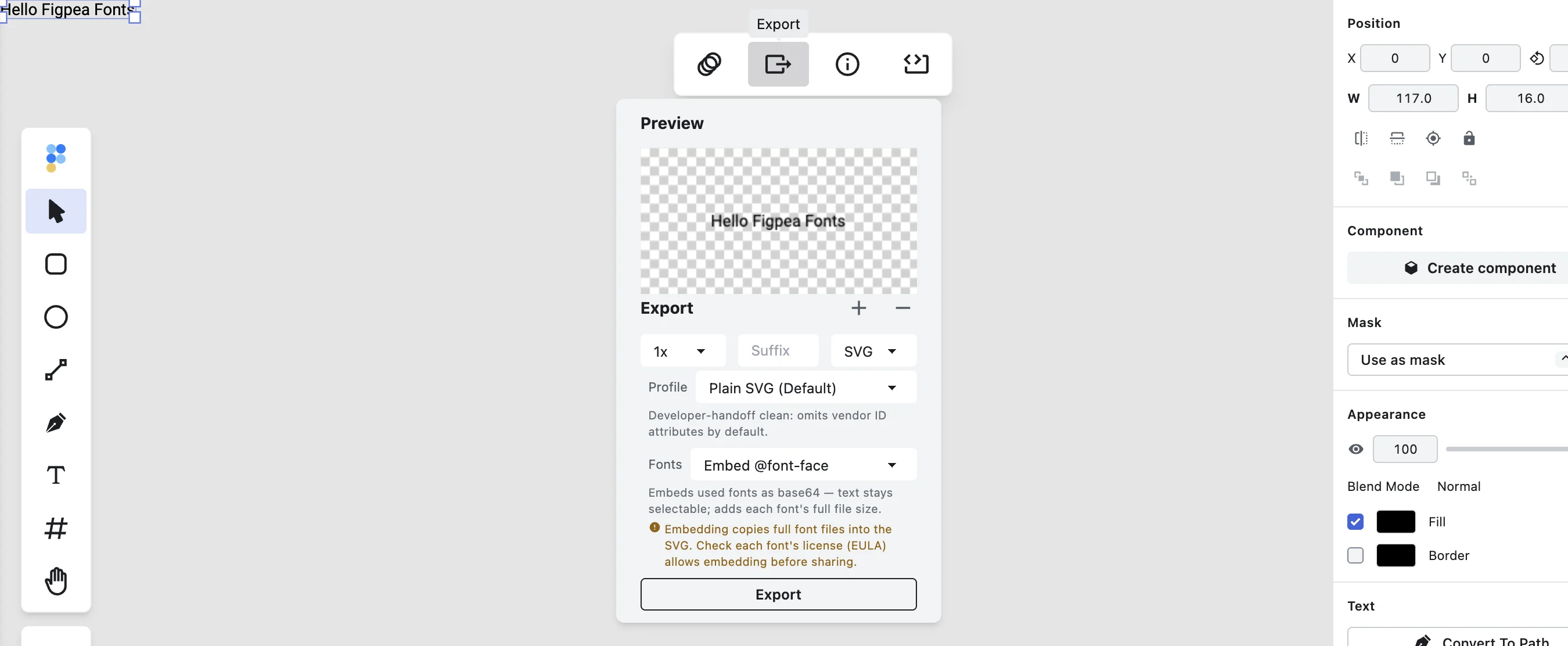
- Plain SVG (Default): Clean, production-ready SVG markup with zero vendor attributes or internal metadata. Ideal for web developers and production codebases.
- Figma-Tuned SVG: Optimized for importing into Figma without plugins (preserves editable text and layer/group naming).
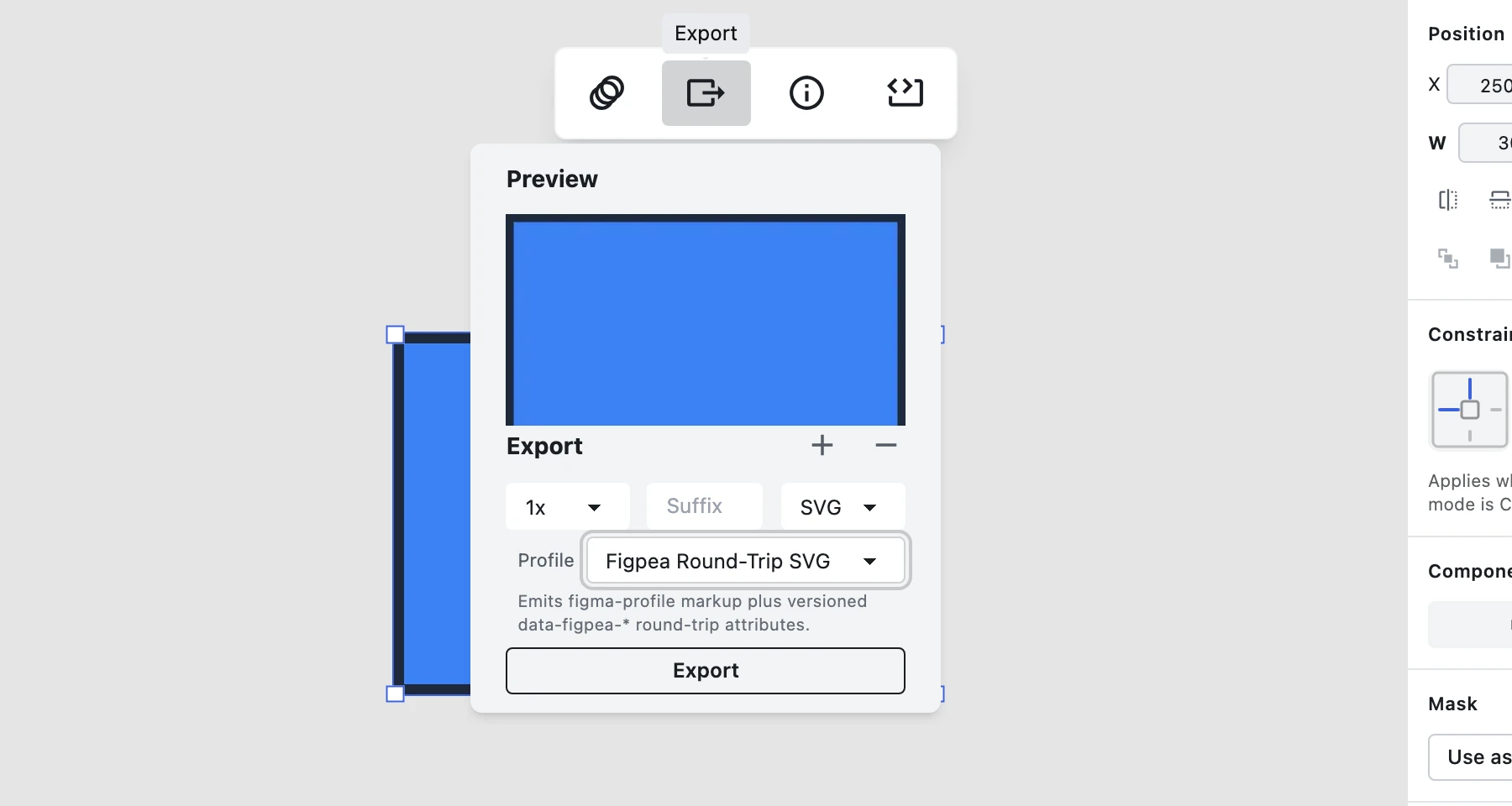

- Figpea Round-Trip SVG: Embeds a versioned
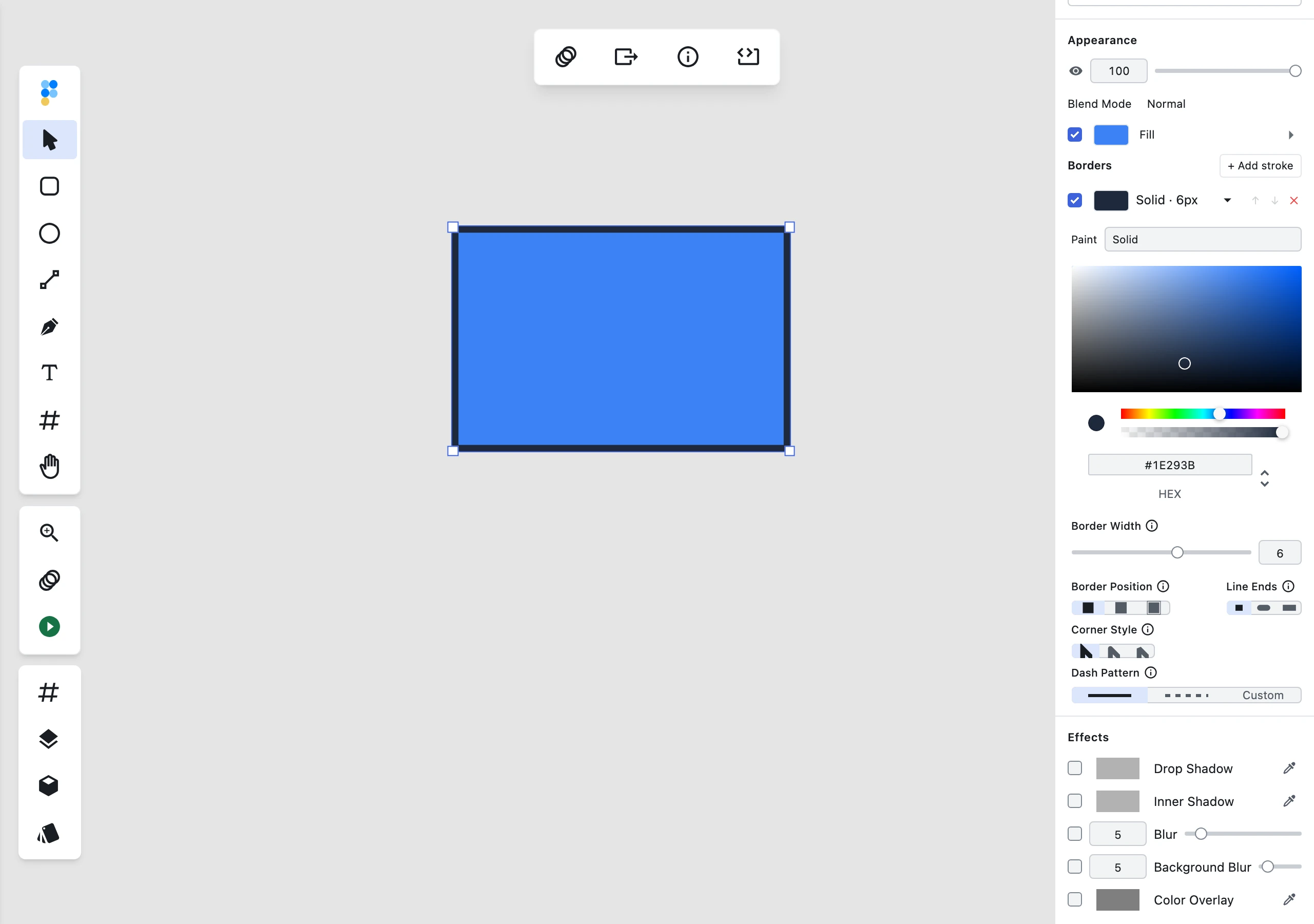
data-figpea-*data channel on elements and the root<svg>tag to preserve Figpea-specific layout properties (strokePosition,locked,maskkind,clipContent,isolated,overrideChildrenStyle, andshapetype rect vs path) and prototype interactions (triggers, actions, and target page references) across re-imports.
The Authority Rule
Visual SVG markup (transform, geometry, fill) is always authoritative. If an exported SVG is modified in an external vector tool (Illustrator, Inkscape), the visual edits win on re-import into Figpea.
Optimizer Durability
The data-figpea-* data channel attributes survive standard SVGO optimization passes, allowing you to compress and minify your exported SVGs without losing layer metadata.
Prototype Interaction Preservation
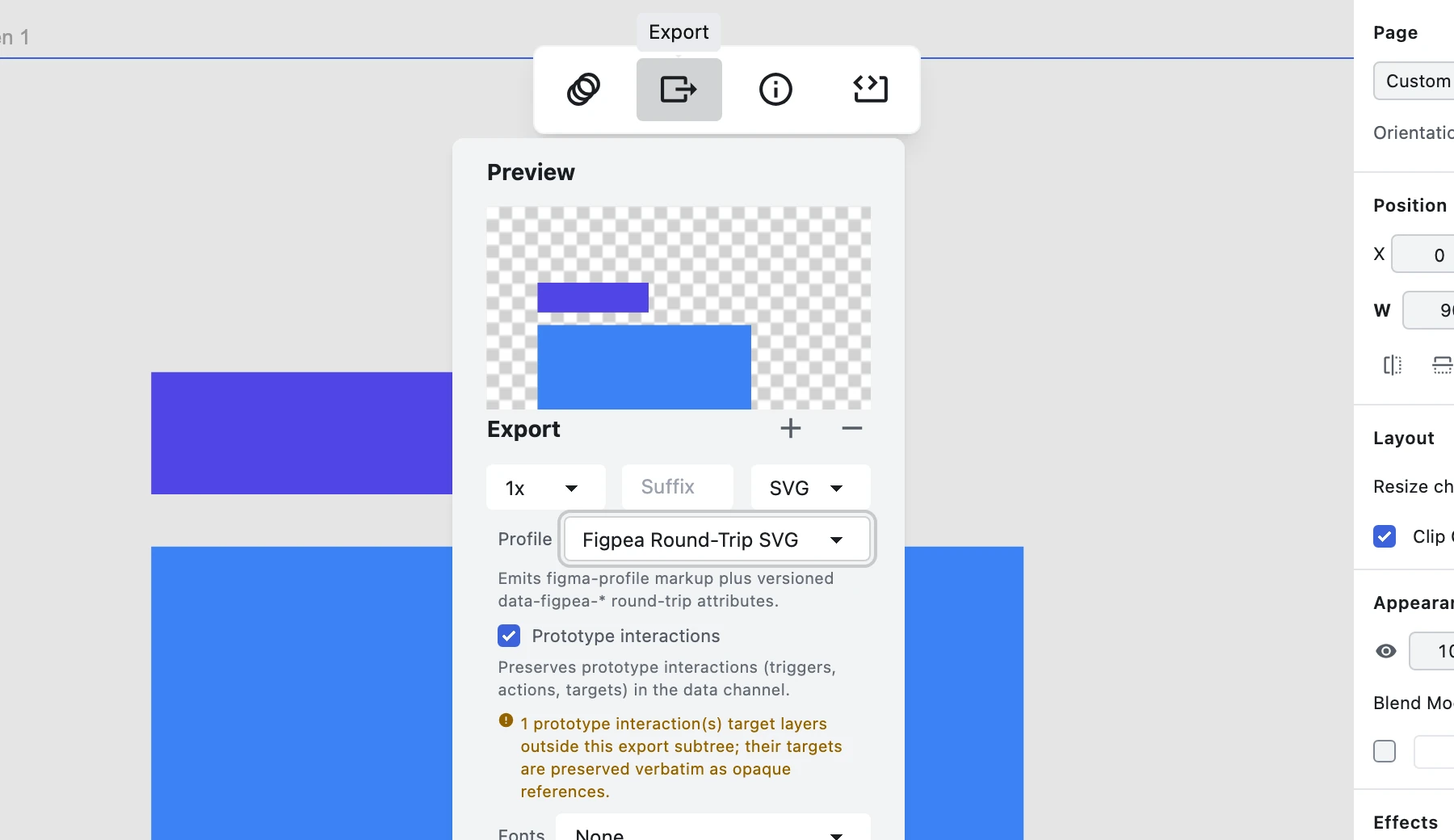
When exporting with the Figpea Round-Trip SVG profile, Figpea serializes declared prototype interactions (ILayerBase.interactions) into the root document's data-figpea-schema payload, with element reference markers (data-figpea-interaction-ref) mapped to source layers and resolved in-document targets.
- In-Document Resolution: Interactions whose target layer lies within the exported subtree are fully restored on re-import, mapping target ids to newly-minted layer IDs.
- Cross-Document Preservation: Interactions pointing to target pages outside the exported subtree have their target identifiers preserved verbatim as opaque references (
destinationOpaque), ensuring forward compatibility with future multi-page export formats without data loss. - Export Diagnostics: If an export contains interactions whose targets fall outside the exported subtree, Figpea surfaces a non-blocking diagnostic warning in the Export panel and report, notifying you that the export is partial.
- Optimizer & Browser Safety: Interaction data is stored exclusively in inert
data-*attributes (data-figpea-schema,data-figpea-interaction-ref) and never emits executable scripts (<script>) or animation markup (SMIL), ensuring SVGO compatibility and secure rendering in any browser as static artwork.

SVG Font Handling
Figpea allows you to choose how text is handled when exporting to SVG:
- None (Default): Exports standard CSS font-family references without embedding font data.
- Embed @font-face: Embeds base64 font binaries in an inline
<style>block, keeping text selectable and editable. Note: Embedding commercial fonts in exported files may violate font EULA. - Convert to Outlines: Converts text to vector
<path>geometry for universal rendering without font dependencies. When paired with the Figpea Round-Trip SVG profile, an embeddeddata-figpea-textpayload allows Figpea to restore an editable text layer on re-import.
Frequently Asked Questions
Does exporting an SVG from Figpea include proprietary metadata? By default, No. Plain SVG exports are clean and free of vendor attributes. You can opt in to Figpea Round-Trip SVG when you want to preserve stroke positioning, layer lock states, and shape metadata across re-imports.
Can I preserve prototype interactions when exporting to SVG? Yes. When using the Figpea Round-Trip SVG profile with interactions enabled, Figpea preserves triggers, actions, and target references in the exported SVG data channel for seamless round-tripping.
Can I embed fonts or convert text to outlines in SVG exports?
Yes. You can choose to embed @font-face base64 font binaries to keep text selectable, or convert text to vector paths for universal portability. When using outline mode with the Figpea Round-Trip SVG profile, your text remains fully editable on re-import.
What ground does an exported page land on? Its own background color, when it has one set in the inspector's Page section — opaque, not transparent and not black. With the page's fill type set to None it exports transparent instead.
Batch Export
Export multiple layers simultaneously:
-
Selection Methods:
- Select multiple layers
- Use layer groups
- Filter by type
- Select all visible
-
Configuration:
- Apply settings to all
- Individual adjustments
- Naming conventions
- Output organization
-
Output Management:
- Choose destination
- Create subfolders
- Maintain hierarchy
- Automatic organization
Project Export
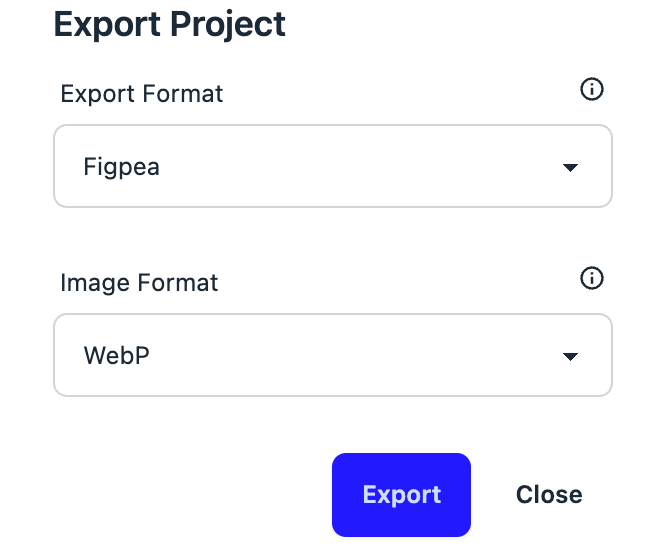
Share your entire project in different formats:
Learn more: Export Project in Figpea
Figpea Format (.fp)
The recommended format for maintaining full editability:
-
Project Naming & Unique Defaults:

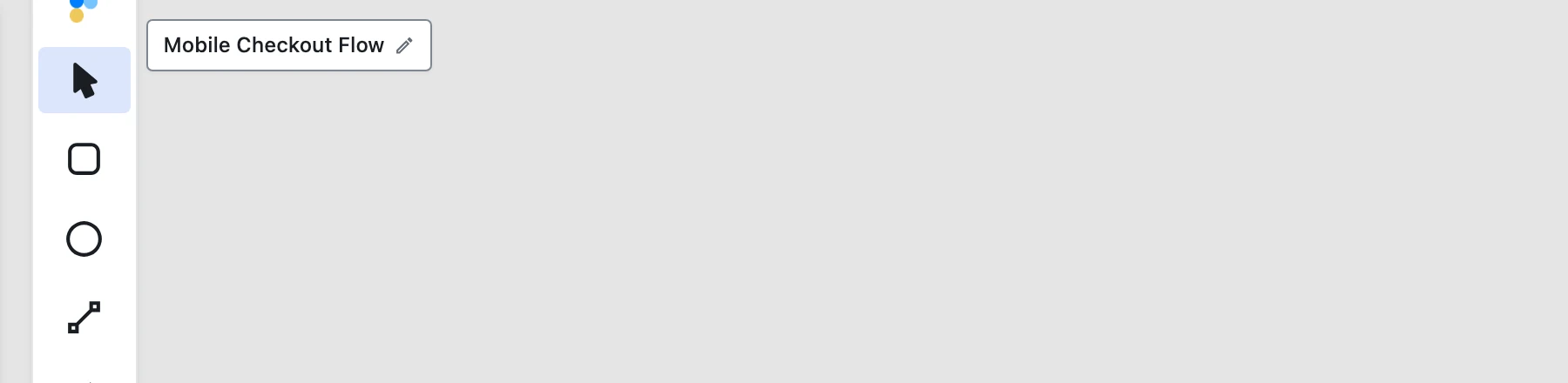
- Every from-scratch design is automatically assigned a distinguishable default name (e.g.,
Untitled 1,Untitled 2), ensuring your.fpexports never collide as genericNew Project.fpfiles. - You can rename your project at any time directly in the top-left corner of the editor by clicking the title chip or using the agent API (
figpea.session.renameProject({ name })). - When you open an existing file (such as a PSD, XD, or Figma file), Figpea preserves its source name for your exports.
- Every from-scratch design is automatically assigned a distinguishable default name (e.g.,
-
Benefits:
- Complete project preservation
- Full editability
- All features supported
- Best for collaboration
-
Use Cases:
- Work in progress
- Team sharing
- Version control
- Project backup
ZIP Export (Pro)
Package all assets into a single ZIP file:
-
Contents:
- Individual layer files
- Asset collections
- Project structure
- Documentation
-
Configuration:
- Choose formats
- Set quality levels
- Select scales
- Organize output
PDF Export (Pro)
Create documentation-ready PDF files:
-
Features:
- Multi-page support
- Vector quality
- Universal compatibility
- Print-ready output
-
Settings:
- Page size
- Quality level
- Compression
- Metadata
Figma Migration Kit (Pro)
Move a project into Figma without a plugin:
-
Contents:
- One Figma-tuned SVG per top-level artboard — text stays editable, and named layers and groups keep their names
assets/— the original embedded images plus @1x/@2x reference rendersfonts.md— every font used, flagged if missing locally, with the closest Google Fonts matchcopy-deck.md— every text string, grouped by artboardREADME.md— the import guide
-
What it is not: the kit emits new Figma-tuned output you import into Figma; Figpea never writes back into an existing
.figfile. It is not a pixel-perfect conversion either — complex gradients, blend modes, effects, and prototype behavior may need touch-up on the Figma side.
Contact Sheet PDF (Pro)
One review-ready PDF of the whole project:
-
Contents:
- A cover page with the project name, stats, and font manifest
- One titled page per artboard, in document order
-
Use Cases:
- Print review and stakeholder sign-off
- An archive snapshot of what the file contained
Flow Poster (Pro)
A one-page map of your prototype:
-
Contents:
- One node per artboard (thumbnail + name)
- One edge per parsed prototype transition
-
Output Formats:
- SVG (default), or a PNG or PDF render of that same SVG
Asset Harvest (Pro)
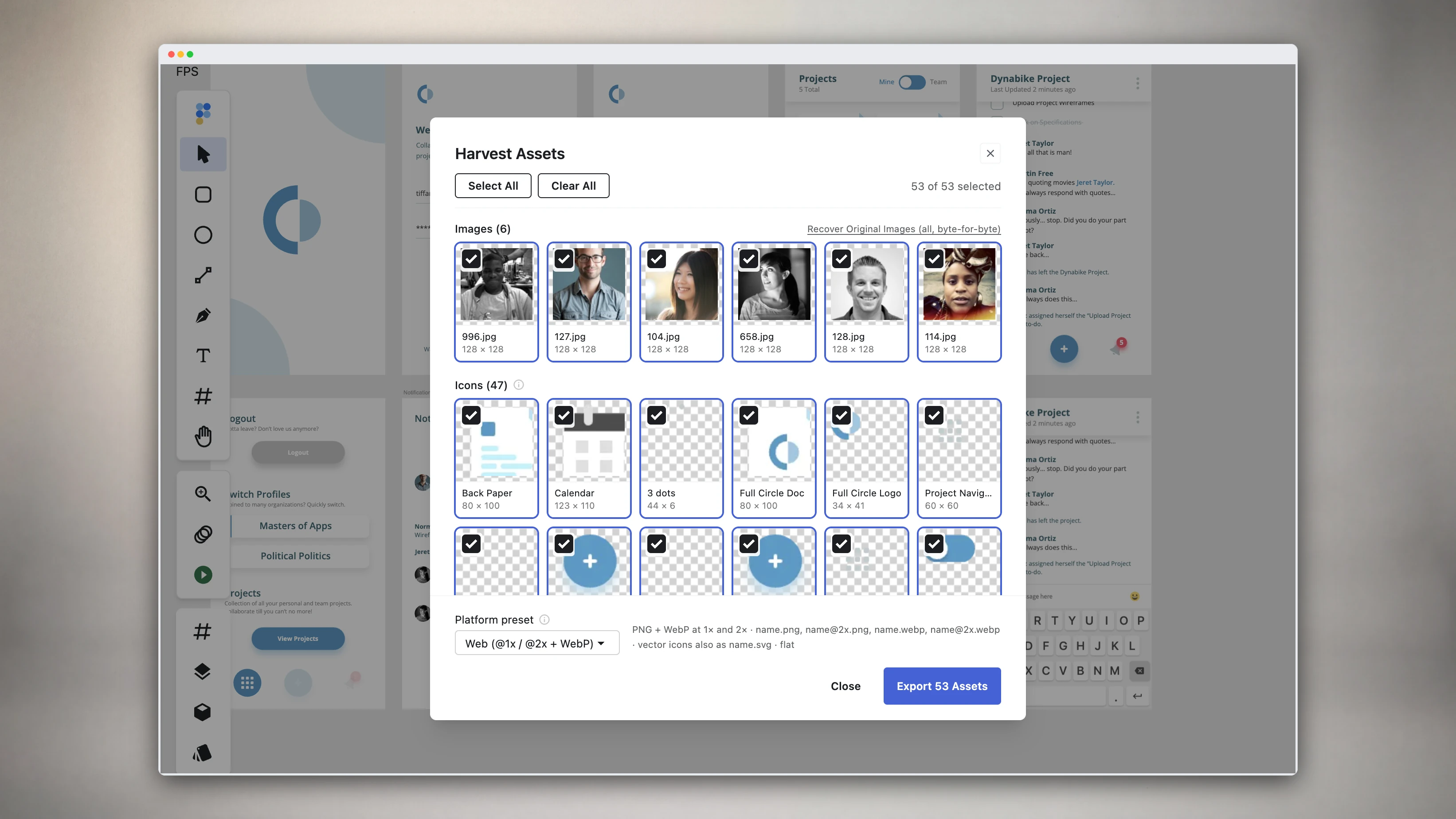
Extract every embedded image and icon-sized vector graphic from your design file into an organized, platform-ready asset bundle:
-
Contents:
- Embedded images: all bitmap graphics extracted at native resolution or scaled per preset
- Vector icons: icon-sized vector groups (≤128px on longest side, containing no text or bitmap layers) exported as clean SVGs
- Platform presets:
- Web: PNG + WebP at 1× and 2× (
name.png,[email protected],name.webp,[email protected]), plus SVGs for vector icons (flat structure) - iOS: PNG at 1×, 2×, and 3× (
name.png,[email protected],[email protected]), plus SVGs for vector icons (flat layout, Xcode-friendly @2x/@3x naming) - Android: PNG assets organized into density folders (
drawable-mdpithroughdrawable-xxxhdpi), with lowercased[a-z0-9_]resource names
- Web: PNG + WebP at 1× and 2× (
-
Use Cases:
- Handing developer-ready icons and images to an iOS, Android, or web engineering team without manually renaming or resizing each file
- Pulling every embedded image and icon-sized vector group out of an XD, PSD, or
.figfile for reuse elsewhere - Producing flat, Xcode-friendly @2x/@3x-named image sets for iOS, or an Android density-folder set, without a separate export plugin
-
Free vs Pro boundary:
- Free: opening the Asset Harvest gallery, inspecting detected images and icons, and selecting a platform preset is free — no account required
- Pro: exporting the generated ZIP asset bundle requires Figpea Pro or a Rescue Pass
Which of these formats your account can export is on Plans.
Export Workflows
For Development
-
Asset Preparation:
- Organize layers
- Set up naming
- Choose formats
- Configure scales
-
Export Process:
- Select assets
- Apply settings
- Generate files
- Verify output
-
Quality Control:
- Check resolutions
- Verify transparency
- Test in context
- Validate sizes
For Collaboration
-
Project Sharing:
- Use .fp format
- Include resources
- Document structure
- Set permissions
-
Asset Distribution:
- Organize by type
- Include documentation
- Provide variations
- Set up naming
-
Version Control:
- Track changes
- Mark versions
- Document updates
- Maintain history
Best Practices
File Organization
-
Naming Conventions:
- Use clear names
- Include dimensions
- Add scale indicators
- Mark versions
-
Folder Structure:
- Separate by type
- Group by feature
- Maintain hierarchy
- Use clear names
Quality Assurance
-
Before Export:
- Clean up layers
- Check naming
- Verify scales
- Test settings
-
After Export:
- Verify output
- Check quality
- Test in context
- Validate sizes
Optimization
-
File Size:
- Choose appropriate formats
- Optimize settings
- Balance quality
- Consider usage
-
Performance:
- Batch when possible
- Use efficient formats
- Optimize assets
- Monitor resources
Troubleshooting
Common Issues
-
Quality Problems:
- Check scale settings
- Verify format options
- Review source quality
- Test different settings
-
Size Issues:
- Optimize assets
- Choose appropriate formats
- Adjust compression
- Review dimensions
-
Export Errors:
- Check layer names
- Verify permissions
- Clear cache
- Update software
For more detailed information about exporting, check our blog posts.
Developer handoff
Hand a developer a self-contained spec file, not a hosted link that can die with a subscription. Both exports below are part of Figpea Pro — export them from the Project Export dialog, choosing Spec Bundle or Design Tokens from the format dropdown.
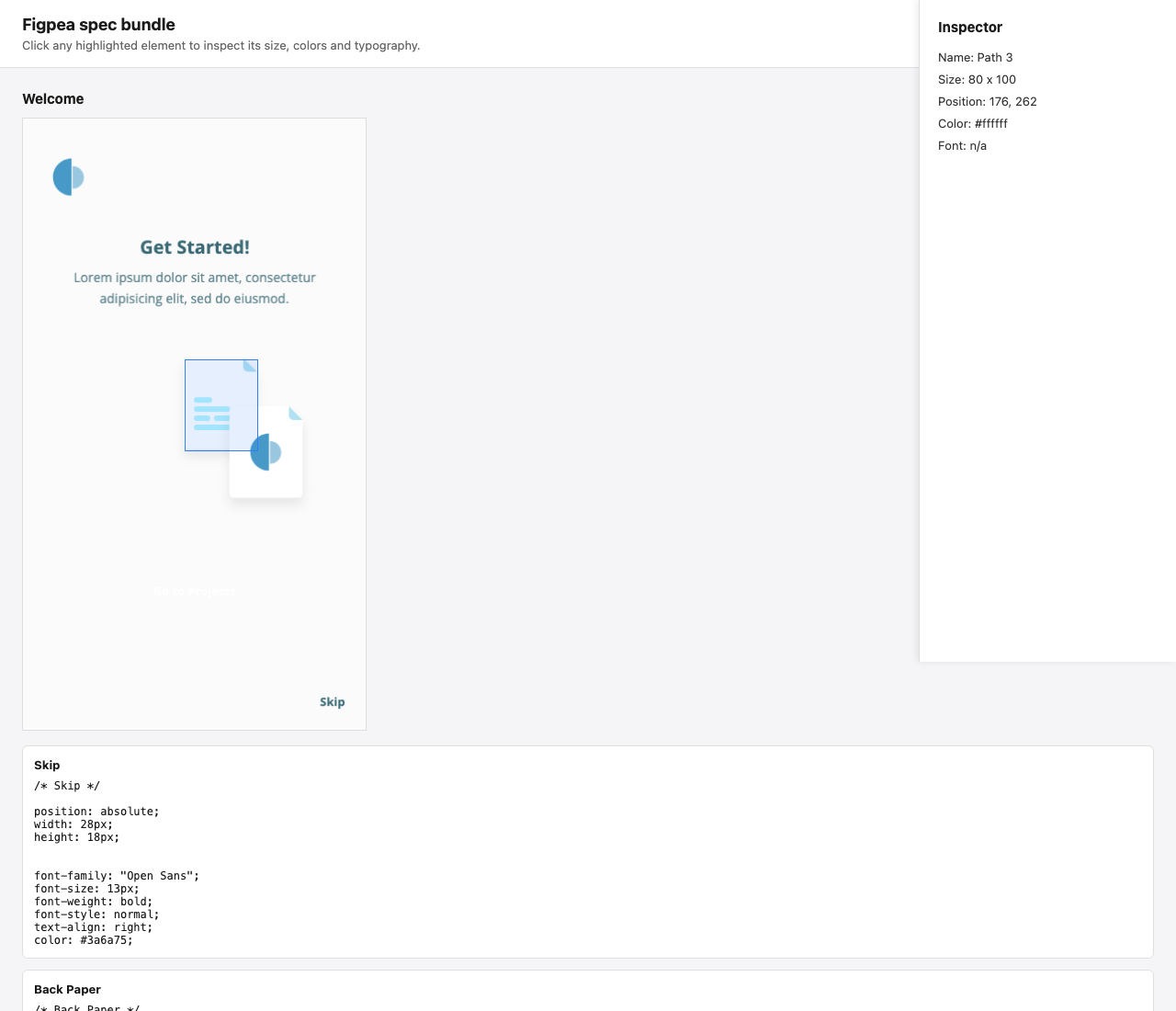
Offline spec bundle (Pro)
The spec bundle is a single self-contained HTML file covering every artboard in your project. It opens straight from a downloads folder, from a local file:// address, with zero network requests — no server, no upload, nothing to install for whoever opens it. Click any pinned element to reveal its size, position, color, and font, then copy the CSS straight out of the panel.
- Every artboard, one offline file
- Click-to-inspect size, position, color, and font
- Copyable CSS for each inspected element
- Opens from
file://with zero network requests — no account needed to open it
Design tokens (Pro)
The design tokens export emits a CSS custom properties file plus a matching tokens JSON, covering your project's distinct fill colors and text styles. It's a documented subset built for dropping straight into a codebase, not a claim of full design-tokens-spec compliance.
- CSS custom properties for every distinct fill color and text style
- A matching tokens JSON with the same values
- Deterministic names, stable across repeat exports
Free complement: inspecting and copying CSS directly in the editor stays free — see the Inspect Tool. The spec bundle and design tokens above are handoff exports, part of Figpea Pro — see Pricing to upgrade.
Read the full walkthrough: Developer Handoff in Figpea. These exports are also the developer-handoff piece of the XD rescue flow.
Mobile Layer Sharing
On a phone or tablet, the bottom action bar carries a Share slot that sends a single layer to whoever needs it without leaving the browser.
Select a layer first, then tap Share — with nothing selected, Figpea asks you to pick a layer. It renders that layer to a PNG at 1× and hands the file to the operating system's own share sheet, so it lands in Messages, Mail, Slack or AirDrop like any other file. If the browser has no Web Share file support, the same tap downloads the PNG instead and tells you it did, so the action never fails silently.
Nothing is uploaded and no link is created — the file goes from your device to the app you choose. Sharing a layer this way is free and raises no upgrade prompt.
It is a copy, not a save: the exported PNG is a new image, and your original PSD, XD or .fig file
is never modified. For multi-layer, scaled or vector output, use the export options above.
More on the mobile review loop: Mobile Design Viewer & Touch Review Guide.