 Figpea
Open PSD Without Photoshop — Free Guide
Adobe Photoshop files (.psd) are the industry standard for digital design, but what if you don't have Photoshop installed? Whether you're a developer needing to implement a design, a stakeholder reviewing artwork, or simply someone who received a PSD file, Figpea offers a powerful solution to open and work with PSD files directly in your browser.
Why Use Figpea for PSD Files?
Figpea is a web-based tool that allows you to open and inspect PSD files without installing any software. Here are some key advantages:
- 100% Private & Secure: Your files stay on your machine - nothing is ever uploaded to any server
- No Installation Required: Access your PSD files instantly through your web browser
- Free to Use: View PSD files without an Adobe Creative Cloud subscription

- Simple Interface: Just drag and drop your PSD file to get started
- Layer Support: View and work with your Photoshop layers in the browser
What Figpea reads in a PSD
Figpea opens the file in your browser and shows the composite image Photoshop saved into it, so what you see first is what Photoshop drew. That saved image is the page preview, and by default that is what you get, because PSD Compatible Rendering — on by default, under Render in the main menu — is what keeps it there — except on a page carrying an adjustment layer or an alpha mask, where the bake cannot reproduce the page and Figpea paints the layers instead; switch it off and Figpea renders the design from the decoded layers itself. The effects Photoshop's own bake gets wrong are re-rendered from the layers instead: glow everywhere, and gradient, bevel, satin and shadows that carry their own spread or blend mode on export. From there, open it free in Figpea's PSD viewer to walk the layer tree, get the images out of a PSD as PNG, WebP, or JPEG at 1x, or inspect PSD layers online to read a layer's exact size, type settings, and effects. Two honest limits up front: a file that needs fonts you don't have falls back to the saved composite for those layers — a per-layer fallback, not the page preview — and Figpea never writes back to the .psd — it only creates new exported files.
How to Open a PSD File in Figpea
- Visit Figpea in your web browser — open it free in Figpea's PSD viewer
- Drag and drop your PSD file onto the browser window (your file stays on your machine - no uploading to servers)
- Wait for the file to process locally (usually takes just a few seconds)
- Start exploring your PSD file's layers and properties securely in your browser — no Photoshop subscription needed (more on viewing without a Photoshop license)
Working with Layers
Once your PSD is loaded, you can:
- Navigate through the layer hierarchy
- Toggle layer visibility
- Inspect layer properties and effects
- View exact colors, dimensions, and positions
- Export assets as needed
PSD Adjustment Layers
Color and tone work survives the trip too. Figpea renders all 16 Photoshop Adjustment Layers natively (brit, levl, curv, expA, vibA, hue2, hue , blnc, blwh, phfl, mixr, clrL, nvrt, post, thrs, grdm, selc) — from Brightness/Contrast and Curves (curv) through Photo Filter (phfl), Channel Mixer (mixr), and Selective Color (selc) — with layer clipping and partial-alpha layer masks honored, so a Curves lift or a Selective Color grade looks the way Photoshop drew it. Toggle any adjustment layer's visibility to preview the before-and-after non-destructively; your original file is never modified.
Tips for Best Results
- Keep your PSD files organized with proper layer naming
- Use standard fonts to ensure accurate text rendering
- Consider flattening very complex effects before importing
- Keep file sizes reasonable for optimal performance
FAQ
Can I open a CMYK PSD without Photoshop? Yes. Drop the file into Figpea and it opens in your browser. Figpea reads the color mode recorded in the document rather than guessing it from the channels, and converts a CMYK file to sRGB so your screen shows it correctly — where a CMYK PSD used to fail to open at all. The conversion runs on your machine; nothing is uploaded.
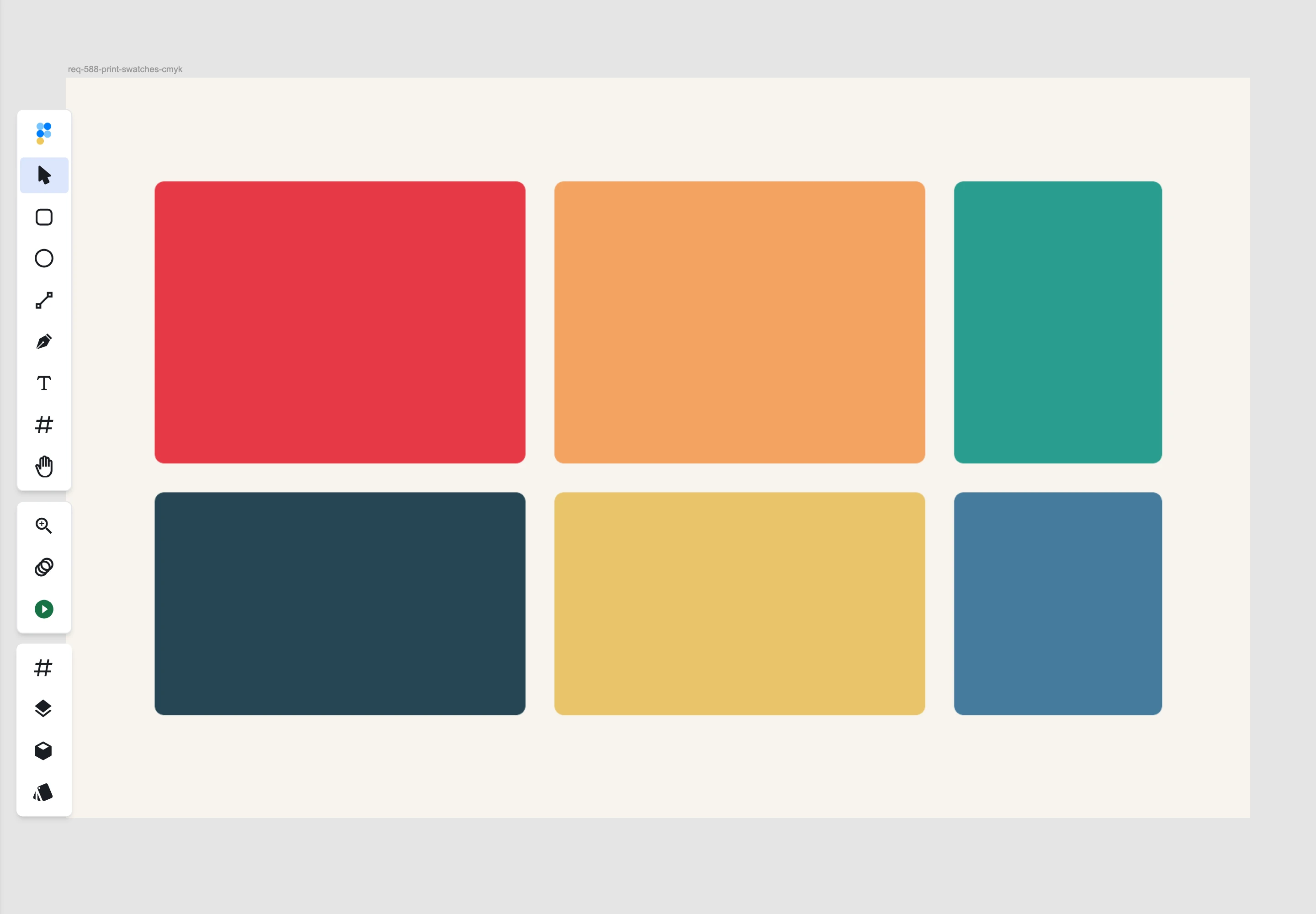
Can I open a Lab, Indexed or Duotone PSD without Photoshop? Yes, by the same route a CMYK file takes. Figpea reads the color mode recorded in the document and converts Lab Color, Indexed Color and Duotone files to sRGB so your screen shows them correctly. Two caveats: a duotone is built from the ink colors stored in the file but not from Photoshop's per-ink transfer curves, so it reads correctly while landing close to the original rather than exactly on it; and the real limit is bit depth rather than color mode — a 16-bit or 32-bit PSD doesn't open at all.
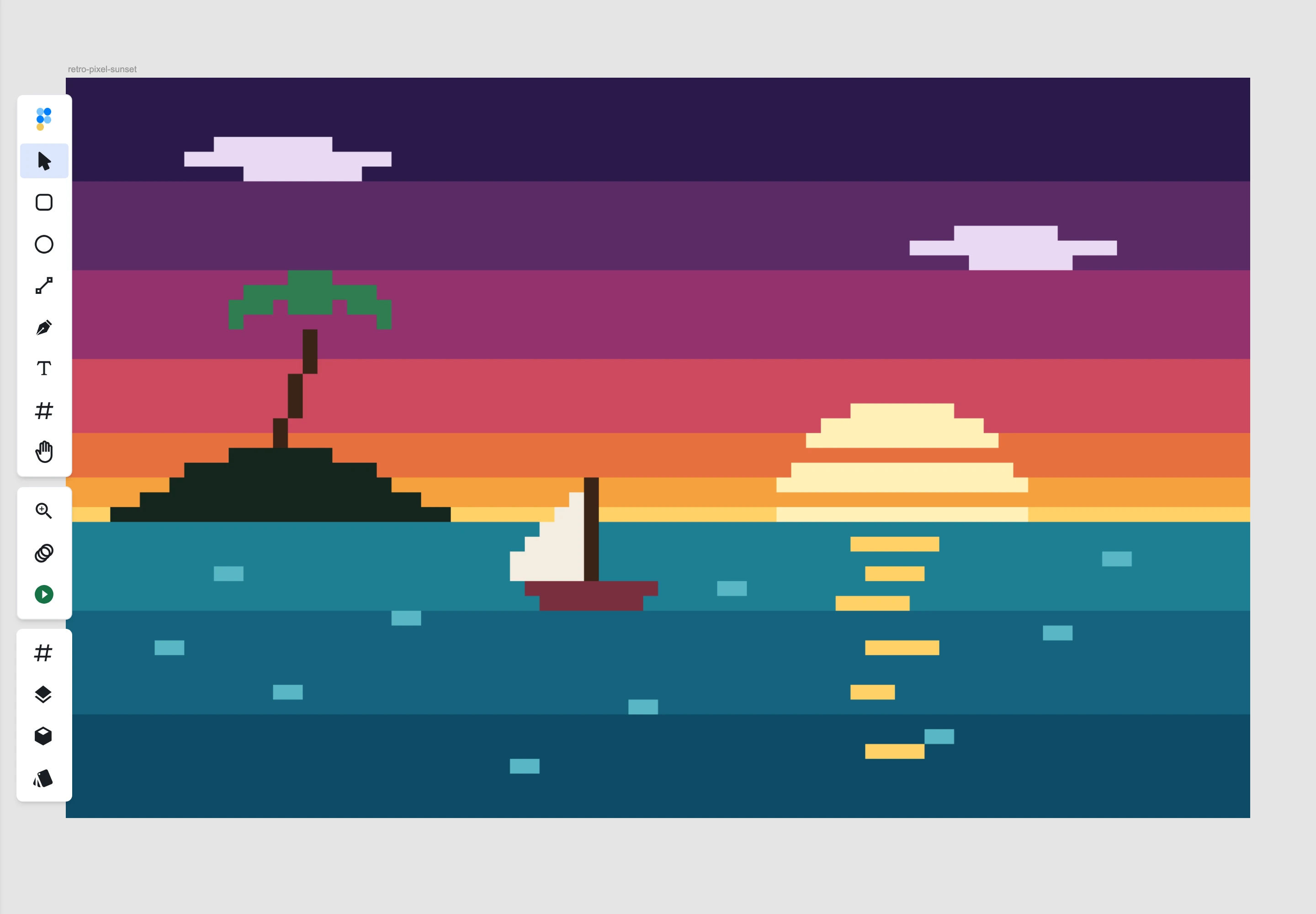
How does Figpea handle an Indexed Color palette? An Indexed PSD stores its colors once, in a table saved inside the file, and every pixel is just an index pointing into that table. Figpea reads the table and looks each pixel up in it, so the palette you built in Photoshop is the palette you get on canvas — nothing is re-quantized and no color is approximated. That makes it a dependable way to check retro game art, GIF source files and other palette-based work when Photoshop isn't around.
Why do the colors in my CMYK file look slightly different from Photoshop? Because the conversion is a standard one, not a color-managed one. Photoshop uses the document's ICC profile to decide exactly how each ink value becomes a screen color. Figpea does not apply that profile — it converts CMYK with a standard formula instead — so print colors land close to what Photoshop shows rather than exactly on it. Treat Figpea as a way to read and inspect a print file, not as a proofing tool.
Can I edit a converted PSD and save it back in its original color mode?
No. Once the file is open you are working on an sRGB copy of it in the browser, and Figpea does not write .psd files in any color mode — so there is no round trip back to CMYK, Lab, Indexed or Duotone. Export instead as PNG, WebP, JPEG or SVG, all in sRGB; PDF export is a Pro feature. Your original file on disk is never modified.
What if Figpea doesn't support my file's color mode? It still opens. For a mode Figpea doesn't convert — Multichannel, for example — it falls back to the composite preview that Photoshop saved inside the file, so you can still see and inspect the document instead of hitting an error.
Conclusion
Figpea provides a powerful alternative for opening and working with PSD files when you don't have access to Photoshop. With its comprehensive feature support and intuitive interface, you can easily view and extract the information you need from your PSD files directly in your browser.
Whether you're a developer implementing designs, a stakeholder reviewing artwork, or just need to quickly check a PSD file, Figpea offers a convenient and accessible solution. Try it today by simply dragging and dropping your PSD file into Figpea's web interface.
No Photoshop license, subscription, or trial is needed to view a file — see viewing without a Photoshop license.