 Figpea
How to View PSD, XD, and Figma Files on Your Phone Without an App
The design review always seems to arrive when you are nowhere near your desk. A file lands in Slack, somebody wants an opinion by lunch, and the only screen you have is the one in your hand. The usual answers are all bad: install a heavyweight app, ask for a flattened PNG that loses the thing you needed to check, or type "at my laptop in an hour".
Figpea opens the file in the browser tab you already have. Photoshop PSD, Adobe XD, Figma .fig,
SVG and PDF — read on your device, never uploaded, no account.
The canvas comes first

A viewer that cannot zoom is a picture. On a phone, Figpea puts navigation and selection on the canvas, keyed to finger count: two fingers zoom about the midpoint of your gesture or pan the view, one finger selects — tap a layer, or drag to marquee-select several at once.
Zooming about the midpoint matters more than it sounds. It means the detail you pinched stays under your fingers instead of sliding off while the view zooms toward the centre of the screen — the difference between inspecting a button's corner radius and chasing it around the viewport. And navigation never corrupts your selection: whatever you had picked is still picked after the pan.
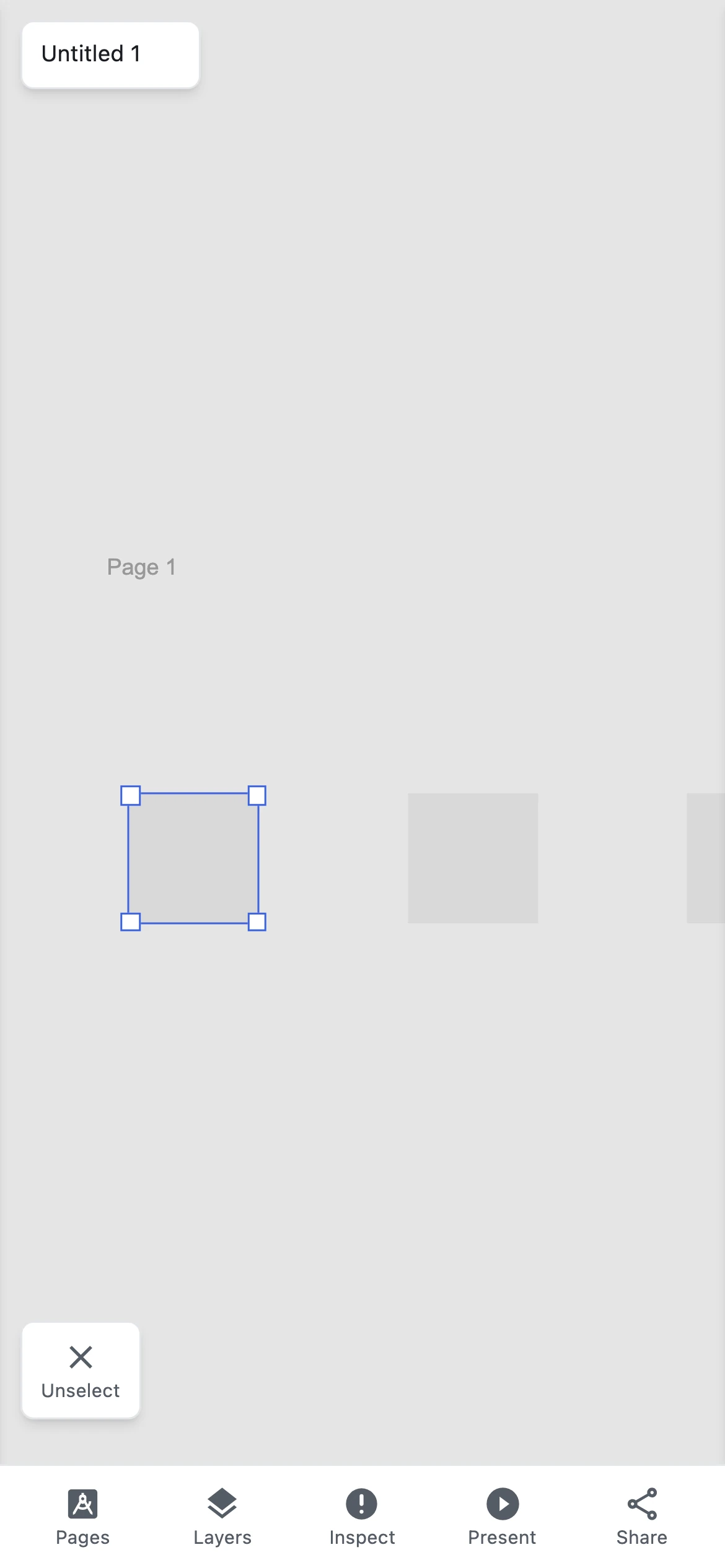
The canvas takes the gesture, so the page underneath does not scroll or bounce while you drag.
Everything else moves to the bottom
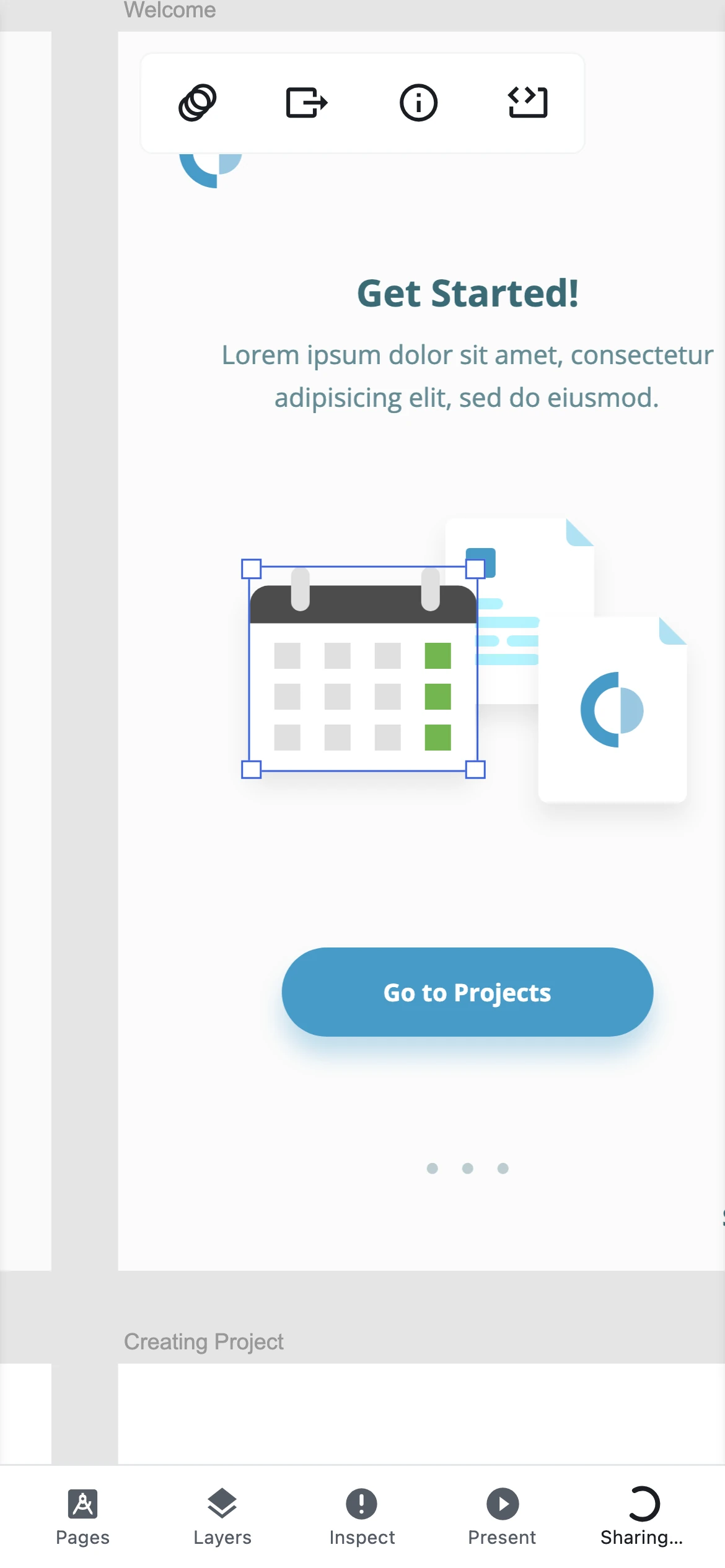
Below 768 pixels the desktop panels are gone and a bottom bar takes over, with five slots: Pages, Layers, Inspect, Present and Share. Each is a 44×44 target, sized for a thumb rather than a cursor.
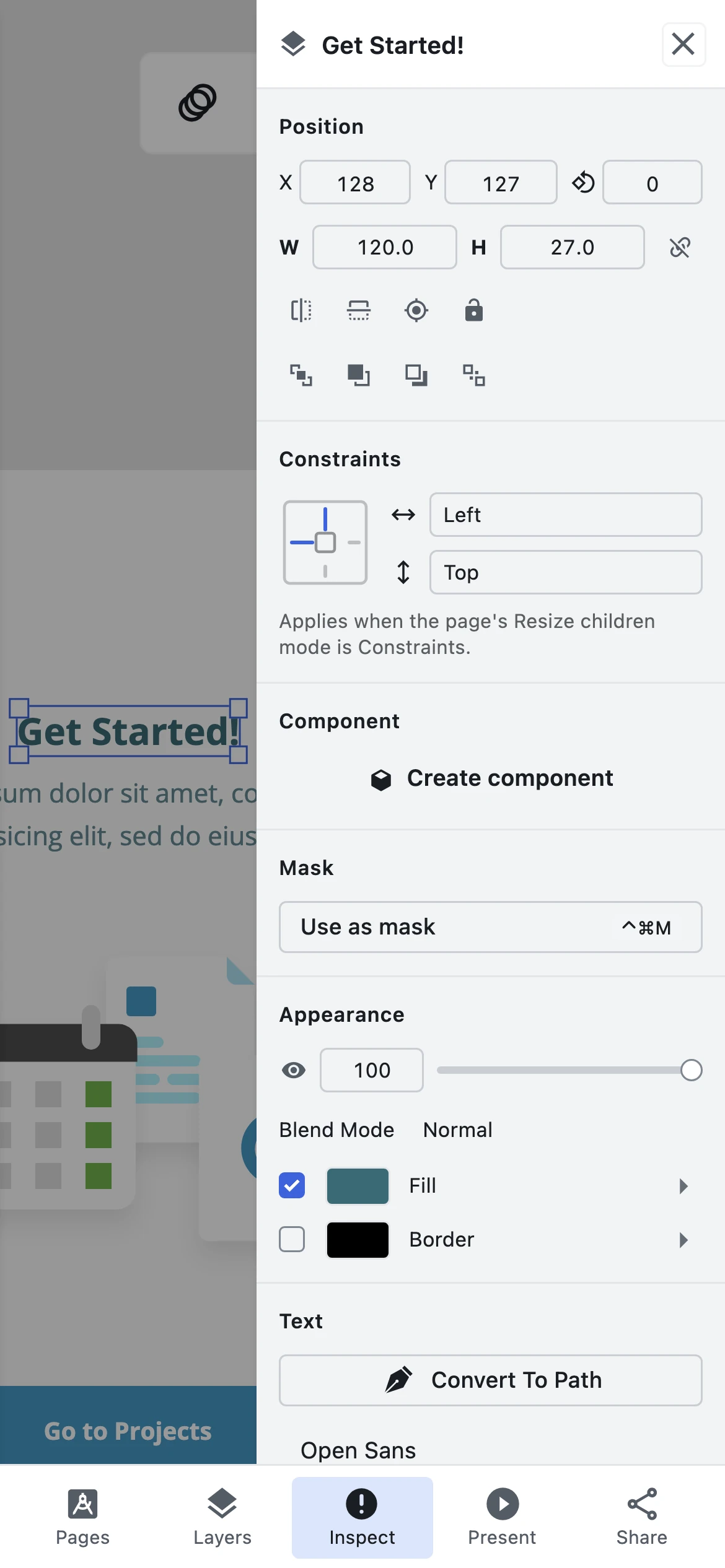
Pages and Layers slide in from the left, Inspect from the right. Only one is open at a time — open the inspector and the layer tree steps aside — so you are never looking at a sliver of canvas between two panels. Select a layer, tap Inspect, and its position, size, fills and typography are there, laid out to fit the screen rather than clipped off the edge of it.
Presenting from a phone
Tap Present and the artboard fills the screen. On-screen next and previous controls move through the deck; the exit control brings the editor back.

The whole deck plays on a free account, start to finish, without an interruption halfway through to ask for money. The upgrade prompt waits until you have exited.
Getting one layer back out
Reviewing is only half of it — usually somebody needs a piece of the design. Select the layer and tap Share. Figpea renders it to a PNG at 1× and hands the file to your phone's share sheet, so it goes wherever your files normally go: Messages, Mail, Slack, AirDrop.
There is no upload and no generated link — the PNG travels from your device to the app you picked. On a browser without Web Share file support, the same tap downloads the file and tells you so. It is also a copy: the exported PNG is a new image, and the PSD or XD file it came from is untouched.
What opens well, and what is still young
Being honest about this is more useful than a feature grid:
- Adobe XD renders with the highest fidelity of any parser we ship — artboards, prototype decks and all. If you review XD, this is the one to try first. (XD viewer)
- PSD and PSB open with their layer structure intact, so you can inspect properties and share a single layer as a PNG. (PSD viewer)
- SVG stays crisp at any zoom on a high-DPI phone screen, because it is drawn as vectors rather than a scaled bitmap.
- Figma
.figfiles open locally for review and presentation. The format moves, and our support for it is younger than the rest — treat it as read-only review, not a fidelity guarantee. (Figma viewer) - PDF opens layered documents locally, without uploading them. It is the least mature of the five.
Opening a file
Two routes on a phone. Tap the button on the welcome screen to use your device's file picker —
iCloud Drive, Google Drive, Files — or open a ?loader=http link that pulls the design straight
into the tab, which is the fastest path when someone has sent you a URL.
Either way the bytes are read on your device. Nothing is uploaded, and there is no account to create first.
The full walkthrough, with every gesture and control, is in the Mobile Design Viewer & Touch Review Guide. If you want the desktop picture first, start with Opening Design Files.