 Figpea
Mobile Design Viewer & Touch Review Guide
Someone sends you a design and asks what you think. You are on a train, holding a phone, and the file is a 40 MB PSD. Figpea opens it in the browser tab you already have — no app, no account, no upload. The file is read on your device and stays there.
This page covers the review loop on a phone: opening a file, moving around the canvas, reading a layer's properties, presenting a deck, and sending a single layer to someone else.
What changes on a small screen
Below 768px wide, Figpea swaps the desktop panels for a bottom action bar with five slots — Pages, Layers, Inspect, Present and Share. Each slot is a 44×44 touch target, which is the size a thumb actually hits.
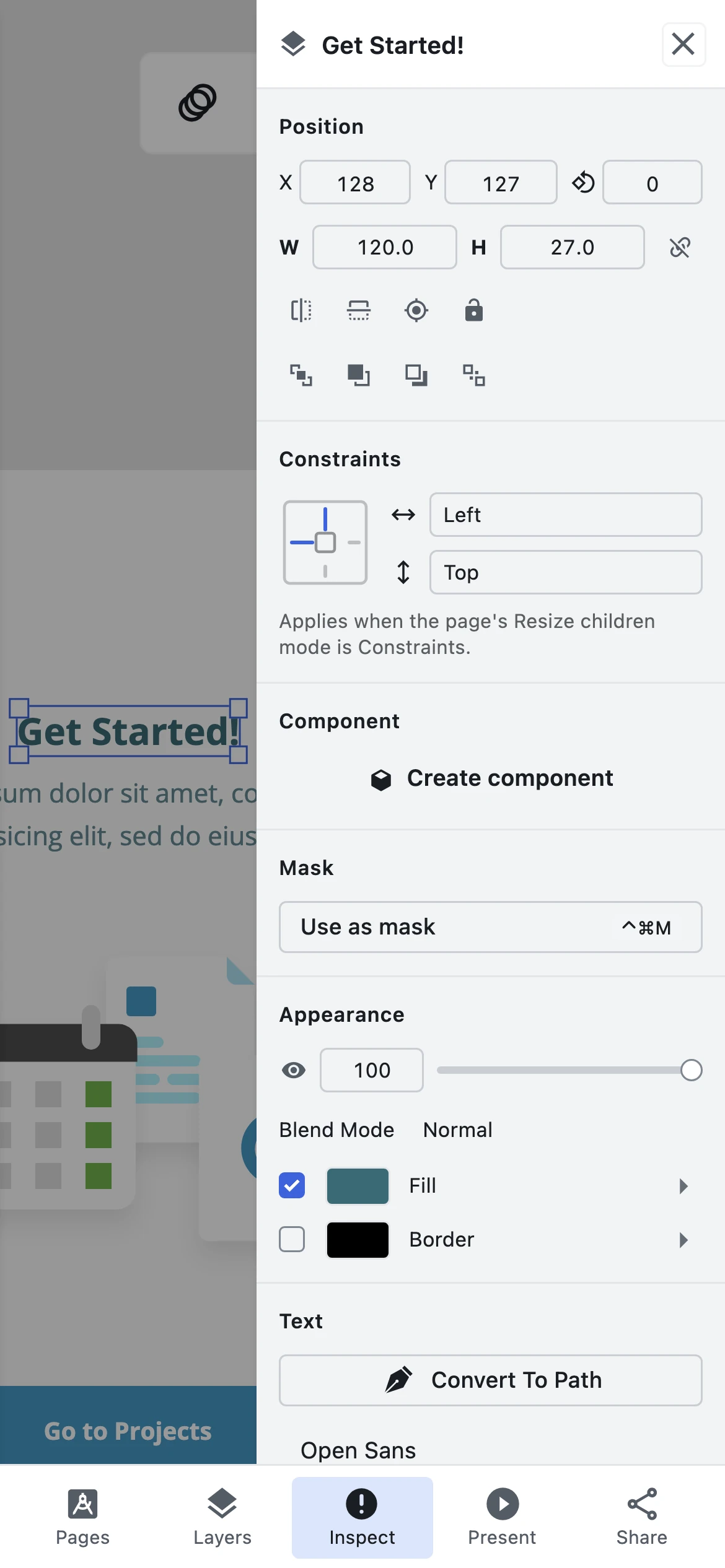 The Inspect drawer slides in over the canvas. The bottom bar stays put underneath it.
Pages and Layers open a drawer from the left; Inspect opens one from the right. Only one is ever open — tapping Inspect while the Layers drawer is out closes Layers for you, so the canvas is never buried under two panels at once. Tapping a slot a second time closes it.
Zoom and pan by touch
Touch gestures are keyed to finger count — there is no tool mode to choose between. The same gesture always means the same thing:
| Fingers | Gesture | What happens |
|---|---|---|
| One | Tap a layer | The layer is selected — resize handles appear |
| One | Drag across the canvas | A marquee rectangle multi-selects the top-level layers it crosses |
| Two | Drag | The canvas pans |
| Two | Pinch | The canvas zooms about the midpoint of the gesture |
Zooming about the midpoint matters more than it sounds: the point between your fingers stays where it is, so you zoom into the thing you are looking at rather than into the centre of the screen.
 A tap selects the layer under your finger. Resize handles mount on it, and a quick Unselect button appears at the bottom-left of the canvas.
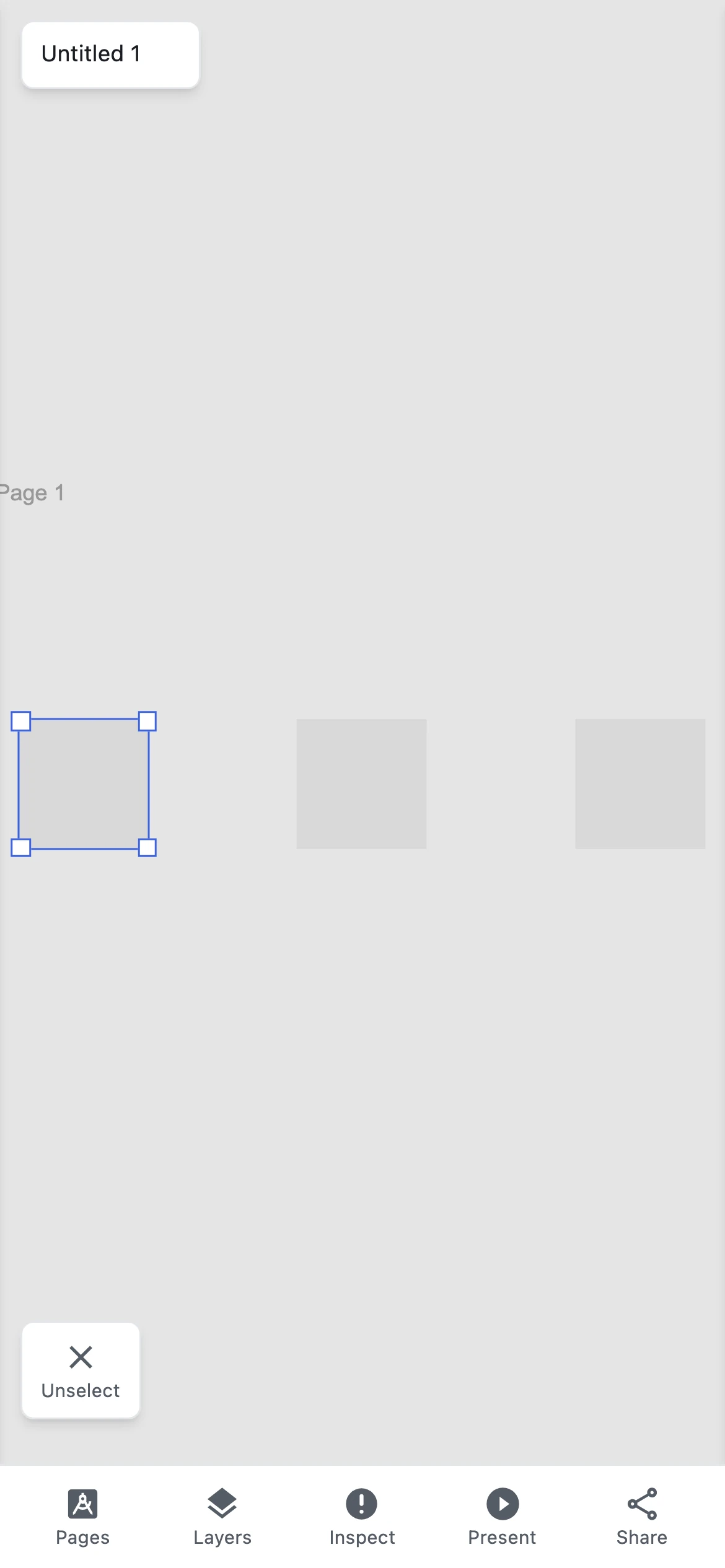 Where that flow ends: the selected layer's handles and the Unselect button.
 One-finger drag marquees: every top-level layer the rectangle crosses joins the selection, and none of them move.
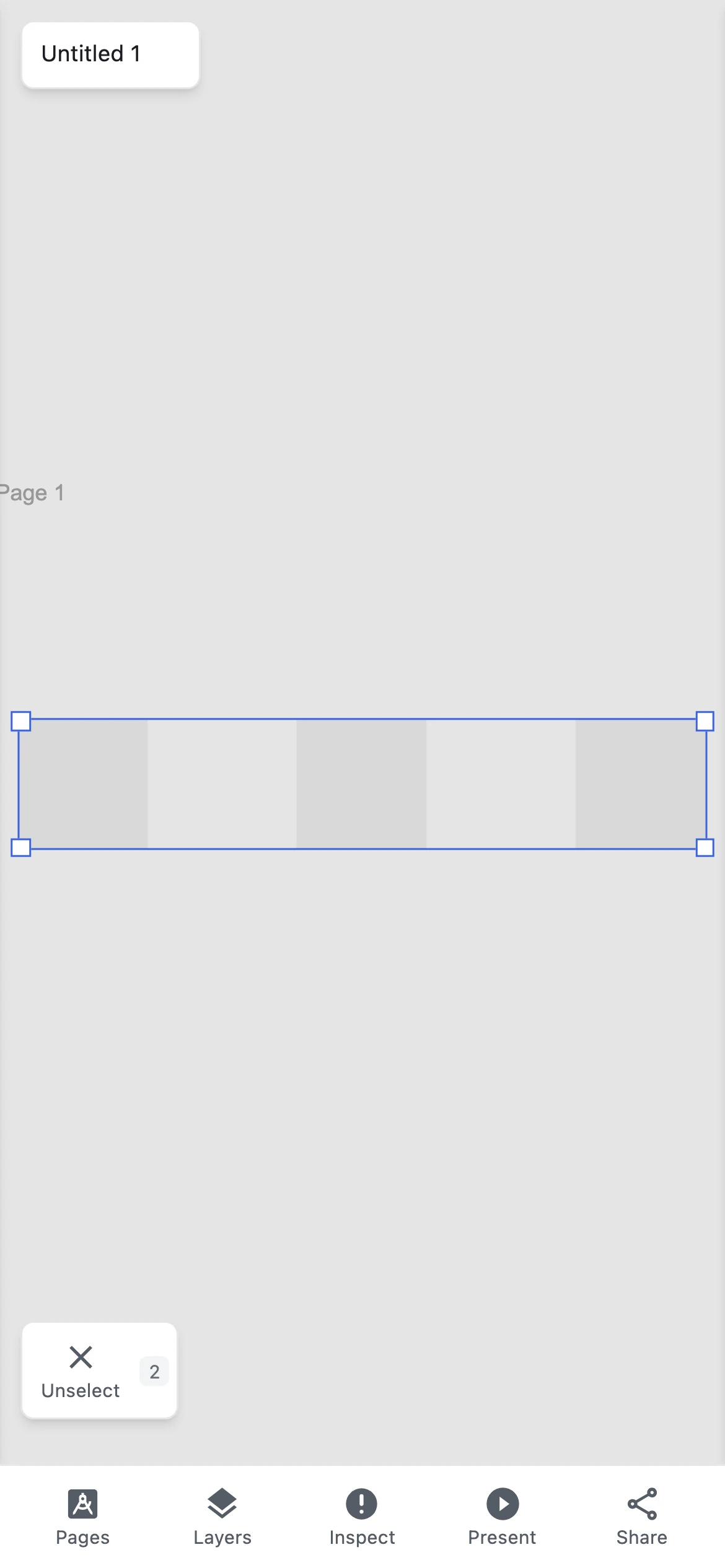 Where that drag ends: every top-level layer the rectangle crossed is selected, with a count chip beside the Unselect button.
 Two fingers navigate: the canvas pans while your selection rides along untouched.
 Pinch zooms about the gesture midpoint — the selection is never disturbed.
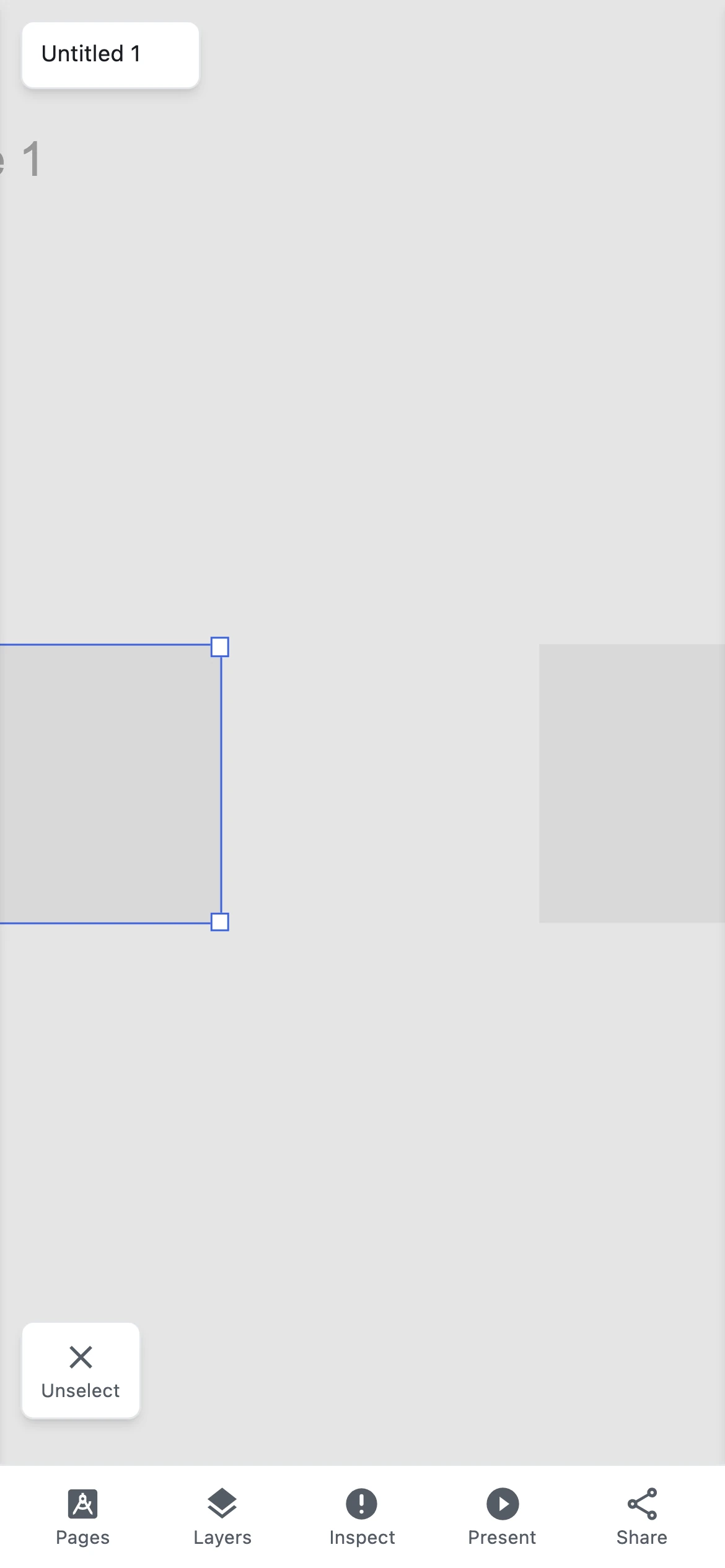 After the pinch: the detail stays centred on the point you pinched, selection intact.
Three invariants hold no matter what you have selected. Transform widgets and bounding boxes are touch-inert: selected layers cannot be nudged, resized or rotated by any touch gesture. Navigation never corrupts your selection either — panning and zooming leave exactly what was selected unchanged. And while anything is selected, a quick Unselect button sits at the bottom-left of the canvas; tapping it clears the selection, and so does tapping empty canvas.
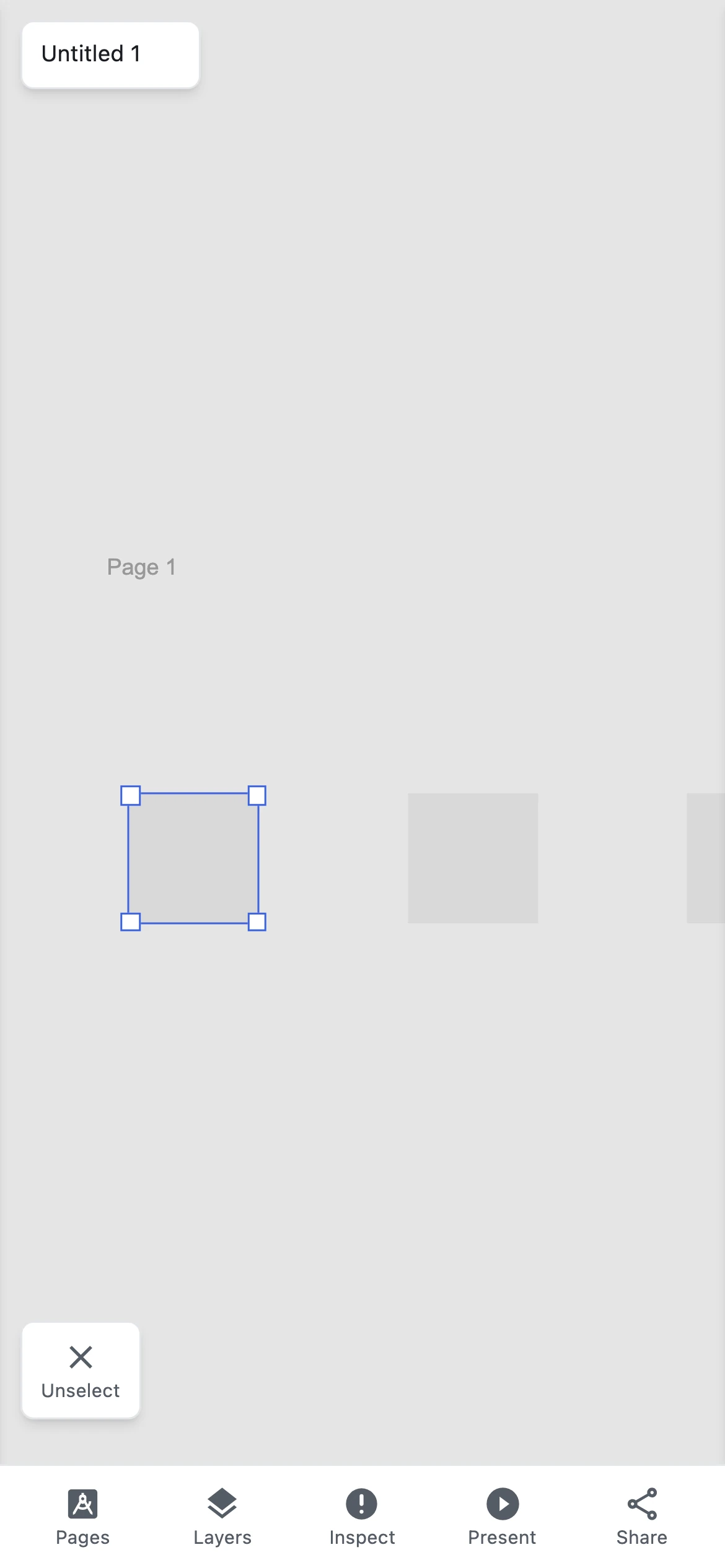 Where navigation ends: the layer sits exactly where it was in the design, handles and all.
The canvas absorbs the gesture, so the page behind it does not scroll or rubber-band while you drag. Figpea handles zoom itself rather than leaving it to the browser, which is why a pinch zooms the design and not the whole interface.
Reading a layer's properties
Tap a layer on the canvas to select it, then tap Inspect. The drawer lists that layer's inspectable properties across the 8 read-only handoff panels and per-layer CSS block — position, size, fills, typography, gradients, shadows, borders, interactions — sized to fit the screen, so nothing is cut off the right edge and there is nothing to scroll sideways to reach. The same sticky 3-tab strip (Design, Prototype, Inspect) renders full-width across the top of the mobile inspector drawer, allowing seamless view switching on touch devices. The mobile drawer's Prototype tab hosts the same full interaction authoring surface and enabled-interaction badge indicator, while the Design tab includes the collapsed-by-default Export section at the bottom for configuring and downloading layer assets on touch devices.
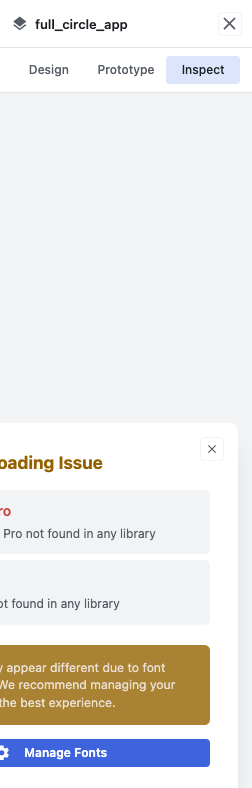
Layers opens the layer tree if you would rather pick from the structure than hunt on the canvas, and Pages lists every page or artboard in the file. Selecting one renders it immediately.
More on what each property means: Basic Layer Operations.
Presenting a deck
Tap Present and the current design fills the screen. Advance with the on-screen next and previous controls, both sized to 44 pixels; the exit control returns you to the canvas.
 Presentation fills the viewport — the editor chrome is gone, the slide is the whole screen.
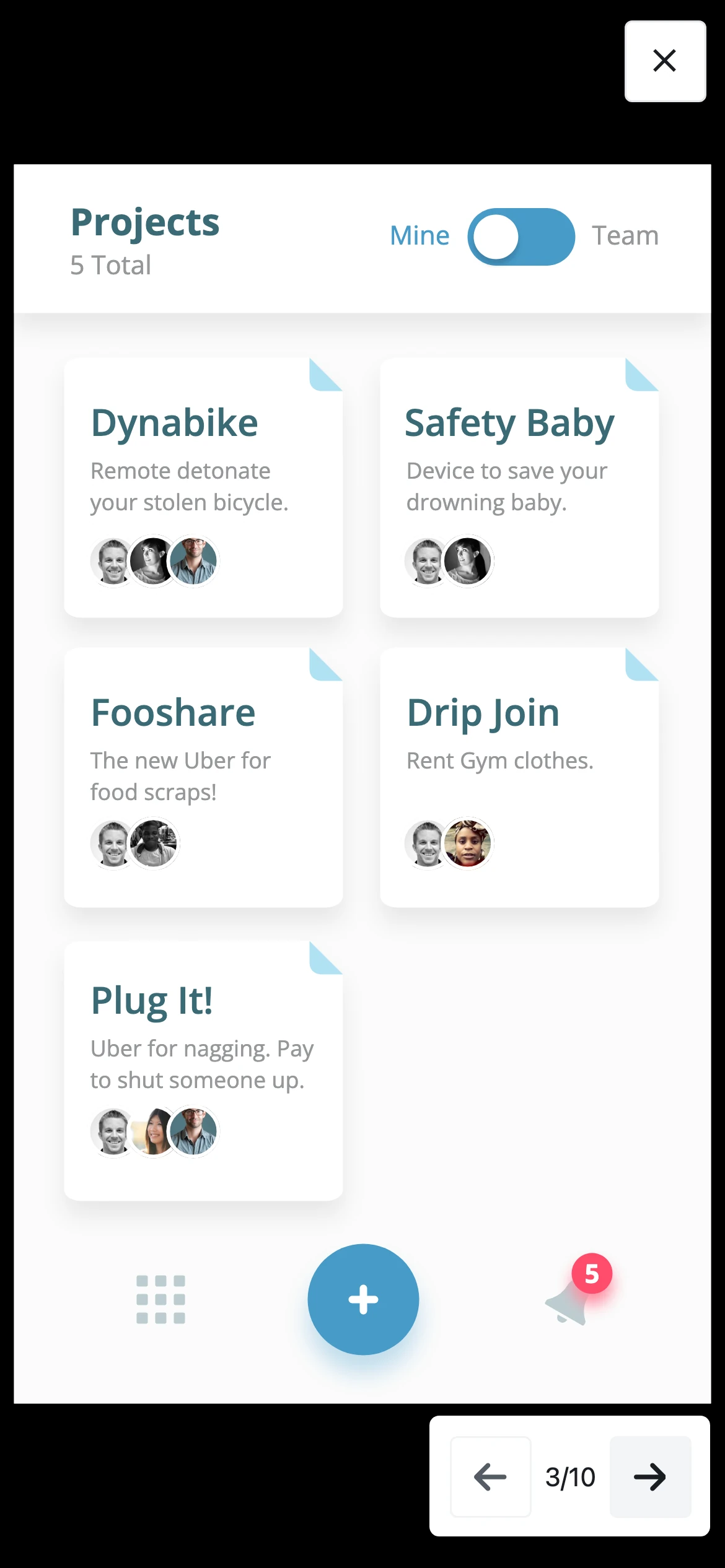 Tapping the next control advances the deck one artboard at a time.
You can present the whole deck on a free account, start to finish, with no interruption partway through. See Plans & Pro for what the paid tier adds.
Sending a layer to someone
Select a layer, then tap Share. Figpea renders that layer to a PNG at 1× and hands the file to your phone's own share sheet — Messages, Mail, Slack, AirDrop, whatever you have installed. Nothing is uploaded to us and no link is created; the file goes straight from your device to the app you pick.
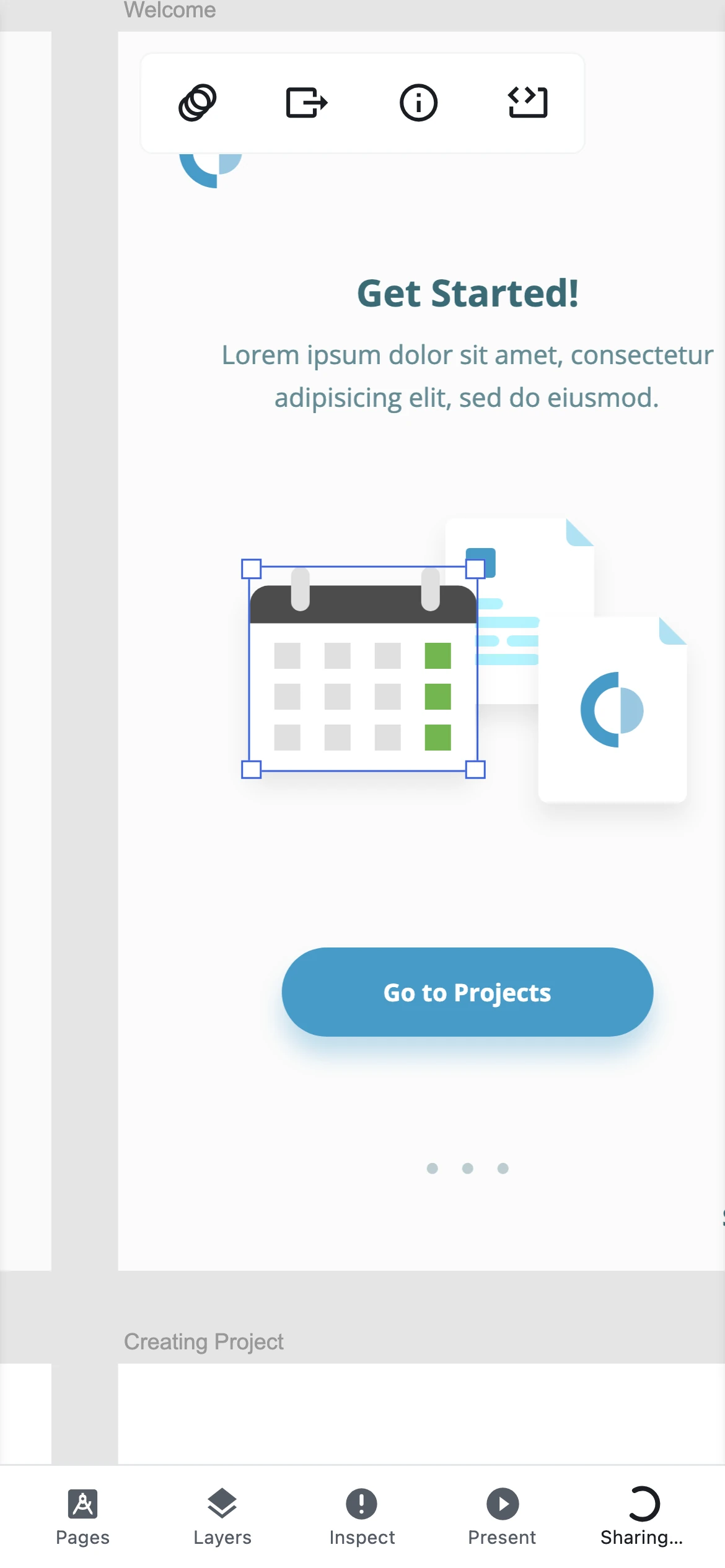 The Share slot mid-export. Your phone's share sheet opens over the top of this — it belongs to the operating system, so it never appears in a screenshot of the page.
Two things worth knowing. The Share slot needs a selected layer — tap it with nothing selected and Figpea tells you to pick a layer first. And on a browser without Web Share file support, the same tap downloads the PNG instead and says so, so the action never silently fails.
Sharing a layer this way is free and prompts no upgrade. Full export options: Exporting.
Opening a file on your phone
Two routes, both covered in Opening Design Files:
- Pick a file from the device — your phone's own file picker, including iCloud Drive, Google Drive and Files (note: Google Drive direct cloud open requires Safari on iOS, as Chrome for iOS blocks third-party cookie and account access; local file picker via Browse File works on all mobile browsers).
- Open a link with
?loader=http, which fetches the file straight into the tab. Handy when the design lives on a URL somebody sent you.
Format support is the same as on desktop: PSD and PSB, Adobe XD, Figma .fig, SVG, PDF and plain
images. Adobe XD files render with the highest fidelity of anything we parse — see the
Adobe XD online viewer — with PSD close behind on the PSD viewer. Figma .fig
support opens files locally for review and is still young; see the
Figma viewer and Figma Import (Alpha) for what it does and
does not cover yet.
Frequently Asked Questions
Can I view Photoshop PSD or Adobe XD files on my iPhone or Android without installing an app?
Yes. Figpea runs 100% locally inside mobile web browsers (Safari, Chrome, Firefox). Simply open the page and select your design file or open a deep link. No app download or account creation is required.
How do I zoom and pan a design on a touch screen?
Pinch with two fingers to zoom in or out about your gesture midpoint, and drag with two fingers to pan the canvas. One finger is for selection: a tap selects a layer and a drag marquees several at once. Figpea handles zoom itself rather than leaving it to the browser, so the design zooms instead of the whole interface — and navigation never changes what you have selected.
How do I select layers on my phone?
Tap a layer to select it, or drag with one finger across the canvas to marquee-select the top-level layers the rectangle crosses. Two fingers navigate (drag pans, pinch zooms) without disturbing your selection, and tapping empty canvas — or the quick Unselect button that appears while anything is selected — clears it.
Can I share individual design layers from my phone?
Yes. Select the layer you want, then tap Share on the bottom action bar. Figpea exports that layer as a 1× PNG and passes it directly to your phone's native share sheet (Messages, Slack, Mail, AirDrop). If your browser does not support sharing files, Figpea downloads the PNG instead.
Do I need a paid account to present design decks on mobile?
No. Full-deck presentation playback is free on mobile devices. You can present all slides uninterrupted; an upgrade prompt surfaces conveniently after you exit presentation mode.
Can I open files from Google Drive on my iPhone using Chrome?
Google's Drive Picker relies on third-party cookie access that Google restricts in Chrome on iOS. To open Drive files on iPhone, use Safari on iOS, or tap Browse File to select your design from your phone's Files app (which integrates directly with Google Drive).