 Figpea
Opening Design Files
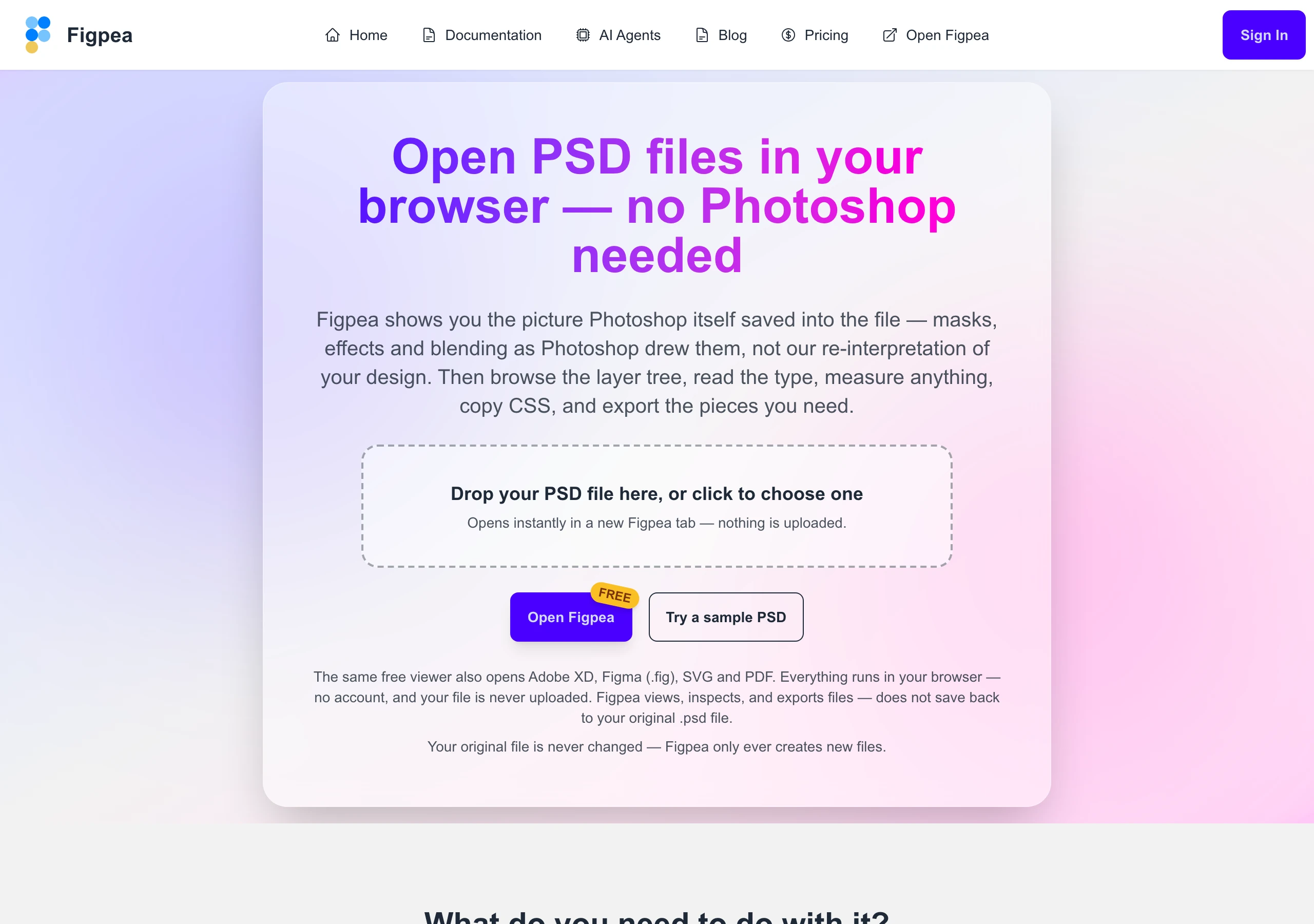
Figpea supports a wide range of design file formats, allowing you to work with various design tools' output directly in your browser. All processing happens locally on your machine, ensuring your files remain private and secure.

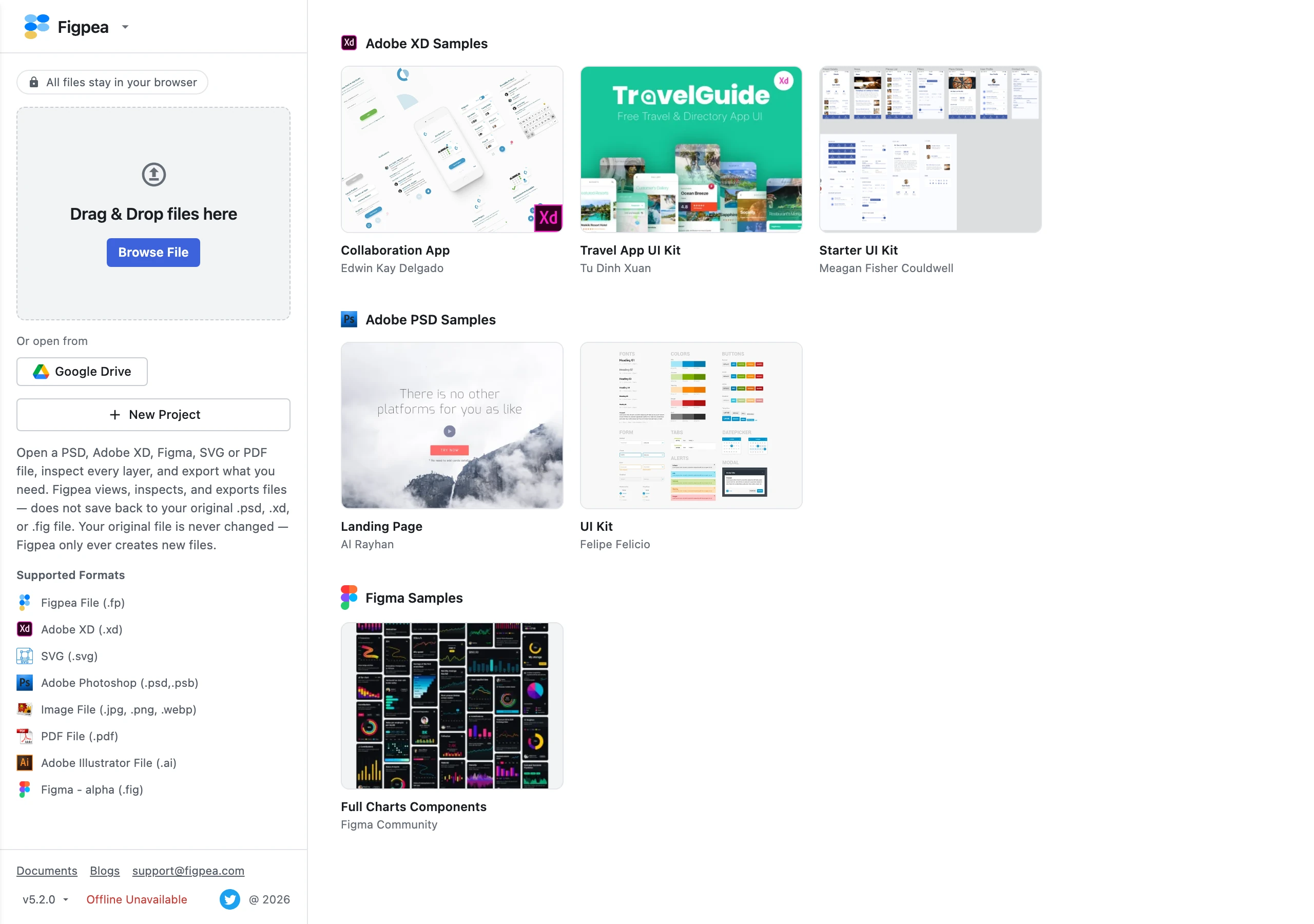
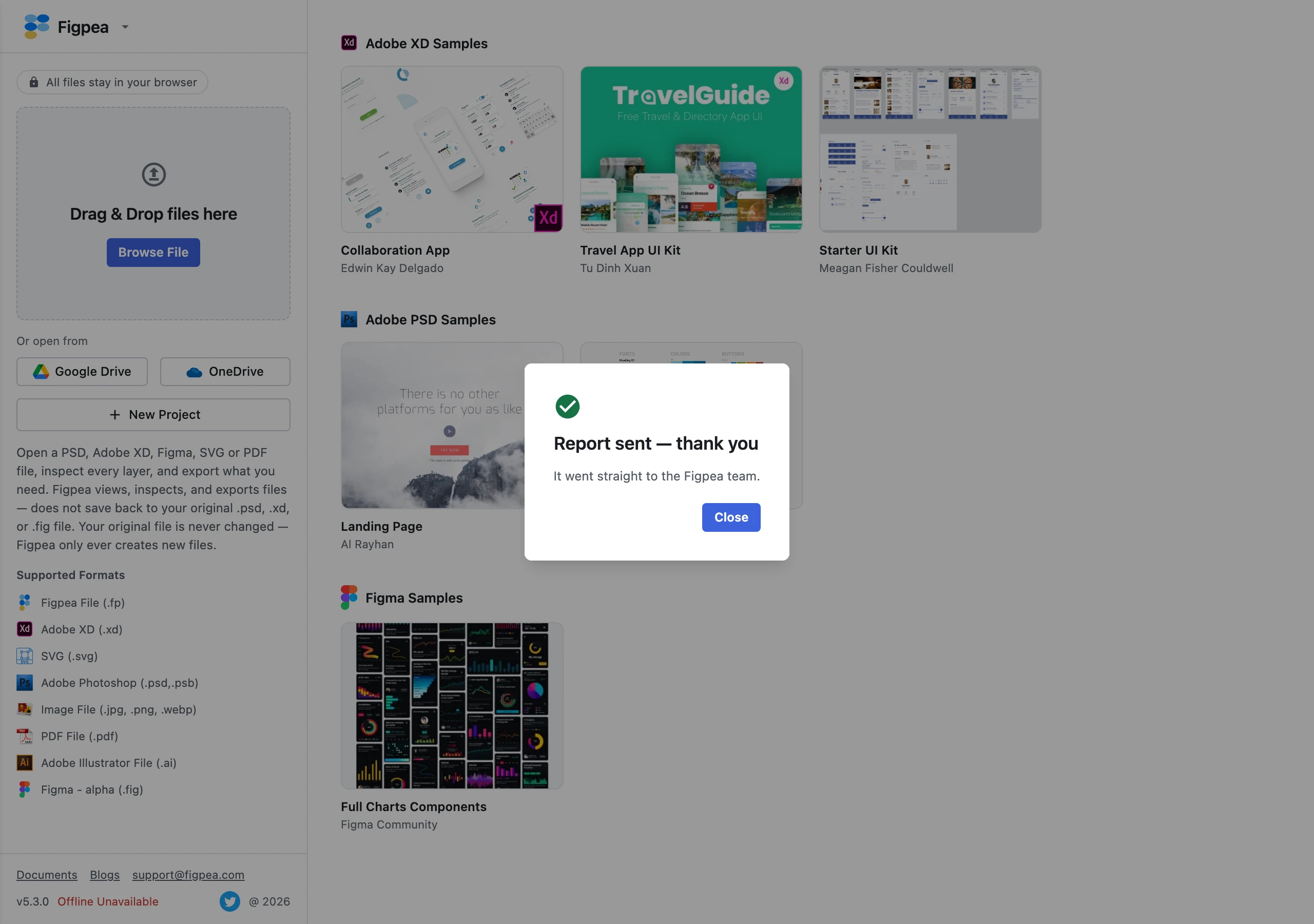
Figpea opens on a full-screen welcome dashboard. Everything that opens a file sits in the left sidebar — the drop zone, the Browse File button, the Google Drive button and New Project — while the main area carries Your projects — the designs Figpea has captured in this browser, each with a preview, its name and when you last edited it — alongside the sample Adobe XD, Photoshop and Figma files you can open in one click. Nothing in Your projects has to be saved by hand; see Your Projects & Restore. The main menu is in the brand row at the top of the sidebar: click the Figpea logo to open it. The dashboard follows your system's light or dark appearance.
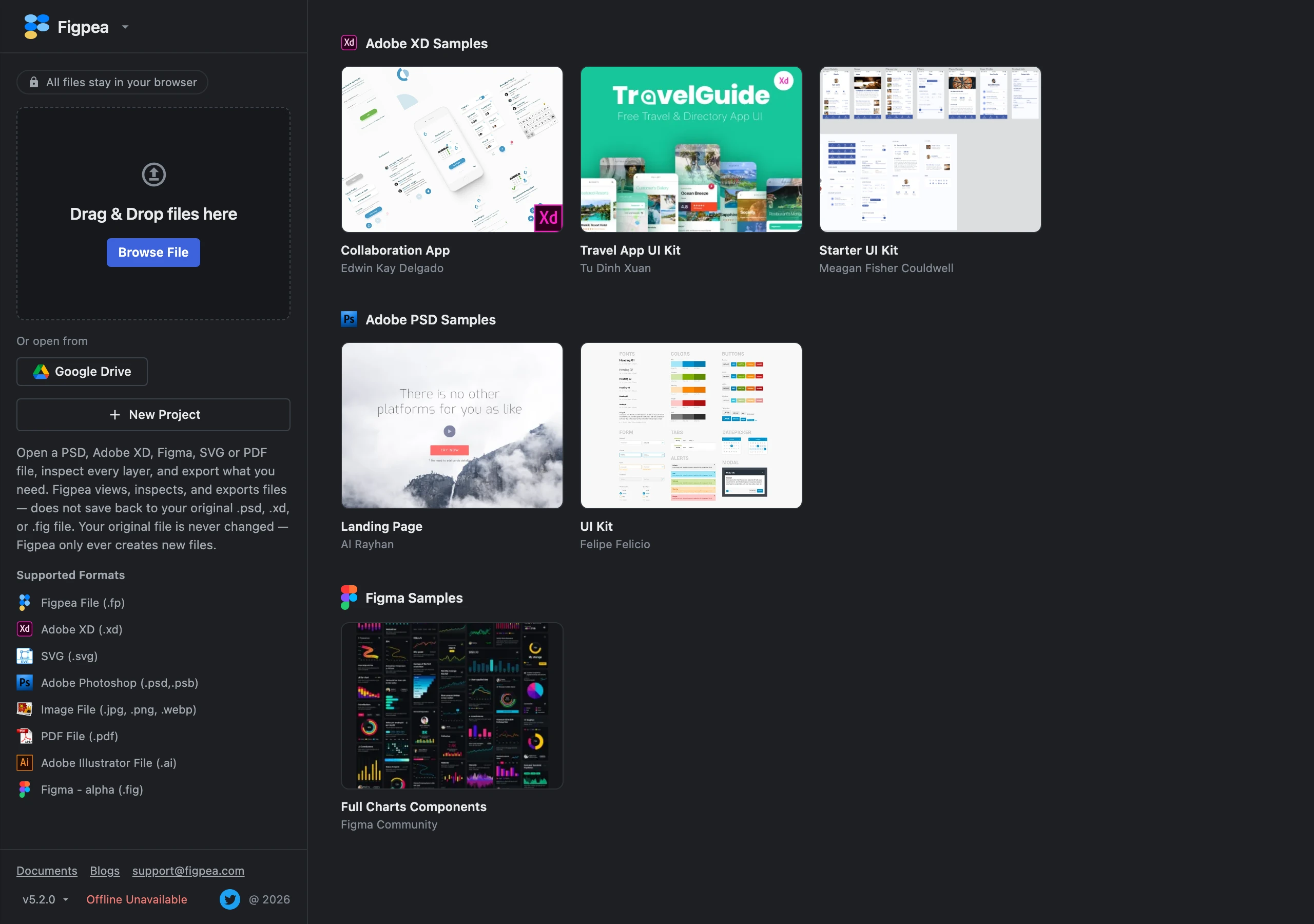
Supported Formats
Figpea Format (.fp)
- Native format for Figpea
- Preserves all editability and project data
- Automatically assigns distinguishable default names (
Untitled 1,Untitled 2) to from-scratch designs, which you can rename inline in the top-left corner of the editor - Best choice for collaboration
- Recommended for saving work in progress
Adobe XD (.xd)
- Full support for XD design files
- Preserves artboards and components
- Maintains interactive prototypes
- Supports auto-animate transitions
Learn more: Adobe XD online viewer · Open Adobe XD Files Online with Figpea
Adobe Photoshop (.psd, .psb)
- Broad support for PSD and PSB files with all 27 Photoshop blend modes
- Preserves layer hierarchy, text editability, and core layer styles (falling back to Photoshop's native composite preview for non-recomputable effects)
- Displays smart objects and layer masks (rendering raster and vector mask previews)
- Advanced PSD layer effects support: Gradient Overlay, Pattern Overlay, Outer Glow, and Inner Glow
- PSD Adjustment Layers (Full 16-Type Support): Native rendering for all 16 Photoshop adjustment layer types —
britBrightness/Contrast,levlLevels,curvCurves,expAExposure,vibAVibrance,hue2andhueHue/Saturation,blncColour Balance,blwhBlack & White,phflPhoto Filter,mixrChannel Mixer,clrLColour Lookup,nvrtInvert,postPosterize,thrsThreshold,grdmGradient Map,selcSelective Colour — with full support for layer clipping, isolated group scoping, and partial-alpha layer masks. Photoshop-exact formula parity for Hue/Saturation (hue2) and Black & White (blwh) when rendering with PSD Compatible Rendering off:hue2uses Photoshop's own non-additive saturation/lightness curves (saturation scales toward the gamut boundary or toward grey, lightness scales toward white or black — never an additively-clipped value), andblwhuses Photoshop's documented 6-channel (Reds/Yellows/Greens/Cyans/Blues/Magentas) channel mix rather than a simplified approximation. - Faithful rendering in Photoshop's native layer style stacking order
- Full client-side execution — 100% private, files never leave your device
- SVG & CSS Export: Complex blend modes automatically trigger a non-blocking
rasterized_fallbackdiagnostic — surfaced via the Agent API'sfigpea.report.diagnostics()— and rasterise into image fills during SVG/CSS export to guarantee visual fidelity.
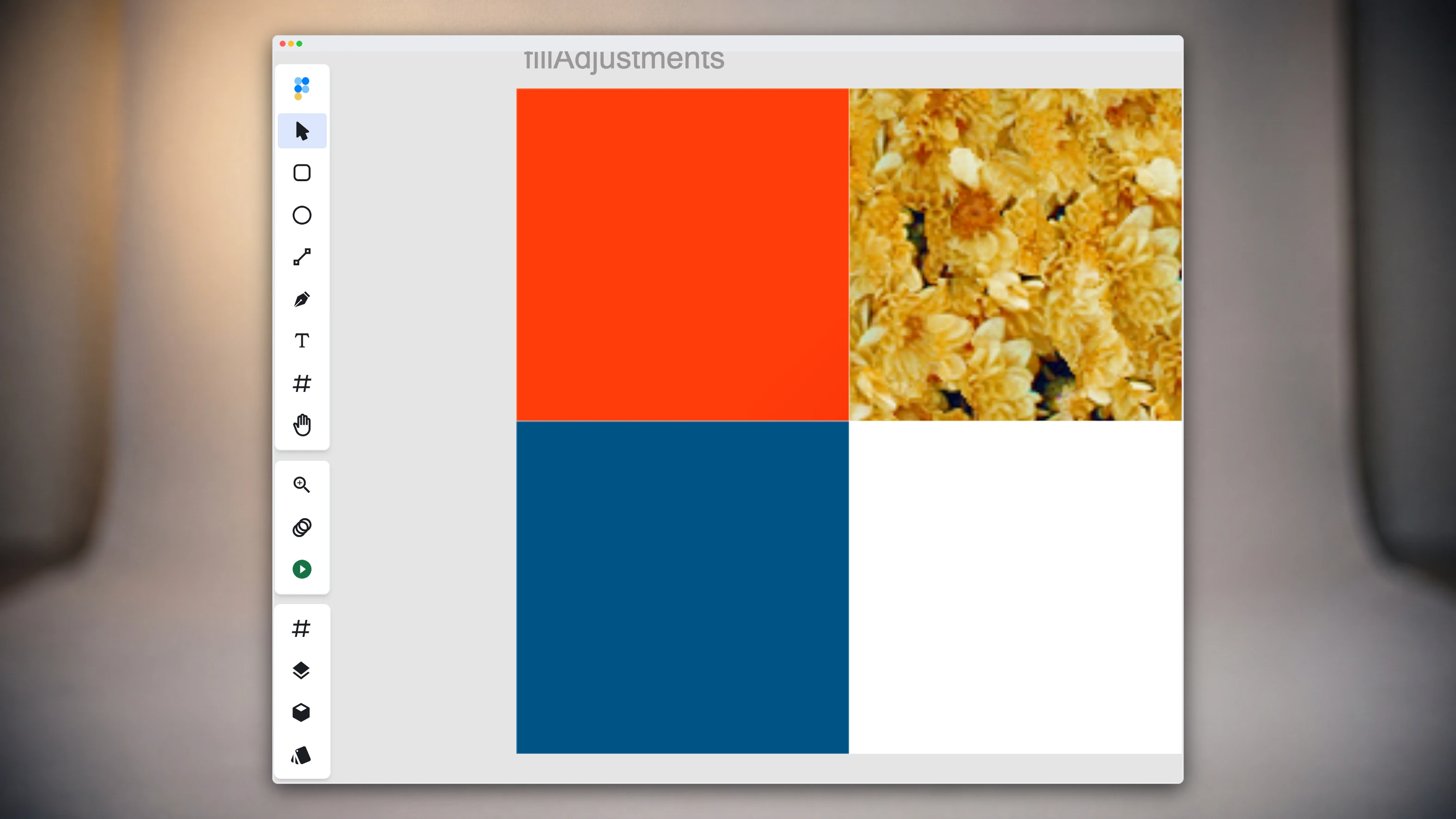
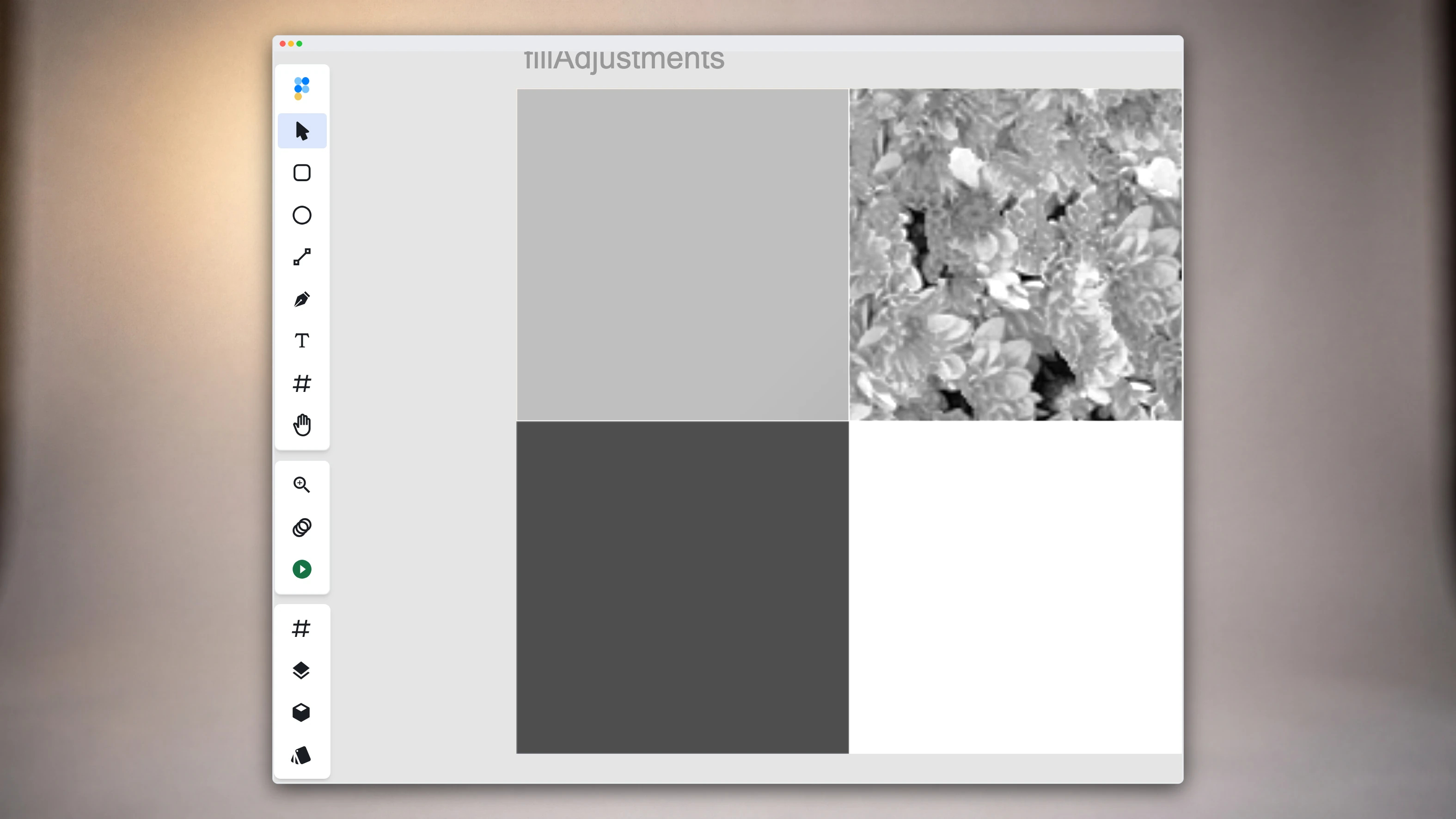
Native composite fallback, at the layer level: For complex Photoshop effects or layer styles that cannot be recomputed on the fly, Figpea displays the document's saved composite preview for those layers. This maintains 1:1 visual fidelity on canvas while keeping your layer tree intact for inspection, hides, and asset extraction.
High-fidelity and composite-accurate: when you open a PSD, Figpea shows the composite image Photoshop saved into the file, so what you see on canvas is what Photoshop drew — masks, effects and blending included. That saved image is the page preview, and by default it is what the canvas and your raster exports use — PNG, WebP, JPEG and PDF — because PSD Compatible Rendering is on — the default, under Render in the main menu (see PSD Compatible Rendering below). SVG and CSS exports are written from the decoded layers instead, so those formats never depend on that bitmap. Turn that toggle off and Figpea renders the design from the layers itself; inside the compatible lane your first content edit drops the page preview too, which is why an edit can look like a switch. Figpea skips the saved pixels on purpose, where they are wrong. A file whose layers have Outer Glow or Inner Glow switched on has no preview at all, so Figpea paints it live everywhere. On raster export the effects in play decide, not the toggle: a subtree using Gradient Overlay, Bevel & Emboss or Satin is re-rendered from the decoded layers whatever the toggle says, and so is a drop or inner shadow carrying its own spread or blend mode. A figpea.canvas.screenshot capture re-renders the gradient, bevel and satin families the same way; for shadows it still follows the toggle. On the canvas and on export alike, a page carrying an adjustment layer or an alpha mask is painted from the decoded layers instead — the bake cannot reproduce an adjustment stack or a mask. See Open PSD Files Online for the full rendering story.
Smart objects
A smart object is a placed layer with an embedded source inside it. Figpea opens these as live placed references: the embedded source and its placement transform render crisply from the source at display resolution.
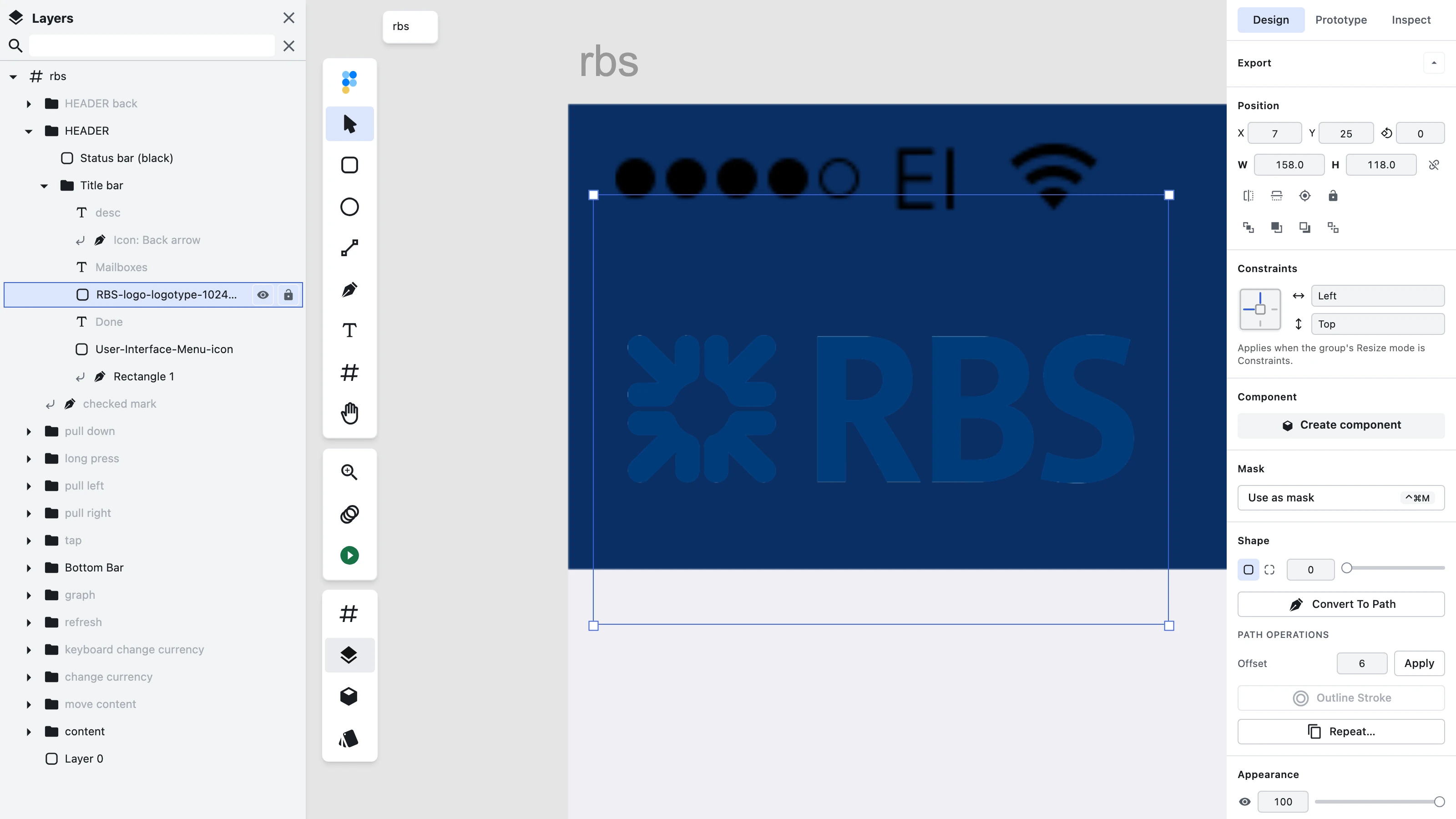
There is one limit worth knowing plainly. Figpea does not edit the source inside the layer, and it never writes back to the PSD. A smart object opens for viewing, inspection, and asset extraction — not for round-tripping changes into Photoshop.
When a placement cannot be resolved, Figpea shows the baked composite instead. That happens when the source is missing, when the warp is one Figpea cannot represent, or when the embedded source is very deeply nested or very large. The substitution is recorded at decode time and surfaced as a rasterized_fallback diagnostic warning naming the layer — a fallback placement renders from its composite.
Zoom behaves the same way. Zoom in on a live placement and detail resolves from the embedded source. Zoom in on a fallback and you see only the composite — there is no extra detail to resolve.
Smart objects are Photoshop's way of keeping a reusable copy inside a single layer. Figpea's reusable-copy model is components. See Components and Instances for Figpea's reusable-copy model.
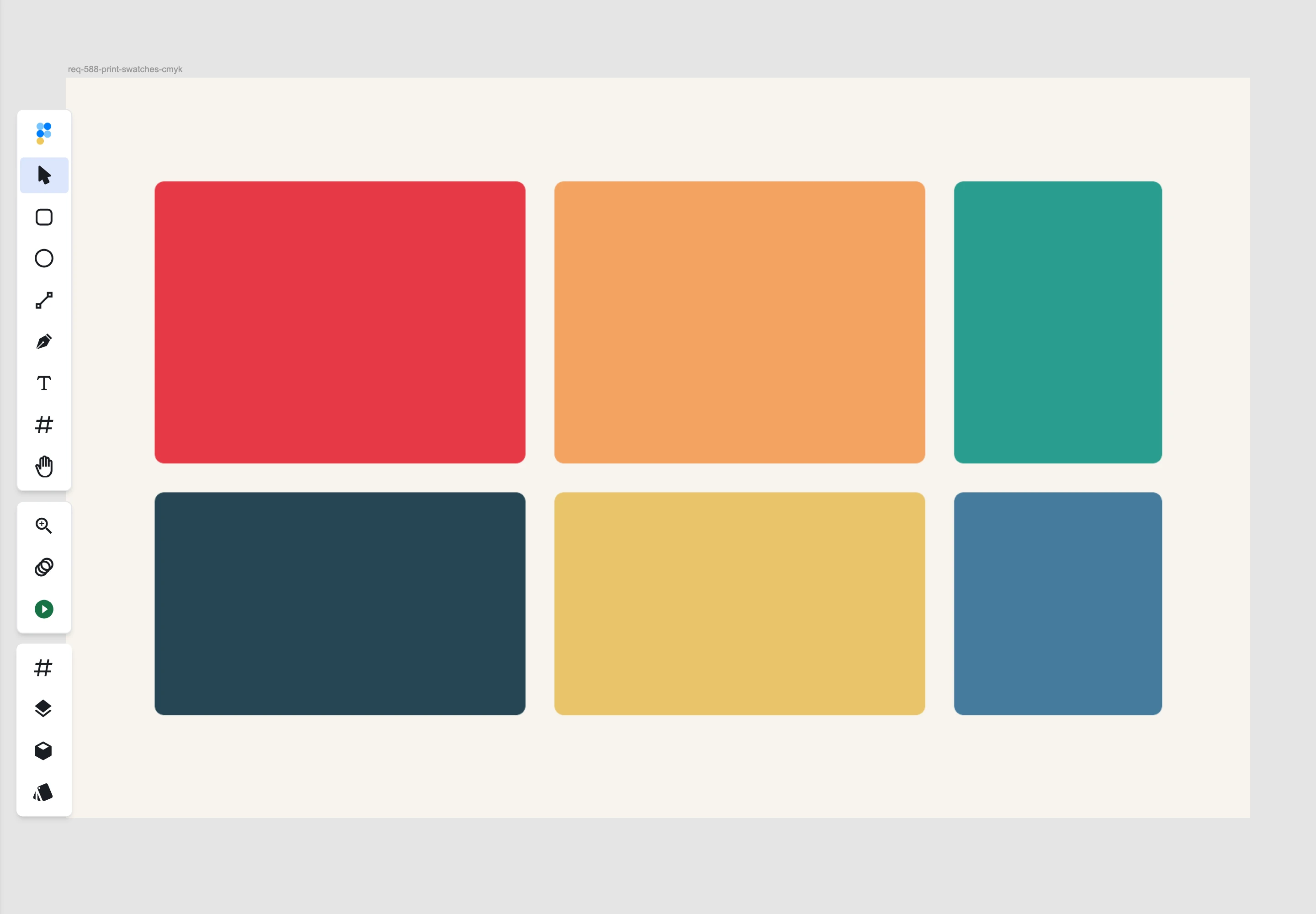
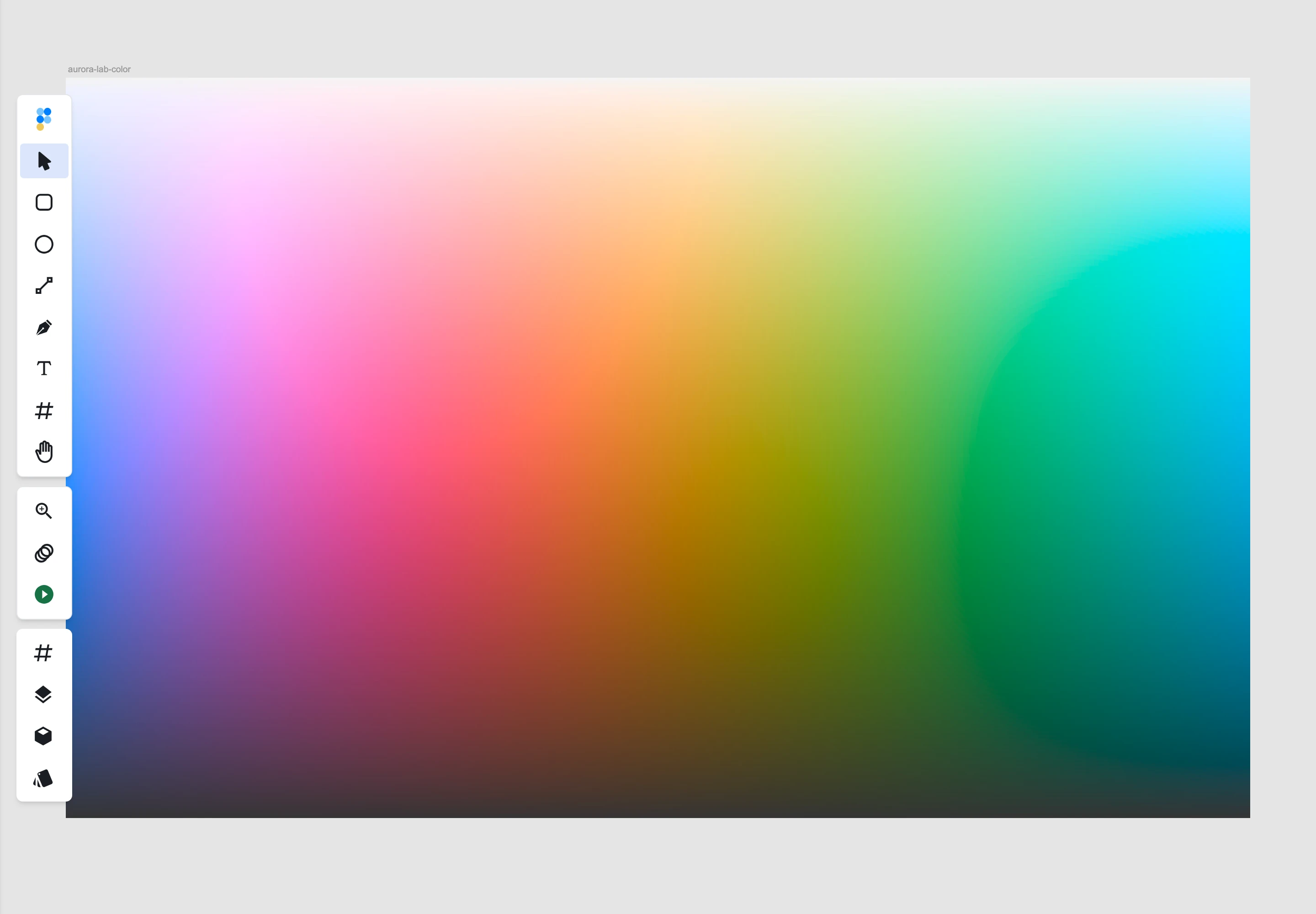
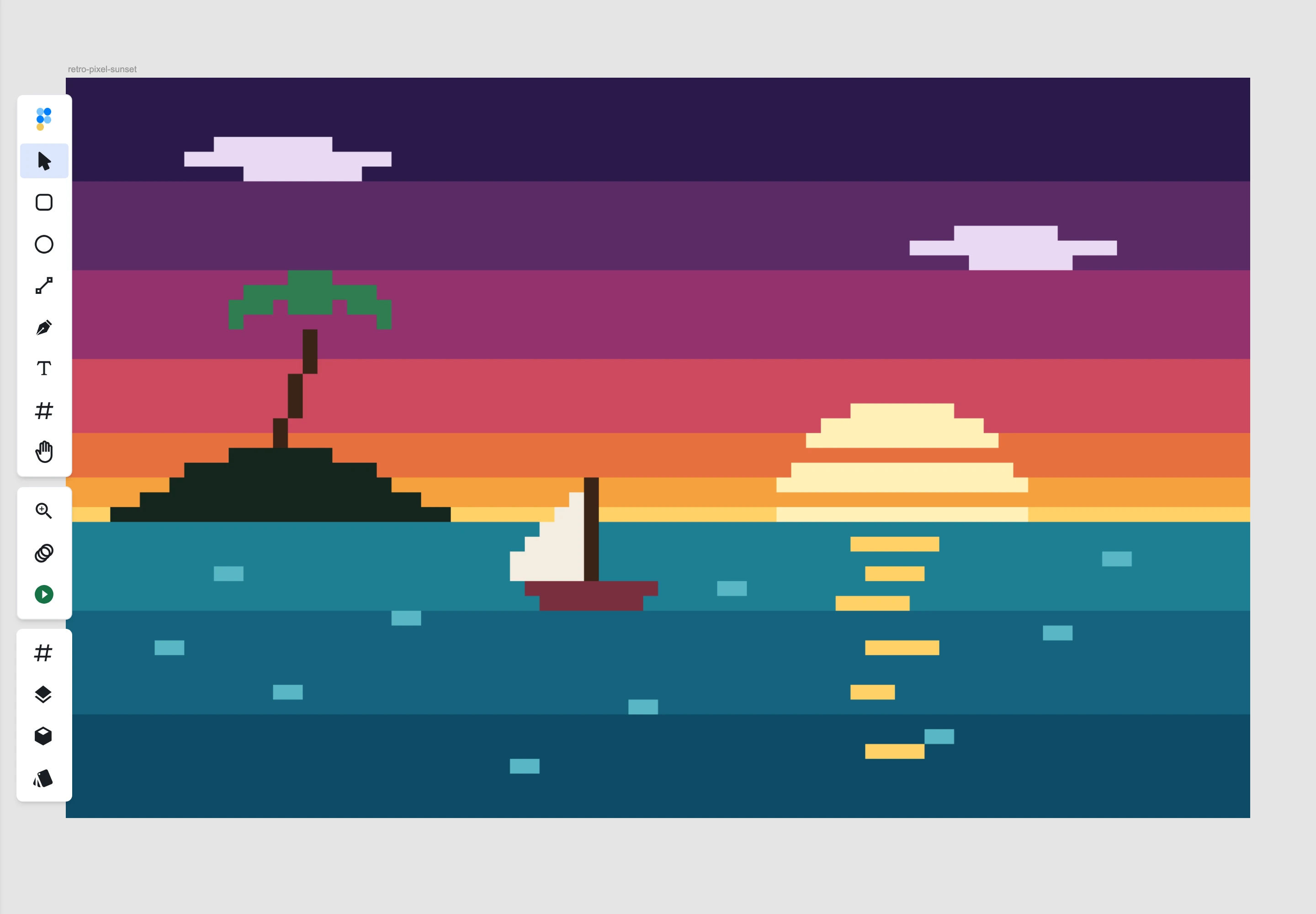
Color modes. Figpea reads the document's color mode rather than guessing from its channels, so a print file opens as readily as an ordinary RGB one:
- Opens CMYK, Lab Color, Indexed Color and Duotone documents, converting each to sRGB for display in the browser
- An Indexed Color file stores its colors once, in a 256-entry table saved inside the PSD, and every pixel is an index into it. Figpea reads that table and looks each pixel up in it, so the palette you built in Photoshop is the palette you see on canvas
- A Duotone file decodes from its single ink-density channel and the ink colors recorded with it. Photoshop's per-ink transfer curves are not applied, so a duotone reads correctly but lands close to the original rather than exactly on it
- The conversion is a standard one, not color-managed: an ICC profile embedded in the file is not applied, so CMYK and Lab colors land close to what Photoshop shows rather than exactly on it
- All of this applies to 8-bit documents. A 16-bit or 32-bit PSD does not open at all — that limit is about bit depth, not color mode
- A color mode Figpea does not convert still opens, using the composite preview saved inside the file rather than failing

Learn more: Open PSD Files Without Photoshop
Figma (.fig)
- Open .fig files from Figma without a Figma account
- Early alpha — a structural read, not pixel-perfect
- View and read only
Learn more: Open Figma (.fig) Files
PDF File (.pdf)
- View and extract assets from PDF files
- Convert pages to editable layers
- Export individual elements
- Perfect for design documentation
Adobe Illustrator (.ai)
- Support for AI file format
- Preserves vector artwork
- Maintains layer organization
- Retains color information
Image Files
- JPEG (.jpg)
- PNG (.png)
- WebP (.webp)
- Convert to editable layers
- Extract assets and elements
Archive Files (.zip)
- Open
.ziparchives containing supported design files - Opens automatically when the archive holds exactly one design file — any number of accompanying images (PNG/JPG previews) does not change that
- Asks which file you want when there is more than one design file, or when there are several images and no design file
- Commonly used for PSD mockup bundles and design templates
- Only files that Figpea natively supports (PSD, XD, .fig, SVG, PDF, etc.) can be opened
Opening Files
-
Drag and Drop:
- Drag your design file onto the Drag & Drop files here zone in the left sidebar — the zone highlights as the file passes over it, and the file opens the moment you let go
- File processing happens locally on your machine
- No uploading to servers required
- Direct archive drag-drop: Drop a
.ziparchive onto the same zone. Figpea looks inside and unpacks it for you — opening straight away when there is exactly one design file in there, or asking which one you want when there are several
-
Browse File:
- Click the Browse File button in the left sidebar — or anywhere inside the drop zone around it — to open your computer's file picker
- Select a design file from your computer
- It opens immediately with its layers intact
For opening files from Google Drive on mobile, see Mobile Browser Support for Google Drive.
-
URL Deep-link:
- Open a file by URL:
?loader=http&type=psd&path=https%3A%2F%2Fexample.com%2Ffile.psd typeis the file's format (psd,xd,figma,svg,pdf, orimage);pathis the URL-encoded http(s) address of the file- The file is downloaded and decoded in your browser
- All processing stays local to your machine
- Open a file by URL:
-
Drop or Pick on a Figpea Page:
- This works only on Figpea's PSD, Adobe XD and Figma pages — Open PSD Files Online, Open Adobe XD Files Online, Rescue an XD File and Figma viewer among them
- Press the file area, and a new Figpea tab opens and waits for you — on that first press, before you have chosen a file
- That press goes to opening the tab, so your computer's file picker opens on the next press. Until then you can drop your file onto the area
- Your file is handed straight over into that waiting tab, where it opens on your machine. Nothing is uploaded, and the file you are already holding never has to be found or picked a second time
Opening a file on your phone
Every route above works in a mobile browser, and two of them are the ones you will actually use. On a narrow screen the dashboard stacks into a single column instead of a sidebar, so the open controls sit at the top of the page and the sample files below them.
- Pick a file from the device: tap Browse File — or the drop zone around it — and your phone's own file picker opens, including iCloud Drive, Google Drive and Files on iOS, or Files and Drive on Android. The file is decoded in the browser tab, exactly as on desktop.
- Open a link: a
?loader=httpURL fetches the design straight into the tab, which is the quickest way to review something a colleague has linked you to. The parameters are identical to the desktop deep link above.
If you have installed Figpea as an app on your phone, launching it from the home screen opens the same viewer and both routes behave the same way — see Offline Access for what gets stored on your device, and the offline walkthrough for browser support and desktop installation.
Once the file is open, the viewer switches to its touch layout: a bottom action bar, pinch-to-zoom, and slide-over drawers for pages, layers and properties. That is covered in the Mobile Design Viewer & Touch Review Guide.
Open a file from Google Drive
You can open design files directly from Google Drive without downloading them first. When you click the Google Drive button in the left sidebar, under Or open from, Google's secure file picker dialog opens — you select the file, and Figpea downloads it into your browser where it's decoded locally, exactly like a drag-drop open.
Through the file picker interface, you can navigate your Google Drive folders (such as opening your Designs folder to find a nested project) and switch between the Google Drive tab and the Shared with me tab to find files shared with your account. Folders are configured for browsing and navigation only and cannot be selected as file outputs.
Google asks permission for the file you pick — a single file selected in the picker. The file's bytes come down into your browser tab and never go anywhere else. Figpea never writes anything back to your Drive — your original file is never changed.
Open with Figpea in Google Drive
Right-click a .psd, .psb, .xd, .fig or .svg file in Google Drive and choose Open with → Figpea. The file opens directly in Figpea with its layer tree intact. Drive's native preview flattens a PSD and cannot preview an .xd or .fig at all. Figpea decodes the file entirely in your browser — nothing is uploaded to a server, and your original file is never changed.
Mobile Browser Support
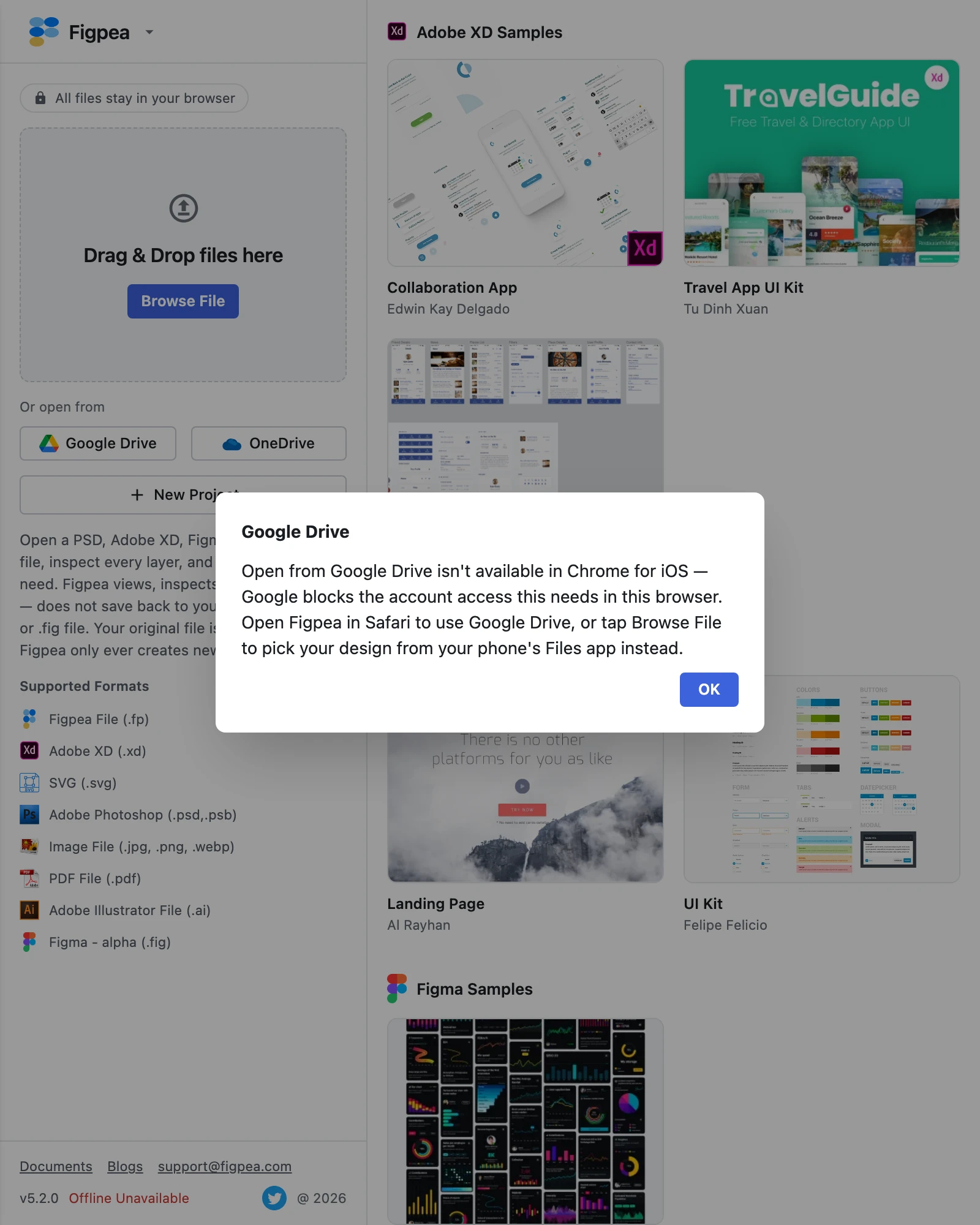
- Safari on iOS: Supported. The Google Drive file picker opens directly.
- Chrome on iOS: Currently unavailable due to Google's third-party cookie/account access policy in Chrome for iOS. When using Chrome on iOS, Figpea prompts you to open the design in Safari on iOS, or tap Browse File to pick your design directly from your phone's Files app (where Google Drive is natively accessible).
- Android (Chrome/Firefox): Fully supported.

Can I open a PSD or XD file in Google Drive?
Drive previews a PSD flattened and can't preview an .xd or .fig at all. Figpea opens all three from Drive with their layers, in your browser.
Learn more: Open Adobe XD Files Online · Open PSD Files Without Photoshop
Import Settings
PSD Compatible Rendering
- Enabled by default for accurate Photoshop matching
- Uses pre-composite image data
- Perfect for review and reference
- Toggle off for vector editing
- Found under Render in the main menu — the brand row at the top of the sidebar
Learn more about PSD compatibility in our detailed guide
Font Management
- Automatic font detection
- Local font usage
- Google Fonts integration
- Font substitution options
Learn more: Font Manager Guide
Tips for Best Results
-
File Organization:
- Keep layer names clear and organized
- Use standard fonts when possible
- Clean up unused resources and hidden layers you no longer need
-
Performance Optimization:
- Consider flattening complex effects
- Remove unnecessary hidden layers
- Use appropriate file formats
- Optimize embedded images
-
Collaboration:
- Save as .fp for team sharing
- Document font requirements
- Note any special settings
- Share asset specifications
Troubleshooting
If you encounter issues opening files:
-
Check File Size:
- Figpea keeps only the layers you are working with live, so a large file no longer has to fit entirely in memory to open — see Opening Very Large Design Files
- Large files can still take longer to process
- Remove unused resources
-
Font Issues:
- Install required fonts locally
- Use font substitution
- Consider converting text to outlines
-
Complex Effects:
- Try enabling PSD Compatible Rendering
- Simplify complex layer effects
- Flatten unnecessary layer styles
-
Archive Contains Unsupported Files:
- ZIP files must contain at least one file in a format Figpea supports (PSD, XD, .fig, SVG, PDF, images, etc.)
- Folders and other file types inside are ignored
- Extract the ZIP manually if you need access to non-design files
Reporting File Open Failures
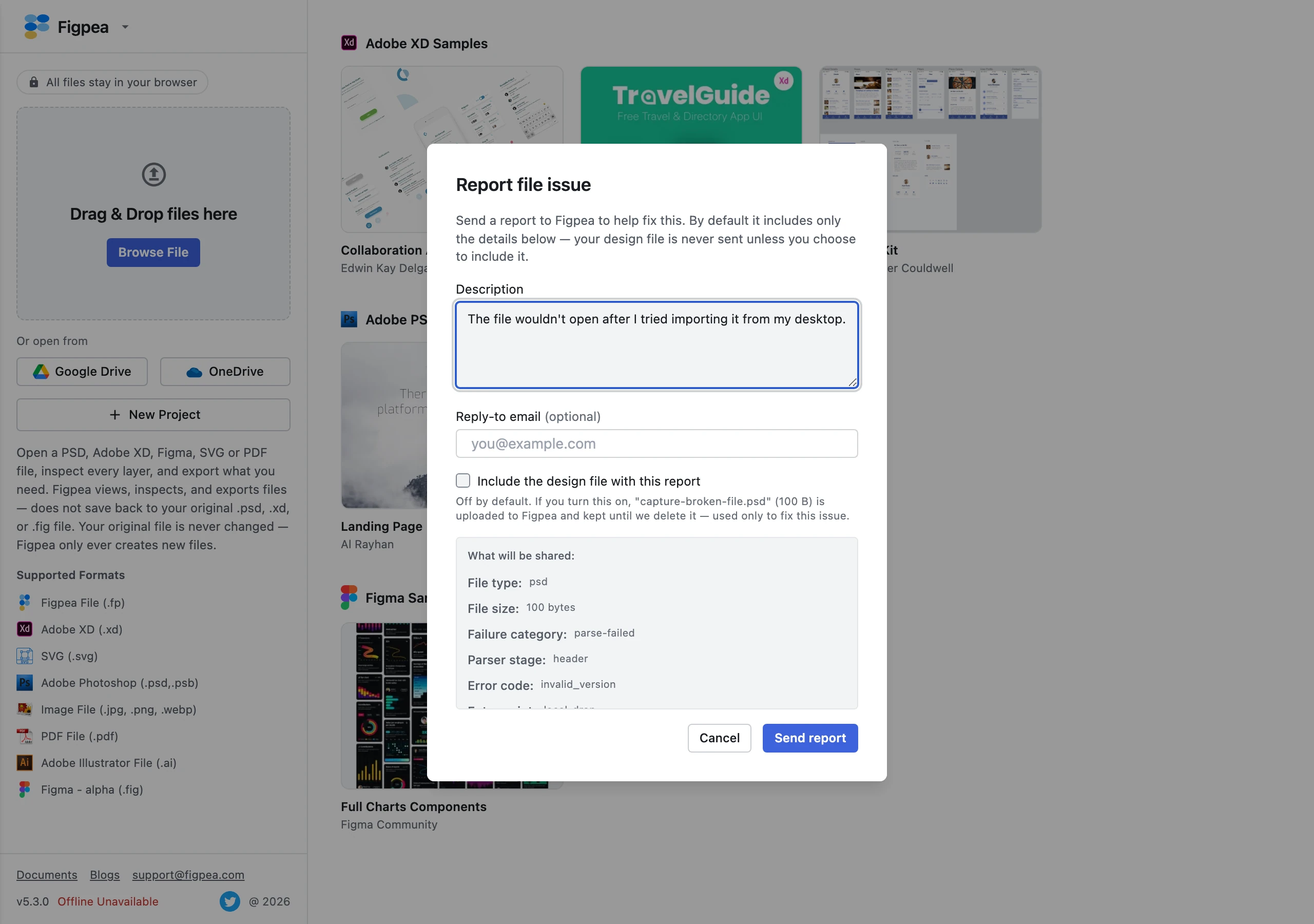

When a design file fails to open, Figpea's error dialog offers an in-editor report form. A short description of what happened is required before you can send it; a reply-to email is optional. The form also shows a parse trace — the steps Figpea completed, the step it was on when it stopped, and the error — and lists it in What will be shared so you can read exactly what goes with the report before you send it. The trace is sent with the report on its own; it is not the design file.
For certain failure types you can also choose to attach the design file itself, which is the fastest way to get a parser bug reproduced. That checkbox is off by default and the file is uploaded only if you tick it — everything else described above is what a report always contains. See What We Collect for the full list and for retention and deletion.
For more detailed information about working with specific file formats, check our blog posts.