 Figpea
Where Figpea Saves Your Work — and What Survives a Crash
An hour into a file, the tab goes down — a crash, a force-quit, a restart you did not ask for — and the first thought is the obvious one: how much of that just disappeared?
If you are working in Figpea, that hour is still there. Figpea keeps your project in this browser as you work, so reloading the tab, or losing it, does not have to cost you the file. Here is where that copy lives, what it survives, and where the limit is.
Your work lives in Your projects
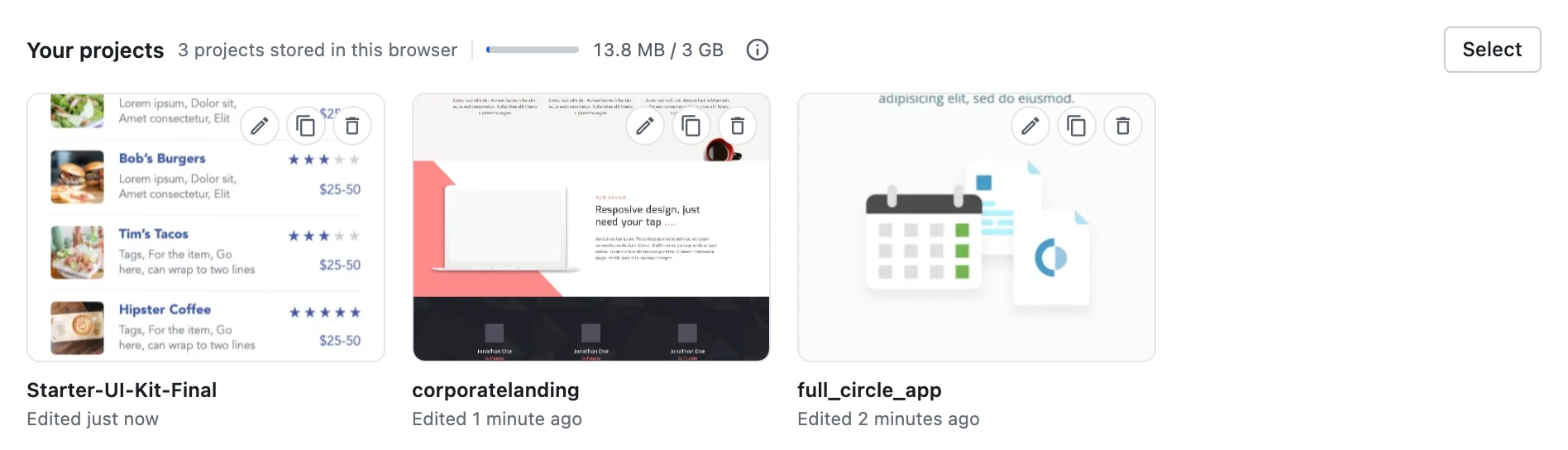
Open the editor and the welcome screen greets you with a Your projects section: the designs Figpea has captured in this browser. Each tile carries a preview of the design, the project's name, and when you last edited it — newest first.
There is no save step, and no save button to look for. Start a project, or open a PSD, XD, Figma, SVG or PDF file, and it appears in the list on its own; Figpea writes the project into this browser a moment after you stop editing.
Managing a project
Click a tile to open it. The project restores editable, with the layers and structure you left behind, and the tile also carries three actions:
- Rename changes the name stored with the project.
- Duplicate makes an independent copy you can edit on its own, named "name copy".
- Delete removes the project from the list and from this browser's storage, after a confirmation that names it — because there is no undo.
Reloading the tab
Reload the page and the project is still open in front of you, with a fresh edit time — Figpea knows which project it is because the address bar names it, and the same progress card a file open shows covers the wait. Close the tab and come back later and you land on the Your projects screen with the project waiting in the list. Nothing to press, and no "save" you were supposed to remember.
This is the part that changes what a browser tool is. A refresh is normally the moment you find out whether you kept a copy somewhere. With Figpea it is not data loss.
After a crash
If the browser goes away without letting Figpea finish — a crash, a force-quit, a tab the system killed — the work you had flushed is still in Your projects. Nothing is announced — there is no "we recovered your work" prompt; the progress card you see is just the project opening. Open the tile and the project comes back holding the last state Figpea wrote. If the browser reopens the tab at the same address, Figpea opens it straight away, because the address names it.
Be clear about the shape of this, though: it is recovery of what was written, not a backup. Capture runs on a short debounce, so a hard kill can drop the last second or so of edits. That is a very different thing from losing the hour — but it is not zero, and it is not a promise that nothing can ever be lost. For work you would be upset to lose, keep a copy of your own.
One browser, one device
Your projects are local to this browser, on this computer. They are not stored in the cloud, they do not follow you to another browser or another machine, and nothing is uploaded. Clearing your browser's site data removes them, and that is a browser action with no undo.
The library also lives inside your browser's storage quota, sharing that space with everything else the site keeps, so a very large library can eventually reach the limit.
One thing this is not: offline access is a separate feature that keeps the editor itself on your device so it opens with the network off. Your projects are the work you have been editing — neither one is the other.
Keeping a copy you own
The local library is a convenience kept by one browser. When you want the copy you own — one that survives clearing browser data, moving to another machine, or handing the work to someone else — export the project as a .fp file. It holds the project's layers, styles and structure, and you can reopen it any time by dropping it back onto the editor.
One boundary does not move: Figpea never writes back to the .psd, .xd, .fig, .svg or .pdf you opened. Your projects are Figpea's own data, held separately, and the file on your disk is untouched.
The short version
- Your work is captured into this browser as you go — there is nothing to save by hand.
- The Your projects list on the welcome screen is where it lives: newest first, with a preview, a name and an edit time.
- A reload keeps you in the project, because the address bar names it; after a crash what was flushed is still in Your projects — minus, at most, the last second of edits.
- It is local to one browser on one machine, inside the browser's storage quota.
- An exported
.fpis the copy you own.
For the full picture, see Your Projects & Restore. For how files open in the first place, see Opening Design Files.