 Figpea
Font Management
The Font Manager helps you organize and manage your fonts efficiently. You can work with local fonts, Google Fonts, and system fonts all in one place.
Adding Local Fonts
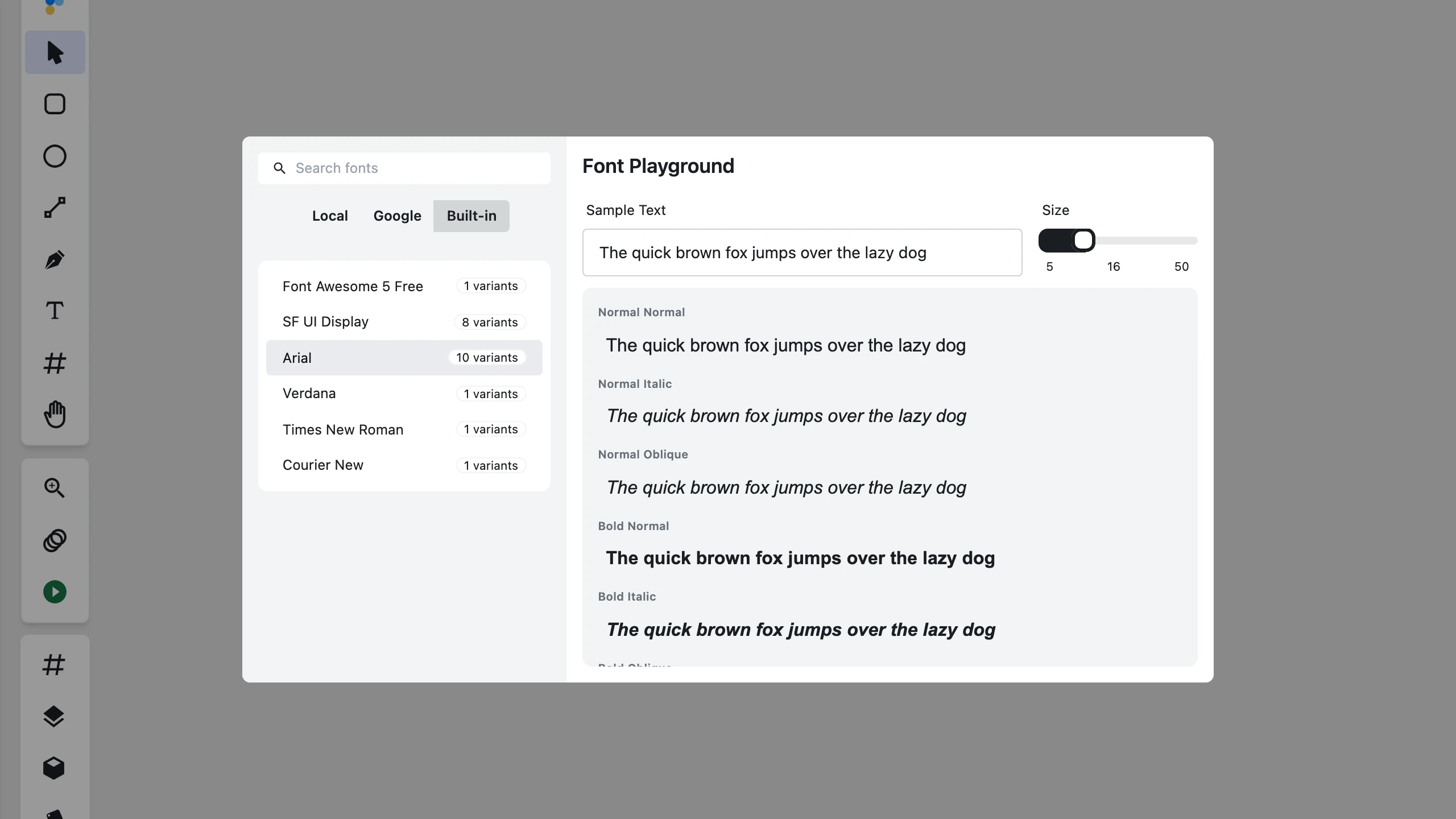
The Font Manager supports multiple formats:
- TrueType Font (.ttf)
- OpenType Font (.otf)
- Web Open Font Format (.woff)
- Web Open Font Format 2 (.woff2)
CJK and other complex-script fonts (Korean, Chinese, Japanese — including variable fonts and fonts using advanced OpenType substitution tables) are fully supported and load successfully without falling back to a substitute font.
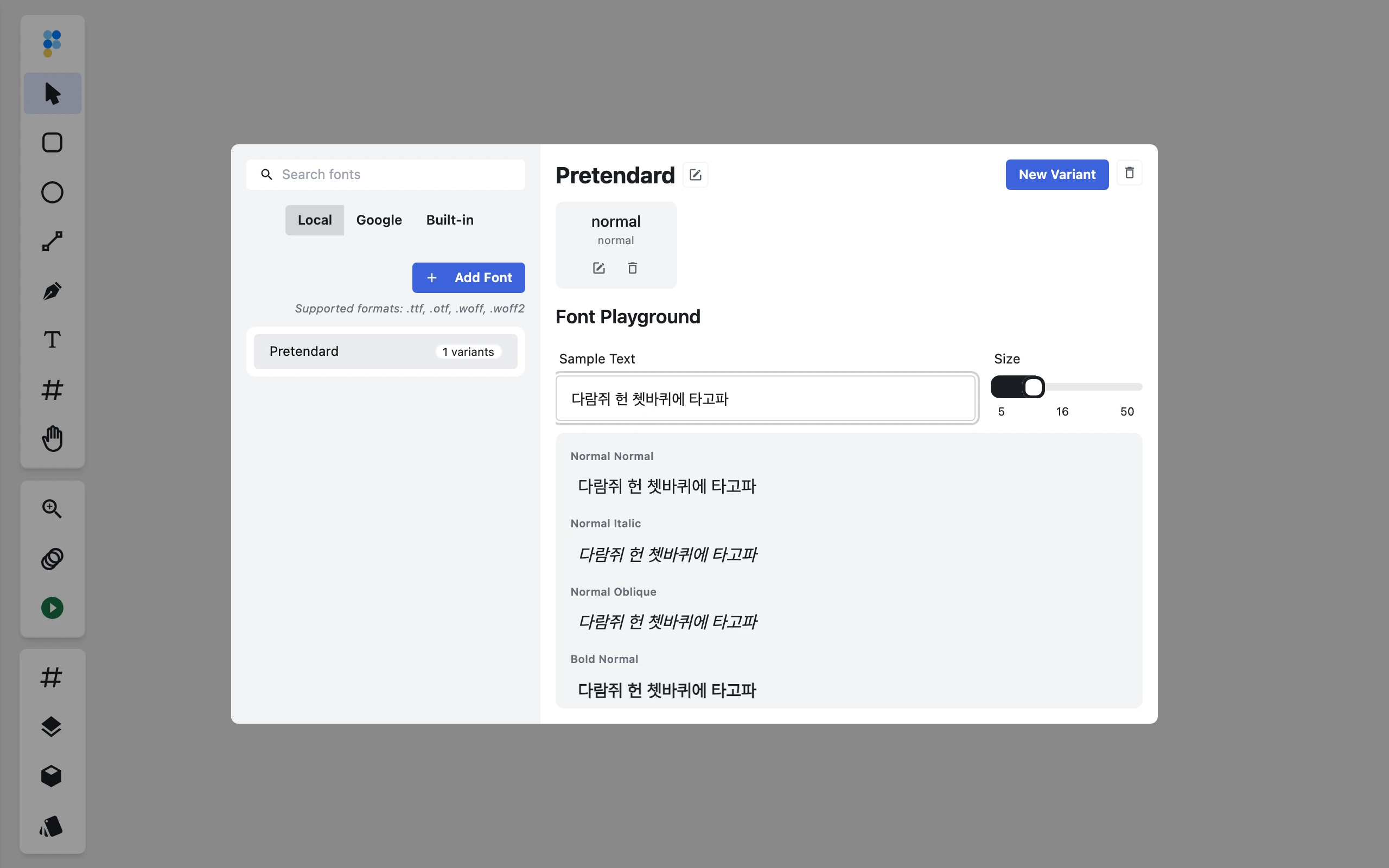
To add a new font:
- Click "Add Font" in the local fonts section
- Select your font file
- The manager will attempt to detect font metadata automatically
- If needed, manually provide:
- Font name (required, case-sensitive)
- Weight (optional: 100-900, normal, bold)
- Style (optional: normal, italic, oblique)

Managing Font Variants
Adding Variants
- Select the target font family
- Click "New Variant"
- Choose the variant file
- Specify weight and style
- Save to add to the font family
Editing Variants
- Click the edit (pencil) icon on the variant
- Adjust weight and style settings
- Click the checkmark to save
Removing Variants
- Click the trash icon on the variant
- Confirm deletion
Font Playground
Test your fonts using the Font Playground:
- Enter custom text in "Sample Text"
- Adjust size with the slider (5-50px)
- Preview text in all available weights and styles
- Compare variants side by side
Managing Font Sets
Removing Font Sets
- Select the font family
- Click the trash icon in the top-right
- Confirm deletion
Renaming Font Sets
- Select the font family
- Click the edit icon by the font name
- Enter new name (case-sensitive)
- Click checkmark to save
Google Fonts Integration
Access Google Fonts directly:
- Click the "Google" tab
- Browse or search available fonts
- Select a font to view variants
- Fonts are automatically downloaded and cached
Font Loading Notifications
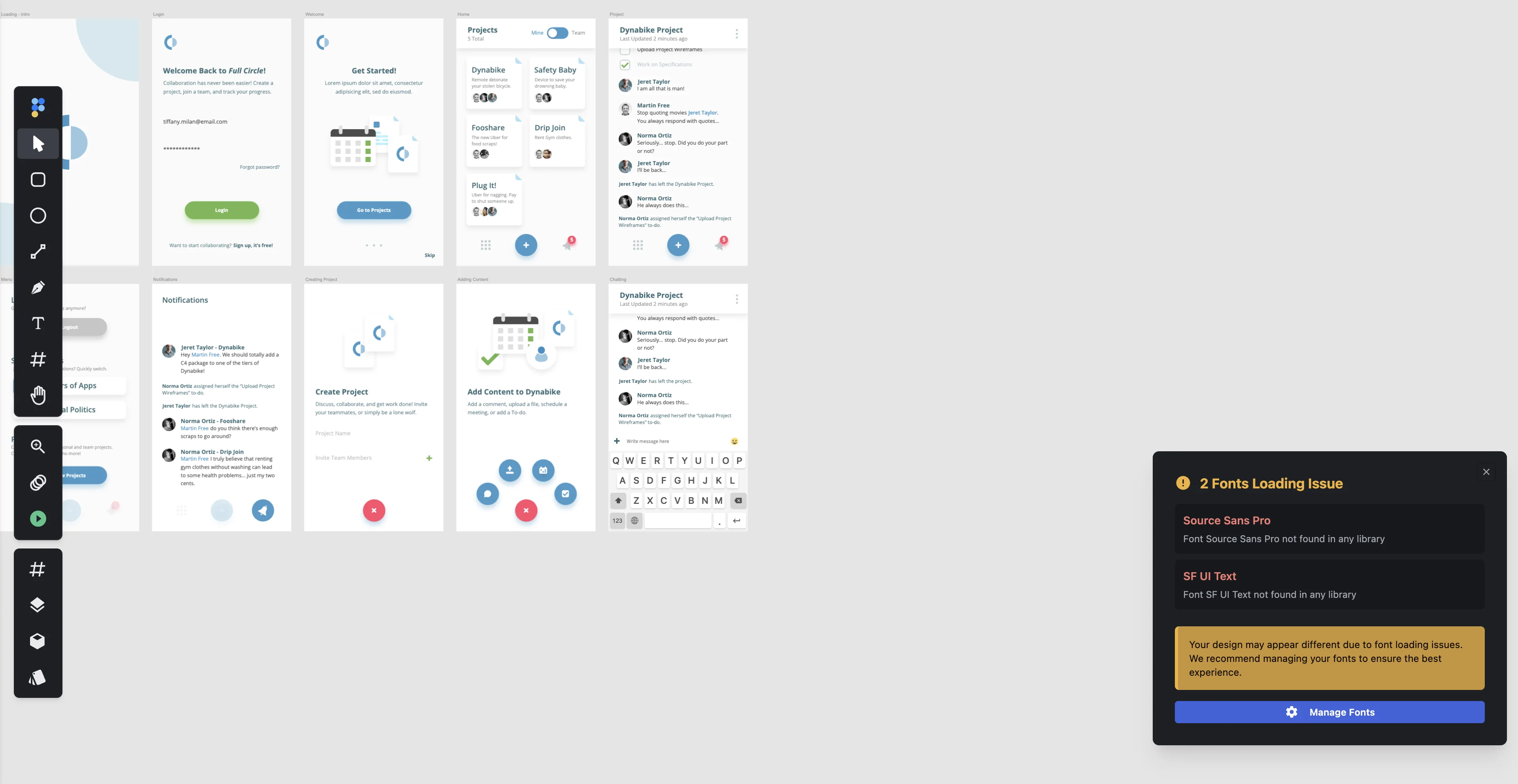
When an opened file references fonts that are not available locally or in built-in libraries, Figpea displays a Fonts Loading Issue card in the bottom-right corner of the editor:
- Advisory Status: Shows the count of substituted or pending fonts and provides a direct link to Manage Fonts.
- Dismissal: Click the X on the card to dismiss the notification for your current browser session.
- Presentation Mode Behavior: When you enter Presentation Mode, the font loading warning card is automatically suppressed during presentation playback so advisory popups never overlay your prototype slides. Upon exiting Presentation Mode, the notification card returns unless you dismissed it.
Exporting SVGs with Custom Fonts
When exporting SVG files containing custom or local fonts from Figpea, you can choose between:
- @font-face Embedding: Embeds font binaries directly into the SVG file so text renders correctly across all viewers.
- Outline Conversion: Converts text elements into vector paths, ensuring pixel-perfect visual fidelity without requiring recipients to have the font installed.
Search Functionality
Use the search bar to find fonts:
- Search across all libraries (Local, Google, Built-in)
- Results grouped by source
- Supports partial matches
- Case-insensitive search
Best Practices
- Use consistent font naming conventions
- Remove unused variants to keep library organized
- Test fonts in playground before applying
- Use search for large font collections
- Consider Google Fonts for web-safe typography