 Figpea
Assets Panel: What Your Project Is Made Of
The Assets tab sits in the left rail, directly under Components — same tooltip, active state and click-to-toggle as the panels beside it.
What the Assets panel is
The Assets tab is a live view of the layer-fill images, colors and text styles your project uses, built automatically from the layers in your file — every sheet, not just the sheet you are looking at — and not a place you bring files into ahead of time. It has three sections: Images, Colors and Text Styles. Each lists what your layers actually use, each entry once, with a count of where it's used. Nothing here is a library you curate; remove the layers and the entry goes with them.
The Images section
Every distinct image in use gets one tile: a thumbnail, its name, intrinsic width and height in pixels, file size, and a Used by N layers count. Use the same image as a fill on five layers and you still see one tile, not five — Figpea recognizes identical image data and lists it once, no matter how many places it appears, including inside a component master.
Four things you can do
- Click a tile to select every layer using that image on the canvas — the fastest way to answer "where is this actually used?" in a file someone handed you.
- Add to canvas drops a rectangle, filled with that image at its true pixel size, already selected, as one undo step, reusing the same image data rather than a second copy. It follows your selection: with a page or layer selected, the rectangle lands on that page (a selected layer resolves to its own page); with nothing selected, it lands on the root canvas, centred on your current view.
- Add image… brings a picture in from your computer and places it the same way. If that exact file is already in the list, it joins the existing tile rather than creating a duplicate.
- Replace… picks a new file from your computer and switches every layer using that image to the new one at once — including layers inside components — as a single undo step. Each layer keeps its own size, fit mode and any transform you applied; only the picture changes.
Replace an image everywhere it's used
When one picture needs to change — a logo, a placeholder, a photo that came back retouched — you don't have to visit every layer that shows it. On any tile in the Assets panel, choose Replace…, pick the new file from your computer, and every layer using that image switches to the new one at once, including layers inside a component.
Each layer keeps how it was already showing its image: its size, its fit mode, its repeat setting and any transform you applied stay exactly as you set them — only the picture changes. The whole swap counts as one step, so a single undo puts it back.
If more than one layer is affected, Figpea asks first and tells you how many layers will change. If the file you pick can't be read as an image, nothing changes at all.
Afterwards the list reflects the swap: the old image's tile is gone and the new one is there in its place, carrying the same usage count. If the file you picked happens to be one the project already uses, the two tiles merge into one and the counts add up.
Reuse a project image as a layer's fill
The Assets panel places an image on a new layer. To point an existing layer at an image your project already uses, select the layer, open its fill controls, switch the fill to an image and choose Use an image from this project — the same grid appears, and picking an image fills that layer with it in one undo step.
The layer keeps how it was already showing its image: its fit mode, its repeat setting and any transform you applied stay exactly as you set them, and only the picture changes. Both layers then point at the very same image rather than a second copy of it, so the Assets panel still shows one tile — with its usage count going up by one.

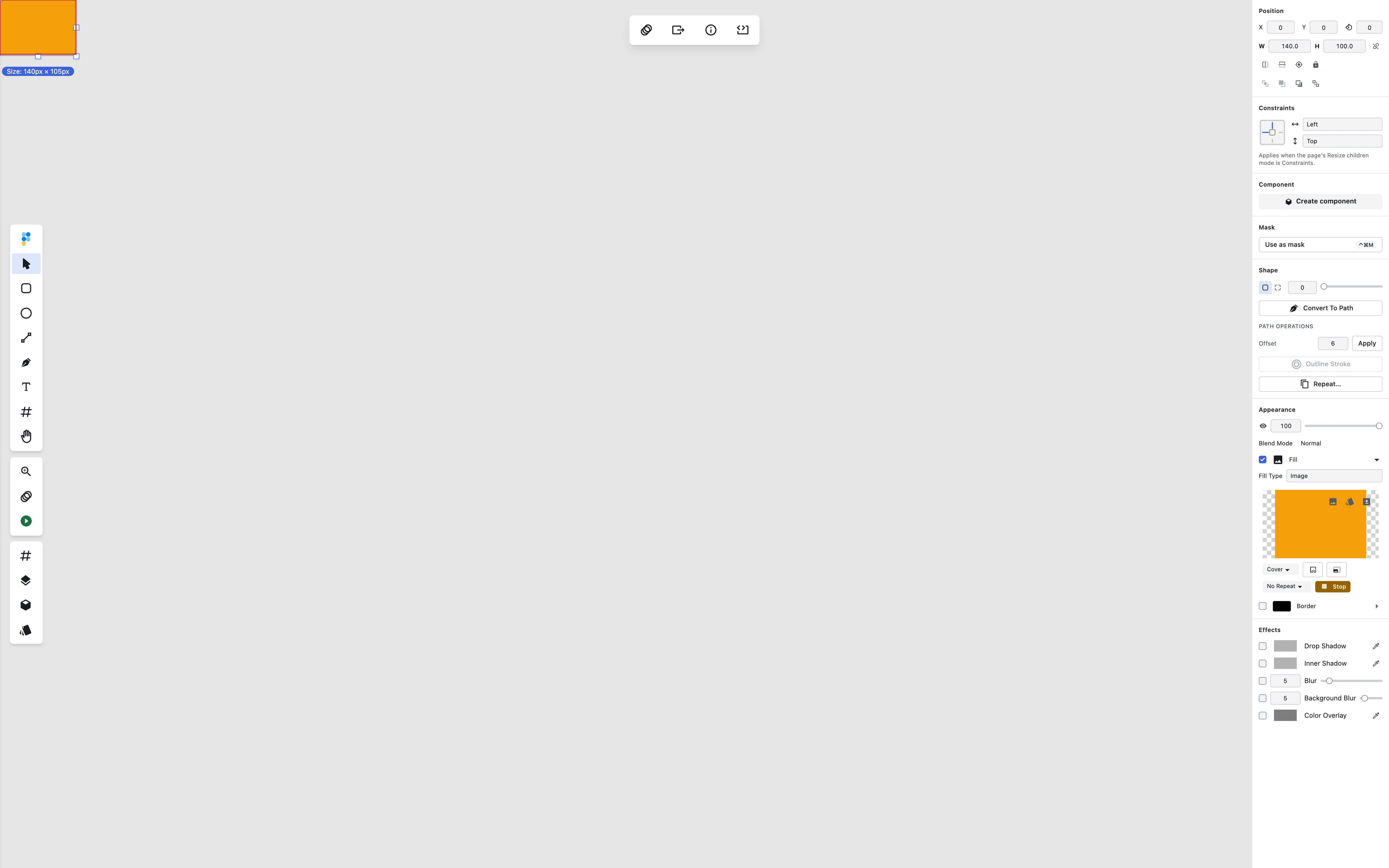
Picking an image from your computer still works the same way, from the same place, whether or not the project has anything to reuse yet.
The Colors section
Every distinct color your project uses gets one row: a swatch, its hex value in uppercase, and a count of where it's used. Two layers painted #ff0000 and rgb(255, 0, 0) are the same color, so they share one row — Figpea normalizes before comparing, and the count adds up.
The list goes wider than layer fills. A color counts if it's a solid fill, an enabled stroke, a stop in a gradient, the color of a shadow or overlay effect, or the color of a run of text inside a text layer — anywhere on any page, including inside a component master. A stroke that's switched off doesn't count: it isn't a color the project is currently using.
Select every layer using a color
Click a swatch and every layer using that color becomes your selection — the fastest way to answer "where does this blue actually appear?" in a file someone handed you.
Change a color everywhere at once
Choose Replace… on a swatch, pick the new color, and every place the old one was used takes the new one — fills, strokes, gradient stops, effect colors and text runs alike, including inside components. Nothing else about those layers changes: sizes, positions, gradient shapes, shadow offsets and every other style stay exactly as they were. Only the color changes.
The whole change counts as one step, so a single undo puts it back. If more than one layer is affected, Figpea tells you how many before it does anything.
The Text Styles section
Every distinct text style your project uses gets one row: a rendered specimen showing how the text looks, and a count of where it's used. Two text layers painted in Lato 16px 500 and a third in Lato 16px 600 are two separate styles — Figpea distinguishes by family, size, weight, italic, line-height and letter-spacing. The count adds up per page and inside components.
The list includes styles from:
- Every text layer on your artboards
- Text layers inside component masters
- Individual character runs inside a text layer — if a text layer uses two different fonts (one run in Lato, another in Helvetica), both styles are listed
A text layer's font and line-height are set once, whole-layer; but text runs inside can vary. Both are counted in the list.
Select every layer using a text style
Click a specimen and every layer using that exact text style becomes your selection — the fastest way to answer "where is this font actually used?" in a file someone handed you.
Apply a text style to selected text layers
Select one or more text layers, choose Apply on a style in the list, and all selected layers take that style's font, size, weight, italic setting, line-height and color — in one undo step. Their sizes, positions, and every other property stay as they are; only the text properties change.
There's no confirmation step here: the layers that change are the ones you already have selected, so Apply goes straight through. Until your selection includes at least one text layer — including one inside a group you've selected — the button stays greyed out, and anything you've selected that isn't a text layer is left alone. Undo is the way back if the result isn't what you wanted.
What the Images list does and doesn't include
The Images section covers every image used as a layer fill, including one that only appears inside a component master. Images stored in a PSD's pixel layers are not listed here yet. There's no unplaced or staging area — bringing an image in also places it — and no delete action of its own: an image leaves the list only when every layer using it is gone, because deleting the layers is what deletes the asset.
Privacy
Everything here happens in your browser. Adding an image reads it from disk and nothing is sent anywhere — see What We Collect for the full picture.
FAQ
Why is the Images section empty when I open a PSD?
Images stored in a PSD's pixel layers aren't listed here yet — the Images section only recognizes images used as a layer fill.
Can I download the original image files?
Not from this panel — there's no download button on a tile. Recovering an image's original bytes is a Pro export; see Exporting for how it works and Plans & Pro for what's free versus Pro.
Why can't I delete an image from the list?
The list isn't a store you manage directly — it's derived from what your layers use. Remove the layers that reference an image and its tile disappears with them.
Why did my new image get placed on the canvas instead of just added to the list?
There's no unplaced holding area here: the list always mirrors what your project actually uses, so bringing an image in is the same action as placing it.
I added the same file twice — why is there only one tile?
Figpea recognizes identical image data and reuses the existing tile, so adding the same file again just points another layer at the one you already have.
Where on the canvas does an added image land?
It follows your selection. With a page or layer selected, the image lands on that page — a selected layer resolves to its own page — even if a different page happens to be centred in your view. With nothing selected, it lands on the root canvas, centred on whatever part of the canvas you're currently looking at. Either way it's placed at the image's real pixel size and the view itself doesn't move.
Can I change one image everywhere it's used, in one go?
Yes — that's what Replace… on an Assets panel tile does. Every layer using that image, including layers inside components, takes the new picture at once, and one undo reverses the whole thing.
Does replacing an image change how my layers are sized or cropped?
No. Each layer keeps its own size, fit mode, repeat setting and transform. Only the picture behind those settings changes.
Does this change the original PSD, XD or Figma file I opened?
No. Figpea never writes back to the file you opened — it stays exactly as it was on your computer. Replacing changes your project inside Figpea, and you take the result out by exporting or by saving a Figpea project file.
Can I replace an image with another image already in my project?
Not yet — Replace… picks a file from your computer. To point a single layer at an image the project already has, use the fill controls instead.
Where did the old image go?
It isn't kept in the project. Undo brings it back while you're still working, but once you've moved on, Figpea doesn't hold a copy — keep your own.
Can I change one color everywhere it's used, in one go?
Yes — Replace… on a swatch in the Assets panel's Colors section. Every fill, stroke, gradient stop, effect color and text run using that color takes the new one at once, including inside components, and one undo reverses the whole thing.
Why aren't the colors in my photo listed?
The Colors section lists the colors your layers are styled with, not the colors inside a picture. An image fill, a PSD's raster pixels or a photo you placed contribute no swatches, however colorful they are. Colors in shapes, text, gradients and effects are all listed.
The Colors section shows more colors than my design tokens export. Why?
They're built for different jobs. The Colors section covers everything in your project — every sheet, every page, inside components, plus gradient stops, effect colors and per-run text colors. The design tokens export is a narrower, deliberately stable subset: the fill and stroke colors of the artboards you export. The tokens file is meant to stay predictable for a codebase, so it isn't widened to match the panel.
Is this a color style or a variable I can reuse?
No. The Colors section is derived from what your layers are painted with — there's nothing to name, save or reference. Changing a color changes the layers using it right then; it doesn't create a link between them, so a layer you repaint later won't follow.
Does replacing a color change the original PSD, XD or Figma file I opened?
No. Figpea never writes back to the file you opened — it stays exactly as it was on your computer. Replacing changes your project inside Figpea, and you take the result out by exporting or by saving a Figpea project file.
Why did a color disappear from the list?
The list only ever shows colors in use. Replace it, repaint the last layer using it, or delete those layers, and its row goes — there's no history of colors the project used to have.
Why are there so many text styles in my list?
Because the list is derived — it shows every distinct combination of font, size, weight, italic, line-height and letter-spacing in use. If your XD file or Figma file has intentional named character styles, they'll all be here, but so will every accidental variation. A heading in Lato 24 700, a subtitle in Lato 20 500, and a byline in Lato 20 400 are three separate styles, even if the designer meant them all to be "body text". That's the trade-off: the list is always accurate and you can reuse any combination, but you also see all the inconsistencies.
Can I fill a layer with an image the project already has, without finding the file again?
Yes — select the layer, open its fill controls and choose Use an image from this project. Images stored in a PSD's pixel layers aren't listed there yet, the same limit as the Assets panel itself.
If I use the same image on two layers, does my project get bigger?
No. Both layers point at one image, and Figpea recognizes identical image data anyway, so saving or exporting stores that image once no matter how many layers use it.
Related docs
- Components and Instances — Master components, linked instances, geometry updates, and overrides
- Opening & Importing Files — getting a PSD, XD, Figma or SVG file open in the first place
- Basic Layer Operations — creating, selecting and placing layers on the canvas
- Exporting — getting a layer, page or image back out of your project
- Plans & Pro — what's free and what's Pro
- Opening an Adobe XD file? The Images section is richest there — images inside a
.figyou open locally are listed too.