 Figpea
Transitions
Learn how to create dynamic presentations by adding interactive transitions between artboards in Figpea. Whether you're working with PSD, XD files, or other formats, you can create engaging flows that demonstrate your design's interactivity.
Creating Transitions
Basic Setup
- Select the source artboard or layer on canvas
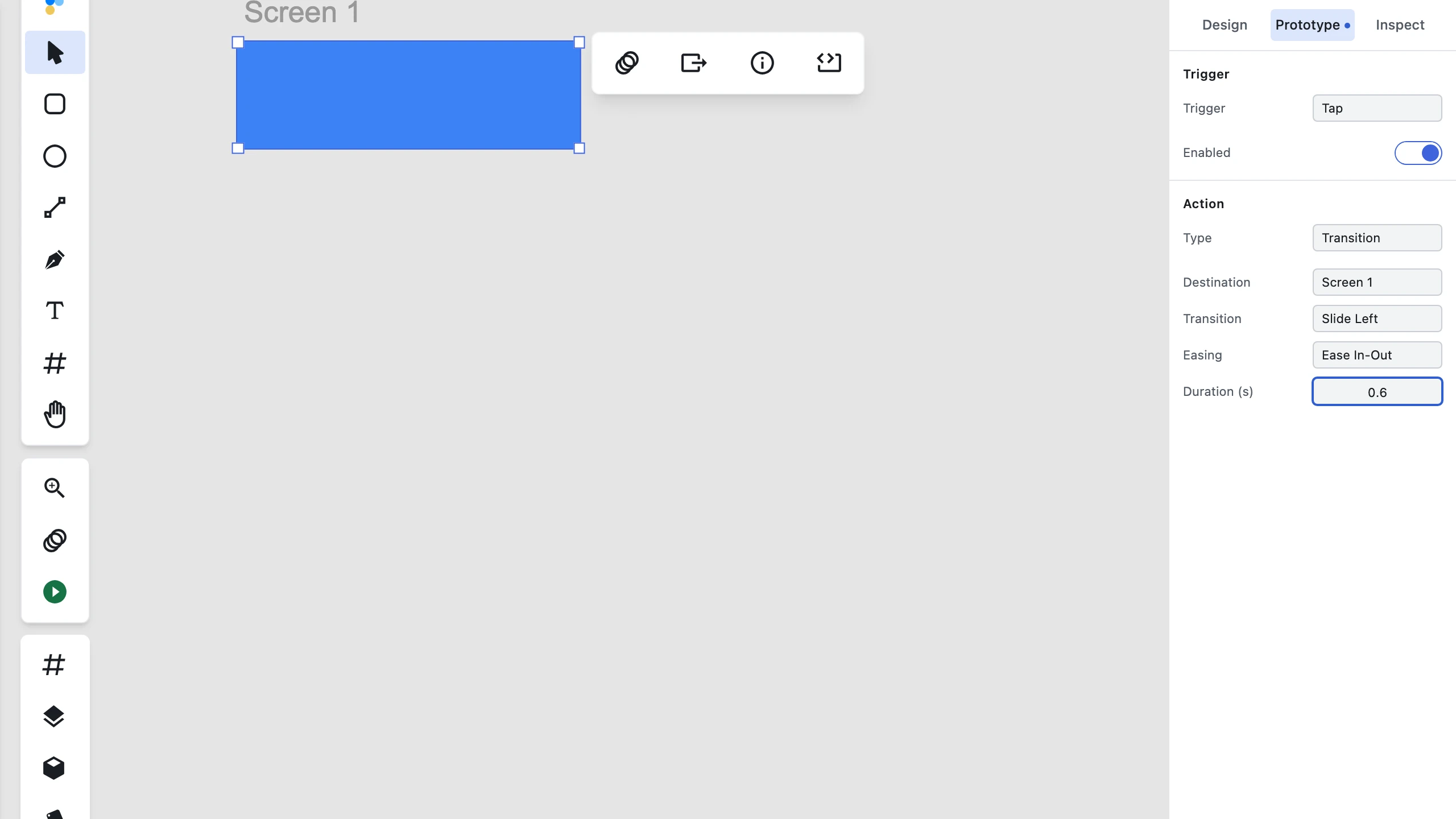
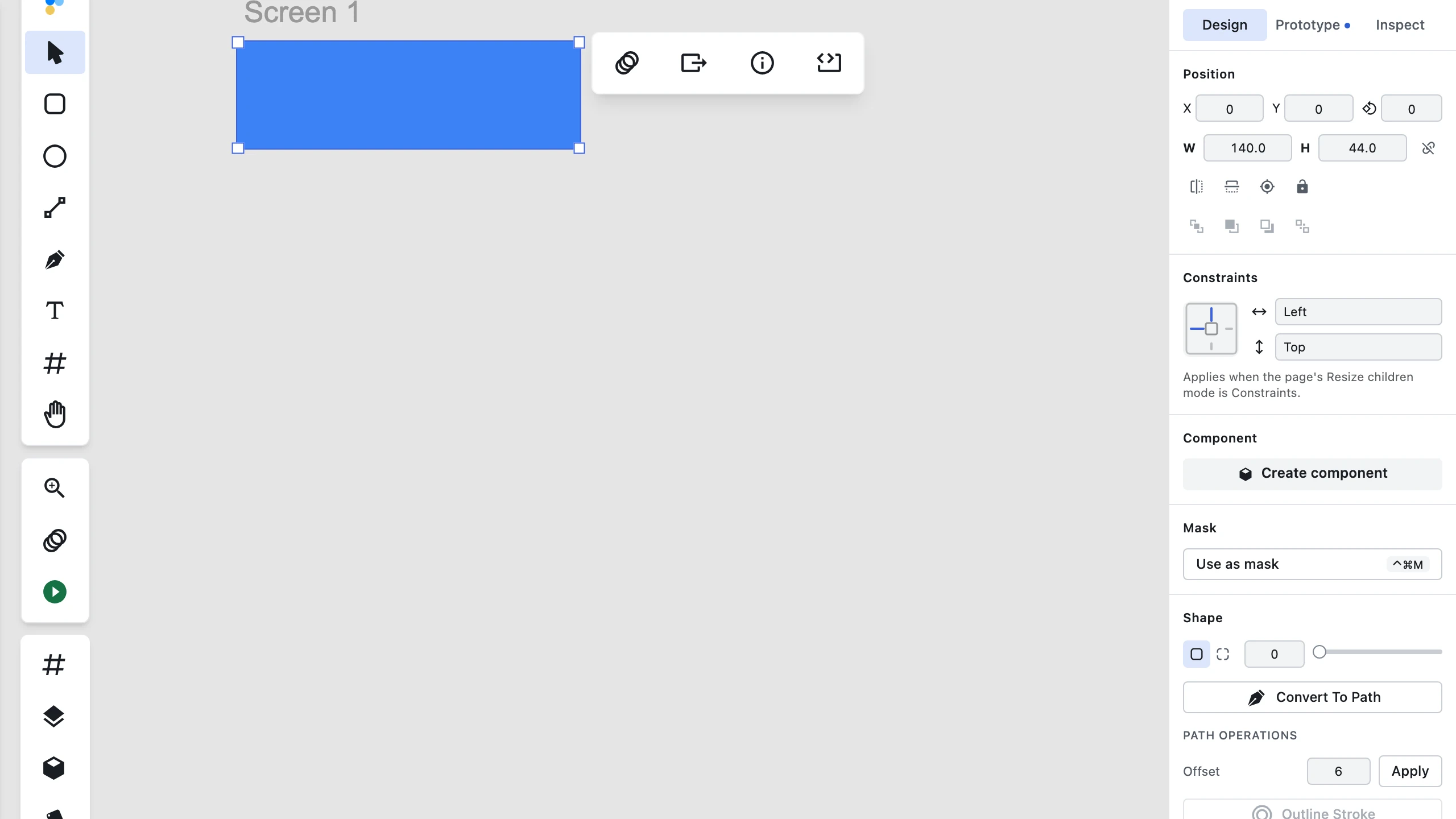

- Click the Prototype tab in the right inspector panel
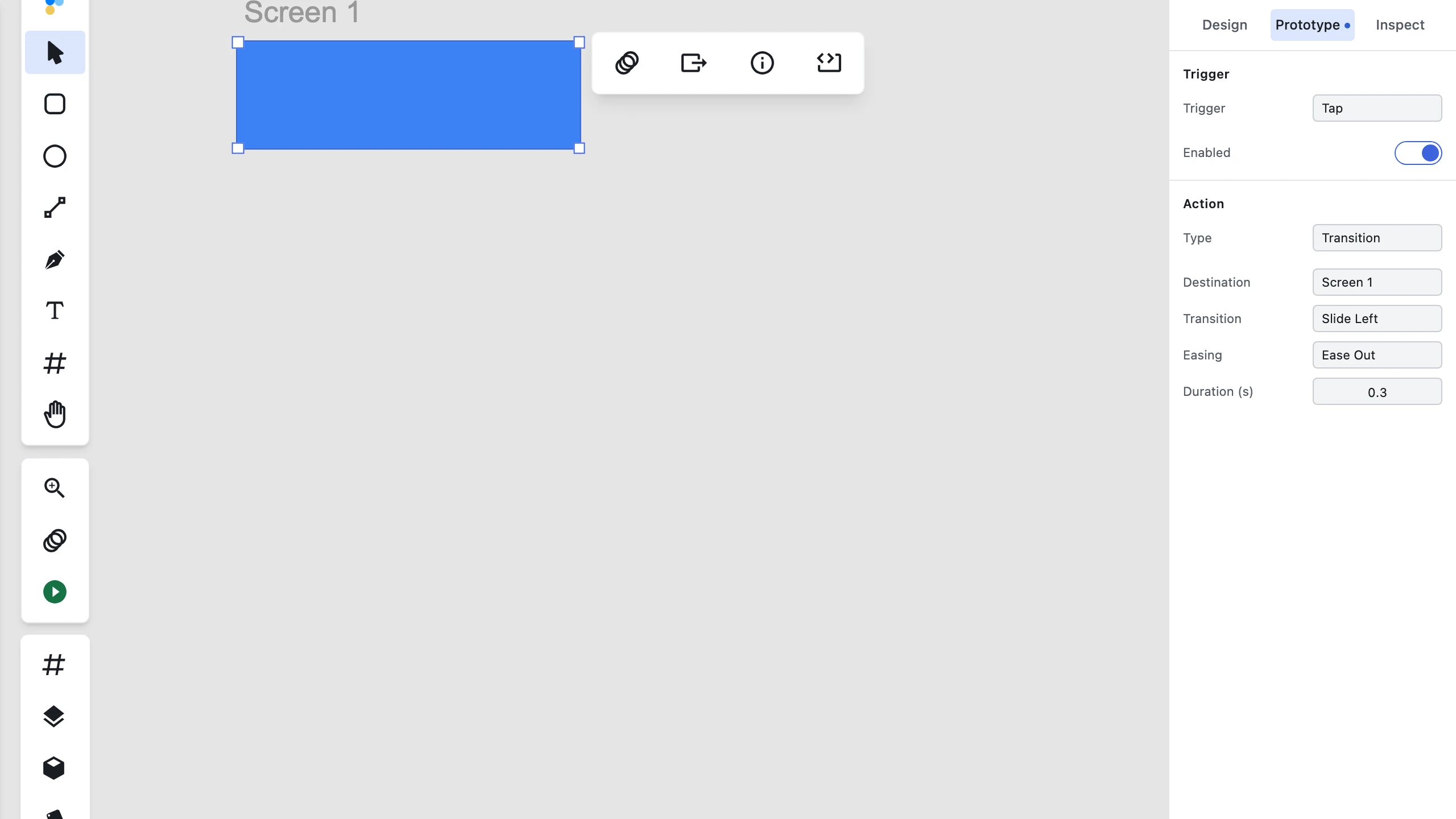
- Choose the trigger and action type (e.g. Tap → Transition)
- Configure destination artboard, transition settings, and timing
When a layer has at least one enabled interaction, the Prototype tab displays a passive badge dot to indicate defined behavior at a glance.
Learn more: Interactive Transitions in Figpea
Types of Transitions
Basic Transitions
- Dissolve: Smooth fade between screens
- Slide: Directional transitions
- Slide Left
- Slide Right
- Slide Up
- Slide Down
- Auto-animate: Smart transitions for matching elements
Overlay Transitions
Create modal-like experiences with:
- Custom positioning
- Various animation styles
- Optional backdrop interactions
- Customizable overlay behavior
Scroll Transitions
Enable smooth scrolling within containers:
- Scroll to specific elements
- Custom scroll behavior
- Scroll-triggered animations
- Nested scroll areas
Configuring Transitions
Trigger Types
- Tap/Click: Mouse or touch activation
- Keyboard: Custom key combinations
- Time: Automatic timing-based triggers
- Hover: Mouse-over activation
Animation Settings
- Duration: Control transition length
- Easing: Choose timing functions
- Ease In
- Ease Out
- Ease In-Out
- Linear
- Snap
- Delay: Add pause before animation
- Direction: Set movement direction
Presentation Mode
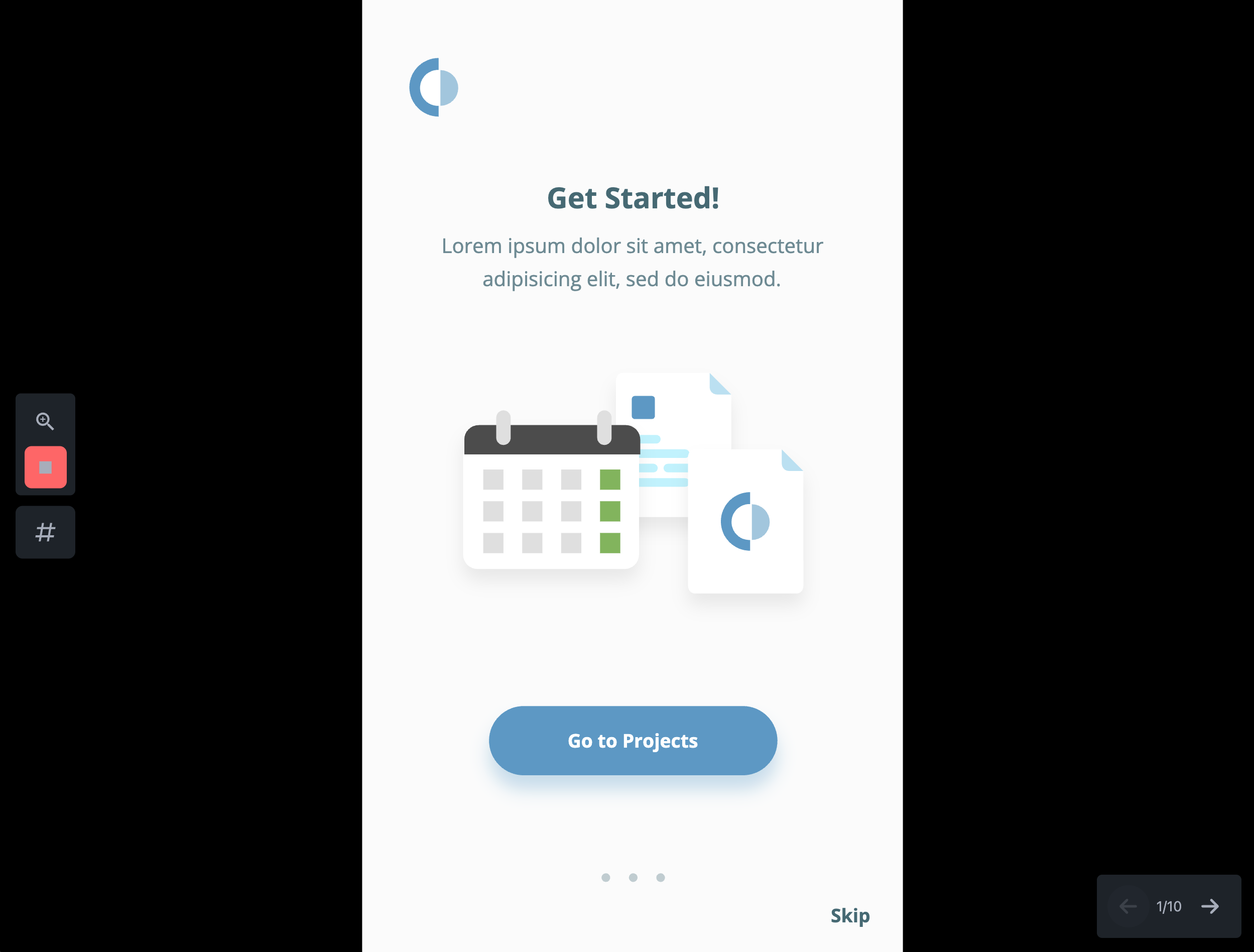
Starting Presentation
- Click "Present" in toolbar
- Press F12 (keyboard shortcut)
- Choose starting artboard
- Begin interaction
Navigation Controls
- Use arrow keys
- Click interactive elements
- Keyboard shortcuts
- Touch gestures
Preview Options
- Full-screen mode
- Device preview
- Grid view
- Thumbnail navigation
Distraction-Free Playback
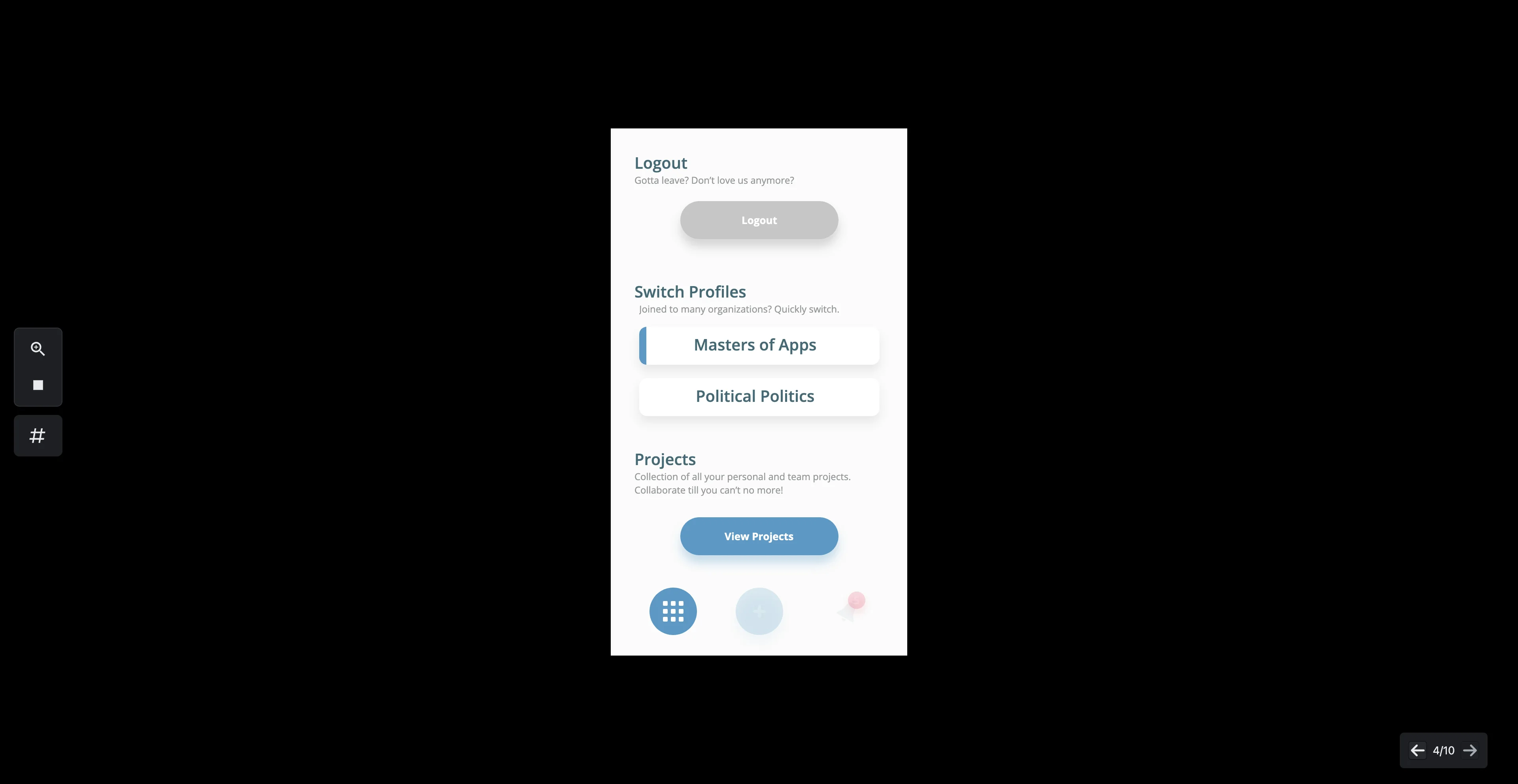
Presentation Mode provides a clean, full-screen environment for walking clients and stakeholders through your interactive flows:
- Full-Screen Canvas: The design fills the viewport; editor toolbars and sidebars are hidden.
- Advisory Chrome Suppression: Advisory notifications—such as the "Fonts Loading Issue" warning card—are automatically suppressed while Presentation Mode is active so floating popups never obstruct your slides or navigation controls.
- State Preservation: When you exit Presentation Mode, any active advisory notifications are restored to the editor canvas (unless previously dismissed).
- Post-Exit Commercial Prompts: Upgrades and plan prompts are held until after you exit Presentation Mode, ensuring your live demonstration runs without interruption.
Prototype Editor
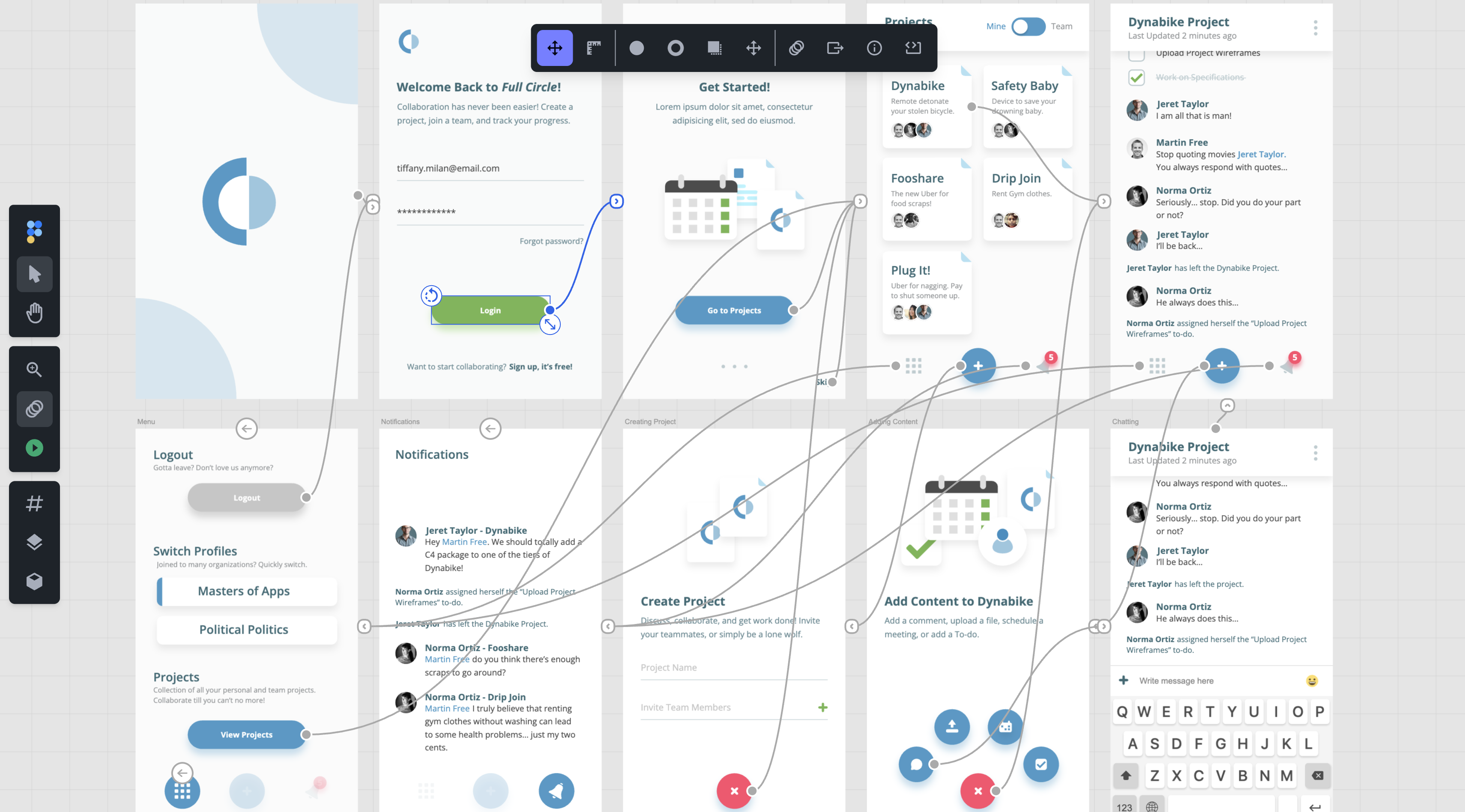
Individual artboard interactions are configured directly inside the inspector's Prototype tab, while the prototype editor provides advanced control over multi-page flow visualization and connection management:
Viewing Flows
- See all connections
- Understand user paths
- Identify dead ends
- Verify transitions
Managing Connections
- Edit existing transitions
- Add new connections
- Remove transitions
- Reorganize flows
Flow Documentation
- Export flow diagrams
- Share prototypes
- Document interactions
- Create presentations
Exporting Prototype Flows as SVG
You can archive prototype flows and interactive wiring by exporting artboards as SVG using Figpea's Figpea Round-Trip SVG profile with interactions enabled. When re-imported, Figpea restores the connections in-document. Single-artboard exports from larger prototypes preserve external links as opaque references (destinationOpaque), ready for a future multi-page export.
Adobe XD Compatibility
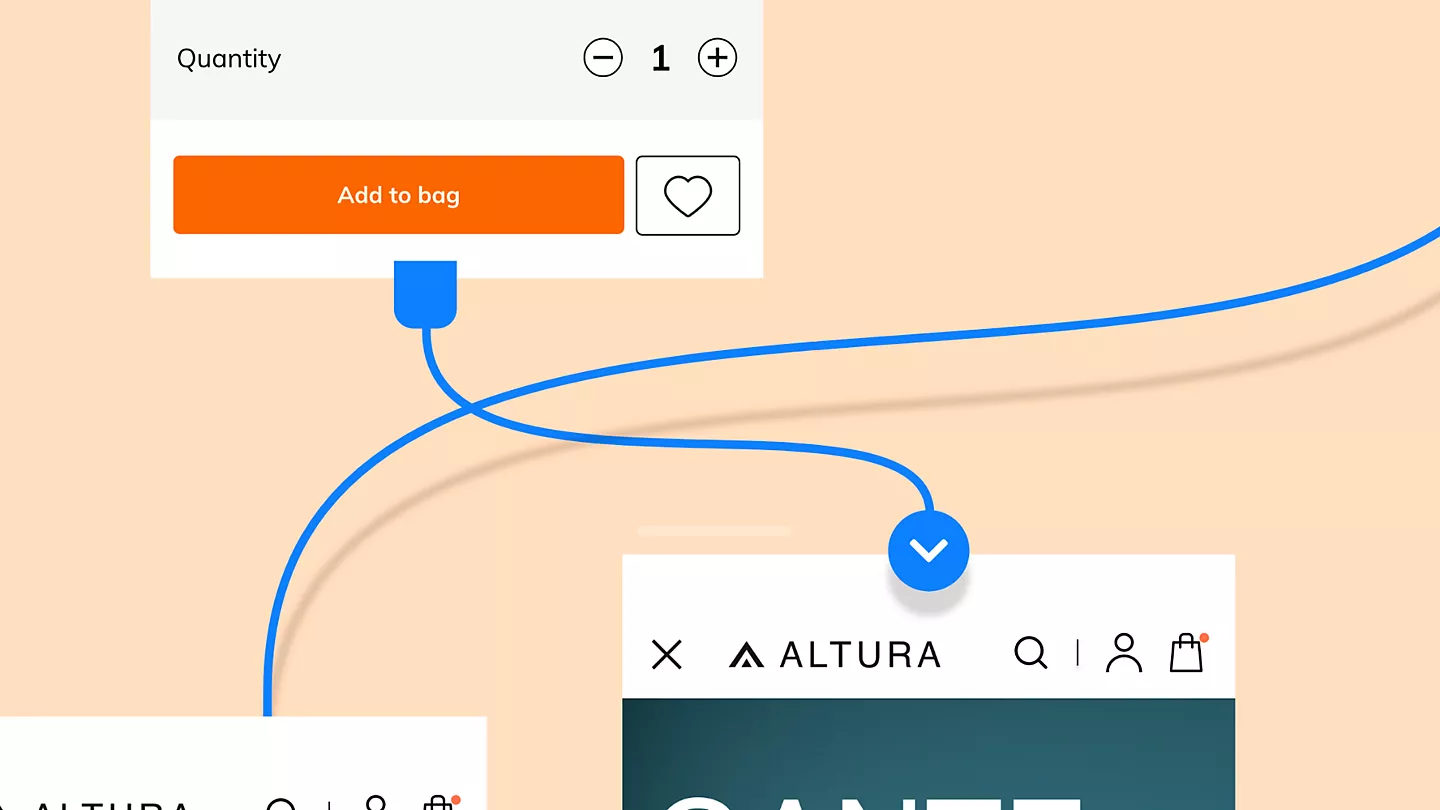
Figpea automatically preserves XD prototype settings:
Imported Features
- Transition types
- Animation settings
- Trigger actions
- Flow connections
Learn more: Open Adobe XD Files Online with Figpea
Best Practices
Design Considerations
-
Consistent Timing:
- Use similar durations for related actions
- Match transition speed to content type
- Consider user expectations
- Test different speeds
-
Appropriate Effects:
- Choose transitions that make sense
- Don't overuse animations
- Consider performance
- Keep it simple
-
User Experience:
- Make interactive elements obvious
- Provide clear navigation paths
- Consider edge cases
- Test thoroughly
Technical Tips
-
Performance:
- Optimize layer count
- Use appropriate effects
- Test on target devices
- Monitor animation smoothness
-
Organization:
- Name states clearly
- Document complex flows
- Group related screens
- Maintain clean structure
-
Testing:
- Verify all connections
- Check timing and easing
- Test edge cases
- Get user feedback
Troubleshooting
Common Issues
-
Animation Problems:
- Check layer naming
- Verify matching elements
- Review timing settings
- Test performance
-
Navigation Issues:
- Verify connections
- Check trigger setup
- Test all paths
- Review dead ends
-
Performance Concerns:
- Optimize layer count
- Simplify animations
- Check file size
- Monitor memory usage
For more detailed information about transitions and prototyping, check our blog posts or move on to learning about Exporting.