 Figpea
What's New in Figpea v5.0.0: A Breaking Agent-API Change, an Assets Panel, and Undo You Can Trust
Figpea opens and edits design files — Adobe XD, Photoshop (PSD/PSB), SVG, PDF, Figma, and more — right in your browser. Nothing installs, nothing uploads, and you don't need an account just to look at a file.
This is a major release, and it's major for exactly one reason: a deliberate breaking change to the scriptable window.figpea agent API. If you script Figpea, read the next section before you upgrade. If you only use the editor by hand, nothing you do changes — scroll past it.
Breaking: setPosition now acts on the layer's visible box
If you have scripts built on figpea.layer.setPosition, their behaviour changes in this release.
Here's what was wrong. A shape created through the agent API with x/y — say create("rect", { parentId, x: 172, y: 86, rwidth: 14, rheight: 17 }) — stored that offset in the shape's own attributes, not in the layer's transform. But setPosition operated on the transform. So it treated the layer's origin as (0, 0) while its visible box sat at (172, 86), and the two offsets composed:
const id = (await figpea.layer.create("rect", { parentId, x: 172, y: 86, rwidth: 14, rheight: 17 })).value.id
await figpea.layer.setPosition(id, { x: 180, y: 86 })
figpea.session.layerById(id).value.bounds
// before v5.0.0 → { left: 352, top: 172, … }   ← 180 + 172, 86 + 86
// v5.0.0        → { left: 180, top: 86,  … }
The call returned { ok: true } either way, so nothing told you the layer had landed somewhere else. The same composition caught resized shapes too. resize deliberately keeps a shape's local top-left where it is while it scales, so an ellipse created with the default 50-unit radius and resized to 12×12 still has its local origin at -50 — and setPosition(300, 300) wrote 300 straight into the transform, so the layer reported left: 250.
What it does now:
setPosition(id, { x, y })puts the layer'sboundstop-left at(x, y), for every layer kind. It is idempotent — calling it twice with the same argument does not move the layer the second time (it used to).- A resized shape lands where you asked. The ellipse above now reports
(300, 300)–(312, 312)instead of(250, 250).resizewas always correct here — what changed is thatsetPositionno longer composes with the shape's own local origin. - Text layers are unaffected. They were always positioned via
transformand carried no separatex/y, which is exactly why this bug was easy to miss. rotate(id, degrees)is unchanged. It already pivoted about the visible box's centre, and it still does. We checked it explicitly while fixingsetPosition— the rotation test passed before the fix and is kept as a permanent regression pin, so if you rely onrotatetoday, nothing about it moves in 5.0.
We fixed setPosition in place rather than adding a bounds-relative sibling and leaving the footgun in the surface permanently. The reasoning: the old behaviour couldn't be used correctly without first reading bounds and subtracting, so a script that works today is already bounds-driven — and is either unaffected or straightforwardly improved. The describe("layer.setPosition") and describe("layer.rotate") strings now both state the real semantics, with a test that fails if the documented wording and the measured behaviour ever drift apart again.
One thing deliberately did not change: how create stores x/y internally. The dual representation is still there under the hood; what's fixed is that the public verbs and bounds now agree with each other. Collapsing the two representations is separate follow-up work.
Constraints are now scriptable
Last release brought Figma-style constraints to groups and folders and was explicit that reading or setting them from the agent API was not in that build. It is now.
await figpea.layer.setResizeMode(pageId, "constraint")
await figpea.layer.setConstraints(childId, { horizontal: "right", vertical: "bottom" })
figpea.session.layerById(childId)   // reads the constraints back
Either axis is optional, so a partial call leaves the other axis alone. Read-back round-trips through the serializer, so find/describe see it. An invalid enum value is rejected with a named invalid_constraint error and mutates nothing — no render-time throw, no silent accept. A constraint change made through the API is one undo step, and it drives the same reflow engine the inspector does, so a page resize moves the child exactly as the panel would.
An Assets panel: see what's actually in your project
Until now there was no way to see what a project contains. An imported PSD, XD, .fig or SVG can carry dozens of embedded images, and the only surface that listed them was the export modal — a dialog you open, use once, and close. To reuse an image already in your file on another layer you had to re-upload the same file from disk, which produced a second independent copy: double the memory, double the decode, double the bytes in every export.
There's now an Assets tab in the left rail, directly below Components. Click it to open, click it again to close.
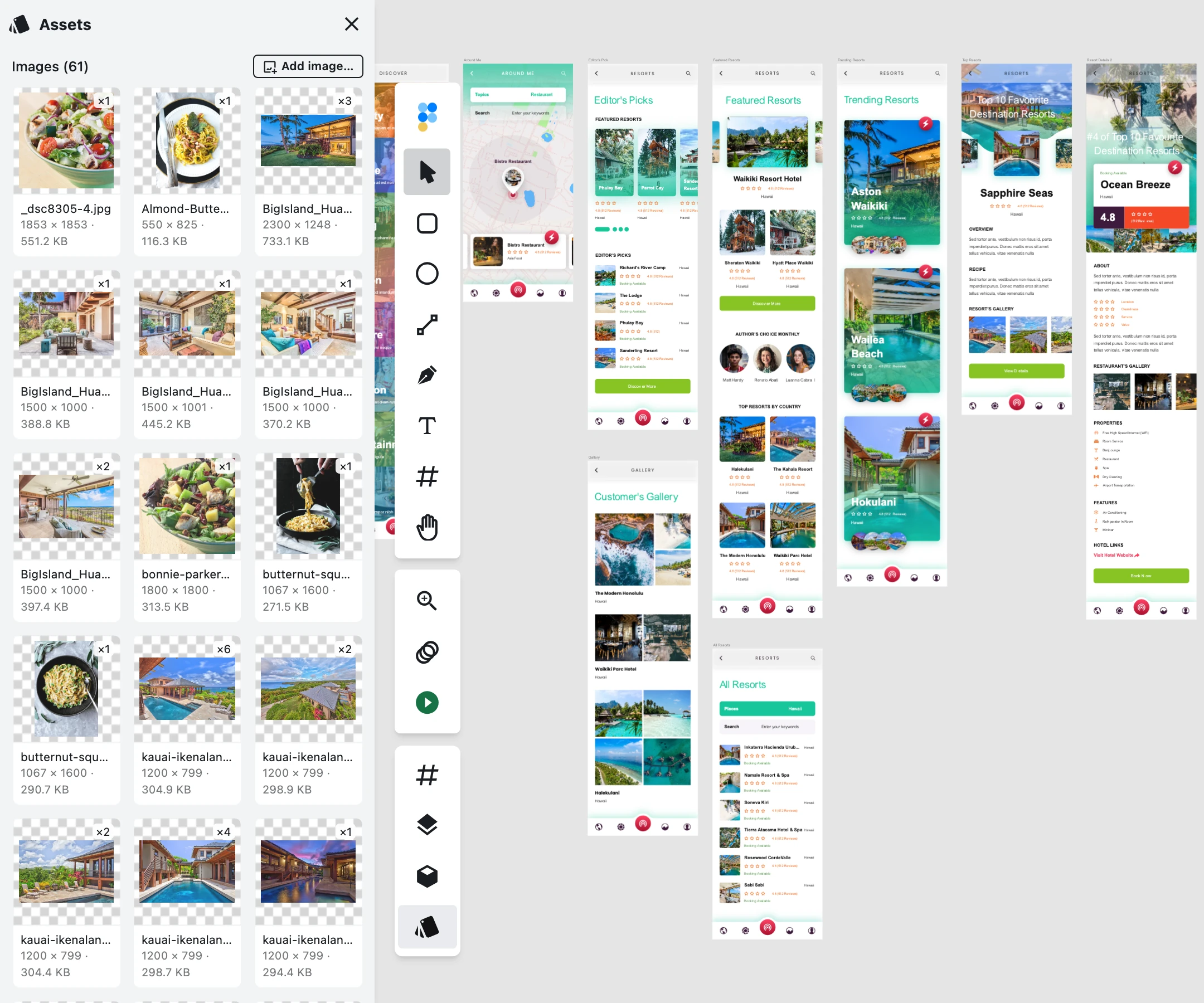
Each distinct image gets one tile — deduplicated by content, so the same bytes used on six layers is one tile reading ×6, not six tiles. The tile shows a thumbnail, the file name, the intrinsic pixel dimensions, the byte size and how many layers use it. From there:
- Add to canvas drops the image onto the active page at its intrinsic size, as a
coverpattern fill, at the current viewport centre — so your camera doesn't jump. The new layer is selected, it's a single undo step, and it reuses the existing image rather than making a second copy of the bytes. - Add image… picks a file from disk. If those exact bytes are already in the library, the new layer references the same image instead of creating a second one.
- Clicking a tile selects every layer that uses that asset, so the panel answers "where is this used?".
- The list refreshes live while the panel is open — apply an image fill somewhere and the tile appears.
Browsing your own project is free-tier editing, so there's no gate on any of this. Export gates are exactly where they were.
Two honest limits. First, the library is derived from your layers, not a stored registry — it only ever shows images that are actually in use. There's no "uploaded but unplaced" state, and no delete-asset action, because deleting the layers is deleting the asset. Second, a PSD's raster layers and masks won't appear. PSD stores those pixels in a different internal form than the one every asset path in Figpea filters on. That's a pre-existing gap, not something this panel introduced — but the panel is the first place you'd notice it, so it's worth saying plainly. Colours and text styles are separate sections we haven't built yet.
There's a docs page for it: Assets Panel.
Outline Stroke
You could stroke a path; you couldn't turn that stroke into a filled shape. That's the Illustrator Object → Path → Outline Stroke / Figma Outline stroke operation, and it's how you export stroke-accurate geometry, boolean-combine a stroke, or freeze one for further editing.
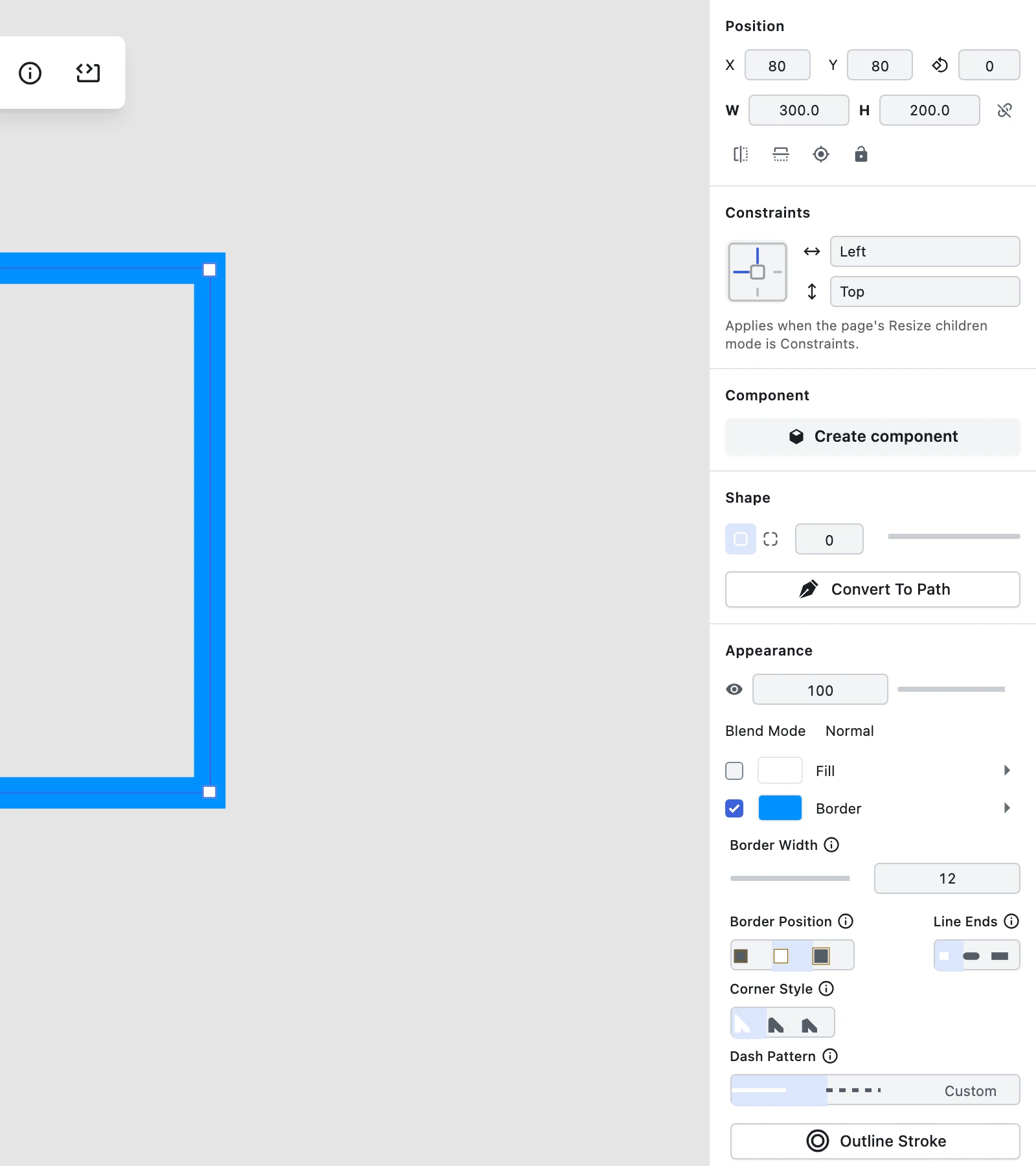
It lives in the inspector's Appearance → Border cluster. Applying it produces a closed filled path that follows the stroke's width, caps and joins; the fill is inherited from the stroke colour and the stroke is removed. It's one undo step. The geometry comes out as béziers rather than the ~100 flattened arc segments the alternative engine produced for a single S-curve, so the result stays a reasonable size and stays editable.
It refuses rather than guessing, in three cases, each with the reason stated on the disabled control:
- A layer with both a fill and a stroke is declined — combining or discarding your existing fill would be real data loss, so we don't. Preserving-and-combining is future work.
- A dashed stroke is declined rather than silently flattened.
- A zero-width border is declined ("set a border width above 0 first").
Variable-width and tapered strokes, and outlining text, are not covered. Like the boolean operations, this is a UI action with no agent-API surface yet.
An aspect-ratio lock that stays on
Preserving proportions used to be available in exactly one place and only transiently: holding Shift while dragging a corner handle. Edge handles and the W/H fields ignored ratio entirely.
There's now a chain toggle in the transform panel's W/H row.
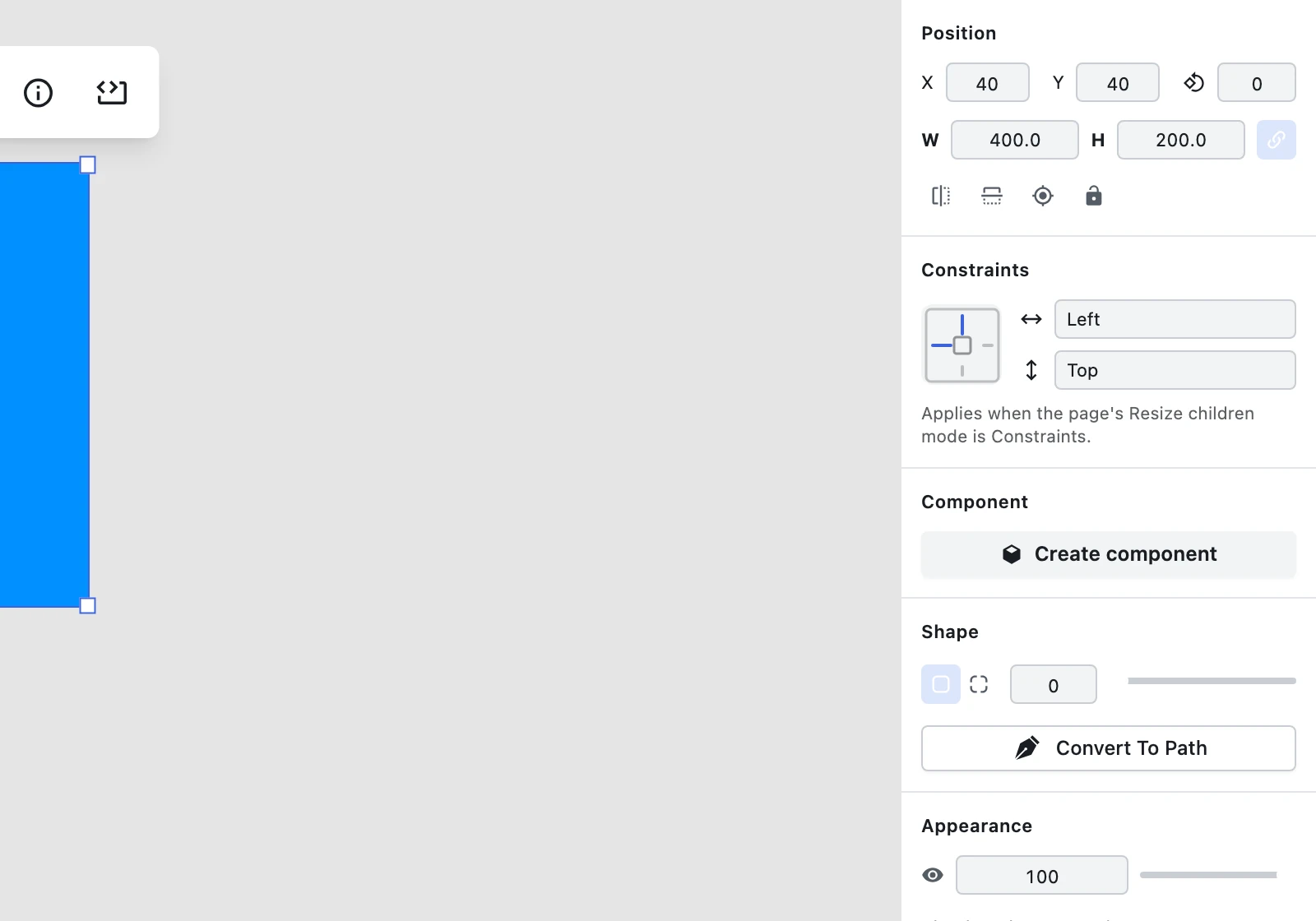
With it on, editing W scales H by the same ratio and vice-versa, a canvas edge-handle drag changes the other axis proportionally, and a corner drag preserves ratio without needing Shift. With it off, everything behaves exactly as it did before, including the transient Shift-on-corner constraint.
It's a sticky editor setting, not per-layer state — turn it on with one layer selected and it's still on when you select another. It defaults to off, so nothing you already have resizes differently. A locked two-axis resize is one undo step, and toggling the lock itself never creates an undo step.
Two clarifications. Shift does not transiently invert the toggle during a canvas drag in this version — that's deferred. And despite the shared word, this is unrelated to layer constraints, which is about pinning children when a parent resizes.
35 page-size presets
To make a page a standard size you had to know the pixel dimensions by heart and type both numbers. There was no list of common sizes anywhere in the editor.
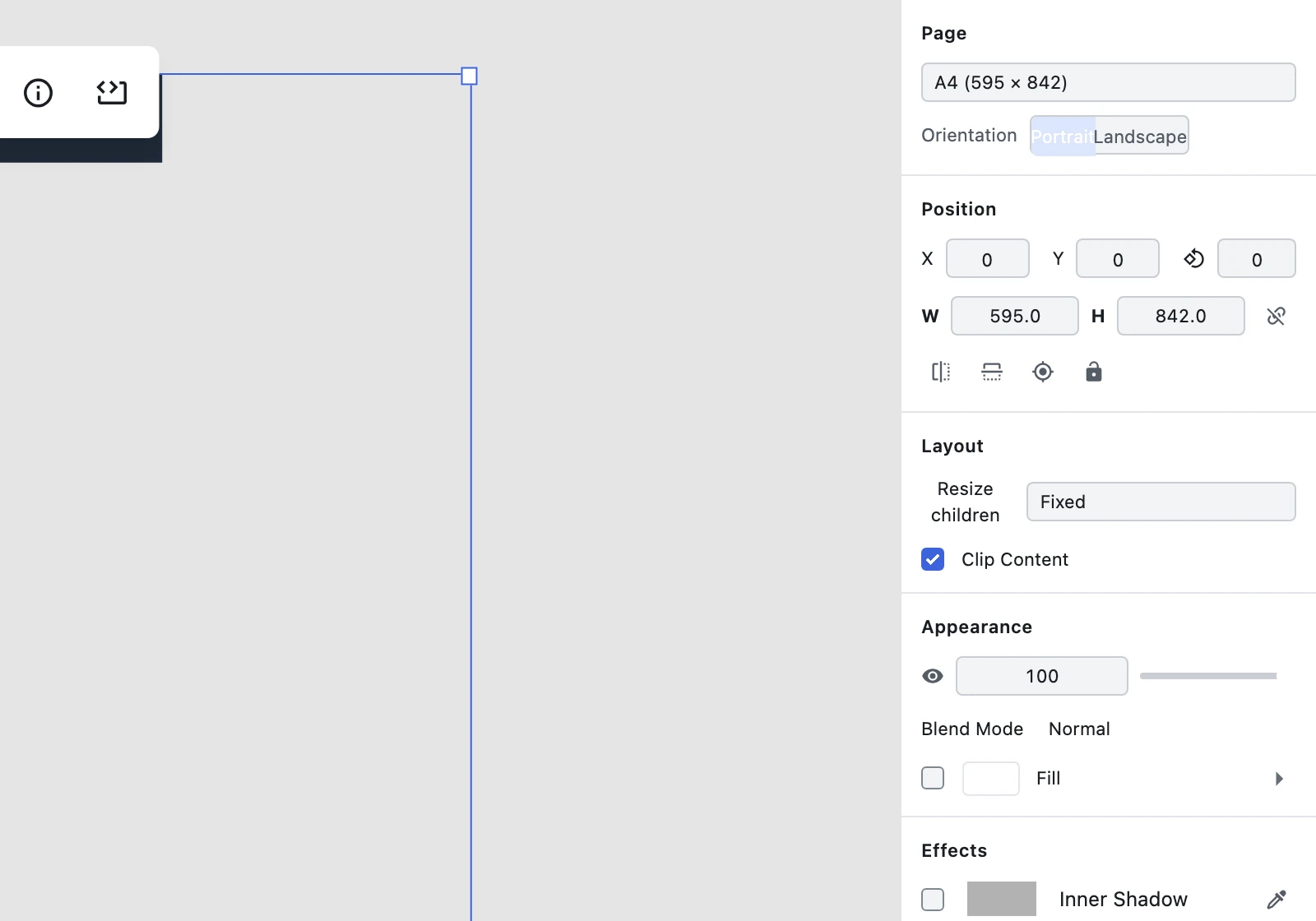
Select a page and a Page section now sits at the top of the properties panel, above Position, with a grouped list of 35 presets across seven categories — Phone, Tablet, Desktop, Paper, Social, Presentation and Watch — plus Custom. Every label carries its dimensions, so you pick A4 (595 × 842) rather than remembering it. A Portrait/Landscape toggle swaps width and height.
The select reads your page's current size back: a 595×842 page shows A4, and so does an 842×595 one, with orientation reading Landscape. Type a width by hand and it flips to Custom. Applying a preset or flipping orientation is a single undo step, and a square preset's Landscape toggle is correctly inert — no size change, no history entry.
One thing that catches people, and it isn't new: clicking a page on the canvas doesn't select it. Canvas clicks are deliberately routed to the layers inside a page. Select the page from the Layers list on the left, and the Page section appears.
On a page in the default Fixed resize mode, applying a preset leaves every child's position and size untouched. On a page in Constraints mode, children reflow according to their constraints — that's the constraint behaviour shipped in v4.2.2 working as designed, not something this feature added.
Picking a preset before you draw a page, presets on the agent API, and saving your own presets are all still to come.
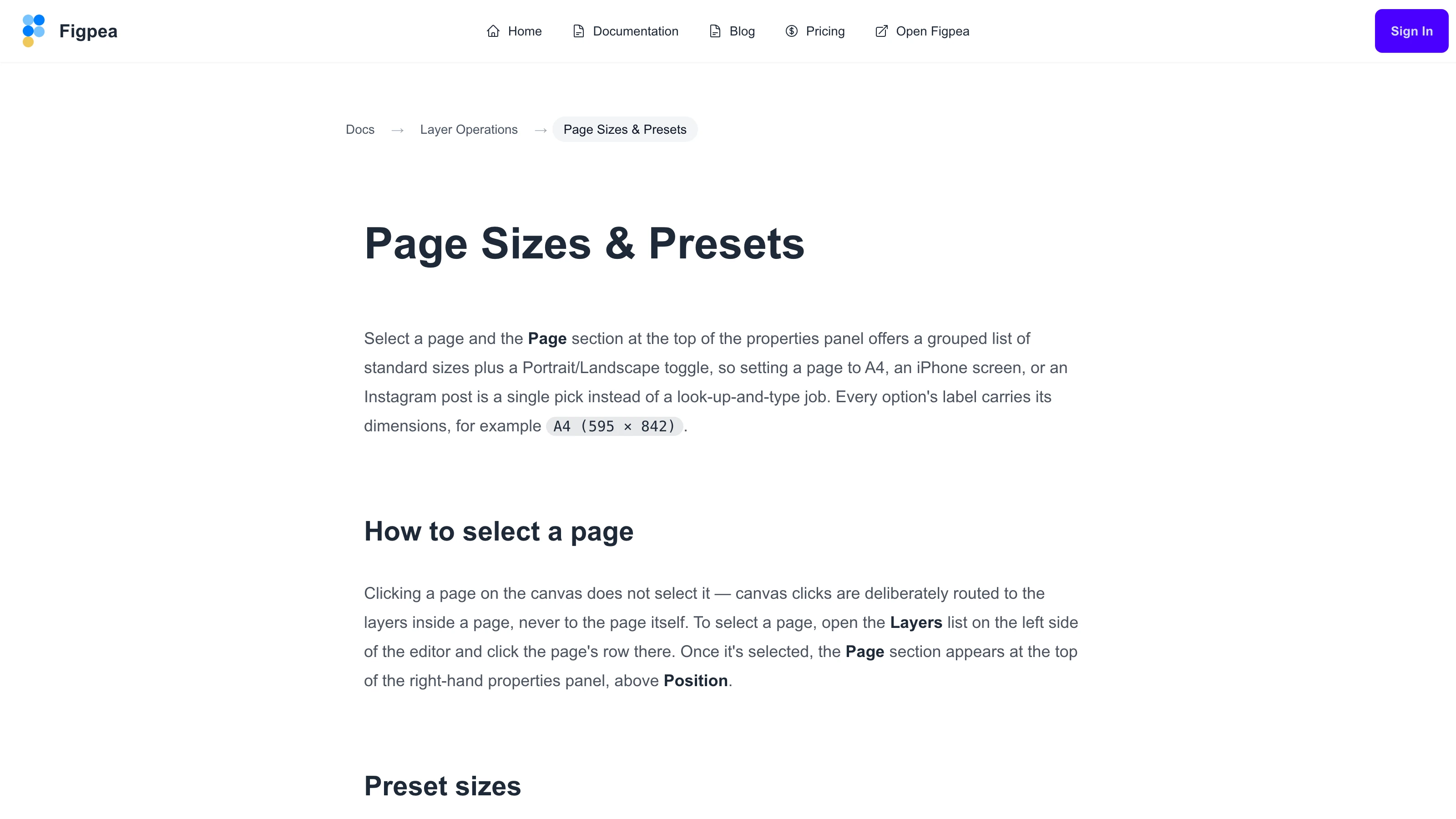
There's a docs article for the whole list: Page Sizes & Presets.
The layer list reads front-to-back now
Photoshop, Figma, Sketch and XD all put the front-most layer at the top of the layer list. Figpea's did the opposite, and it had a second-order consequence: dragging a layer visually above another sent it behind that layer.
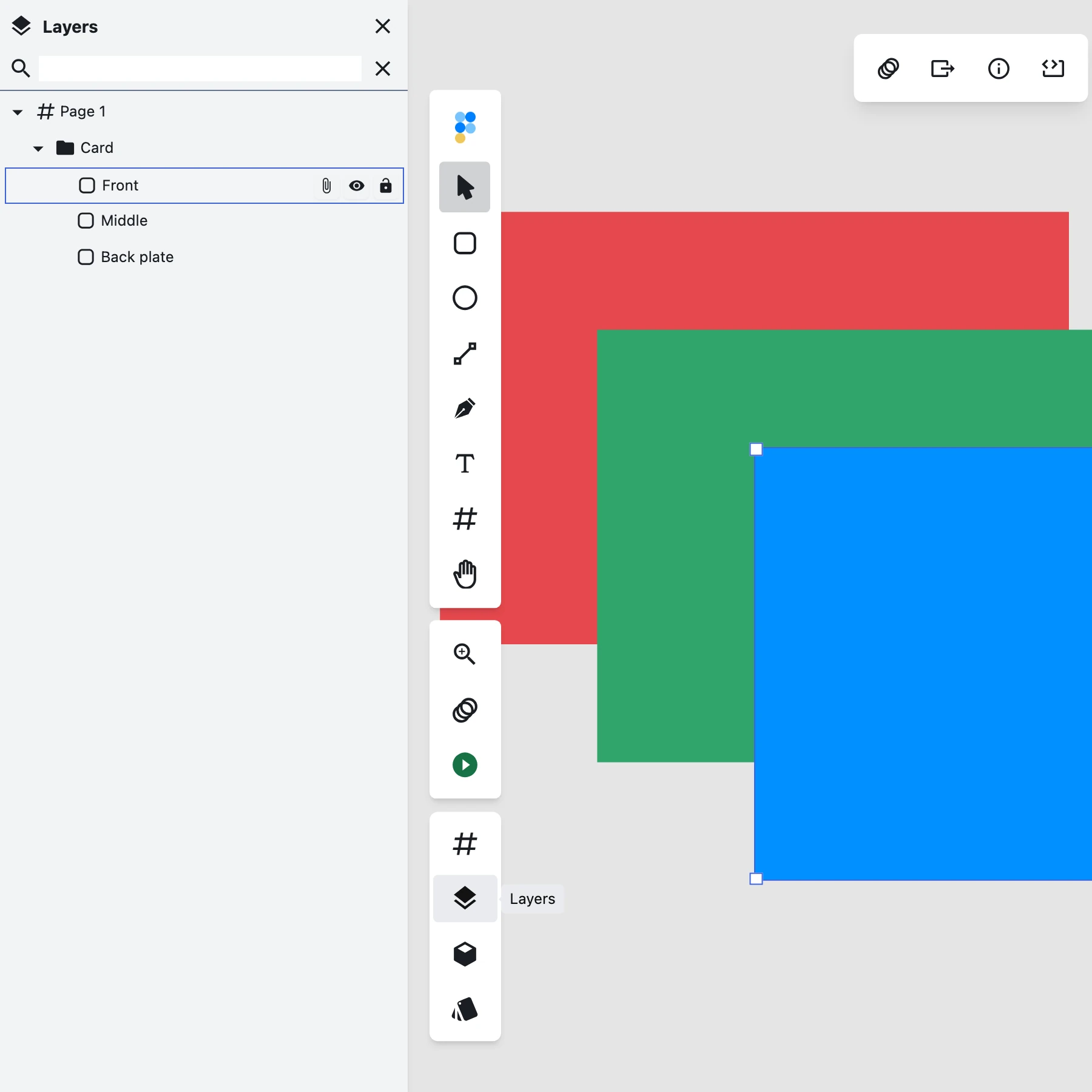
Nested siblings are now listed front-most first, at every level, in both the Layers and Components views. Drag-and-drop is inverted to match: dropping into a row's top third puts the layer in front of it, the bottom third puts it behind, and dropping into a folder's middle third means what it always did. The drop area below the last row now appends at the back, matching what it always claimed to do instead of prepending.
What deliberately did not change: the top-level page and artboard list keeps document order. Reversing it would reverse the page order of every imported PDF, XD and .fig file, and pages don't stack on top of each other anyway. (One narrow leftover: a bare shape created outside any page parents to the project root, and that root level still reads the old way.) The underlying model is untouched too, so figpea.layer.reorder and every other agent-API ordering call behave byte-for-byte as before — the flip lives strictly in the panel's display and its drop maths.
Escape leaves path edit mode
Once you were in path editing, the only exit you could find was the Stop Editing button in the right-hand panel — far from the canvas where you were working. Escape did nothing. A keyboard exit existed (Ctrl/Cmd+Enter) but nothing in the UI mentioned it, so in practice it didn't exist.
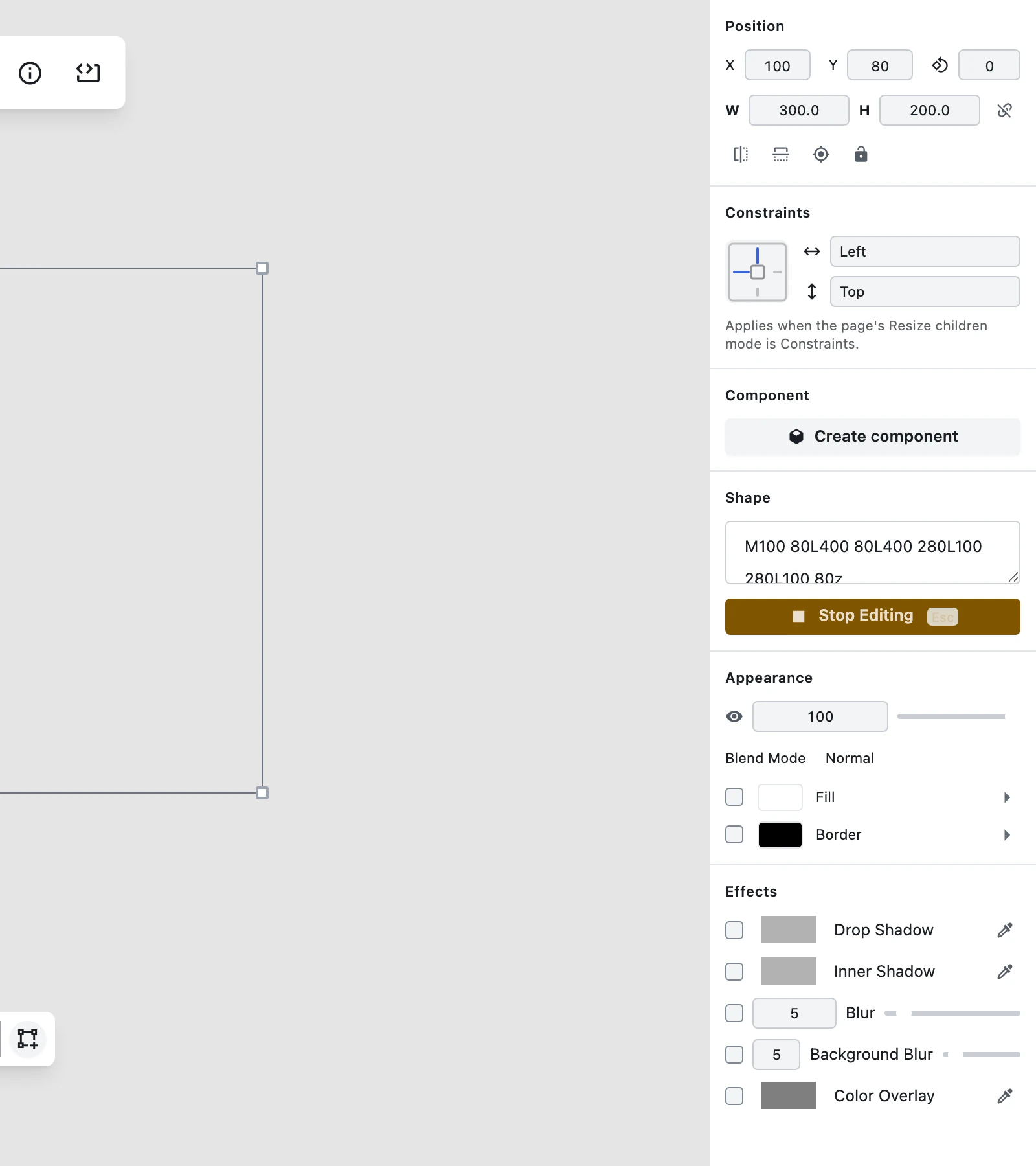
Escape now exits path edit, the same way it already left pattern edit. The precedence is deliberate:
- With anchors selected, the first Escape clears the anchor selection and stays in the mode; a second Escape exits.
- With the Add or Insert sub-tool active, Escape cancels the sub-tool back to Select and stays in path edit — it does not fall through to a mode exit in the same keypress.
Ctrl/Cmd+Enterstill exits regardless of state.
The Stop Editing button now carries a visible Esc badge, and its tooltip names both Esc and ⌘/Ctrl+Enter. Leaving the mode is not a cancel: your path's geometry is identical before and after, and nothing committed is discarded.
Two options we considered and declined: exiting by clicking bare canvas (a stray click mid-edit dropping you out of the mode is worse than the problem), and plain Enter as commit-and-leave.
Undo, fixed at the root
Two related fixes here, and the second one is broader than it sounds.
Create component is undoable. Converting a layer to a component left no entry on the undo stack at all — so the Cmd+Z you aimed at the conversion landed on whatever you'd done before it. You ended up with a layer that was still a component and an unrelated earlier edit destroyed. One undo now fully reverts the conversion: com and states cleared, the layer deregistered from the components library, the inspector back to showing Create component, the layer-list icon back to its plain-layer icon, and the Components pane no longer listing it. It's exactly one step, and redo re-applies it.
And the reason it was broken applied to a lot more than that gesture. The history layer recorded an edit only when the key and both the old and new values were truthy. So whether an edit was undoable depended on the value it happened to land on. Dragging the opacity slider to 30% was undoable; dragging it to 0 was not. Setting a property for the first time — from nothing to something — was not. And a whole class of batched edits emitted a notification the recorder couldn't use at all, which meant Flip H and Flip V were not undoable in any circumstance. None of this raised an error; it just quietly redirected your next Cmd+Z onto older work.
Capture is now based on whether the values actually differ, not on whether they're truthy. Concretely:
- Flip H / Flip V undo. One Cmd+Z un-mirrors the layer and leaves your previous edit alone; redo re-applies it.
- Opacity → 0 undoes, and so does raising it back up from 0 — it's symmetric now, instead of the property falling out of history in both directions once it touched zero.
- Switching a component to its Base state, and resetting an instance override, are captured too.
- A mutation whose value doesn't actually change still creates no undo step, so nothing spurious lands on the stack.
Still outstanding, and worth knowing: flipping a multi-selection is still not undoable (single layers are), and Cmd/Ctrl+Z can be swallowed while a numeric or range input holds keyboard focus. Both are tracked. App-wide undo of layer creation and deletion remains a separate, larger piece of work — placeInstance and addState are still accurately documented as not undoable.
The Typography panel has typography in it
Select a text layer, open the floating snackbar's Info panel, and the section titled Typography contained no typography. No font name, no size, no weight — at most an Align and a Line Height row, and for a layer with neither, an empty heading. (before the snackbar was removed; these controls now live in the inspector — see Basic Layer Operations)
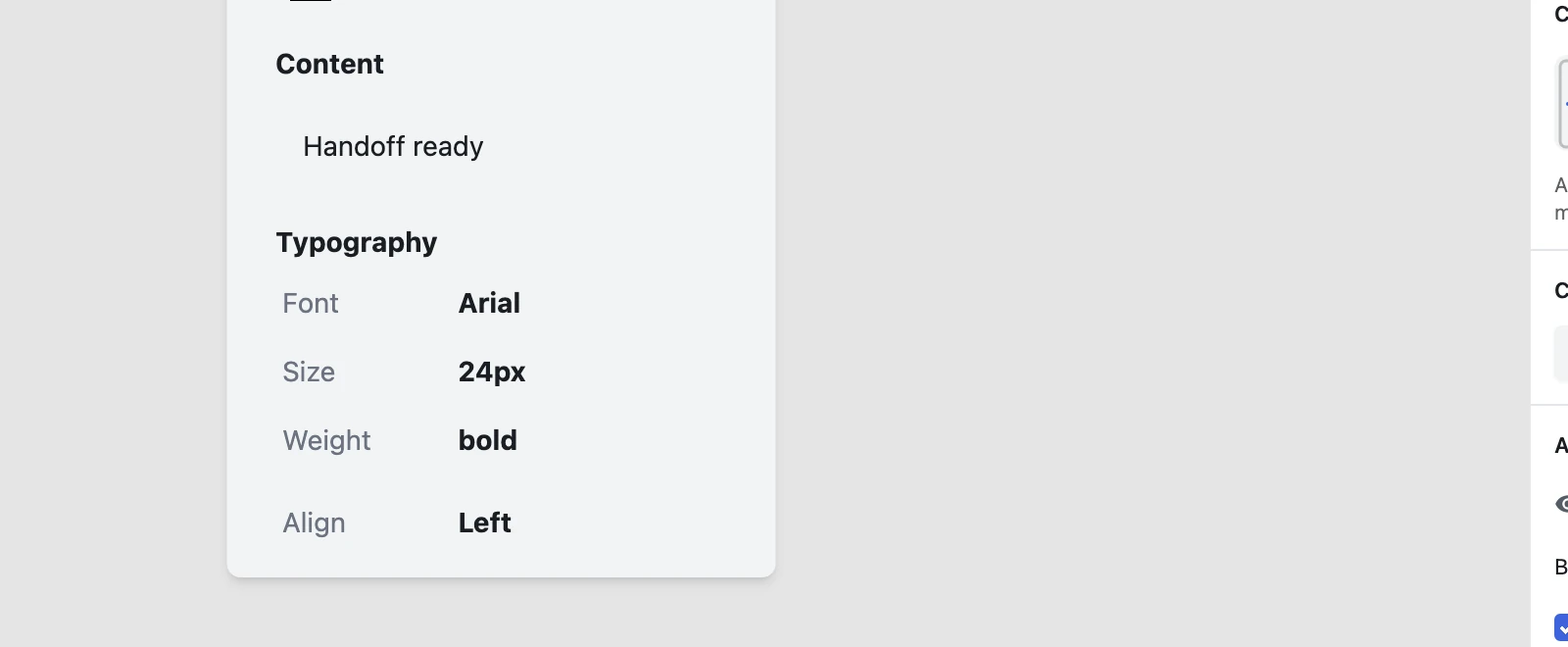
The cause was a single missing return in the loop that builds the font blocks, so every one of them evaluated to nothing and Preact rendered nothing. That matters more than a cosmetic gap, because this panel is a hand-off surface — it's where you go to find out what font a piece of text in a rescued PSD, XD or .fig actually uses.
It now lists one block per distinct font on the layer, each with Font, Size and Weight, plus a Style row when the text is underlined or struck through and a Letter Space row when letter-spacing is set — alongside the Align and Line Height rows that always worked. Fields the font doesn't specify are omitted rather than printed as undefined.
Figma component-instance charts import in their real colours
Last release fixed the geometry of Figma component-instance charts: bars and donuts that used to come up as empty space started rendering. This release fixes their colour.
A .fig dashboard whose charts are component instances imported with the palette collapsed to a blue/cyan ramp. The vibrant multi-hue categorical palette — pink, purple, gold, teal, mint — was almost entirely lost, which made every themed design-system file look washed out and wrong.
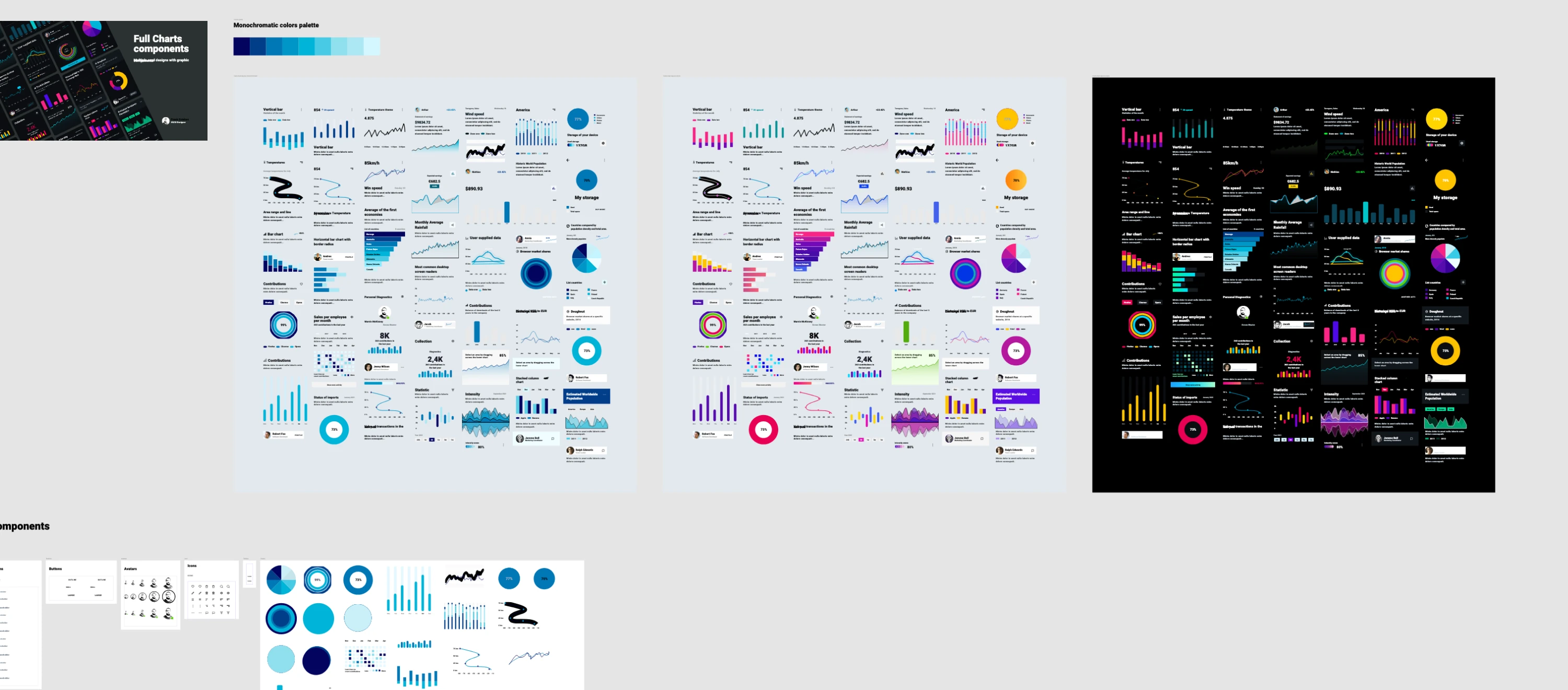
The colours were being decoded correctly the whole time; they were landing on the wrong layer. A per-instance override that targets a nested node — the individual chart bars, donut segments and rings — was resolved by matching a single identifier against a map keyed on freshly-minted internal ids, so the lookup missed for 836 of 2,072 override lookups and the colour attached to an inert folder container a shallower identifier happened to match. Folders don't paint, so the leaf shapes kept the shared master's base blue. Overrides now resolve through the full path into the instance's own copy of its master, and land on the shape that actually paints.
Measured on the file above: the vibrant share of the coloured layout's chromatic fills went from 0.11 to 0.61, its monochromatic sibling stayed monochromatic at 0.003 (no over-correction), and the three layouts still import with identical shape counts.
Two related gaps are not fixed and are worth being straight about: one specific mint fill is still dropped a step earlier in the style conversion and is tracked separately, and gradient and image stroke paint still falls back to flat black — the same known stroke-painting gap we called out last release.
Exports stop carrying the same image over and over
Two independent bugs, same disease.
Saving as .fp wrote one copy of an image per pattern-bearing layer, with no regard for whether those layers shared it. A 2 MB logo placed on ten layers was stored ten times, and per-entry compression can't cross-reference identical entries. Reopening compounded it: layers that had shared one image before the save shared nothing afterwards, so the same picture decoded and cached once per layer. Saves are now content-addressed — identical bytes are written once, however many layers reference them — and reopening restores the sharing, so one image means one decode and one cached bitmap. On a 1,399-layer XD kit with 29 pattern-bearing layers and 16 distinct images, the archive went from 18.3 MB to 11.4 MB with zero duplicate entries. Existing .fp files still open unchanged; there's no format version bump and nothing to migrate.
SVG export had the additional problem of emitting invalid markup. Its <defs> block collected every descendant's definitions twice and pushed one per layer regardless, and because ids were keyed on the pattern object, several <pattern> elements ended up carrying the same id — which an SVG consumer is free to resolve to whichever one it likes. Meanwhile two separate wrappers over identical bytes (exactly what every decoder produces) got two different ids and two full base64 payloads. Now <defs> carries exactly one definition per distinct image, gradient, filter and clip path, every id inside it is unique, each image's base64 payload appears once, and every layer that uses it references it by url(#id). Two exports of the same project in a session produce identical bytes, and the rendered result is unchanged.
Google fonts actually load in production
This one was a P0 and it's embarrassing in the right way: the production build never generated the Google-font descriptor files at all. All 1,581 of them 404'd on the live editor, because the generator existed but nothing in the build chain ran it, and the output is gitignored so it was never committed either. It worked on a machine where someone had once run the generator by hand.
The user-visible damage was fidelity, on our strongest claim. When a descriptor can't be fetched, no font is ever registered, so the browser falls back at paint time and your text renders in a substituted typeface. It landed 281 error events across 75 distinct users in a single week's telemetry, and nothing in the editor told any of them.
The build now generates the full descriptor set as part of build, and a verification step fails the build and names the missing font if the set is ever incomplete — so "asset silently absent" can't ship again. A second defect fell out during the fix: a manifest font whose descriptor failed was being recorded internally as a successful load, so neither the substitution signal nor the font-loading warning ever fired for this failure mode. Both fire correctly now. And the editor no longer reports an error when its recent-posts file is absent.
Sliders look right again
The v4.3.0 inspector refit introduced two visible regressions in the property panel, and they're gone: every range slider's thumb was rendering roughly 14 px below its track and overflowing its control box, and the Background Blur label wrapped onto two lines with its slider squeezed to the far right. The thumb is centred on its track now, and the label sits on one line with its slider visible beside it. One related gap remains open — on the light theme the thumb can read as white-on-white at rest, which is a visibility problem the geometric fix here doesn't address.
Docs and copy fixes
Every blog post and docs article was emitting a broken canonical URL. Both layouts built <link rel="canonical"> from the rendered page title instead of the page's actual address, so around 31 indexable URLs pointed at addresses that don't exist — one of them containing a literal | character. Every page's canonical is now its own real URL. Alongside that, nine docs articles that all shared one identical <title> and description ("Figpea Documentation" / "Professional design tool for modern designers") now each carry their own.
The plans page was missing shipped export formats. /docs/plans is the page every other entitlement answer points at, so it being incomplete made all those pointers wrong. It now represents all eight shipped export formats — the Figma Migration Kit, the contact-sheet PDF and the prototype flow poster were absent — plus a free row for saving your project as a .fp file.
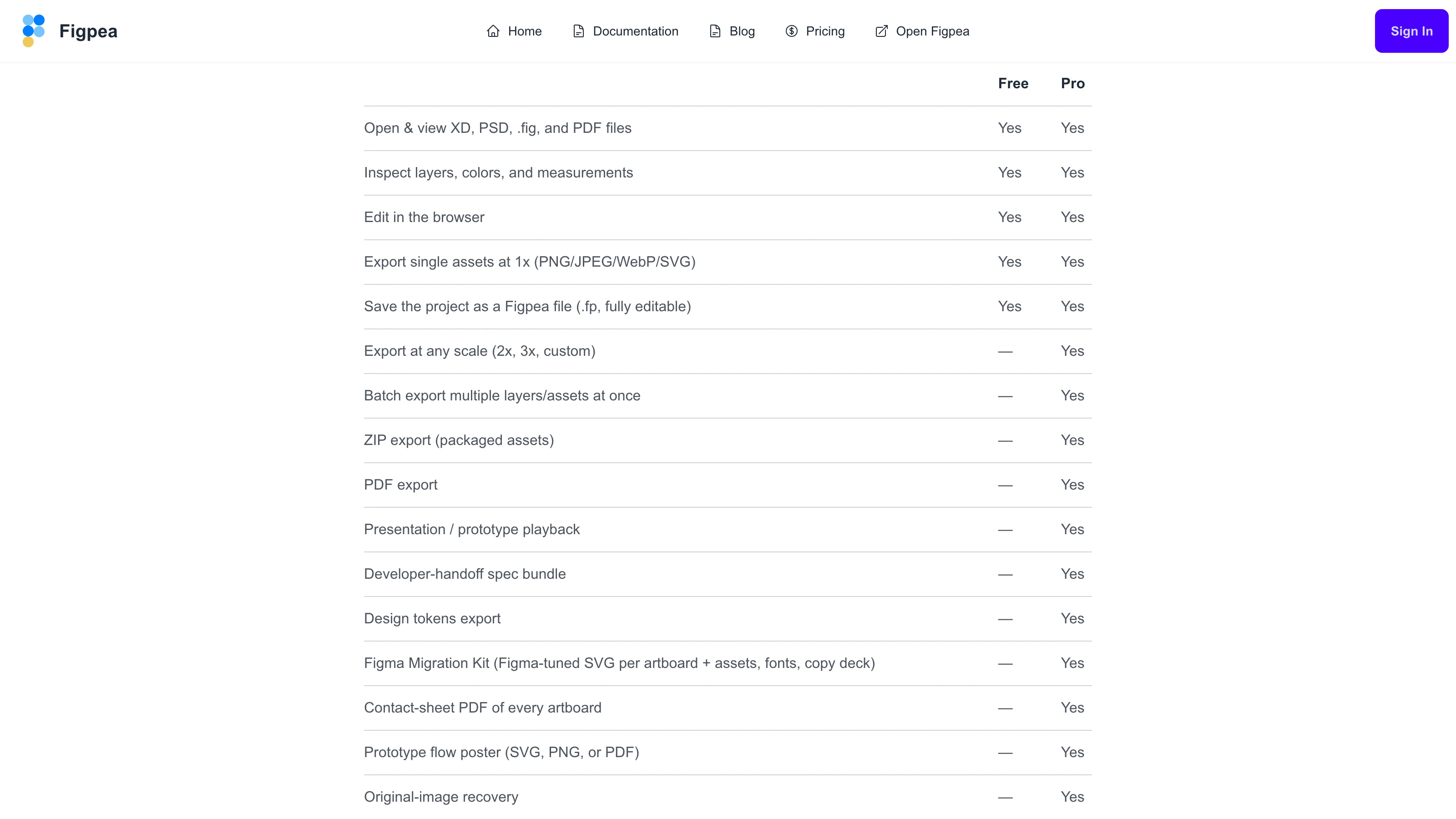
Update, Figpea 5.11.0: SVG export is now part of Pro on every plan — see Plans. This post records the release it was written for.
/docs/exporting had a live false claim in the other direction: it labelled SVG export as Pro when it's actually free. That's corrected, along with its description of scale gating — a single 1× export is free, any other scale is Pro, whether it's a preset or a custom value.
And the homepage stopped implying that Pro features are free. The feature sentence read "Inspect layers, copy CSS, edit designs for free, export assets at any scale, and play prototypes" — which reads as "for free" governing all of it, when any-scale export and prototype playback are both Pro. A surprise paywall advertised the wrong way round is worse than no claim at all.
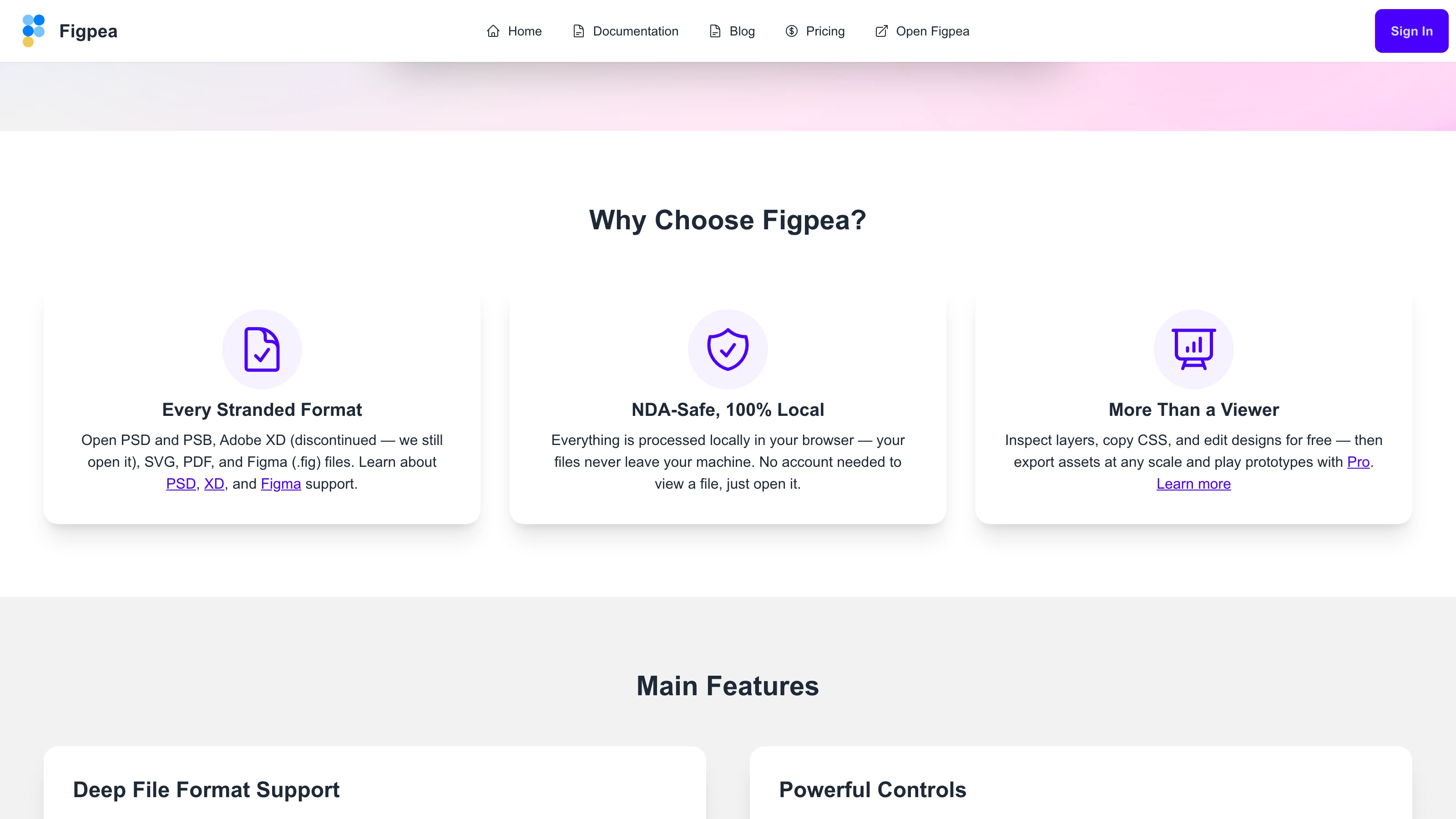
It now separates the two, with Pro linking straight to the plans table. The "Powerful Controls" card one section down carried the same unmarked claims under a green checkmark; those are now labelled too, including the note that a single 1× export is free.
Under the hood
- Flip buttons tell the truth. The Flip H / Flip V toggles only lit up for flips made with the buttons themselves. A layer mirrored by over-dragging a resize handle, or one that arrived mirrored from an XD/PSD/SVG/Figma import, showed an unlit button despite being visibly flipped. For un-rotated layers the buttons now reflect the layer's actual mirror however it got there. For a rotated layer they still reflect only button-driven flips: a horizontal flip and a "vertical flip plus 180° rotation" are the same matrix, so per-axis attribution is genuinely unrecoverable once a mirror is baked into a rotated transform, and guessing would be worse than not indicating. A rotated, unmirrored layer never lights up either button. This changes the indicator only — how flips are stored is unchanged.
- A path-geometry library upgrade (maker.js 0.17 → 0.19) lands the foundation for path offset, fillet and guided-layout operations. It's geometrically inert here: two frozen test baselines shifted their serialisation and were re-recorded only after a measurement guard proved the paths were the same shape to within a fraction of a pixel.
- The dependency-audit gate no longer passes vacuously. npm's audit endpoint started returning an error instead of a report, and the gate read that as "zero advisories" and exited green. It now distinguishes "audit found nothing" from "audit didn't run" and fails loudly on the second.
- A history-capture audit enumerated every place the old truthy-value rule silently dropped an edit and turned that list into an enforced test matrix, so a future authoring feature can't quietly land outside undo.
Try it
Everything above is live now. Open Figpea, drag in an XD, PSD, SVG, PDF, or Figma file — or load a built-in sample — and have a look. It's free to open, inspect, and edit; when you need batch export, any-scale asset extraction, or presentation playback without the post-exit upgrade prompt, Pro has you covered.