 Figpea
Page Sizes & Presets
Select a page and the Page section at the top of the properties panel offers a grouped list of standard sizes plus a Portrait/Landscape toggle, so setting a page to A4, an iPhone screen, or an Instagram post is a single pick instead of a look-up-and-type job. Every option's label carries its dimensions, for example A4 (595 × 842).
Creating a Page at a Preset Size (Page Tool)
When starting a new project or adding pages, Press g or click the Page tool in the toolbar. The properties panel displays the Page section holding the preset picker and orientation toggle.
- Choose a size preset (for example,
iPhone 16 (393 × 852)). - Set the Portrait/Landscape orientation if needed.
- Click once on the canvas.
The page appears at the exact dimensions of your selection. If you drag out a page instead of single-clicking, your drag geometry takes precedence over the preset. Your choice remains sticky for subsequent page creations during your session.
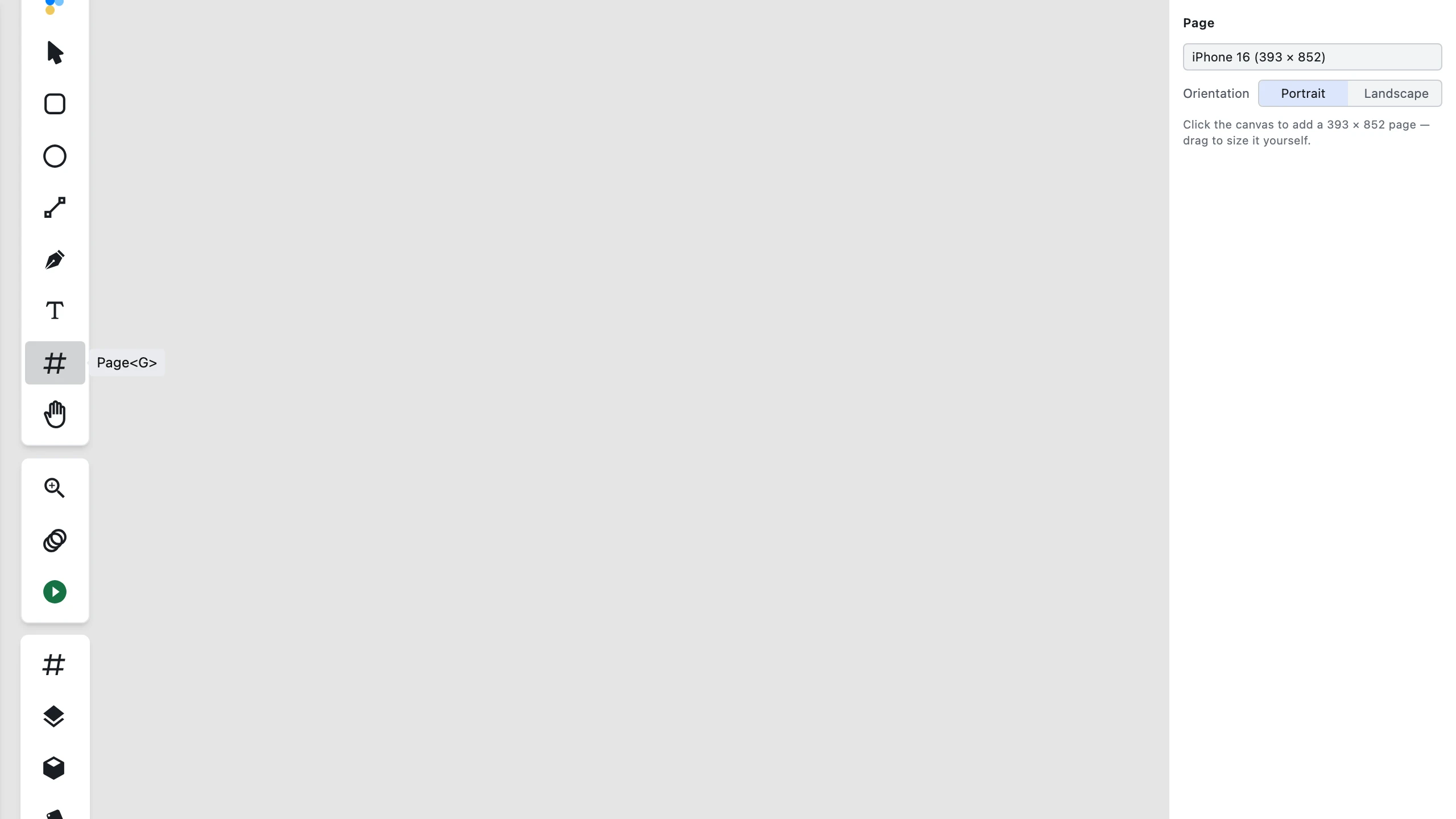 The right properties panel showing the Page tool's preset selector and orientation toggle.
 Activating the Page tool, picking a preset, and clicking once to create the page.
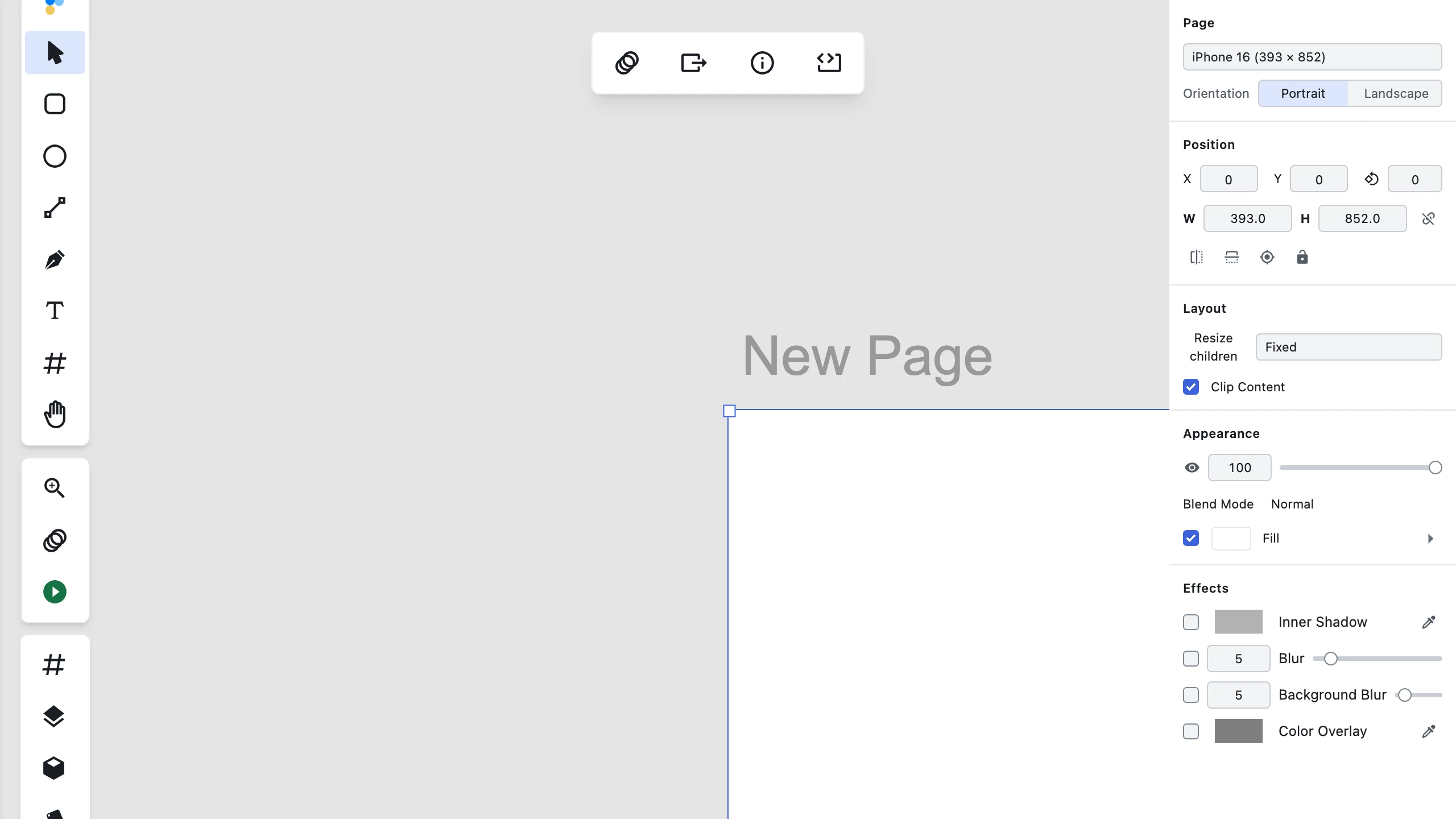 An iPhone 16 page (393 × 852 px) created on canvas via single-click with the Page tool.
How to select a page
Clicking a page on the canvas does not select it — canvas clicks are deliberately routed to the layers inside a page, never to the page itself. To select a page, open the Layers list on the left side of the editor and click the page's row there. Once it's selected, the Page section appears at the top of the right-hand properties panel, above Position.
Preset sizes
The list covers 35 sizes across seven categories, in this order:
Phone
| Preset | Size (px) |
|---|---|
| iPhone 16 Pro Max | 440 × 956 |
| iPhone 16 Pro | 402 × 874 |
| iPhone 16 Plus | 430 × 932 |
| iPhone 16 | 393 × 852 |
| iPhone SE | 320 × 568 |
| Android Compact | 412 × 917 |
Tablet
| Preset | Size (px) |
|---|---|
| iPad mini 8.3" | 744 × 1133 |
| iPad Pro 11" | 834 × 1194 |
| iPad Pro 12.9" | 1024 × 1366 |
| Android Medium | 700 × 840 |
| Android Expanded | 1024 × 800 |
| Surface Pro 8 | 1440 × 960 |
Desktop
| Preset | Size (px) |
|---|---|
| Desktop | 1440 × 1024 |
| MacBook Air | 1280 × 832 |
| MacBook Pro 14" | 1512 × 982 |
| MacBook Pro 16" | 1728 × 1117 |
| Full HD | 1920 × 1080 |
Paper
| Preset | Size (px) |
|---|---|
| A3 | 842 × 1191 |
| A4 | 595 × 842 |
| A5 | 420 × 595 |
| A6 | 298 × 420 |
| Letter | 612 × 792 |
| Legal | 612 × 1008 |
| Tabloid | 792 × 1224 |
Social
| Preset | Size (px) |
|---|---|
| Instagram post | 1080 × 1080 |
| Instagram story | 1080 × 1920 |
| X post | 1600 × 900 |
| X header | 1500 × 500 |
| Facebook post | 1200 × 630 |
| LinkedIn post | 1200 × 627 |
| YouTube thumbnail | 1280 × 720 |
Presentation
| Preset | Size (px) |
|---|---|
| Slide 16:9 | 1920 × 1080 |
| Slide 4:3 | 1024 × 768 |
Watch
| Preset | Size (px) |
|---|---|
| Apple Watch 46mm | 416 × 496 |
| Apple Watch 42mm | 374 × 446 |
Orientation
Next to the preset select is a Portrait/Landscape toggle. Switching it swaps the page's width and height. A square preset — Instagram post is the one in the table above — has no meaningful orientation: the toggle is inert for it and switching it adds no undo step.
Page background color
The same Page section that holds the size presets holds a Fill row directly under them — a color swatch, a hex field, and a Solid / None type menu. A page you select in the Layers list picks it up; the row is not on the panel for any other layer.
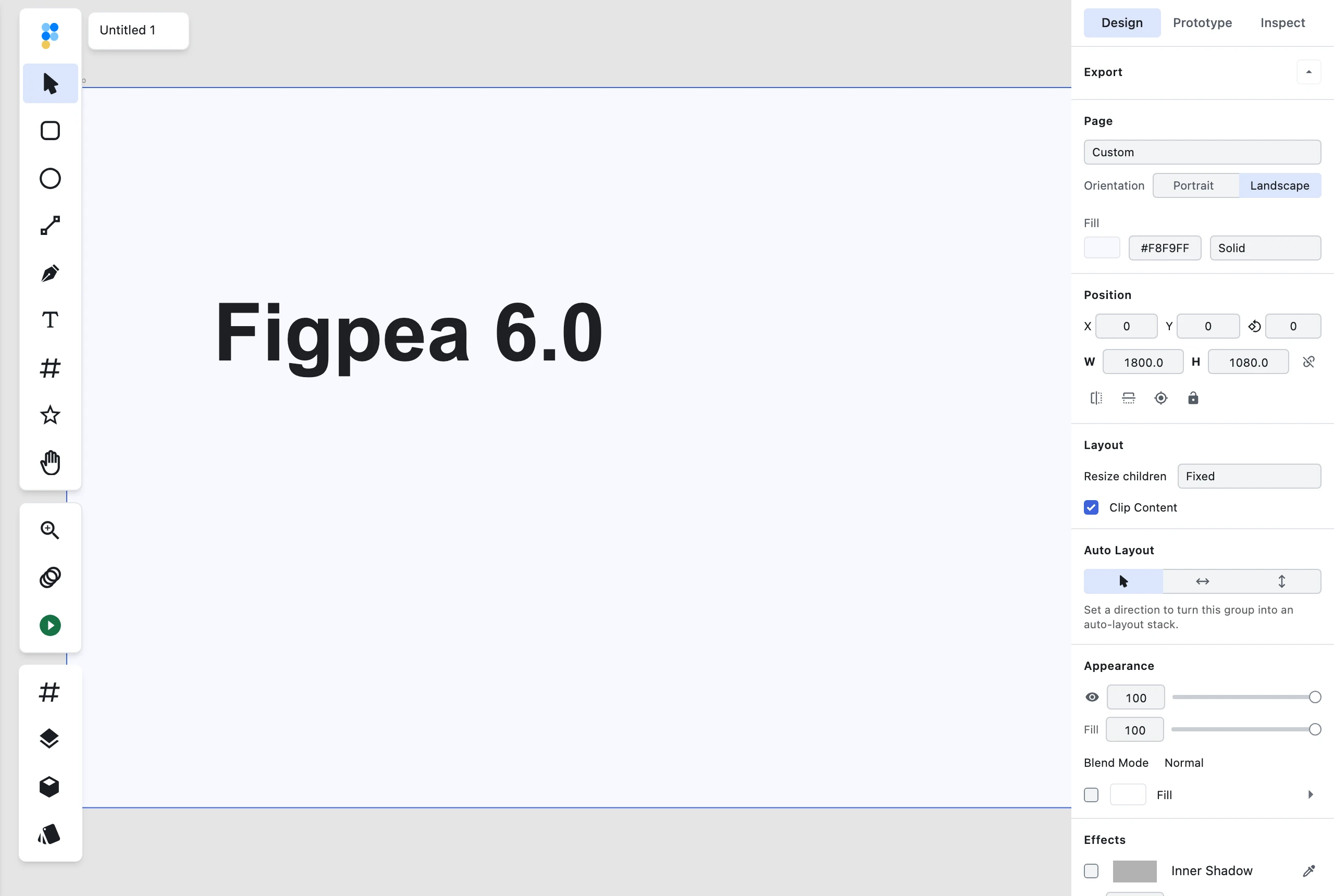 The Page section's size presets, with the Fill row directly beneath them.
Set the hex (#F8F9FF, say) and the page's ground changes on canvas immediately. That color is the
page's own background, and it is what leaves the editor with it — with the page selected, export it
as PNG from the inspector's Export tab and the image arrives on that ground, with the page's own alpha opaque, not a
transparent or black ground behind your layers. A page is exported as a new PNG alongside your original
file; Figpea never writes back into the PSD, XD or .fig you opened it from.
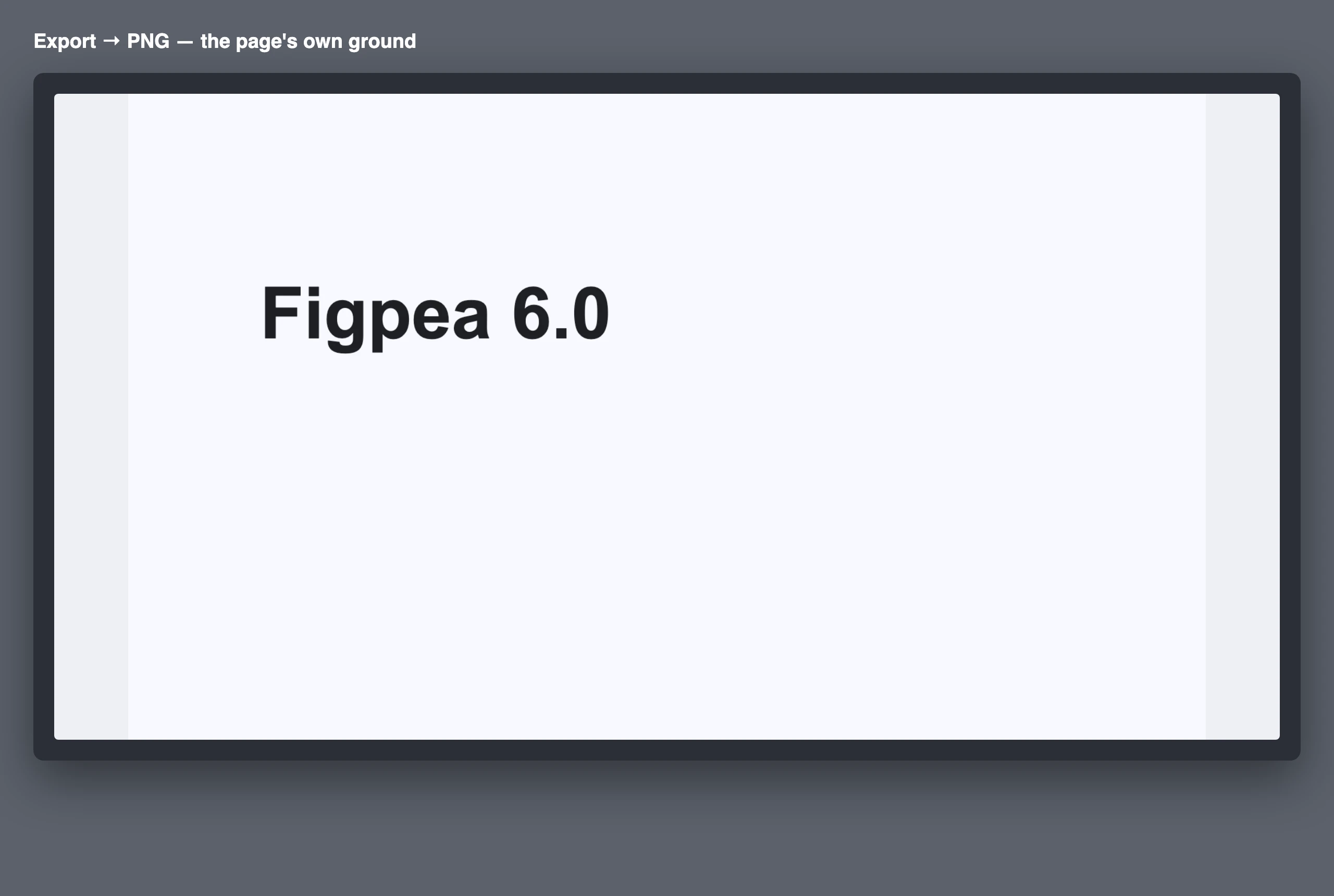 The same page exported as PNG, on its own ground.
 Typing a hex value, the canvas ground following it, and the export resolving on that ground.
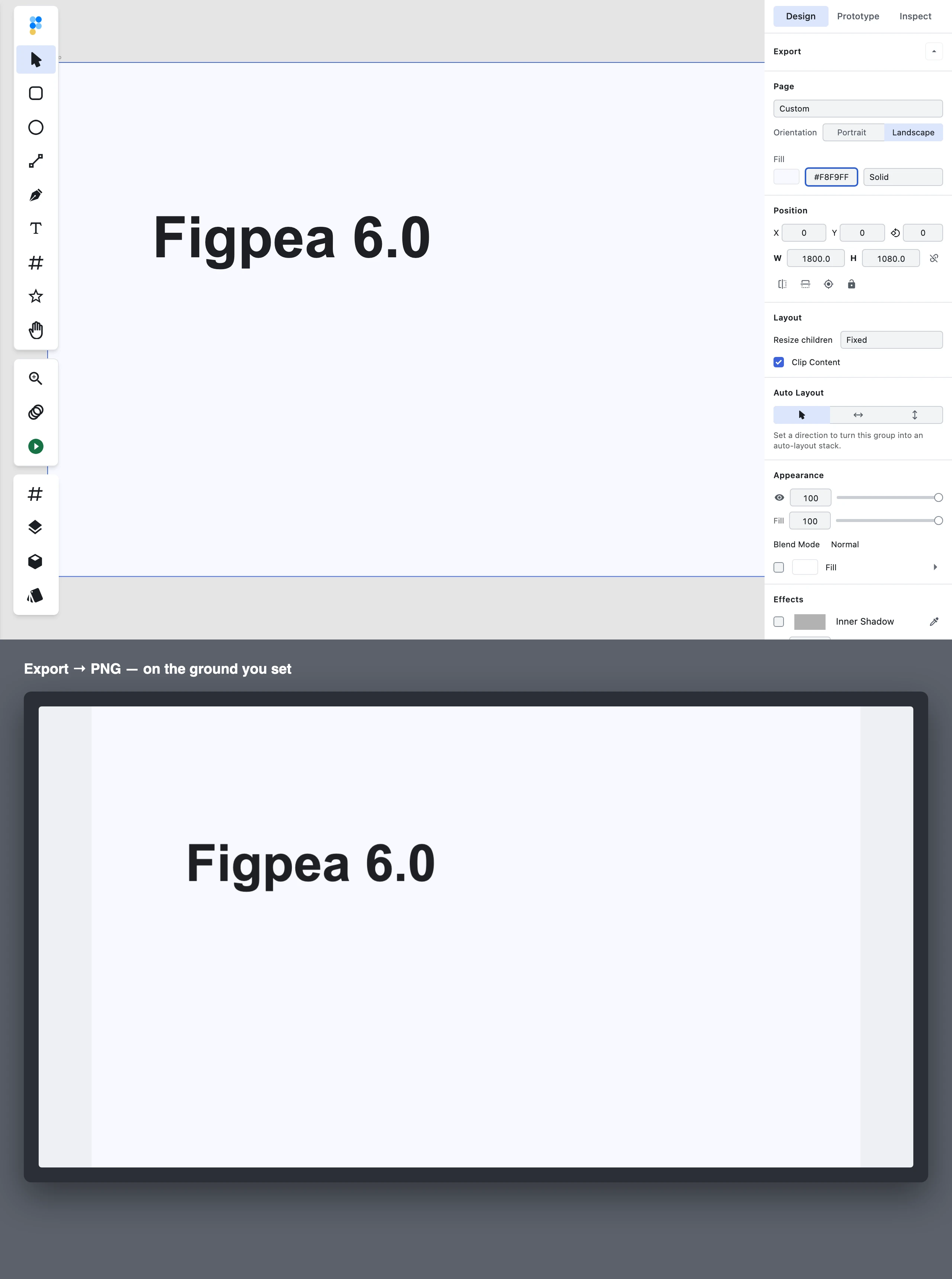 The end state of that sequence: field, swatch, canvas and export all on the same ground.
Set the type to None and the page paints no ground at all, so an export of it comes out transparent wherever no layer covers. The distinction matters for the two common cases: a light ground is what you want for dark text and for soft shadows, which disappear against the wrong one; None is what you want when the page is going to sit on a background you have not decided yet.
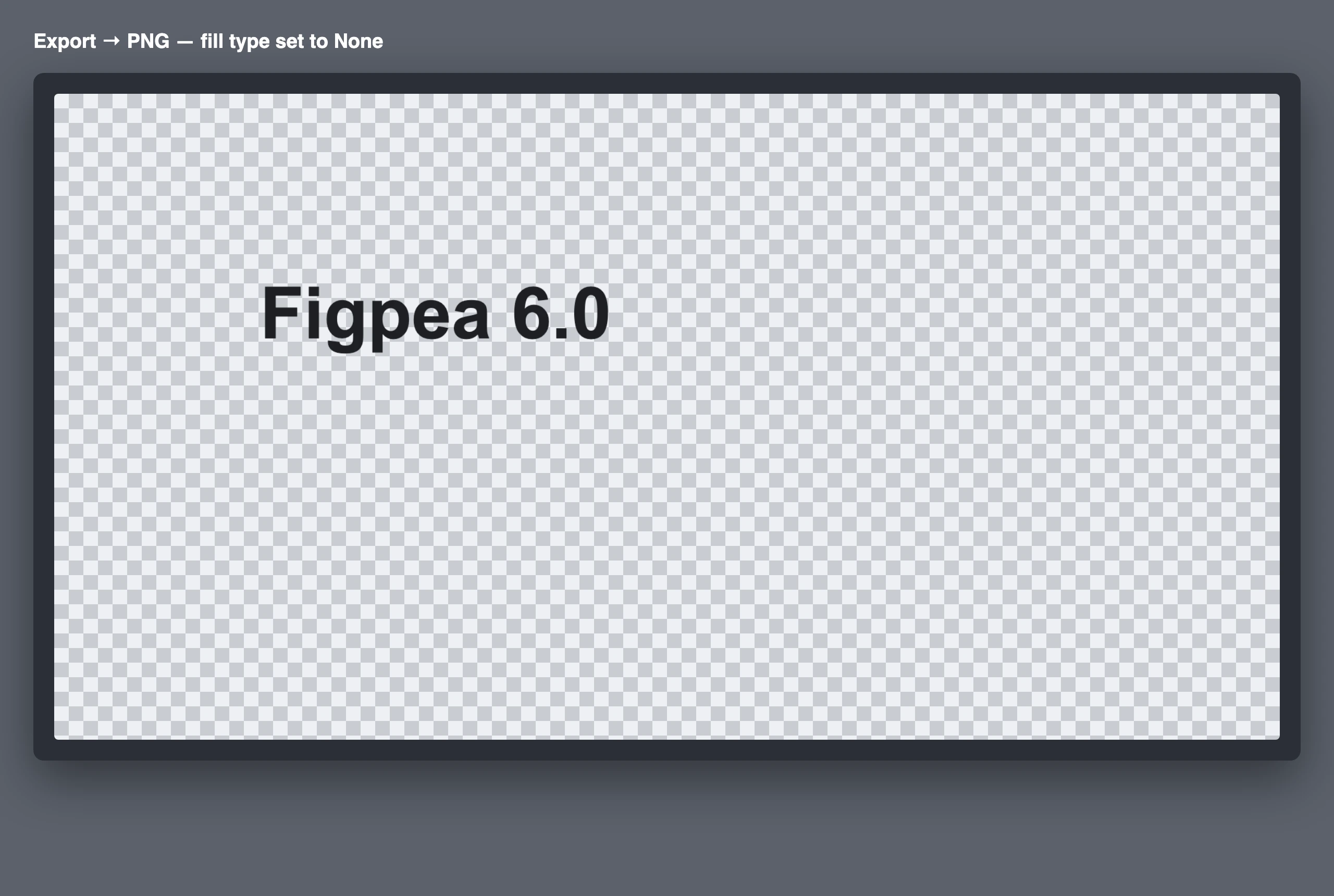 The same page with the fill type set to None, exported transparent.
You do not need a rectangle behind your content to get a ground. A full-page rectangle used to be the only way to do this and it is no longer required — if a file already has one, the page color and the rectangle simply paint the same ground, and the rectangle is now yours to delete.
Reading the list back
The select isn't a one-way action — it reflects the page's current size too. It shows the matching preset whenever the page's width and height equal a preset's dimensions in either orientation: a page at 595 × 842 shows A4, and so does a page at 842 × 595. When the size doesn't match any preset exactly, it shows Custom.
Three different routes put a page on 1920 × 1080: a page created or typed at that size, Slide 16:9 picked from the list, and Instagram story at 1080 × 1920 — the same size turned on its side. Because the read-back matches a page's width against a row's height as well as its height against a row's width, all three routes land on the same row and the select shows Full HD every time. Full HD is the earliest row declared at that size in either orientation, so it wins — deterministic, not random. In practice that means you will not see Slide 16:9 or Instagram story as the selected value on an existing page, even though both are in the list. Typing a width or height by hand into the Position section's W or H field flips the select to Custom the moment the numbers stop matching a preset exactly.
What happens to the layers inside
Children keep their position and size in a page's default Fixed mode; in Constraints mode they reflow by their own constraints, exactly as they do when you drag the page's handles. See Constraints & Resizing for how to set up that behaviour per layer.
Undo
Applying a preset or switching orientation is a single undo step — one press of undo reverts the whole size change, never just half of it.
Limits
- No custom or saved presets — the list is fixed for this release.
- No millimetres, inches, or DPI — paper sizes are the standard 72 dpi point values, labelled in pixels.
- No search or filter box; scroll or use the category groups.
- Presets apply to pages only, not to groups or shapes.
- The list doesn't update itself — a new device or platform size ships in a future release, not automatically.
FAQ
What size is A4 in pixels?
A4 is 595 × 842 px at 72 dpi — the value Figpea's A4 preset applies. The other paper presets follow the same 72 dpi convention: A3 is 842 × 1191 px, A5 is 420 × 595 px, Letter is 612 × 792 px, Legal is 612 × 1008 px, and Tabloid is 792 × 1224 px.
Will my layers move when I change the page size?
Children keep their position and size in a page's default Fixed mode; in Constraints mode they reflow by their own constraints, exactly as they do when you drag the page's handles. See Constraints & Resizing.
Can I save my own preset?
No. Type the width and height into the Position section's W and H fields instead.
Can I use millimetres or inches?
No. Sizes are in pixels; paper presets are the standard 72 dpi point equivalents.
Why does the list say Custom?
Your page's size doesn't match any preset exactly, in either orientation.
Does this change my original PSD, XD, or Figma file?
No. Figpea never writes back to the original file; the size lives in your Figpea project.
Are these sizes always up to date?
They are the sizes shipped in this release. Social platforms change their recommended sizes; check the platform if it matters for a campaign.
Does the page background color show up in the export?
Yes. A page's background color is composited into its exported image and into an on-canvas capture, so the ground you see on the page is the ground in the file. With the type set to None the page paints nothing and exports transparent where no layer covers.
Do I still need a rectangle to get a colored background?
No. A full-page rectangle behind your content was the old workaround and is not needed. One left over in an existing file is harmless — it paints the same ground — and can be deleted whenever you like.
Related docs
- Constraints & Resizing — what happens to the layers inside a page when its size changes
- Basic Layer Operations — creating, selecting, and resizing layers
- Exporting — exporting a page once it's sized
- Page background in an export — what ground an exported page lands on