 Figpea
How to Rescue an Adobe XD File: Open, Recover & Export
Adobe XD is winding down, and orphaned .xd files aren't going anywhere. If you've got a project locked in XD — whether it's a contract handoff that needs a design spec, an old archive you need to extract images from, or a migration to Figma — you need a viewer that actually works. Figpea is the highest-fidelity XD viewer anywhere, and its rescue toolkit ships free and Pro tools to open, inspect, recover, and export your files.
Here's what the toolkit does end-to-end.
How to rescue an Adobe XD file
-
Open your
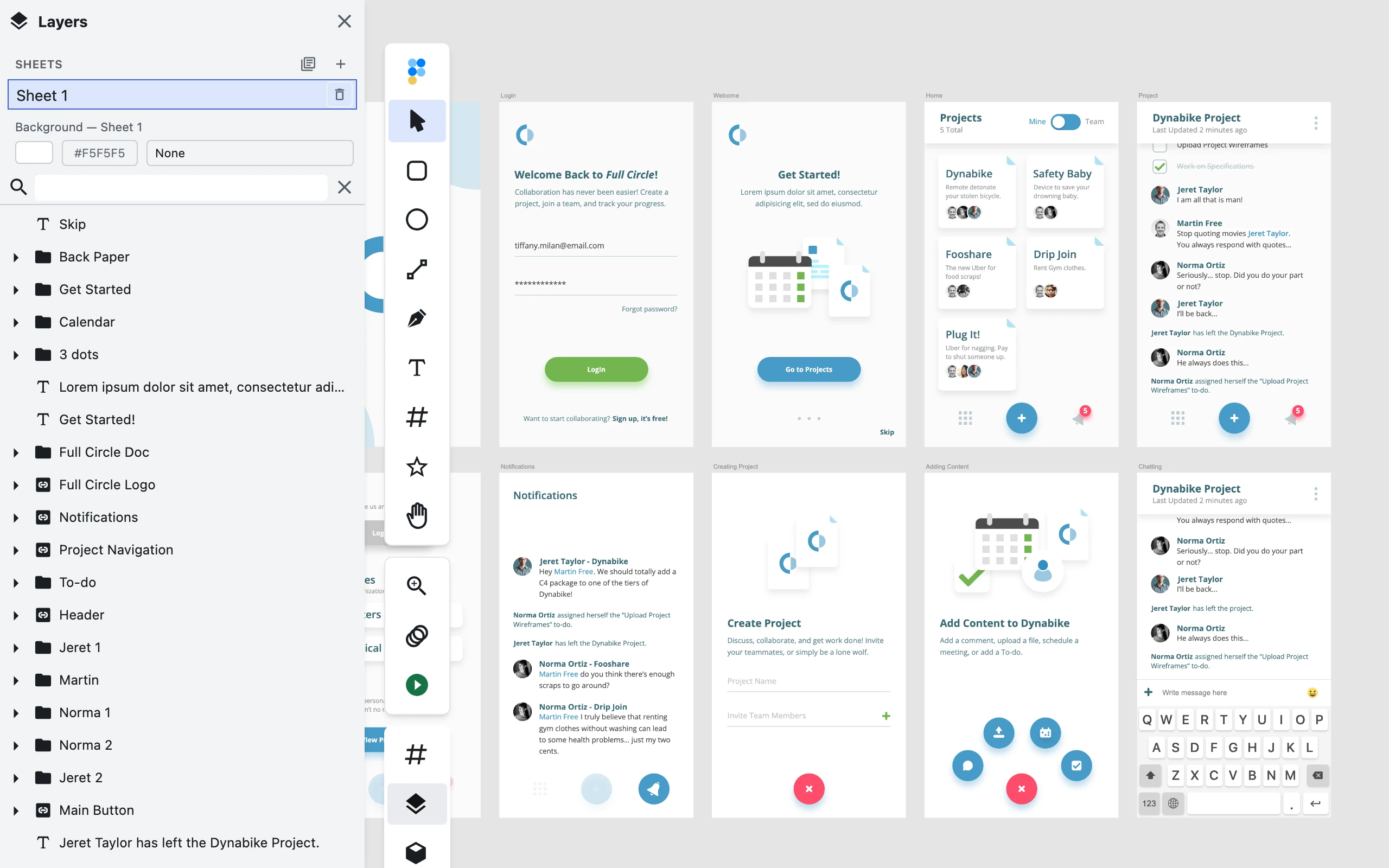
.xdfile free — Drop your.xdonto the file area of Rescue Your Adobe XD Files, or pick one from your computer. Your file opens instantly in your browser with its full layer tree, artboards, components, and interactions visible. No account required, nothing uploaded. Figpea is the highest-fidelity XD viewer anywhere. -
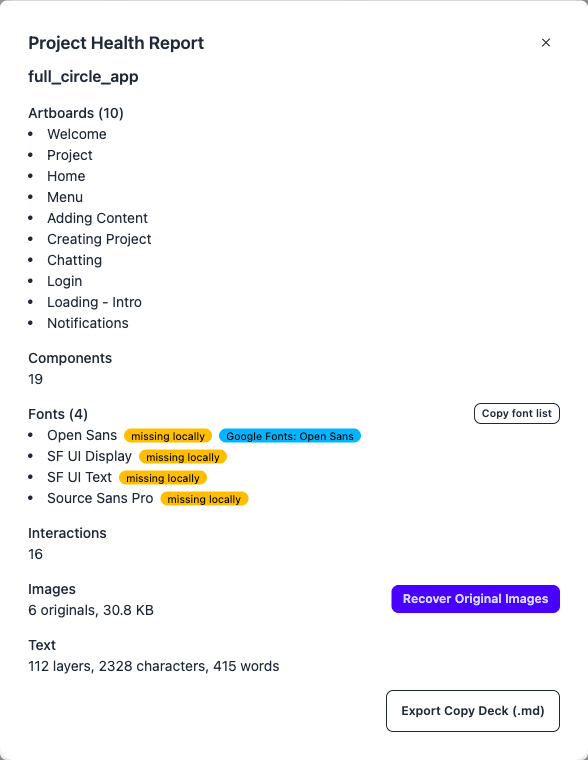
Read the free health report and copy deck — Once open, download the free health report showing your artboard count and names, the components you have, the fonts (with locally-missing flags and Google Fonts matches), interaction count, every embedded image (count and total size), and a conditional breakdown of import issues (distinguishing approximated content with a yellow warning dot from missing content with a red alert icon). The free copy deck is markdown-formatted text from your whole file, organized by artboard, ready to paste. The font manifest lists every font with its closest match.
-
Recover original images with Pro — Figpea Pro recovers every embedded image as a byte-for-byte original — the exact image bytes your file carries, no re-encoding, no compression artifacts. Free gives you the count and size; Pro unlocks the download.
-
Hand off to a developer or move to another tool — Hand off a self-contained spec bundle with click-to-inspect specs, copyable CSS, and design tokens to a developer via Figpea Pro and Developer Handoff in Figpea. If Figma is next, try it free on a single artboard — export one artboard as a Figma-tuned SVG to prove fidelity; the full Figma Migration Kit (every artboard, plus fonts, copy deck, and original assets) is part of Figpea Pro and the Rescue Pass. Read How to Import Adobe XD Designs into Figma for the full walkthrough.
What's free and what's Pro
Free (no account):
- Open and view
.xdfiles in your browser - Download the health report (artboard count, components, fonts, interactions, embedded image count and size, and import issues)
- Download the copy deck (every text string, organized by artboard)
- Download the font manifest (every font with its closest Google Fonts match)
- Export a single asset (PNG, WebP, or SVG) at 1x
- 100% local processing, nothing uploaded
Pro (and Rescue Pass):
- Export at any scale and in batch, including PDF (whole artboards) and SVG (vector layers)
- Recover original images byte-for-byte (the exact image bytes your file carries)
- Create a Figma Migration Kit (per-artboard Figma-tuned SVGs with editable text and named layers)
- Hand off a self-contained spec bundle and design tokens to a developer
- Everything in Free, plus these Pro-exclusive exports
See Figpea Plans and Pricing for details.
What Figpea can and can't do with your XD file
Figpea gives you the closest thing to opening your .xd in Adobe XD without owning XD — but a few things don't round-trip:
What works:
- Artboards, layers, and layer hierarchy — all visible and navigable
- Named layers, groups, and components — layer names survive in SVG exports
- Fill colors (solid and gradients), strokes, drop shadows, blur, blend modes — rendered for viewing and inspection
- Text with font family, size, and weight — exported as editable text in SVG
- Interactive prototypes — interactions are visible in the editor and counted in the health report; playing them back as a presentation is playable uninterrupted for full decks — Pro lets you present without the post-exit upgrade prompt
- Embedded images — visible and countable in the health report. Byte-for-byte originals are recoverable with Pro.
- Import transparency — unsupported or degraded elements are clearly listed in the free health report as approximated or missing.
What doesn't round-trip:
- Saving back to
.xd— Figpea is read-only; you cannot write.xdfiles. Export to PNG, WebP, PDF, SVG, or the Figma Migration Kit instead. - Effects that degrade in SVG (like inner shadows or complex blur) — may need touch-up if you export as SVG and import into Figma
- Interactions in export formats — prototype interactions are visible in the editor, but export formats (SVG, PNG, PDF) and hand-off bundles don't carry interactivity; re-create interactions in Figma or your destination tool
All processing is 100% local — your .xd file never leaves your machine.
FAQ
How do I open an .xd file without Adobe XD?
Drop your .xd file into Figpea or pick it from your computer. Your file opens instantly in your browser — free, no account, nothing uploaded. Figpea is a fully-featured XD viewer that processes everything locally and keeps all your files 100% on your machine.
How do I get the images out of an Adobe XD file? The free health report shows you every embedded image — the count and total size. Figpea Pro recovers each as a byte-for-byte original for download. Free also includes the copy deck (all your text strings by artboard) and the font manifest (fonts with Google Fonts matches).
How do I see all the text and fonts in an XD file?
Open your .xd free in Figpea, then download the copy deck (markdown of every text string, organized by artboard) and the font manifest (every font with the closest Google Fonts match). Both are free and download instantly.
Can I get my design back out as a .xd file?
No — Figpea does not write .xd files. Free lets you export a single asset (PNG, WebP, or SVG) at 1x. Pro adds PDF export of whole artboards, batch export, any-scale export, and byte-for-byte original images. If Figma is next, try it free on a single artboard — the full Figma Migration Kit is part of Figpea Pro and the Rescue Pass.
Are my XD files uploaded anywhere?
Never. Everything happens 100% locally in your browser. Your .xd file never leaves your machine, and Figpea does not upload, store, or log your design data.
Keep going
- Rescue an XD file — the quick start for opening and inspecting your
.xdonline - View Adobe XD files without XD — comprehensive opening docs
- What you can do with an XD file — reference docs for all rescue toolkit features
- Developer Handoff in Figpea and Design Handoff — hand-off a spec bundle to a developer
- How to Import Adobe XD Designs into Figma — Figma next? Export your artboards as SVG
- How to Open XD Files Without Adobe XD — the full guide to XD viewing in Figpea
- Figpea Plans and Pricing and Pricing