 Figpea
Change the editor language
Figpea's interface can be shown in Spanish as well as English. Open the main menu (the Figpea logo, top left), choose Language, and pick Español. The editor chrome re-renders in the new language — menus, dialogs, panels and notices.
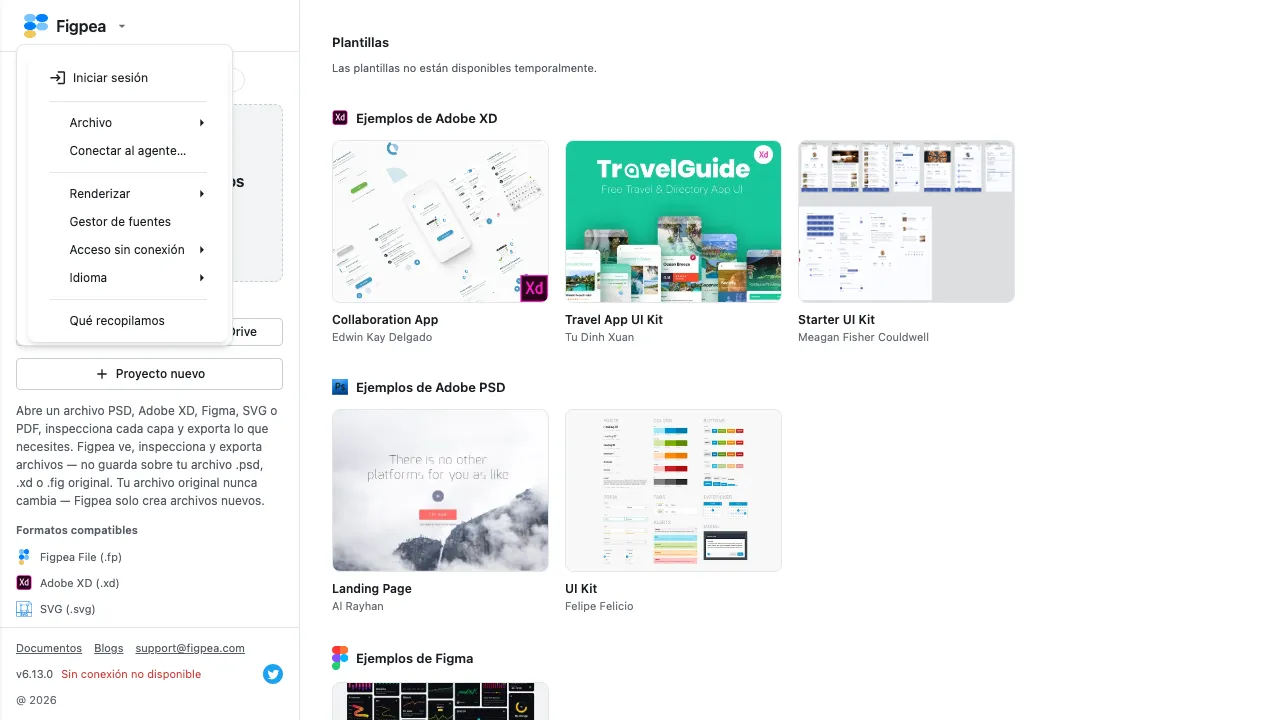 The Language submenu, with Español chosen. The check mark follows the active language.
Your choice is remembered in the browser, so the editor opens in Spanish next time — on the same device, with no account and no sign-in. Switching languages never touches your files: layers, page names and file content stay exactly as authored, and switching back and forth loses nothing.
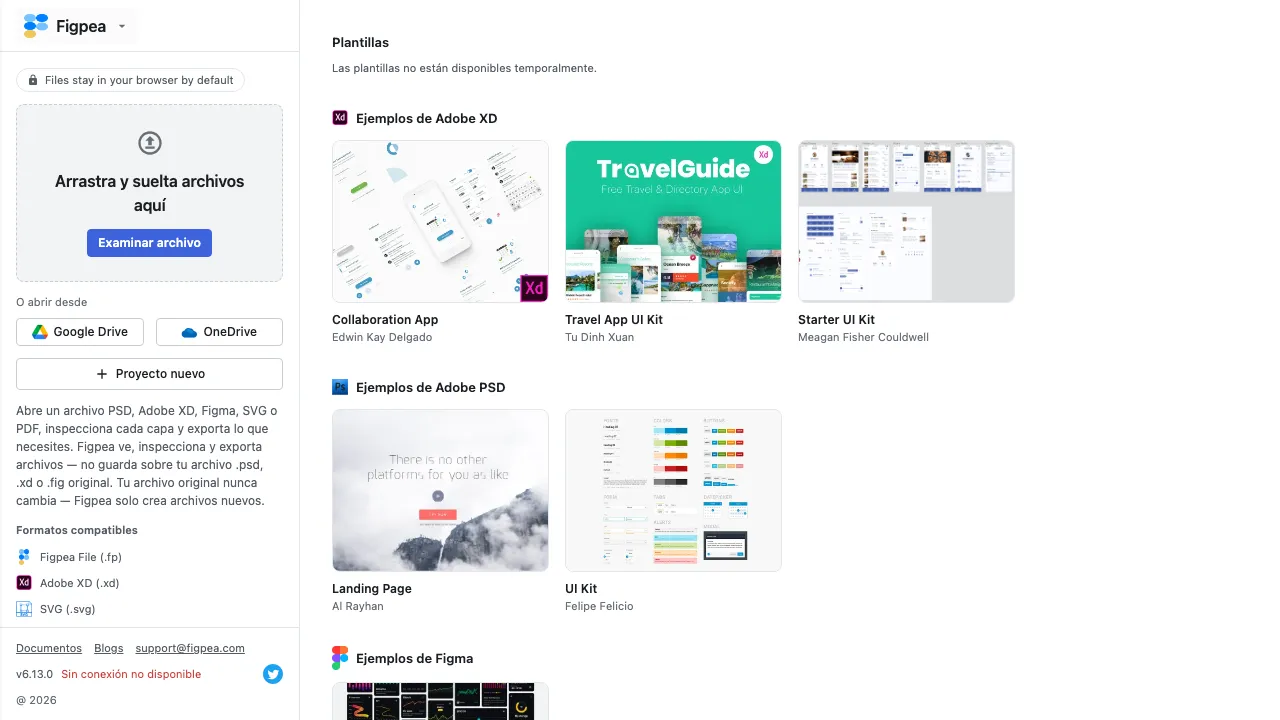 The editor chrome in Spanish: menu, welcome content and panels, all translated.
Some surfaces may still show English, and that is deliberate, not a bug. Anything that is your data — file names, layer and sheet names, text you typed on the canvas — is never translated. Dynamic messages fall back to English when a translation does not exist yet, so you always see a correct string rather than a wrong one. If a sentence looks half-translated, the untranslated half is almost always a file name or a number filled in at runtime.
For an overview of every guide, return to the docs index.
Which languages does Figpea support?
English and Spanish. Spanish is the first launch language: pick it from the main menu's Language submenu. Anything without a Spanish translation falls back to English automatically.
Why is part of the UI still in English?
Two reasons. First, your own content is never translated — file names, layer names and canvas text stay as you wrote them. Second, a few dynamic strings (counts, file names inside messages, diagnostics) render in English until their translations land. The interface chrome itself — menus, buttons, dialogs, panels — is translated.