 Figpea
Sheets: group layers into containers
A sheet is a named container for layers. It sits at the top of the Layers panel, above the layer tree, and it is the one list of containers in Figpea — a sheet is not a folder, and it does not appear in the tree below.
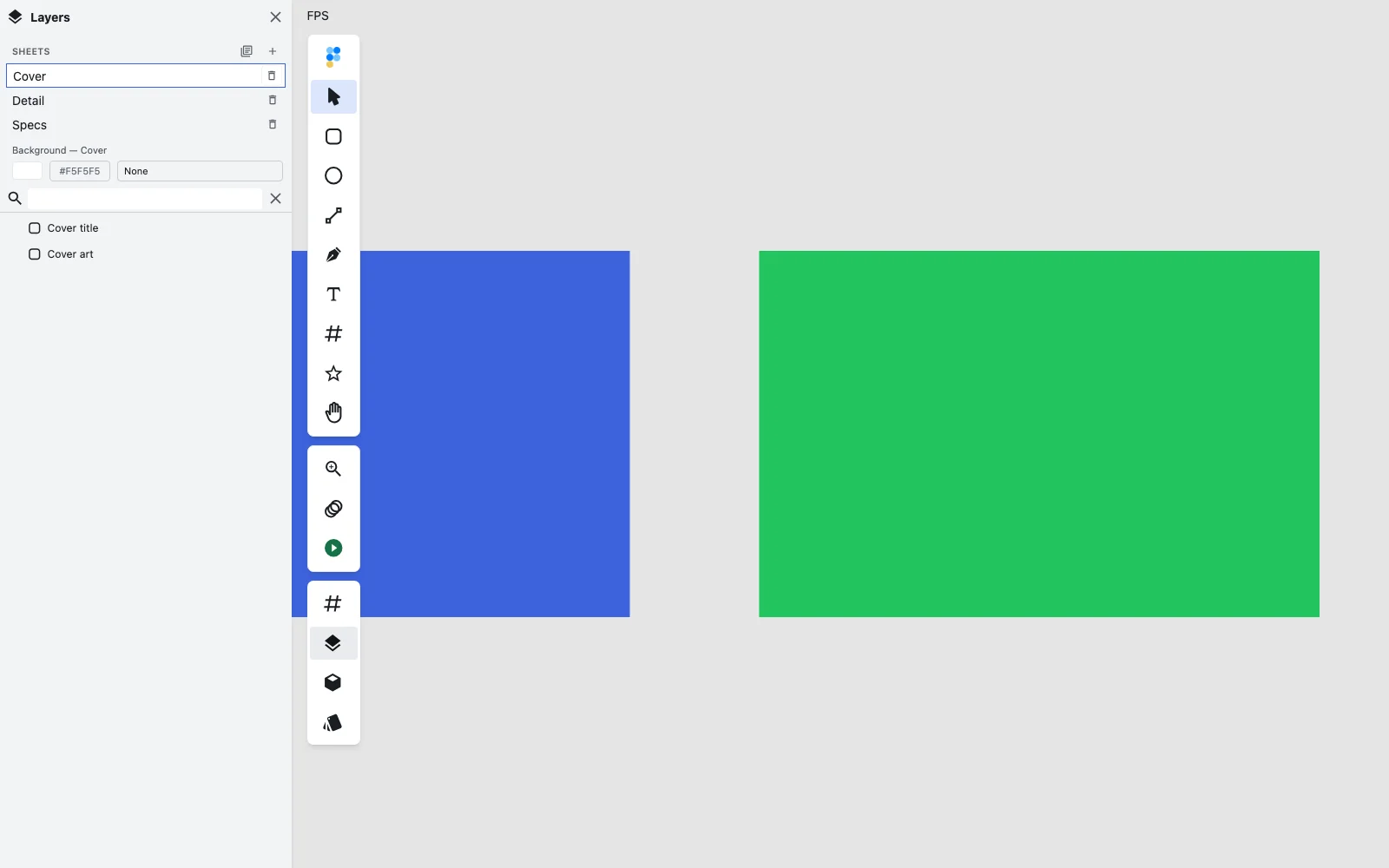
Everything you do to a sheet — create, rename, reorder, colour, isolate — is one step in your history, and one undo reverses it.
What is a sheet?
- A sheet has a name and a set of member layers.
- A sheet is not a layer. It has no transform, no bounds and no opacity of its own — it is a container that points at layers you already have.
- The layer tree below is scoped to the sheet you pick. Pick a sheet and the tree lists that sheet's contents; pick nothing (or the eye) and it lists the whole file.
- The same choice re-frames the canvas and the export.
If you opened a Figma file, its frames arrive as sheets already. If you opened a PSD, an XD file, a PDF or an SVG, the sheets are the natural groupings inside that file.
Note A sheet you create from the
+button starts empty. The moment you draw, paste, place, import or instance something while it is the active sheet, that content becomes one of its layers — you do not have to put it there yourself. Until then the sheet is genuinely empty, and an empty sheet isolates to an empty canvas: the sheet you are looking at contains nothing, so nothing else is shown either.
The six operations
New sheet
Click + at the right of the SHEETS header. The sheet is appended in order, named Sheet 1, Sheet 2, … (skipping any name already in use), and activated — Figpea switches to it and frames it.
Delete sheet — and what happens to its layers
Click the 🗑 on a row. The layers that sheet held are deleted with it, in the same step, so one undo restores both halves together.
- A sheet with no layers deletes straight away.
- A sheet whose first layer has content inside it asks you to confirm first, and the confirmation says how many layers are going.
- The 🗑 itself names the consequence before you click it: Delete sheet (deletes its 3 layers too), or just Delete sheet when there is nothing to take.
Deleting the sheet you are viewing selects the next sensible sheet, or returns you to the whole file when none is left. Deleting the last sheet is allowed — it leaves the file in whole-file view and nothing is lost that you did not choose to delete.
Reorder
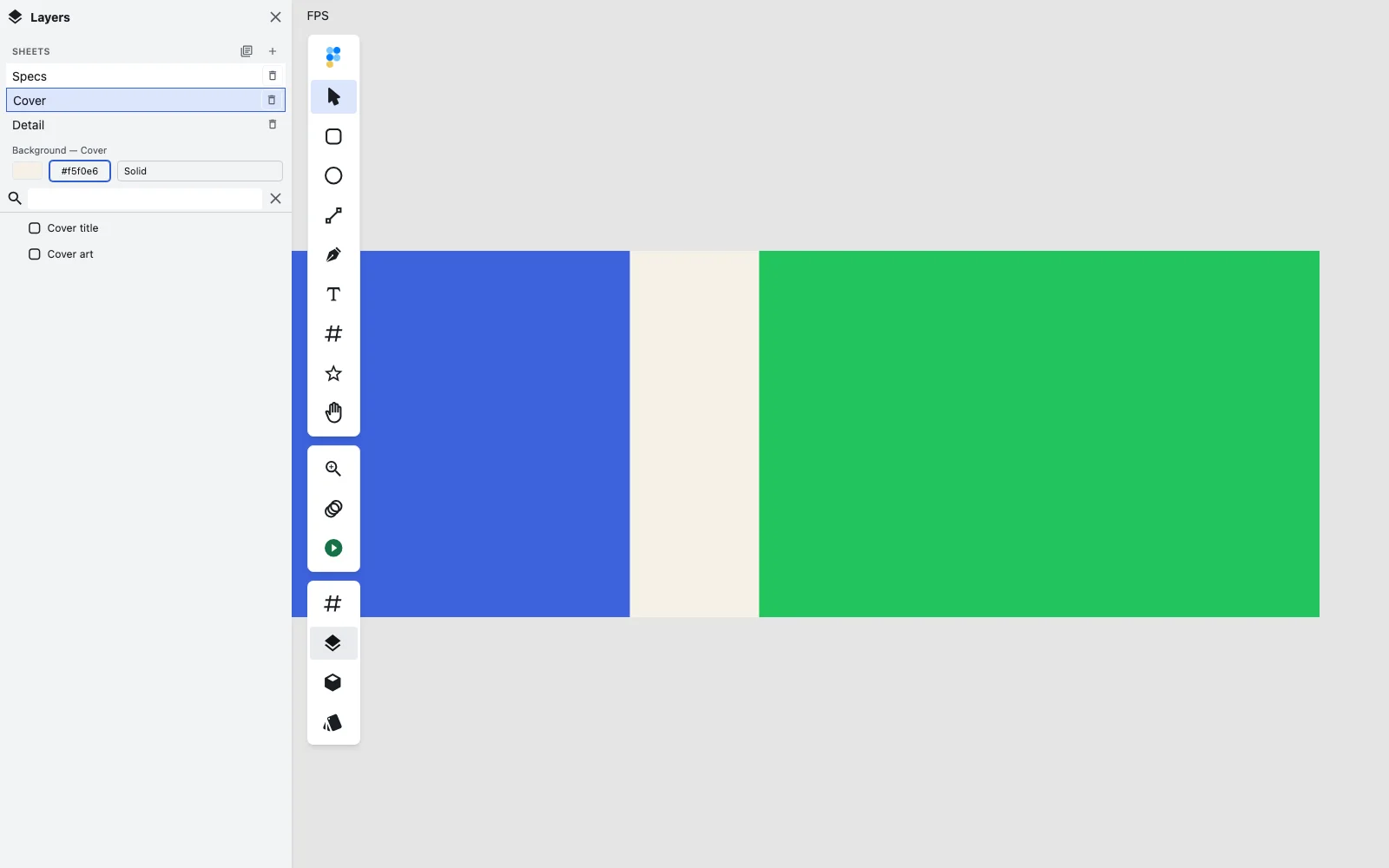
Drag a row up or down. The new order is the order you see, and it is written to the file.

Dragging is the only way to reorder, and the row shows its state while the gesture is in flight — the row you picked up dims, and the row you would drop onto is outlined.
Rename
Click a row to select it, then click its name. Type the new name and press Enter (Escape reverts). Leave the field empty and it commits as Untitled sheet. This is the same inline rename the layer rows use, and it is one undo step.
Background
With a sheet selected, the Background block appears directly under the sheet list. Set a fill and a type — Solid paints behind that sheet's own layers, None inherits the file background and paints nothing.
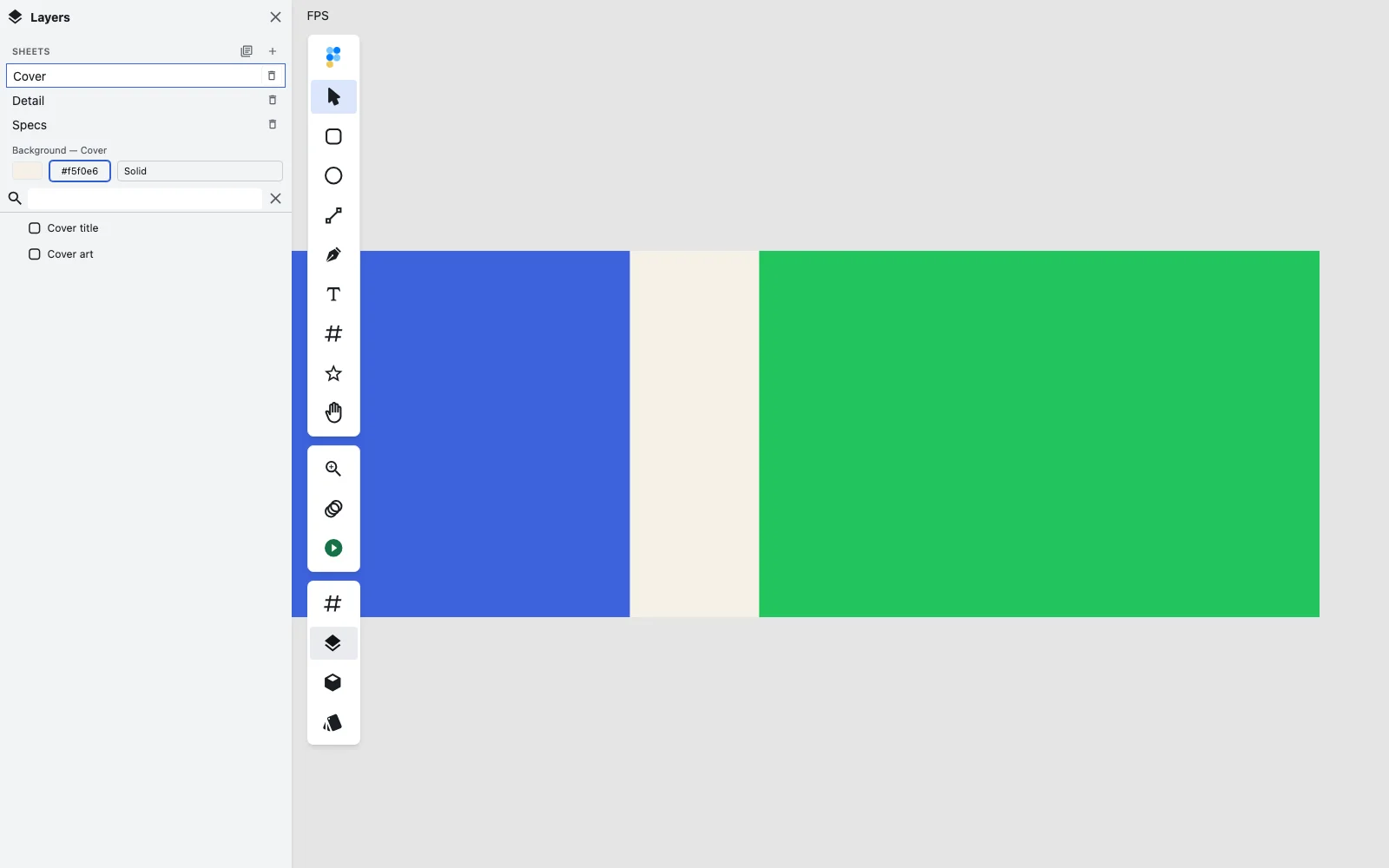
The label always names the sheet it edits (Background — Cover), because a sheet's background is stored on that sheet rather than on any one layer. The block is only present while a sheet is selected — in whole-file view no sheet's background is painting, so there would be nothing for the control to edit.
Single-sheet view
The eye in the header toggles isolation. It is present whenever the file has at least one sheet and absent when it has none.
- Show all sheets (the default) — the tree and the canvas show the whole file.
- Single-sheet view — only the selected sheet's layers list and paint, and Figpea frames that sheet.
Clicking the active sheet's row again returns you to the whole file. Because the switch can take a moment on a large file, Figpea shows a Rendering <sheet name>… notice while it settles.
The empty state
A file with no sheets shows no rows and one line of explanation:
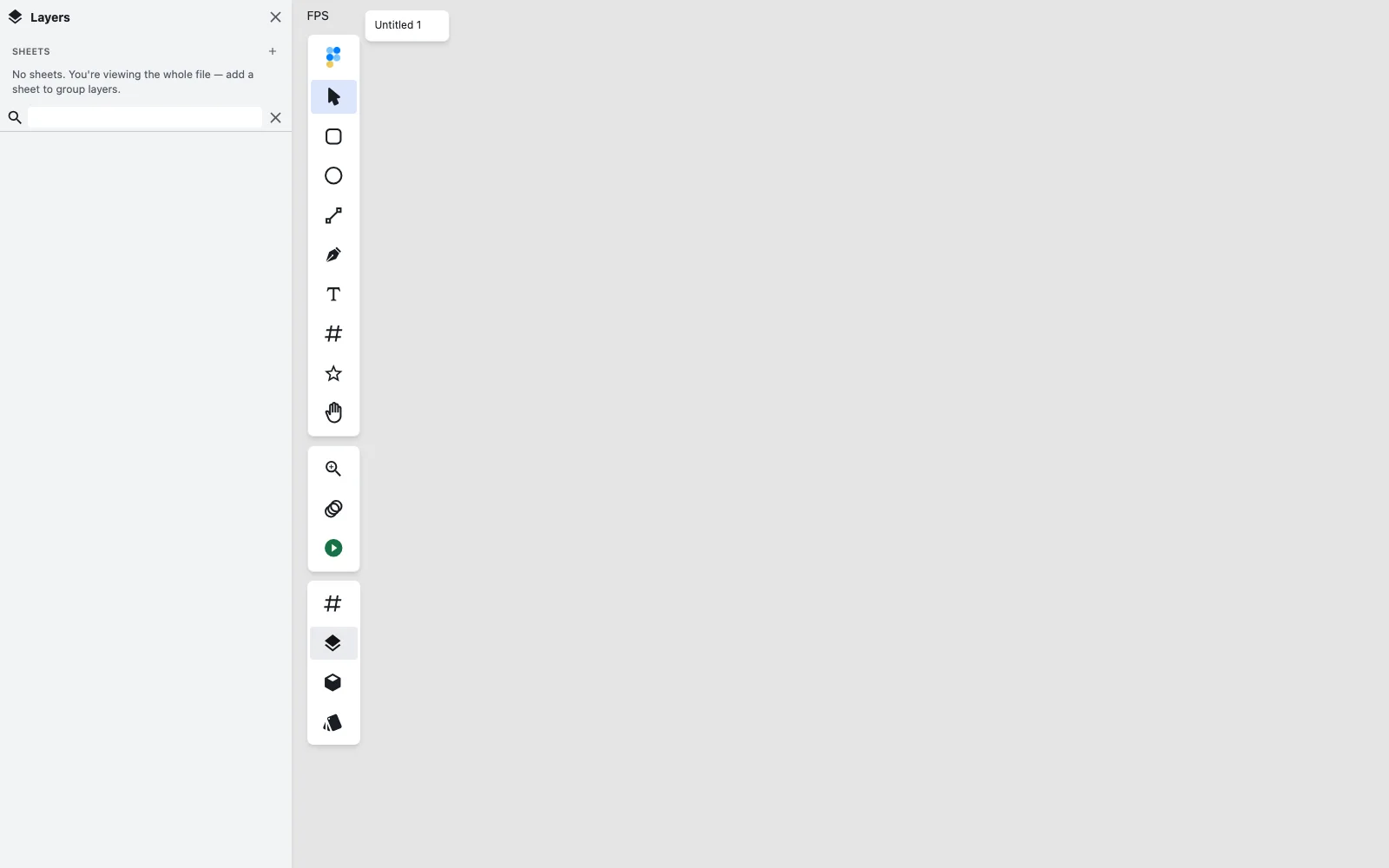
It is deliberately not a row. Nothing there can be selected, dragged, renamed or deleted, because there is no sheet — it is just the panel telling you what you are looking at and how to change it.
Sheet order is also cycle and export order
Sheet order is not only the order you see. It is also:
- the order the Next / Previous sheet commands cycle through, and
- the order the editor enumerates sheets when it exports or builds a report.
So reordering the list to make it easier to read also reorders your export sequence. That is deliberate — one order, one meaning — but it is the kind of consequence worth knowing before you drag.
When you export or hand off with an explicit list of sheets in a given order, that requested order is honoured as given; the sheet list above only decides the order Figpea itself walks them in.