 Figpea
Offline Access: Your Downloaded Files Stay Until You Remove Them
Offline Access keeps a copy of the editor on your device so Figpea opens without a connection. This page covers what that copy is, how to install it, and the single rule attached to it: the files stay until you remove them.
What Offline Access covers
Offline Access is a Pro feature: it stores Figpea's own files on your device so the editor opens and runs with the network off.
The pack is the editor — its code, its styles, its icons, its fonts. It is not a copy of the internet, so a few things sit outside it and still need a connection:
- This website and the blog are served from the network, in a normal browser tab.
/apirequests are not part of the pack, so anything that needs your account still needs a connection.- The example library is served from a separate origin and fetched when the welcome screen loads.
- The agent contract is read from the editor origin when an agent connects.
- Any design file you have not already downloaded is not part of the pack.
- Font files for families you have never loaded — the editor keeps the fonts you have used, and a family it has never loaded needs one online load before it renders offline. The FAQ below has the full statement.
Offline Access does not cover this website, the blog, the example library, or any design file you have not already downloaded.
Offline Access is the editor, not your work. What you have been editing is kept separately, in this browser. Your Projects & Restore explains where that lives and how to get it back.
Install Offline Files (Pro)
On a Pro plan, open Figpea's main menu and choose Offline Access → Install Offline Files.
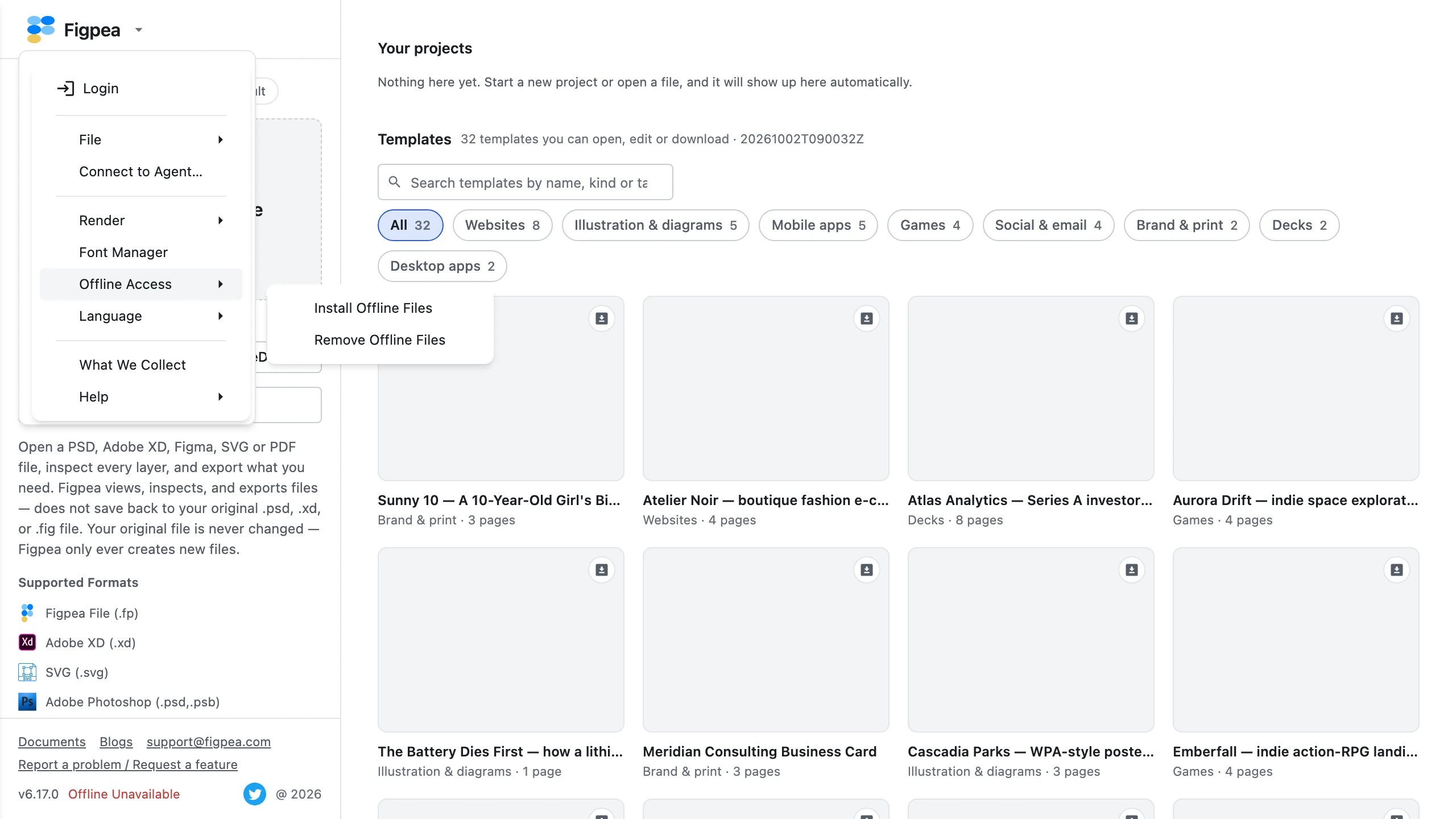
On the free tier the same entry opens the upgrade prompt instead of starting a download, and the plans guide covers what Pro adds.
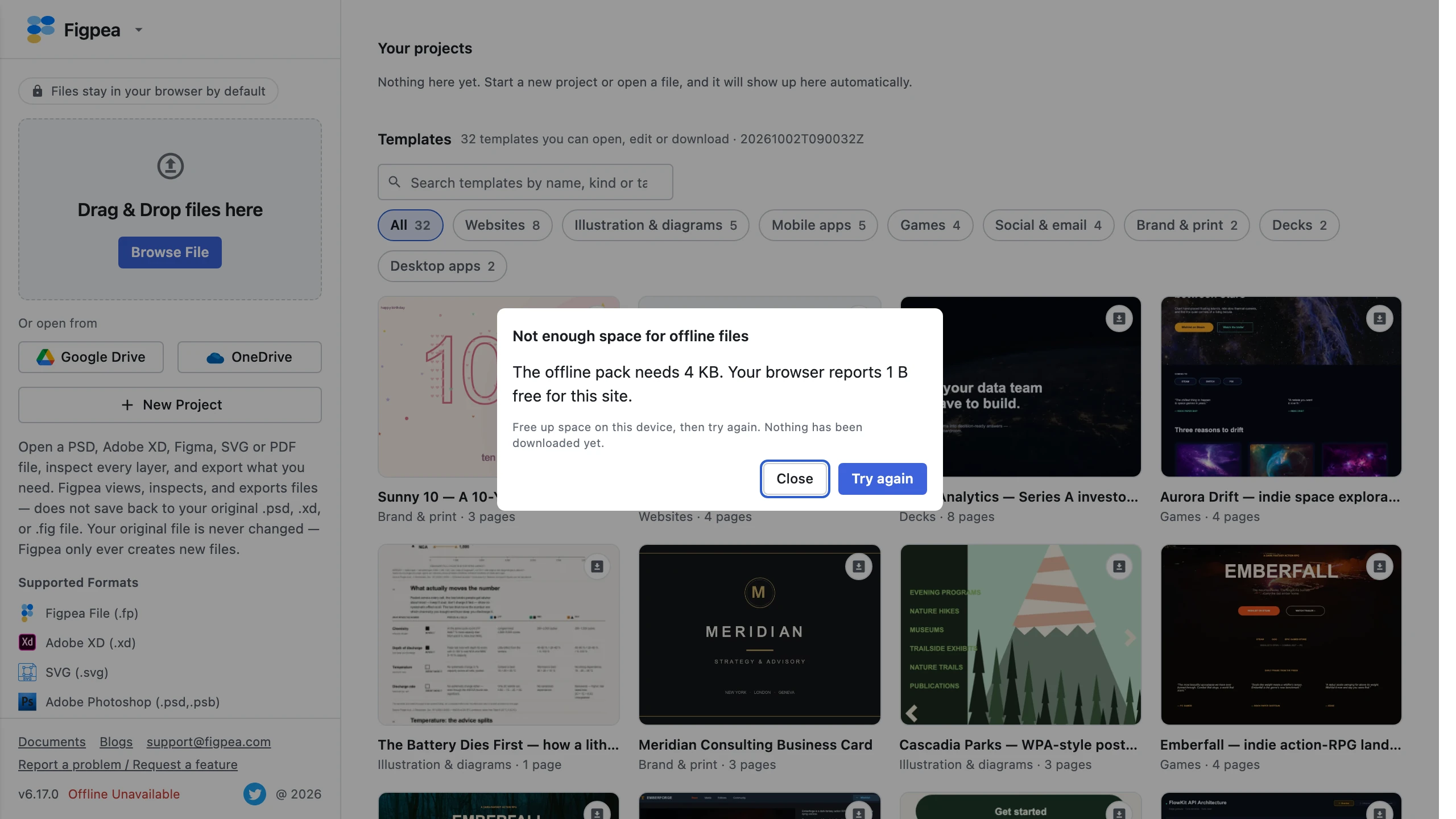
Before the first file is downloaded, Figpea asks your browser to keep the offline files persistently and checks that there is room for them. If there is not enough free space, the install stops and says so instead of failing partway.
When the browser cannot hold the pack, nothing is downloaded at all — the install stops before the first byte, and the editor shows a message titled “Not enough space for offline files” naming what the pack needs and what this browser reports available for it. The message ends with “Nothing has been downloaded yet.” and offers Close and Try again; Try again re-measures in place, so once you have freed some room you do not have to reopen the menu.

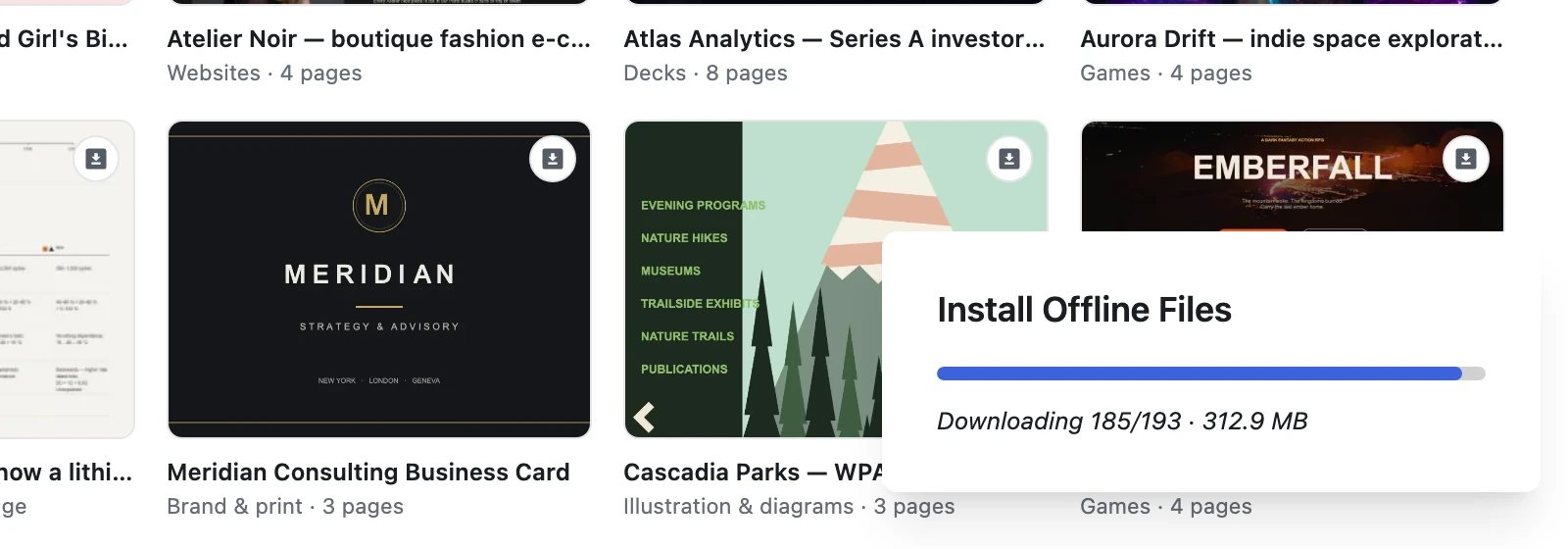
The download is a single pass over the pack. Figpea fetches each file once, a few files at a time rather than one after another.
Once the files are installed, Opening Design Files covers how files are opened, and the offline walkthrough covers browser support and installing Figpea as a desktop app.
If the install stops partway

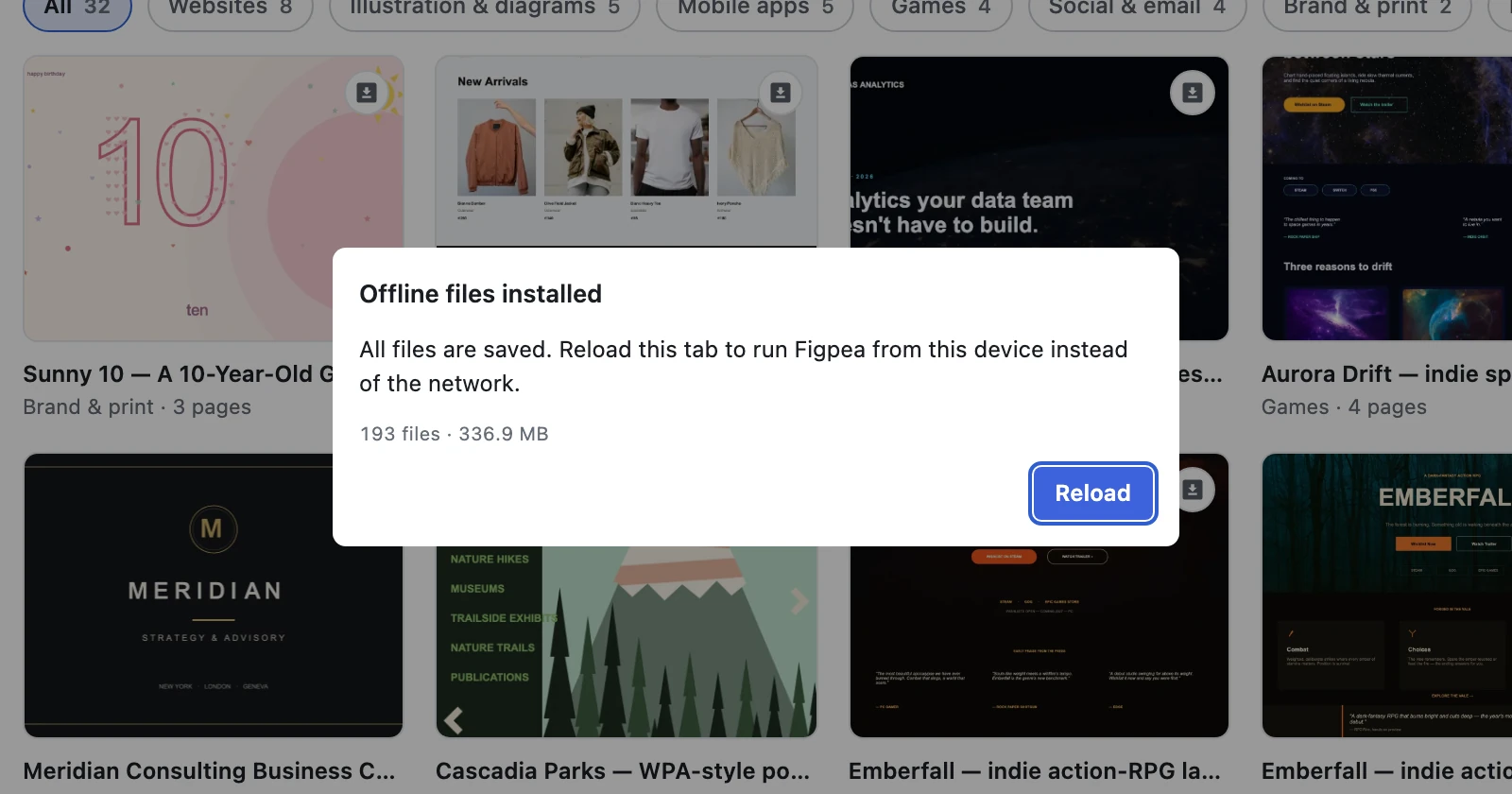
The install can end with some files still missing, and Figpea reports that instead of calling it done. The dialog is titled “Some offline files didn't download”, it lists what could not be fetched under “Files that didn't download” so you can see which part of the editor is affected, and its action is Retry missing files. The other two endings are told apart the same way: “Offline files couldn't be downloaded” when nothing arrived at all, and “Offline files installed” when everything did.
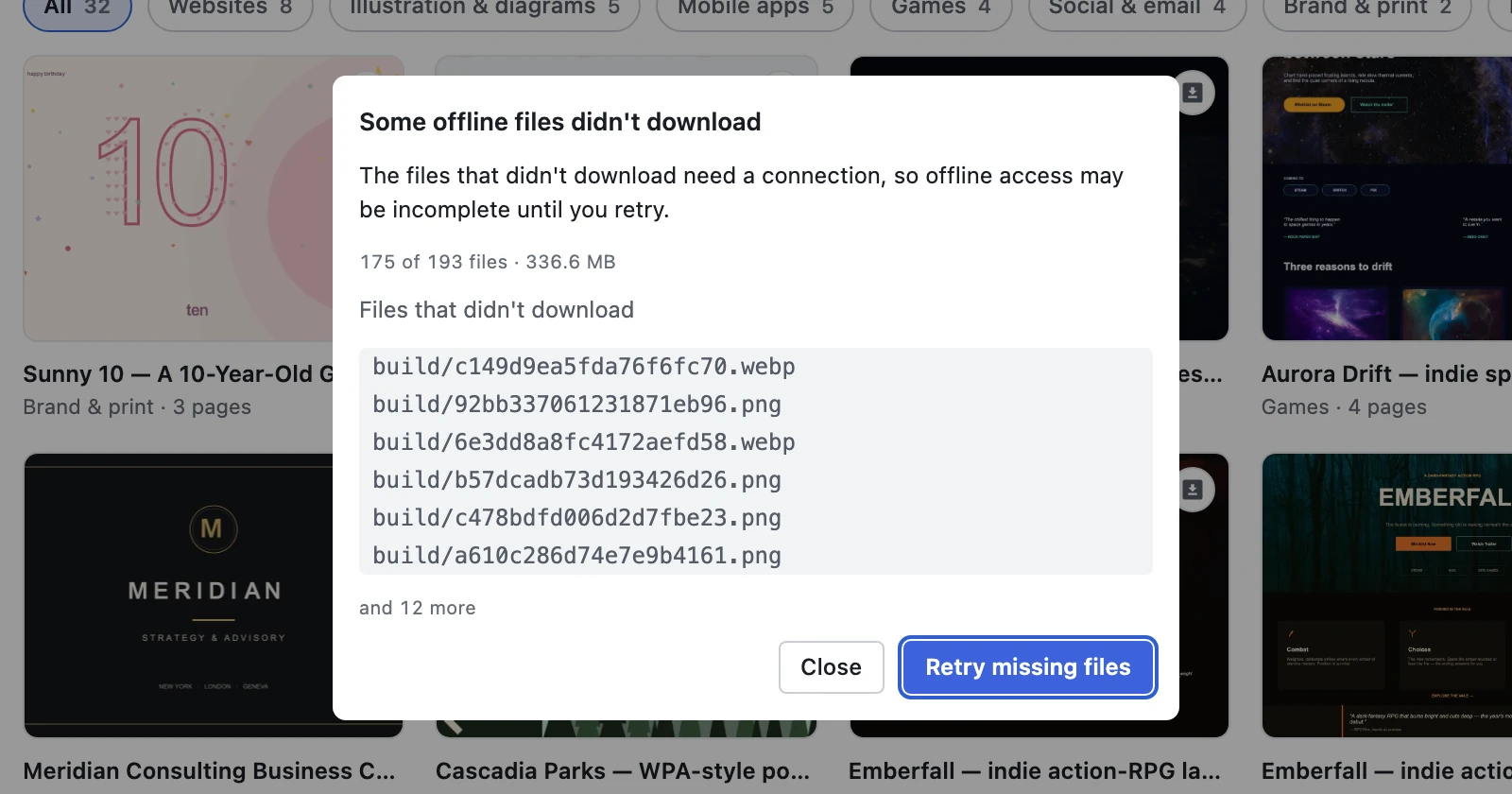
If the install stops partway, the files it already downloaded stay on your device: choosing Retry fetches only what is missing instead of starting over. An install with nothing left to fetch downloads nothing at all, and ends with the installed result.
Your files stay until you remove them
Your downloaded offline files stay on your device until you remove them. Figpea never deletes them for you — not on an update, not when your plan lapses, and not while it is still checking whether you have one.
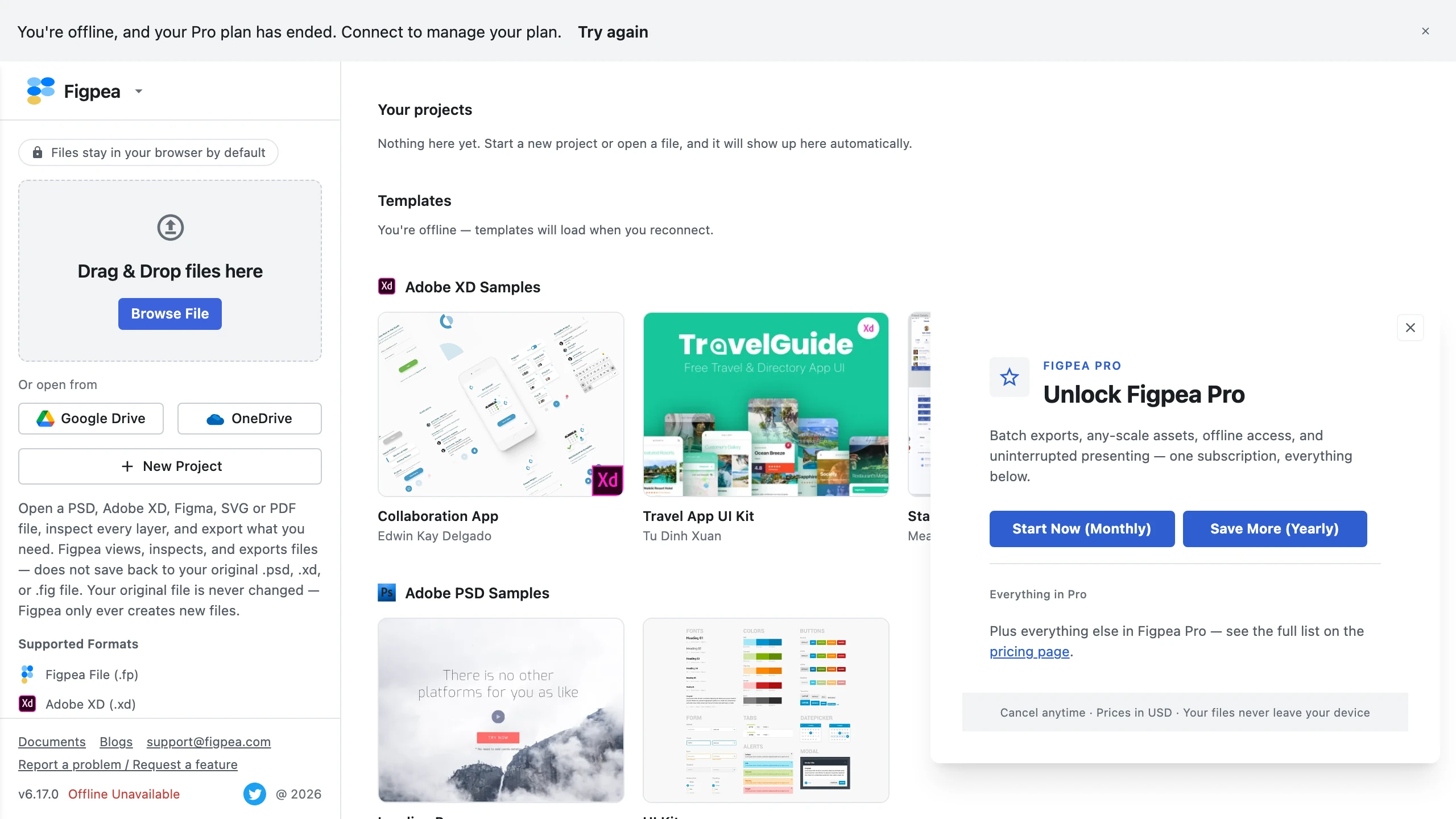
If your plan has lapsed, or Figpea cannot confirm it yet, the editor stops opening offline and tells you in the Offline notice. The files are still there.
That notice appears across the top of the editor with a Try again action, so one reconnect is all it takes to re-check your plan. Nothing about that notice touches the files on disk.
One honest limit: this covers the files Figpea downloaded. Your browser may still clear site data on its own when its storage runs short, which is exactly why Figpea asks for persistent storage before downloading anything. That request can be declined, and Figpea cannot override your browser's answer to it.
Remove Offline Files
Removing the offline files needs no plan check — a lapsed account can always clear the space it is using.
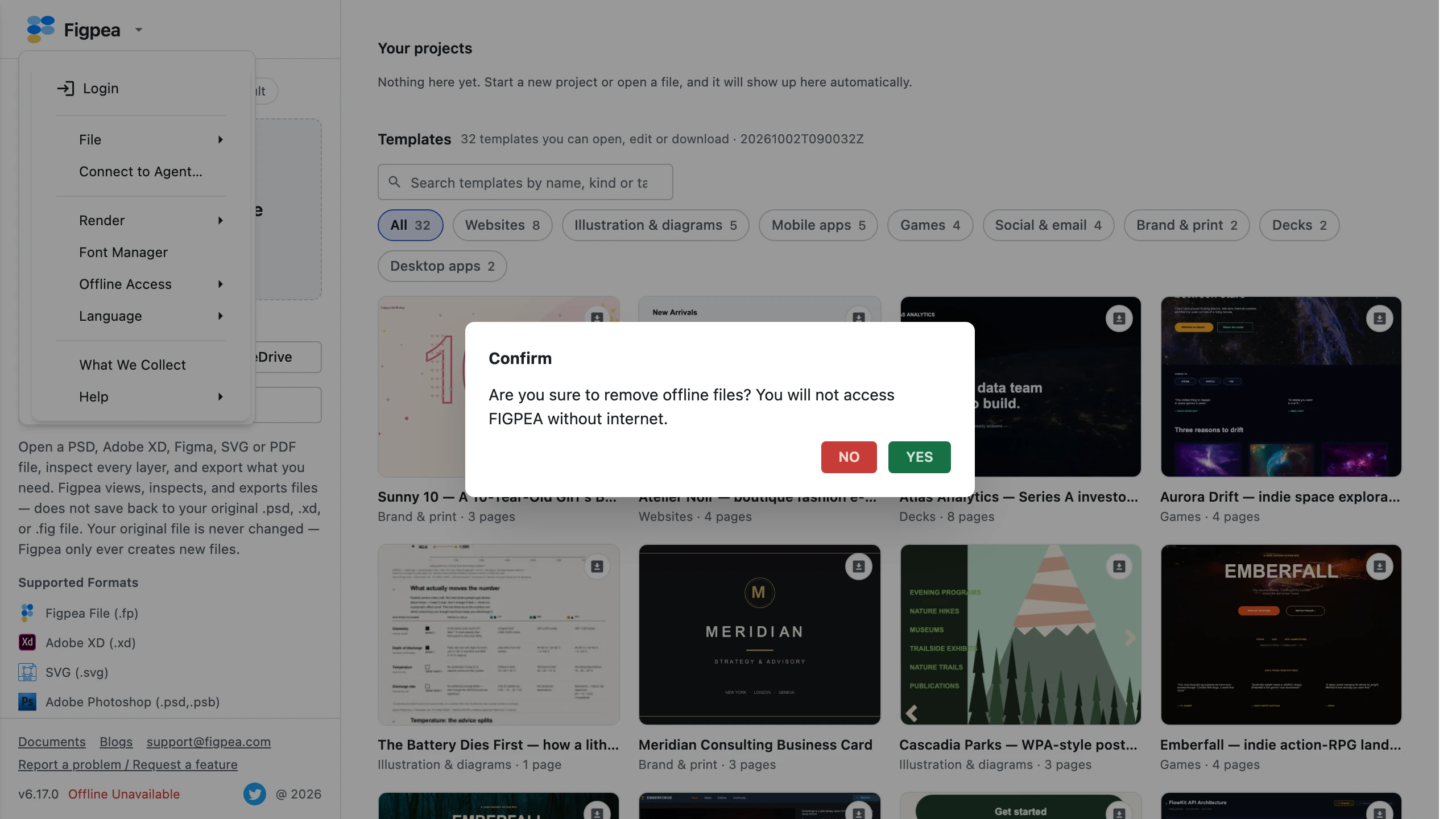
Open the main menu and choose Offline Access → Remove Offline Files. Figpea asks you to confirm, and the confirmation is explicit about the consequence: the offline files are removed, and Figpea will not be usable without internet until you install them again. Your own designs are not touched by it — the editing you have been doing is kept separately, in Your Projects & Restore.
FAQ
Will Figpea delete my downloaded offline files if my subscription ends?
No. The files stay on your device until you remove them yourself. A plan that has ended stops offline use, not the stored files — the editor explains it in the Offline notice, and offline use comes back as soon as a connection confirms an active plan.
My plan lapsed and the editor says Pro features are unavailable — are my offline files gone?
No. They are still there. Reconnect once and Figpea re-checks your plan; nothing was deleted in the meantime.
How much space do the offline files need, and what happens if my browser is running low?
Figpea measures the pack and compares it against what your browser reports available before it downloads anything. If there is not enough room, the install stops with the message shown above and downloads nothing, rather than failing partway. Free up space in the browser profile, or use a profile with more room, and install again.
Does Offline Access mean my projects are saved offline?
No. Offline Access is the editor itself. What you are editing is kept separately, in this browser — see Your Projects & Restore.
The install stopped partway — do I have to download everything again?
No. What arrived stays on your device. Retry missing files carries on from where the install stopped and fetches only what is missing, instead of starting the whole pack again. An install with nothing missing downloads nothing at all, and ends with the installed result.
I have two editor tabs open — will it download the files twice?
No. Only one tab downloads the offline files; the other says it is already installing in another tab and downloads nothing itself. Reload it once the first tab has finished, and it opens from what is already on your device.
Why do some fonts look different when I am offline?
Font files are not part of the offline download. A font you have already used is kept on your device by the editor, so it usually keeps working offline. A family you have never loaded needs one online load before it will render offline — until then Figpea renders a substitute and reports it in the Fonts Loading Issue card.
The Fonts Loading Issue card is what reports the substitution.