 Figpea
Auto Layout: Build Responsive Stacks in Figpea
Auto layout turns a group into a stack that re-packs its children for you. Pick a direction and the children line up along it; set a gap and padding and they stay evenly spaced; change alignment or switch a side to hug its contents and the group frame shrinks to fit. It all runs in your browser — nothing is uploaded.
Where the controls live
The Auto layout section appears in the right-hand design panel only when a single group is selected. It mirrors the existing Constraints and Boolean section vocabulary: a direction toggle, a Gap field, a linked four-side Padding control, Primary and Counter axis alignment, and Sizing. (If you have a shape, a page, or several layers selected, the section stays hidden — it is a group-only control.)
Turn a group into a stack


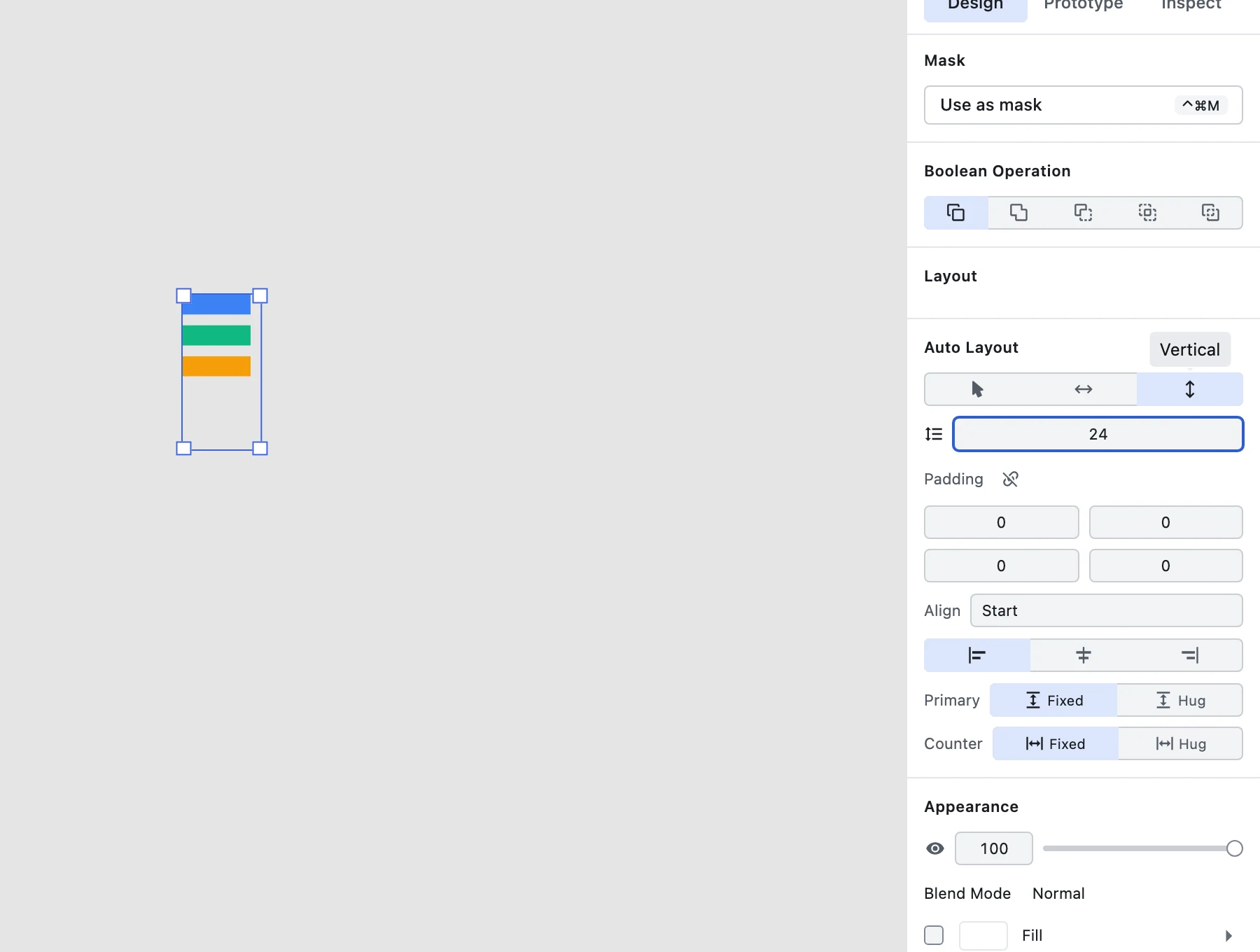

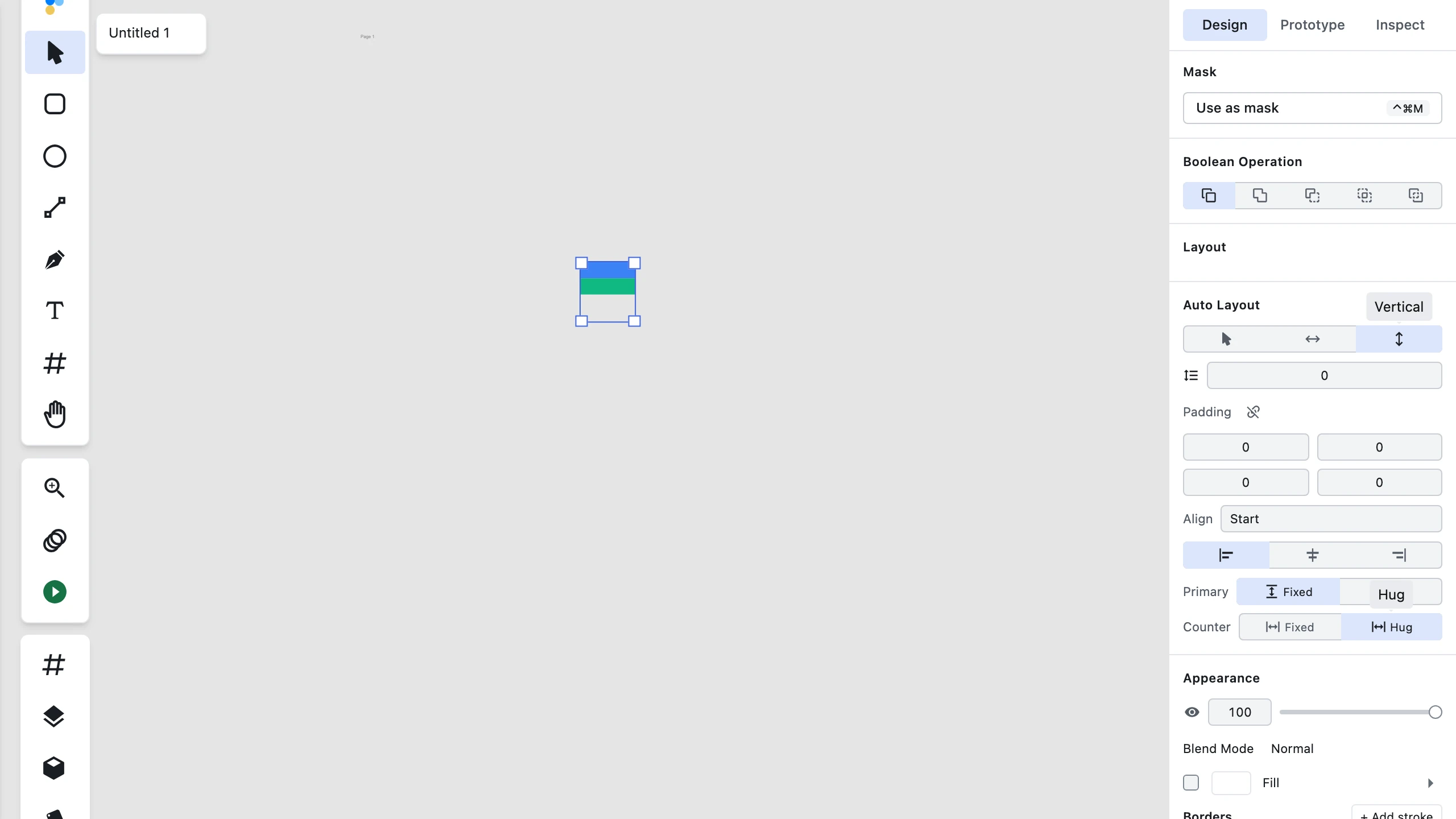
Set direction to None, Horizontal, or Vertical. Applying a direction adopts the children's current visual order and re-packs them immediately; one undo restores the free arrangement. The re-pack happens in place — the group stays where you put it, and hug growth extends outward from that same frame.
Gap
Gap is a single numeric field (itemSpacing). One edit is one undoable entry and every adjacent gap between children updates at once.
Padding
Padding is four independent sides with a linked/unlinked toggle. Linked, one edit drives all four sides equally; unlinked, each side is edited on its own.
Alignment
Primary axis alignment runs along the stack: Start, Center, End, Space between, or Space evenly. Counter axis alignment runs across it: Min, Center, or Max.
Sizing
Each axis has a Sizing toggle between Fixed and Resize to fit (hug contents). Switching to hug snaps the group frame to its children plus padding; switching back keeps the hugged size as the new fixed size. While Auto Layout is active, primary/counter sizing owns the group's box — the separate Layout → Resize control is hidden until you switch back to None.
Reorder on canvas
Drag a child inside an auto-layout group to change its stack index. The stack re-solves as you drop, and the reorder is a single undo.
Imported auto layout

If a group arrived from a Figma .fig file with auto layout already set, Figpea reads those values and shows them in the panel so you can tune them — the .fig parser is still maturing, so report any file whose layout does not come through.
Deferred fields stay untouched
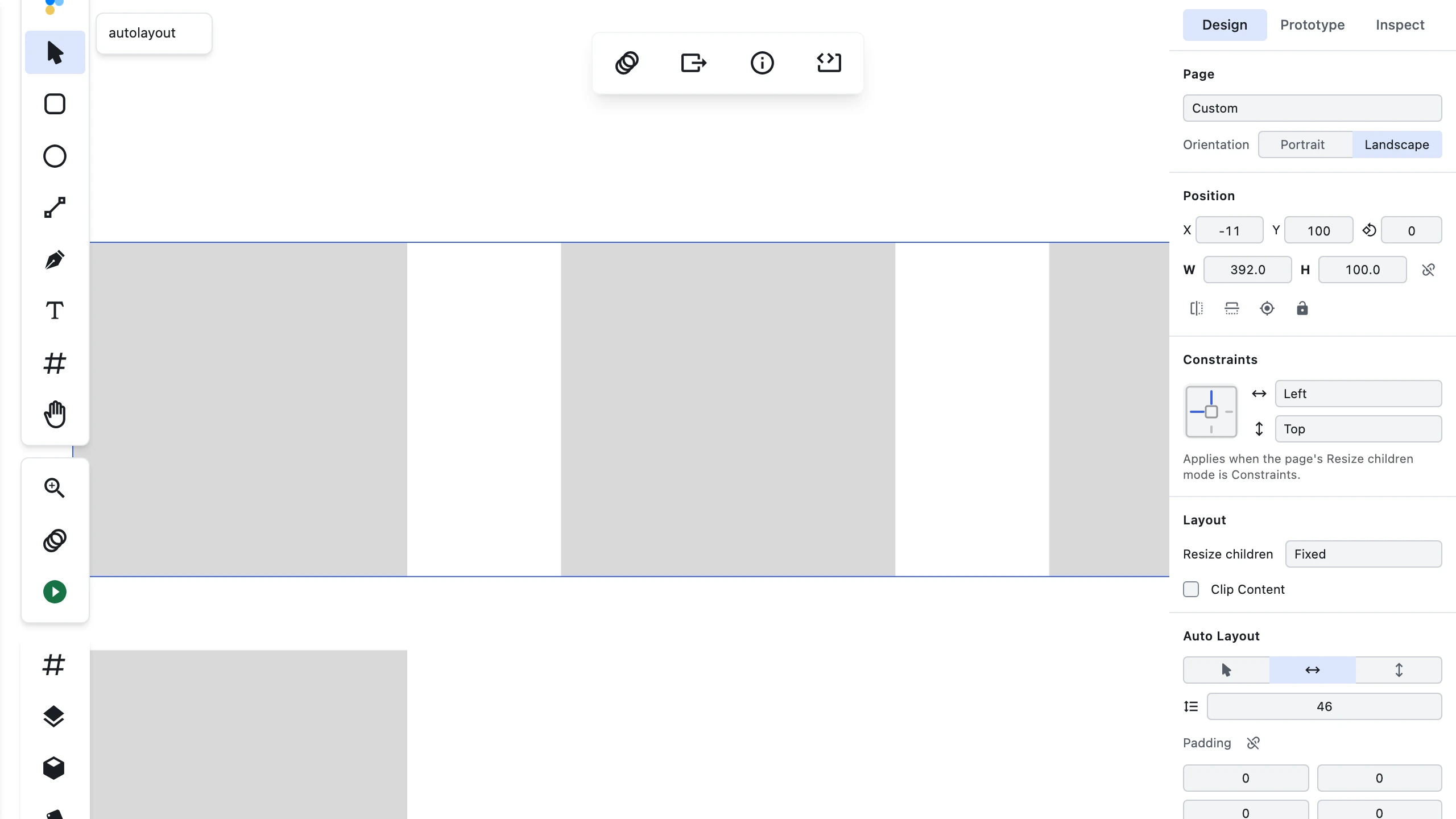
wrap, childGrow, positioning, counterAxisSpacing, and grid are not surfaced in this version. They are supported by the engine and are left unchanged by every control here.
Undo
Every control is one undoable history entry — the engine re-solves the stack on each change.
Persistence & what it does not do
Auto layout is saved with your Figpea project (the .fp file). It is not written back into the .psd, .xd, or .fig you opened — saving never rewrites the original file. Auto layout applies to groups only; pages and project layers are out of scope, and only .fig carries auto layout on import (not XD or PSD).
Frequently Asked Questions
What is auto layout in Figpea? A group whose children re-pack into a stack you control.
Can I apply auto layout to a single shape or to a page? No — groups (folders) only. Shapes and page/project layers are out of scope.
Does Figpea import auto layout from Figma files? Yes for .fig — including Figma's spacing modes such as Space between — values are read and editable; stated conservatively, with the report-a-file path.
Does auto layout save back to my original .fig / .psd / .xd file? No; it lives in the Figpea project and is never written back.
How do I reorder items in an auto layout group? Drag a child on the canvas; the stack re-solves and it is one undo.
What about wrapping, grid, or absolutely-positioned children? Not surfaced in this version; deferred with their engine support and left untouched.
Related docs
- Constraints & Resizing — the other reflow feature.
- Basic Layer Operations — selecting and creating groups.
- Advanced Layer Operations — group transforms.
- Components and Instances — auto layout and components together.
- Figma Import (Alpha) — where imported auto layout comes from.