 Figpea
What's New in Figpea v5.4.0: Vector Editing That Behaves Like a Vector Tool, SVG as a Real Round-Trip Format, and Placed Photoshop Layers That Finally Get Sharp
Figpea opens design files — Adobe XD, Photoshop (PSD/PSB), SVG, PDF, Figma and more — right in your browser. Nothing installs, and you don't need an account just to look at a file. Your original file is never changed; Figpea only ever creates new files. Your design files are processed on your machine and are not uploaded — with one new, explicit exception this release adds: if a file fails to open, you can now choose to send it to us as a broken-file report. That is opt-in, it is described in full below, and nothing is sent unless you ask for it.
This release has a clear headline: vector editing grew up. Figpea has had a path-edit mode for a long time, but it was single-layer, you had to double-click precisely to get into it, once you had a handful of anchors selected there was nothing you could do with them as a group, and the sub-toolbar held two tools. Ten requirements changed that, and they were refined against Figma's own Edit vector layers documentation so the gestures are the ones your hands already know.
The second theme is SVG as an interchange format rather than an export dead-end. Five requirements turned Figpea's SVG out of a one-way picture into something Figpea can read back — including through SVGO, which is what the ecosystem actually runs your files through.
There is no breaking change in this release; nothing you scripted against 5.3 stops working.
Vector editing: Enter, more than one layer, a Lasso, and a box around your points
Press Enter
Enter now drops you into vector edit mode on whatever is selected. That is the gesture every mainstream vector tool uses and the one Figpea did not have — until now you needed either a precise double-click on the shape or a trip to the inspector's Edit Path button. Both of those still work exactly as before; Enter is an addition, not a replacement.
On a mixed selection, Enter enters with the convertible subset — the shapes that can become paths — and silently ignores the ones that can't, like images, text and folders. If nothing in the selection can become a path, Enter does nothing. Text outlines are not part of this: a text layer is not a path layer, and editing glyph outlines is not something this release offers.
Edit several layers at once
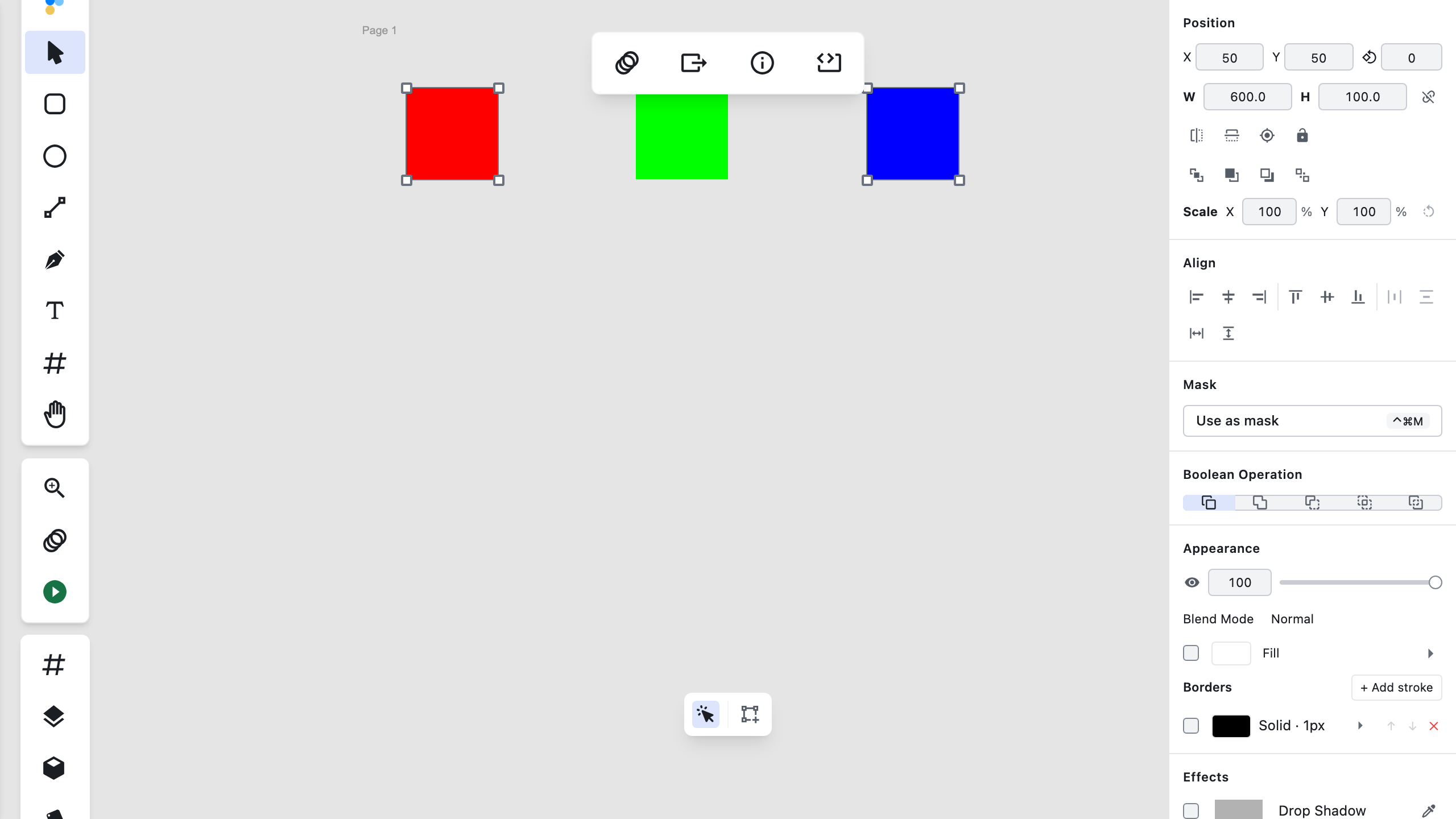
The mode used to be structurally single-layer: one chosen layer, and switching to another meant leaving and re-entering — losing your anchor selection every time, because the tool and selection state lived in component-local state that died on remount. Repairing an imported illustration whose shapes visually interlock meant doing that over and over.
A vector-edit session is now a set of layers. Anchors and handles render for every layer in the session, an anchor interaction routes to its owning layer, and geometry writes stay isolated per layer — a gesture that moves anchors in one layer is one undo step affecting only that layer. Shift-click on the canvas adds another path layer to the session; Cmd/Ctrl-click switches the session to a different path layer without leaving the mode. The Escape ladder behaves as it always has — clear the anchor selection, then exit.
Click the path to add a point to it
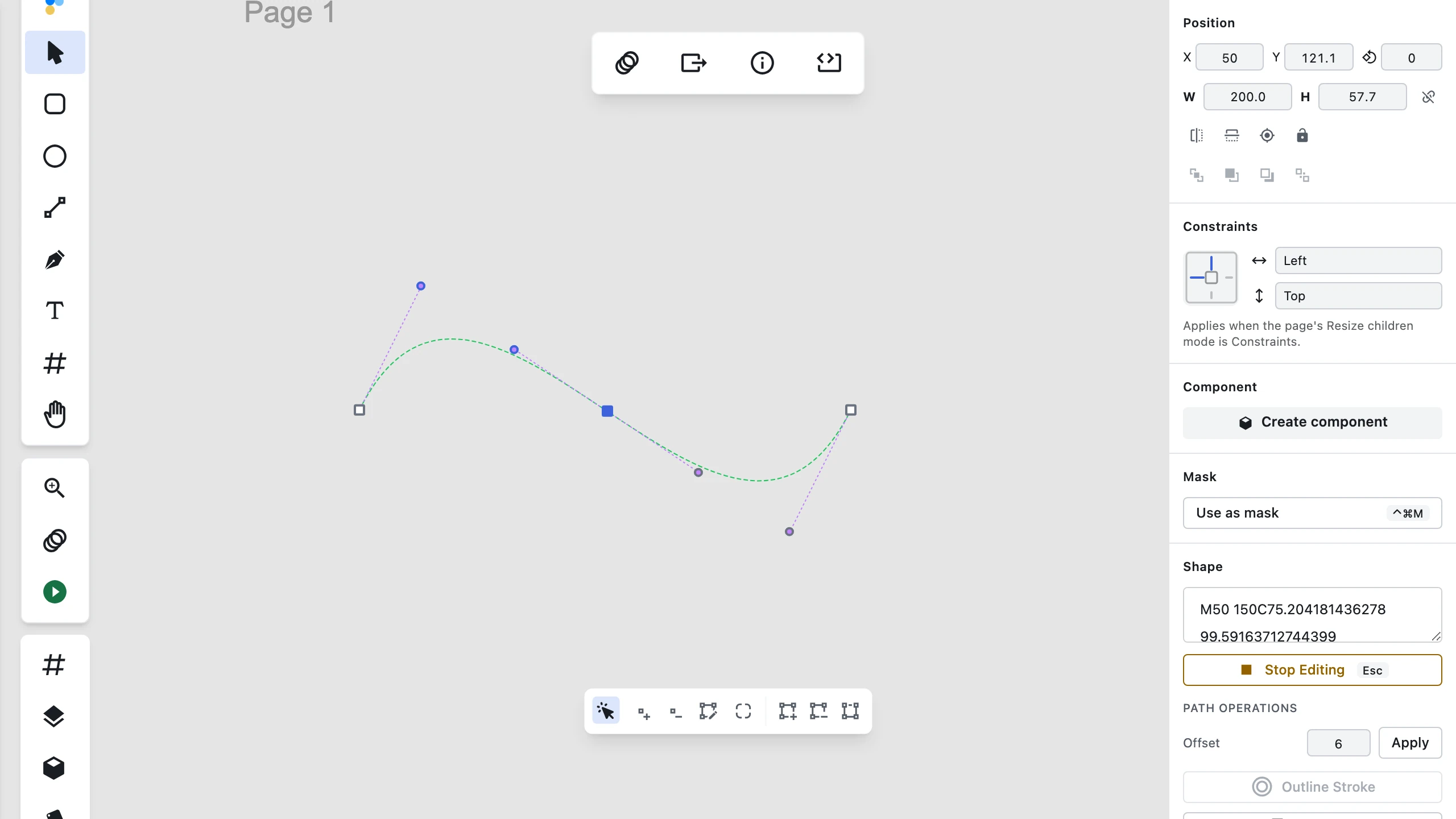
With the Pen sub-tool active, moving the pointer near a selected layer's outline now shows a preview marker at the projected position on the path — on the line, not under your cursor — with an add-point cursor. Click, and the anchor lands there.
The point of this is that it is shape-neutral. On a straight segment the new anchor goes exactly on the line. On a curved segment Figpea splits the cubic at the corresponding parameter and rewrites it as two cubics, adjusting the neighbouring handles so the rendered curve is unchanged — verified by sampling the path at 200 evenly spaced positions before and after and requiring every one to match to sub-pixel tolerance. The anchor lands in the right subpath's command run, leaving other subpaths byte-identical, and the whole insertion is one undo step. It is correct under rotation, scale and shear, because the projection is computed in the layer's own coordinate space.
The existing Insert After button and its raw-cursor placement are untouched.
Lasso
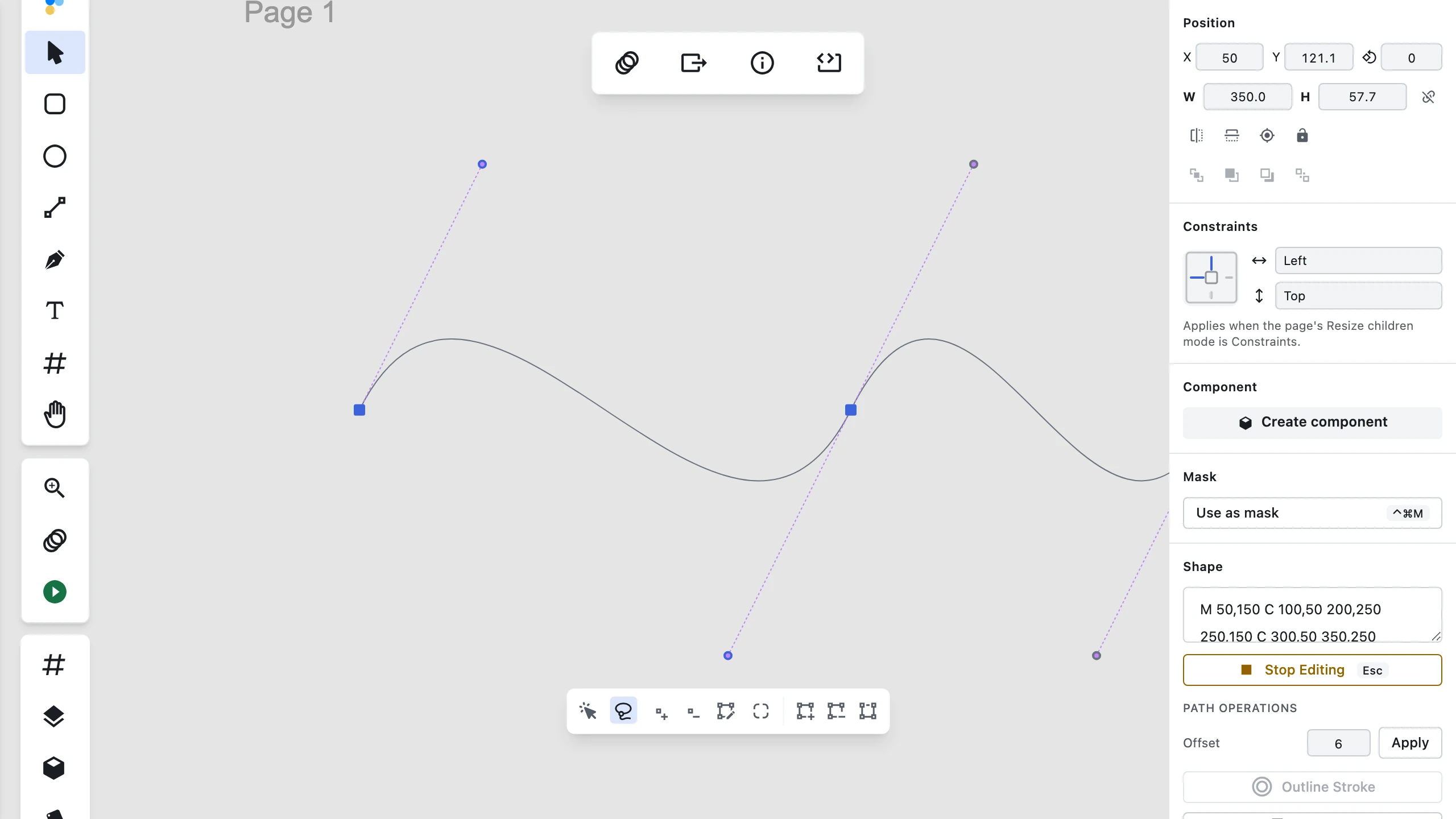
Press Q in vector edit mode, or click its toolbar button, and you get a Lasso. Drag a freeform loop and every anchor it encloses is selected; if you release without returning to your start, the loop closes from the release point back to the start and enclosure is evaluated against that. Hold Shift and the newly enclosed anchors join your existing selection instead of replacing it.
Enclosure is computed in screen space against the rendered anchor dots, so it stays correct on rotated, scaled and sheared layers. Escape abandons an in-progress lasso with your selection untouched and returns you to the Select sub-tool — it does not drop you out of vector edit. The resulting selection feeds everything that already consumes an anchor selection: move, delete, Convert To, Round Corners.
Two honest limits: the lasso selects anchors, not segments or whole subpaths — that needs a vector-network model Figpea doesn't have — and it does not select bézier control handles, which follow their anchors as they always have. The existing rectangular marquee is unchanged, including its replace-only behaviour.
A bounding box around the points you selected
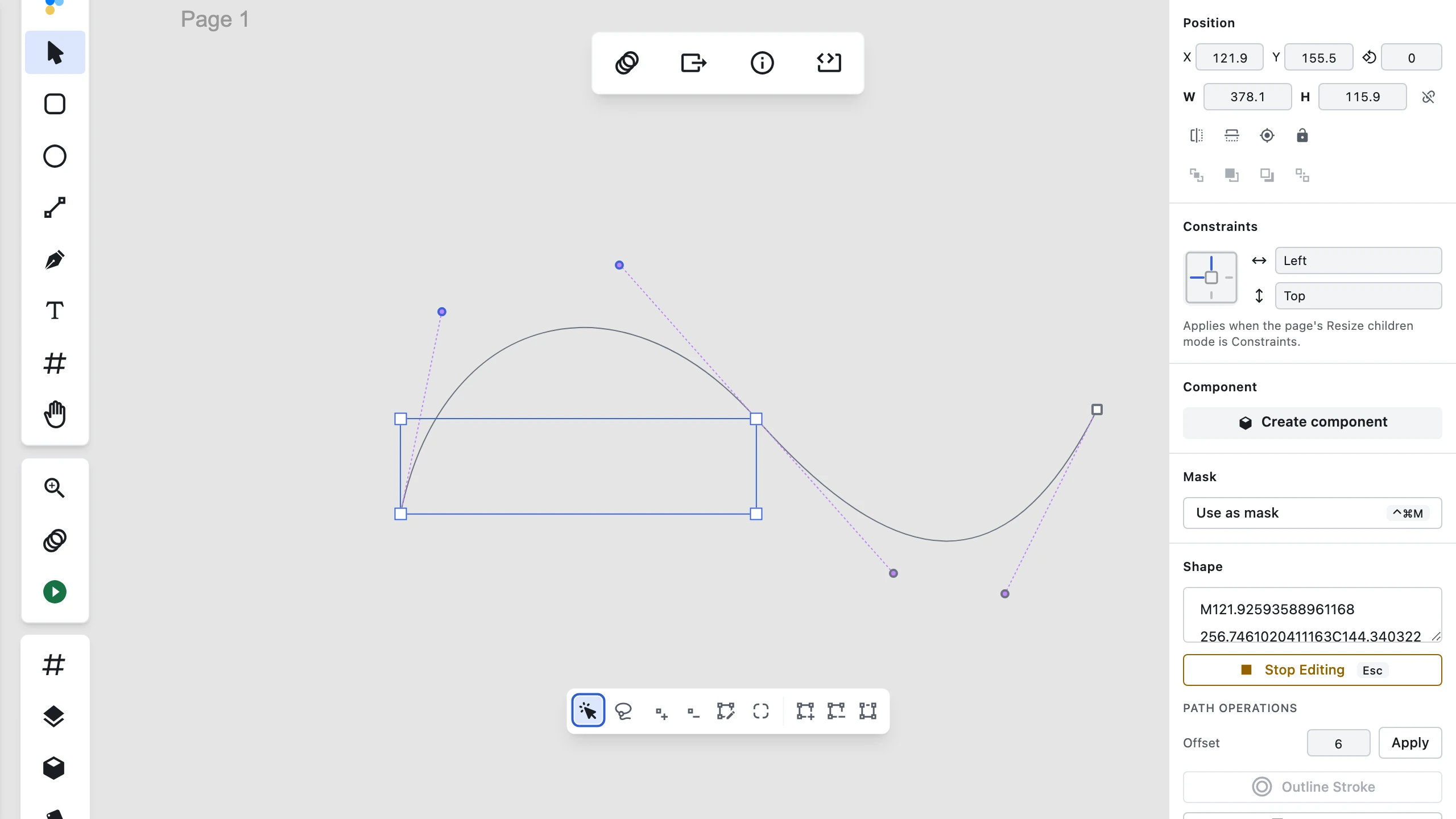
Select two or more anchors and a transform box now renders around exactly those anchors' extent, with corner and edge resize handles and corner rotation zones. Drag a resize handle and every selected anchor — and its attached bézier handles — scales about the opposite corner, while every unselected anchor stays put. Shift keeps the aspect ratio; Alt/Option scales about the box's centre; the two combine. Drag from a corner's rotation zone and the selection rotates about the box centre, with Shift snapping to 15°.
There's one gesture worth knowing about: holding Space part-way through a resize or rotate switches you to translating the selection, and releasing it resumes the original operation from the new position — all still one undo step, which restores the layer byte-identically. Handles stay a constant screen size at any zoom, and the box orients correctly on rotated, scaled and sheared layers.
A single selected anchor gets no box and drags exactly as it does today. The box appears identically whether you built the selection by shift-clicking, by rectangular marquee, or with the new Lasso. Shearing a point selection isn't offered, and there's no numeric W/H/rotation panel for it — this is a canvas gizmo.
Points that remember how they behave, and a Bend tool
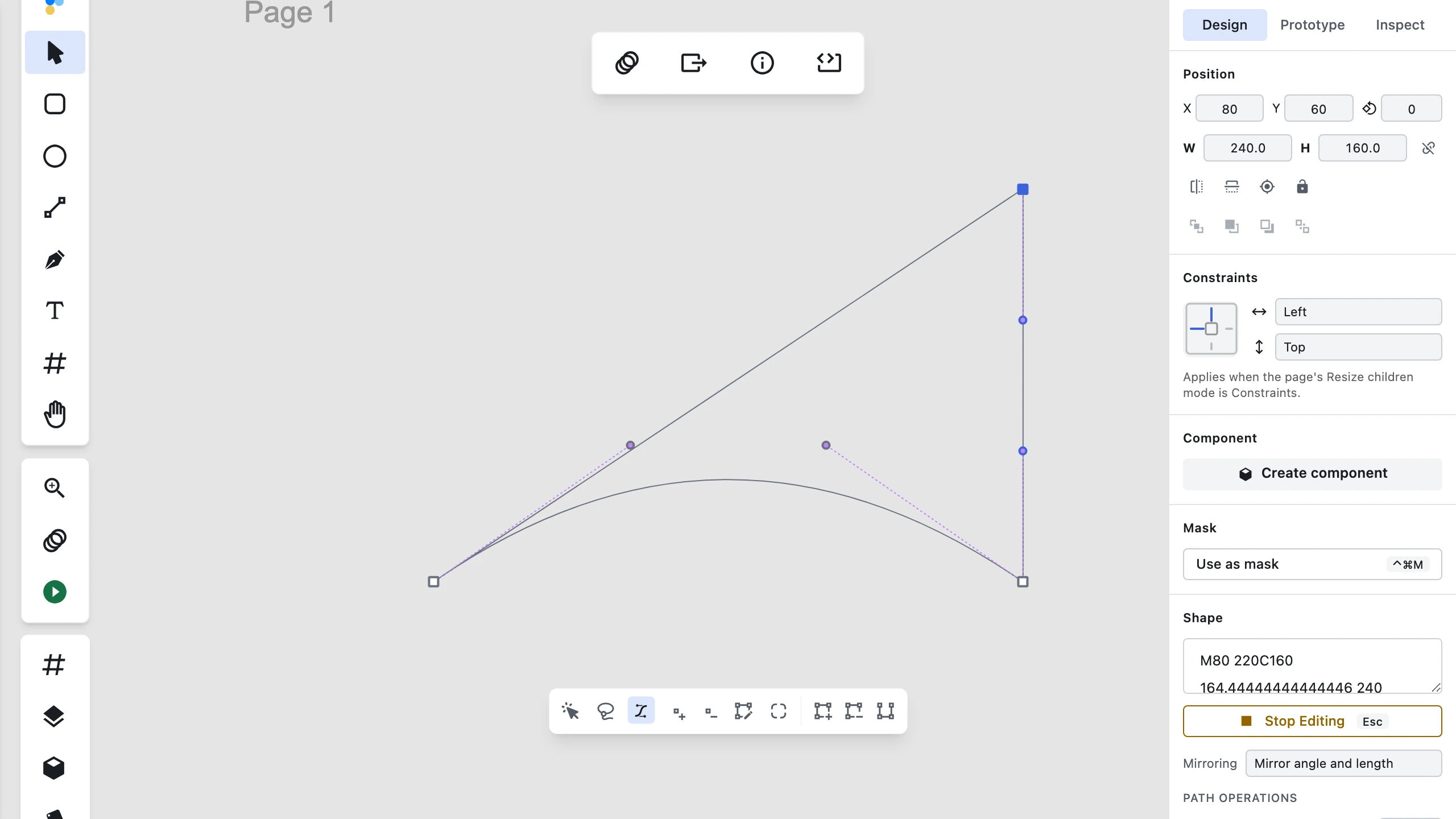
Underneath everything else in this section is a change you can't see: a point is now a thing with attributes, not just an index into a string. Figpea's path geometry is an SVG path string, so a point was its position in a flat command list — every insert or delete renumbered everything, and there was nowhere to hang a per-point property. There is now stable per-point identity plus an attribute sidecar that saves with the file, and three of this release's vector features are built on it.
The first is handle mirroring you can actually set. The three mirroring behaviours have existed in the code for a long time, but the mode was recomputed from held modifier keys on every pointer move and then thrown away — so a curve you carefully made symmetric quietly stopped being symmetric the next time you dragged its handle without remembering to hold Shift. Mirroring is now a stored property of the point, named as Figma names it — No mirroring · Mirror angle · Mirror angle and length — set from the inspector, shown back to you, with a mixed state across a multi-point selection, and persisted through save and reopen. A plain drag with no modifier held does what the point is set to. Files that arrive without the sidecar — every PSD, XD, .fig and SVG import, and every older .fp — get a mode inferred per point from the handle geometry that is actually there (collinear and equal length → mirror angle and length; collinear only → mirror angle; otherwise none), so imported artwork behaves sensibly on day one instead of defaulting to one value everywhere.
Alongside it, a Bend tool. Click a corner anchor and it gains bézier handles along the local tangent; click-drag anywhere on a segment and the segment follows your pointer into a curve, with the two anchors bounding it gaining exactly the handles that produce it and no other segment moving. Escape mid-drag abandons the gesture and restores the geometry; a completed bend is one undo step. And with several control handles selected, Shift-dragging one translates them all in parallel. The Bend tool has no keyboard shortcut — the article gives it none, and we didn't invent one.
Cut, variable width, and a Paint tool
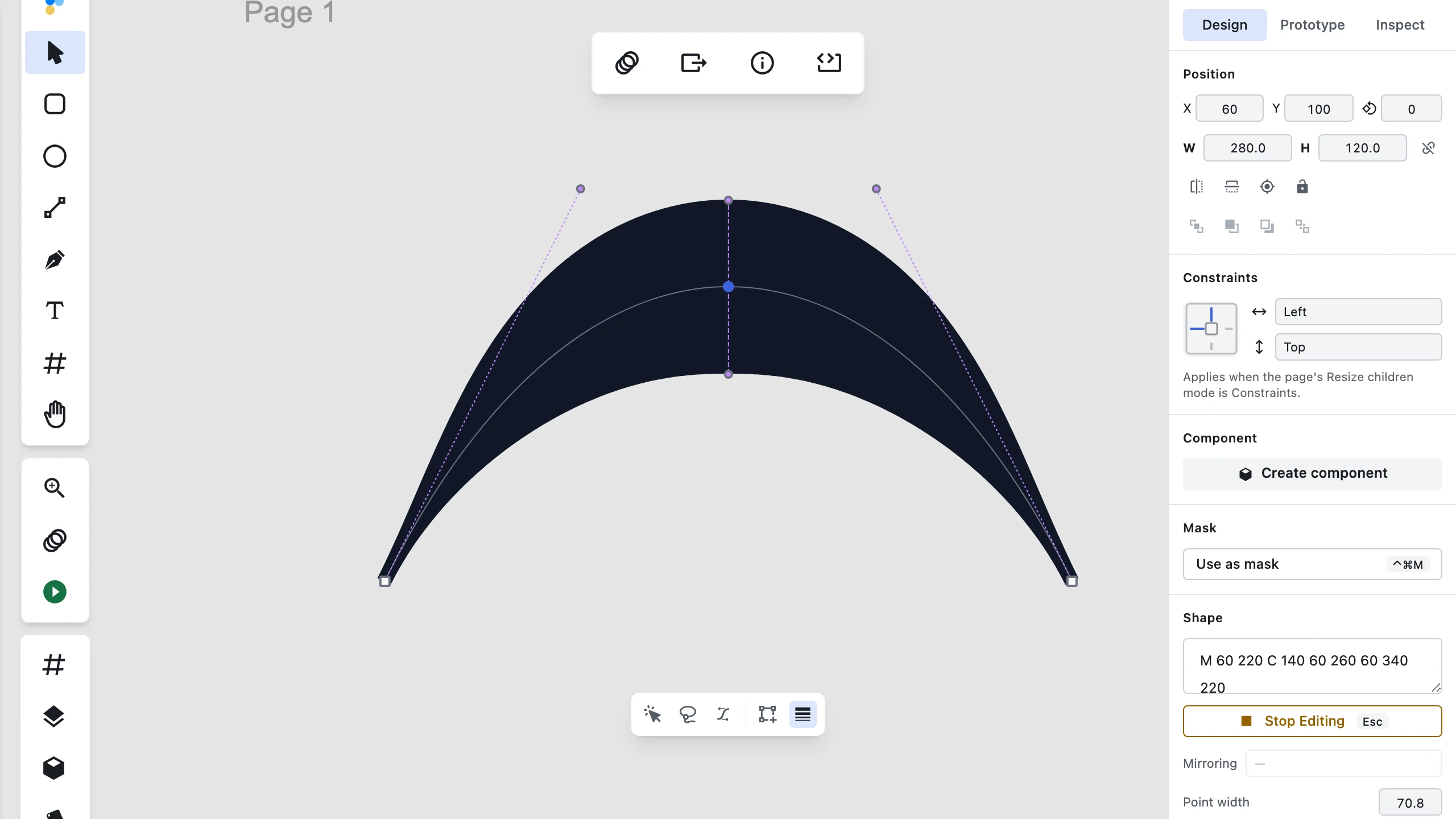
Three more tools join the sub-toolbar, all of them things Figpea previously had no way to express at all.
Cut (C) divides paths. Click an anchor on a closed path and it opens there; click a position along an open path's segment and it becomes two subpaths meeting at that point — in both cases the rendered outline is unchanged. Drag a straight cut line across a closed shape and it divides: the original layer keeps one part, a new sibling layer takes the other, both inheriting the source's fill, stroke, opacity, blend mode and effects with names derived from the original, and the two parts together covering exactly the original area. A preview line tracks the drag, Escape abandons it, and the whole cut — including the layer creation — is one undo step. It cuts along a straight line only, and only across layers already in your vector-edit session. We bound it to C rather than Figma's X because X is already Figpea's prototype tool, and a letter that means two things is a support burden.
Variable width lets a stroke change thickness along the path. Hover the stroke and a width handle previews at the projected position; click to place a width point, drag its handles to expand or contract the stroke there, or select it and type an exact number. Drag a width point along the path to move it without changing its value; Shift-click several and Delete returns those regions to the base width. Placement snaps to vector anchors, to the midpoint between two anchors, and to the midpoint between two width points, with Ctrl held to bypass snapping. Width points persist through save and reopen and stay attached to their own positions as anchors are inserted or deleted elsewhere.
Two honest limits on that one, both surfaced in the product rather than discovered by you. It declines on a dashed stroke and on a path with multiple subpaths, each with a stated reason — and for the second case it offers the remedy: a right-click Split vector action that splits a multi-subpath layer into one layer per subpath, after which the tool accepts each. (That splitting engine has existed in Figpea for a long time with no UI trigger whatsoever; this is the first release in which you can reach it.) The other limit is the export: SVG export of a variable-width stroke is not yet fidelity-matched to the canvas and can clip a stroke that widens past the layer's base width. That is called out in the docs and is tracked as its own follow-up rather than quietly shipped.
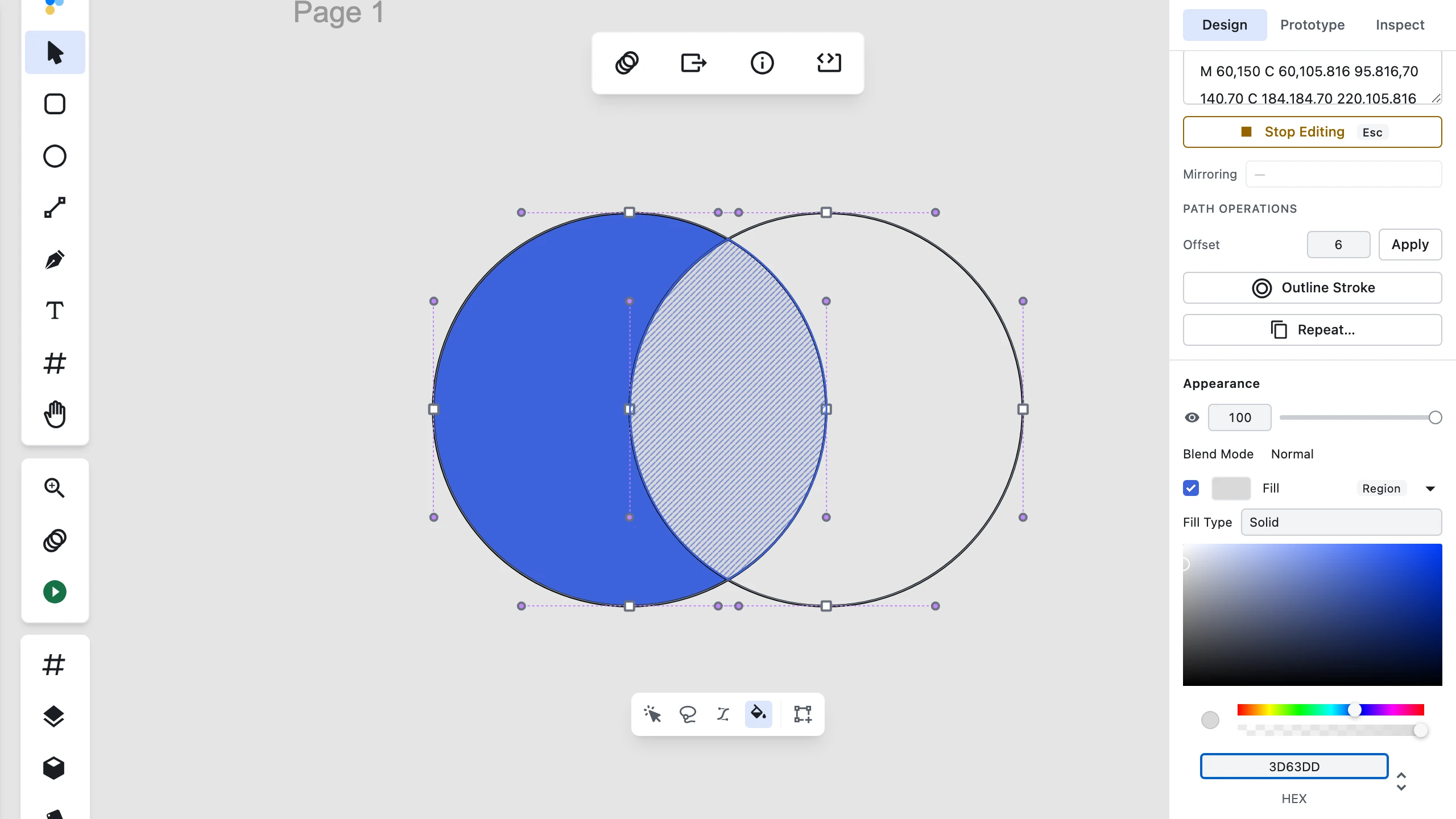
Paint (Shift+B) fills individual closed regions of a path instead of colouring the whole layer at once. This is the deepest of the three, because Figpea's model actively forbade it: fill was one property for the entire layer, and there was no region concept to address. Regions are now derived from the layer's own subpath geometry — including the regions formed where subpaths overlap. Hover one and it hatches with diagonal stripes, with a droplet-plus cursor over an unfilled region and a droplet-minus over a filled one; click to fill or unfill exactly that region and nothing else. Select a region and the sidebar's Fill section scopes to it — a Region chip appears beside the Fill label — and changing the colour there changes only that region. The overlap of two subpaths is its own independently fillable region: filling the lens leaves both parents alone. Per-region fills save with the project and are reproduced in SVG export.
What Paint is not: this is a region model derived from today's geometry, not a full vector network. You still cannot draw an edge between two arbitrary points or give a vertex three incident edges, and reading Figma's own VectorNetwork regions in from a .fig at import — where the fidelity value actually is — is a separate piece of work this makes possible rather than solves. Region fills are solid colours only, and an unclosed subpath is honestly reported as unfillable rather than silently doing nothing.
A corner radius that stays a number
Figpea has had Round Corners since v4 — a toolbar operation that bakes an arc into the path and deletes the original anchor. It works, but it is one-way: the radius is stored nowhere, so a rounded corner cannot be selected and re-tuned, and the only way back is undo.
There is now a Corner radius field in the right sidebar for the selected vector point(s), and it is a property, not an operation. Change it whenever you like — re-tuning always recomputes from the corner's original sharp geometry rather than compounding onto the last result — and setting it back to 0 restores the original corner byte-identically. Radii persist through save and reopen, survive anchors being inserted or deleted elsewhere on the path, show a mixed state across a multi-point selection, and export as SVG arcs. A radius larger than the adjacent segments can take is clamped, and the clamped value is shown back to you rather than silently applied.
It rounds straight corners only — the same limitation the existing engine has always had — and for a curved corner the field is shown disabled with the reason rather than doing nothing. Open-path endpoints aren't corners at all, so the field doesn't appear for them; those are what lineCap is for. And the destructive Round Corners operation is untouched and still there: there are real cases (baking before an export or a boolean) where you want the arc in the geometry. Whether the two should eventually consolidate is a genuine product question, and it is recorded as one rather than answered by stealth.
SVG: a format Figpea can read back
Figpea's SVG export has always been a good picture and a poor document — everything Figpea knew that SVG has no vocabulary for was simply dropped on the way out. Five requirements changed that, and they were deliberately built so that a plain SVG export stays plain.
The encoder already wrote a durable layer name and a blend mode, and the decoder ignored both. It reads them now — data-name in preference to id (the raw name is more faithful than the sanitised, uniquified id, and SVGO's cleanupIds strips ids anyway), plus mix-blend-mode for the CSS-native modes and data-figpea-blend-mode for the rasterised PSD-only ones. Both reads are opportunistic: a generic third-party SVG carrying neither behaves exactly as it did before, and an unrecognised blend value is ignored rather than thrown on.
There is now an opt-in Figpea round-trip channel. Turn it on and the export carries a versioned set of data-figpea-* attributes — per-element for element-scoped state, plus a single document-level JSON payload on the root <svg> for things with no element to hang on. The first payload set is the cheap, unambiguous stuff SVG genuinely cannot express: stroke position, locked, mask kind, clipContent/isolated/overrideChildrenStyle, and shape type. That last one earns its place by measurement — SVGO rewrites <rect> into <path>, so without it a rectangle comes back as a generic path.
Three rules make this safe rather than clever. It survives SVGO's default preset, which is what the ecosystem actually runs. If a third-party tool edited the markup so it disagrees with the payload about something SVG can express — a changed transform, say — the markup wins, so someone else's edit is never silently reverted. And a payload whose scheme version is newer than the decoder understands is ignored wholesale rather than partially applied, falling back to plain-SVG interpretation with a diagnostic. Malformed payloads do the same. With the channel switched off, none of those attributes appear at all, and two consecutive exports of an unchanged layer are still byte-identical.
To be explicit about what this is not: SVG is not becoming a lossless project format, and it is not a .fp replacement. The channel deliberately duplicates nothing SVG already expresses — no geometry, no transforms, no fill or stroke paint.
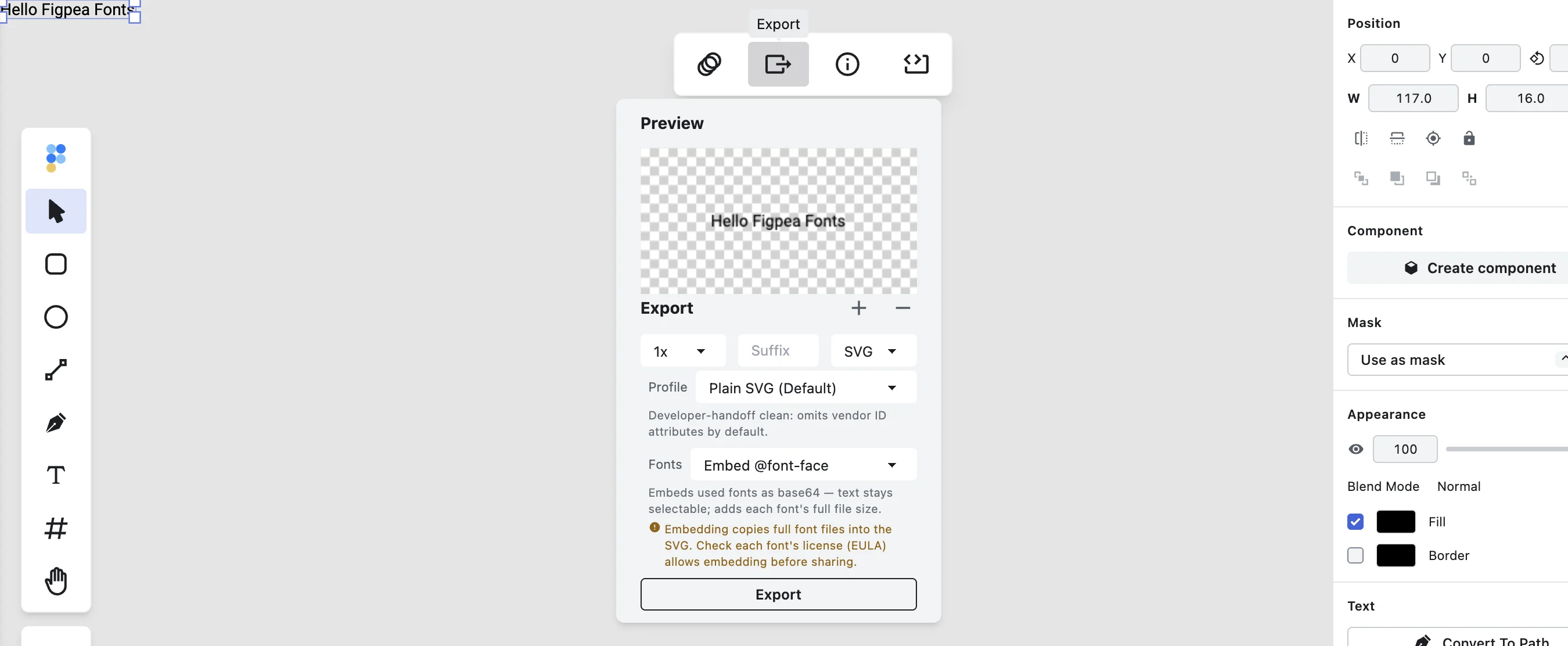
Fonts can now travel with the file. The export offers three font behaviours: leave them alone (today's behaviour, and still the default), embed @font-face rules whose src is a base64 data URL covering exactly the faces the exported subtree actually uses, or convert text to outlines. Embedding shows you the licensing implication before the export completes — that's the amber warning in the shot above, and it is there because embedding copies whole font files into a document you may be about to share. Outline mode plus the round-trip channel is the interesting combination: the text is <path> geometry for anyone else, and re-importing it into Figpea restores an editable text layer with its string and font metadata rather than a pile of paths. A font whose binary isn't available is skipped with a diagnostic rather than failing the export. There is no subsetting — full faces only — so embedding costs real bytes, and we disclose that rather than solving it.
Prototype interactions round-trip too, behind their own option. Interactions whose target is inside the exported document are resolved and restored; targets outside it are preserved verbatim so a future multi-page export can resolve them without a format change, and a diagnostic tells you at export time that the export is partial rather than letting you find out later. Nothing here makes the SVG interactive in a browser — there's no SMIL, no JavaScript, no CSS animation emitted. It renders as static artwork with no script execution. This is data preservation for a Figpea round-trip, not a prototype player.
The markup itself moved to SVG 2 where that is real. xlink:href is gone in favour of plain href, and the root stops declaring xmlns:xlink when nothing needs it; the decoder accepts both forms on import, so old files are unaffected. paint-order is emitted where Figpea's own rendering needs a non-default fill/stroke order, notably text stroke. Stroke position uses the standard stroke-alignment vocabulary — center/inner/outer — inside the Figpea channel. What we deliberately did not do is emit the real stroke-alignment property: no browser implements it, and shipping it would produce markup that renders inconsistently. Mesh gradients, hatches and marker knockout are out for the same reason — we went and checked, and the support isn't there.
Photoshop
The remaining eight adjustment types
v5.3.0 shipped eight Photoshop adjustment layer types and was explicit that eight more were not decoded. Those eight — Curves, Color Lookup, Selective Color, Channel Mixer, Photo Filter, Color Balance, Exposure and Vibrance — now decode and render too, through the same transform stage the first eight use, with the warning that used to name them as unsupported no longer firing.
They come with a hand-authored fixture built specifically to be hard: non-default parameters for every type, at least one adjustment clipped to the layer below it, at least one inside an isolated group, and at least one carrying its own layer mask. Per-type render output is gated against it.
The v5.3.0 boundaries still stand and are worth restating: this is import fidelity only — you cannot author or edit an adjustment layer in Figpea — Figpea does no ICC colour management so adjustments operate in the working sRGB space, and smart filters (adjustments attached to a smart object) are still not decoded.
Hue/Saturation and Black & White now follow Photoshop's maths
v5.3.0 named a specific limit: for those two types, the maths was Figpea's own model rather than measured Photoshop parity. That's the kind of admission that is easy to leave standing, so it was filed and fixed.
The hard part was not the formulas, it was having something truthful to check them against. Re-deriving a formula and then asserting your code matches your own derivation proves nothing. So this work established an independent reference — Photoshop's own baked composite as the golden — and both arms were corrected against it: Hue/Saturation to Photoshop's saturation and lightness semantics (saturation is not additive; lightness moves toward white or black rather than shifting HSL's L), and Black & White to Photoshop's documented channel mix. The old formula-re-derivation expectations were replaced with the independent reference, not merely re-tuned.
Two things this does not cover: Hue/Saturation's per-colour-range targeting (Reds, Yellows, and so on) and its Colorize mode.
A placed layer that gets sharp when you zoom
This is the one v5.3.0 flagged loudest as not shipped. That release decoded smart objects and placed layers properly, and then said plainly that a scaled-down placement still would not resolve at display resolution when you zoomed in — that the measurement had not supported the claim, so the change was reverted and split out rather than shipped on faith.
It ships here. Zoomed to 400% on a real corpus file, the composited region is now measurably sharper than a naive 4× upscale of the same region captured at 100% — by a factor of about 26, against a mutation-proven test that drops to 1.4 when the fix is disabled. That non-vacuity mutation mattered: two earlier attempts to prove the test could fail did so only by breaking the render entirely, which proves nothing, and the historical measurement that made this look unfixable turned out to be a contention artifact from a five-worker test run rather than a real result.
Chasing it also turned up a genuine defect worth naming on its own: for ImageData patterns below a certain target scale the renderer returned a scale that made its own "should I re-render?" check answer yes forever, so the canvas never reached idle. That's fixed, and the render settles in about three seconds where it previously never did.
Smaller Photoshop fixes
- Vector masks on group layers were not decoded. A group carrying a vector mask lost it. (Pixel and alpha mask parsing are unchanged.)
- Indexed, Duotone and Lab documents with no alpha channel read the wrong channels. The RGBA generator assumed a channel stride that those three modes without alpha don't use, so colours came out confidently wrong rather than obviously broken. Multi-pixel fixtures now cover all three.
Typography
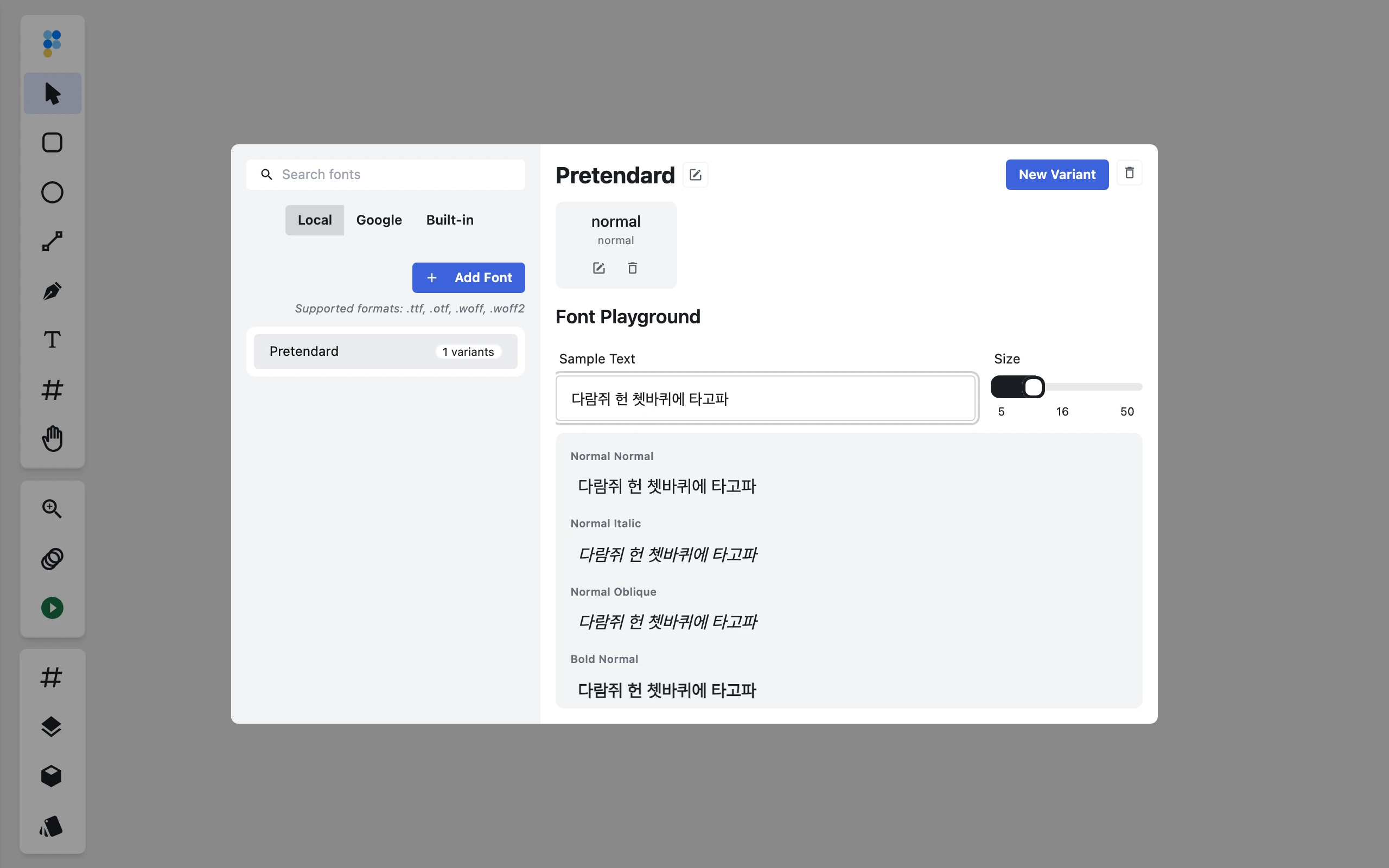
CJK and complex-script fonts failed to load. Fonts using GSUB lookup types 5 and 7, and scripts with no DFLT entry — which is to say a large share of Korean, Japanese, Chinese and Indic typefaces — failed to re-encode and were discarded. Large variable fonts hit a separate Table lookupListTable too big ceiling. All of those load and render now, and a font that genuinely cannot be re-encoded degrades gracefully instead of being dropped with an uncaught error.
Two font error call sites were also reporting telemetry that could not be acted on — one passing an error object where a message string was expected, one passing its two arguments in the wrong order. Both are fixed, and font error telemetry now identifies a font by its parsed family or PostScript name rather than by your filename, which keeps file names out of analytics where they never belonged.
fontFamily set through the agent API was silently ignored. Every text layer authored by a script or an agent rendered in a fallback face, whether the family was set at create or through stylePatch, and nothing said so. It now resolves and registers the family before render when the editor has a descriptor for it, reports a diagnostic when a family genuinely can't be resolved, and — the part that makes it trustworthy for automation — waitForIdle() no longer resolves while a requested family is still loading. Without that, a script would screenshot a fallback and believe it.
Performance: blend modes stop repainting the world
Figpea composites its 16 natively-supported blend modes on the browser's fast path. The other 11 go through a per-pixel compositor — and that compositor was reading, blending and writing the entire canvas, for each such layer, on every frame, regardless of how small the layer was.
It now blends only the layer's own device-space bounds. Fully transparent source pixels are skipped as the first statement of the inner loop, and the per-call full-canvas output allocation is gone in favour of a caller-provided buffer. The 11 operators are byte-for-byte identical to before and the natively-composited 16 stay on the fast path — a document with non-native blend modes on a large canvas just stops doing work proportional to the canvas instead of the layer.
We want to be precise about the "looks the same" part rather than assert it flatly, because this release also ships a separate first-render defect (below) whose differing pixels happen to overlap a test file's linear-burn layers — exactly the coincidence that turns a confident claim into an embarrassing one. So: the evidence is that the six blend suites pass with unchanged expected pixel values, that the PSD fidelity corpus scores match the pre-change baseline byte-for-byte, and that when this change was reverted in isolation against that first-render measurement it moved the result by one pixel out of 1,296,000 — i.e. it is not a contributor. That is a strong result on the corpus we measure. It is not the same sentence as "no document anywhere can differ", and we would rather publish the first one.
One micro-optimisation is explicitly not here, and is worth recording so nobody re-does it: hoisting the per-channel blend closure out of the pixel loop measured 3× slower, because it makes the call site megamorphic and blocks V8 from inlining.
Interface
The Pages panel, rebuilt
The Pages panel is now a compact Figma-style list. Its header carries the page count, an + Add Page button and a Present play button, with a search/filter input appearing once you have more than three pages. Each row is a compact line with a page icon and name, a highlight on the active page, and hover actions for Play, Duplicate and Delete. Rename inline by double-clicking or from the row's context menu; the same menu offers duplicate and delete, with delete disabled when only one page is left. Selecting a page still frames the camera the way it always did.
An inspector with tabs
The inspector panel now has a tab strip: Design · Prototype · Inspect. Today's twelve inspector sections move into Design as-is — nothing was re-themed, reordered, or made collapsible, and nothing changed about what they do. The active tab is remembered for your editing session in memory only — it is deliberately not a saved preference — and the inactive tab's content is unmounted rather than hidden. The tab strip works in the mobile drawer, in page-tool mode, and with nothing selected.
The other two tabs are not placeholders. Both were filled in the same release, and what moved into them is the more interesting half of the story — because in each case the capability already existed and was reachable only through a transient popover in the snackbar at the bottom of the screen, which is a strange place to keep a panel you work in.
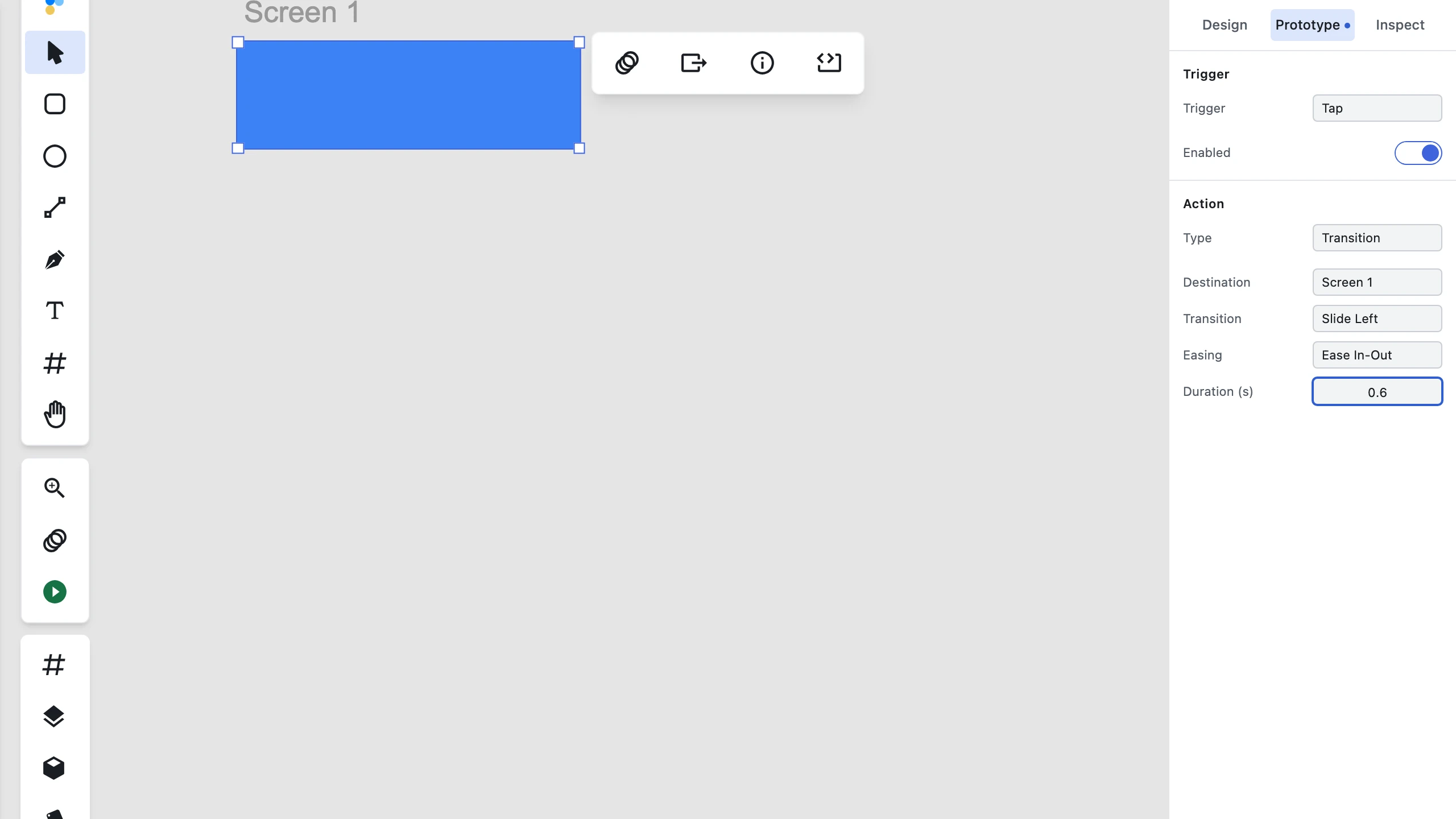
Prototype is now where you author interactions. The whole surface is there — trigger, the enabled toggle, action type, and every per-action body: artboard transition, auto-animate, overlay, hyperlink, previous artboard, scroll, and state transition — re-tokenized to the inspector's own design language and refitted to the 252px panel rather than the popover's 320px. Authoring behaves exactly as it did; this is a relocation and a restyle, not a change to what an interaction is. The tab also carries a small badge dot when the selected layer has at least one enabled interaction, so you can see at a glance which layers have behaviour wired without opening anything. The dot deliberately gates on enabled rather than present, for a reason worth explaining below.
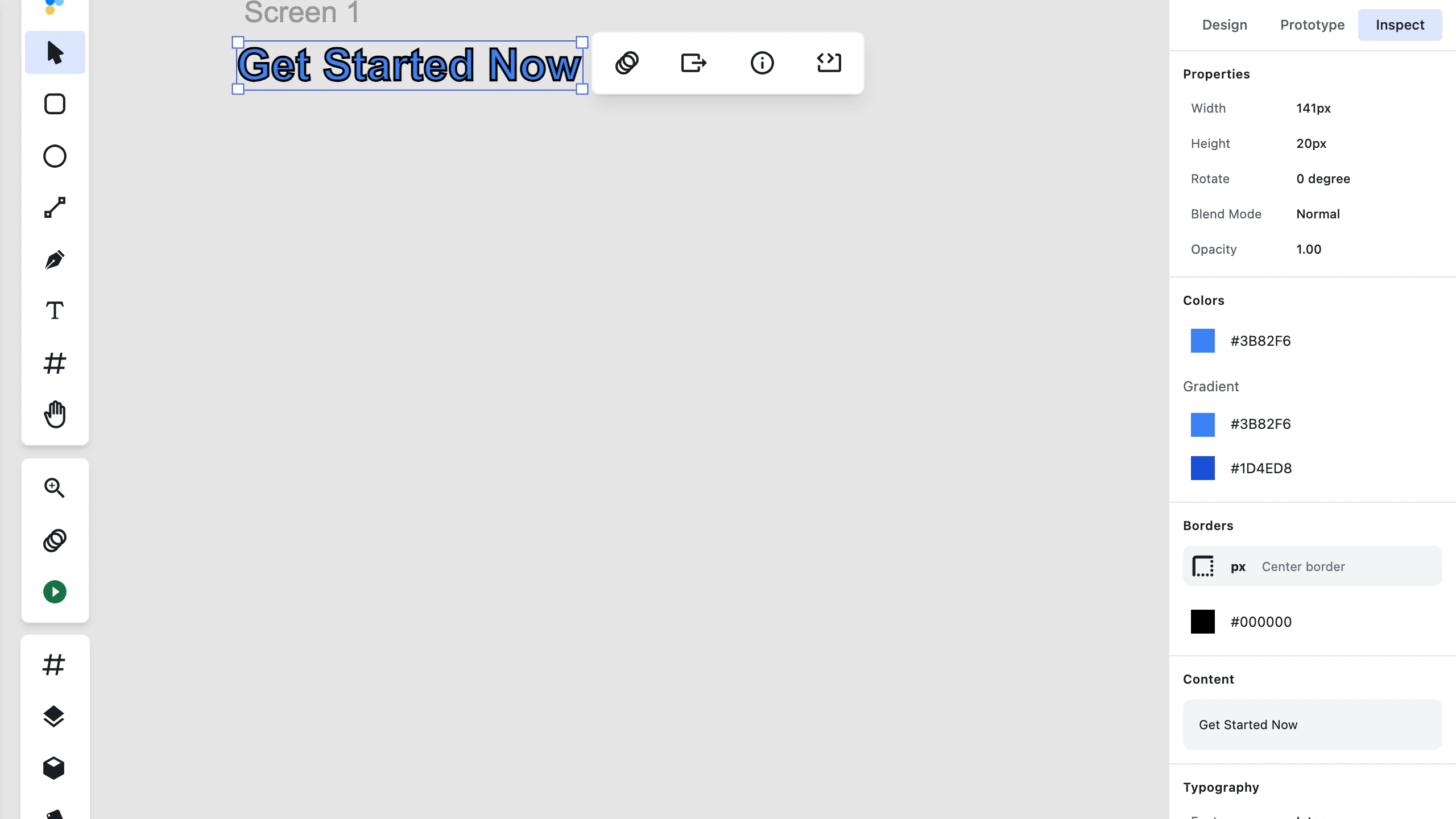
Inspect is the developer-handoff destination. It mounts the eight read-only click-to-copy panels — Properties, Colors, Borders, Shadows, Content, Typography, Gradients, and a read-only Interactions summary with its Present button — and, last in the panel, a per-layer CSS block with a one-click copy. Last, deliberately: a long code block above the copyable values would push the values off the screen. The underlying numbers are editable elsewhere in the inspector, but this click-to-copy presentation existed nowhere else in the product, and per-layer CSS existed nowhere else at all. The popover-era markup went with it: the nested inner scroller is gone (the panel scrolls), long values like a hyperlink URL wrap rather than truncate — this is handoff, so the full value has to stay readable — and the code block wraps in the column while the copy button still copies the exact unwrapped text.
One thing this release did not do is delete the snackbar. Both routes to these surfaces are live for now; removing the old one is its own piece of work, and doing it in the same breath as the relocation would have put a shipped, tested surface at risk for no benefit you can see.
There is also a real bug fixed underneath. The interaction editor used to add a disabled default tap interaction to a layer merely by rendering — harmless when it only mounted on an explicit popover open, considerably less harmless behind a tab that persists across every layer you select. Left alone, browsing your layers with the Prototype tab open would have quietly grown your saved file and made the Inspect tab report an Interactions section for layers you never touched. Looking at a panel is not intent, so it no longer writes anything.
Repeat, with sliders
Repeat is an inherently visual operation with a live on-canvas preview, and until now every one of its numeric parameters was a bare text box. Finding a radius that reads well meant typing a number, looking at the canvas, and typing another — a guess-check-retype loop for a thing you should be able to feel.
Every numeric parameter in the Repeat cluster — Count, Radius, Start angle, Step angle, Rows, Columns, Spacing — now pairs a slider with its number box, in the same label · slider · field row every other numeric control in that panel already uses. Dragging updates the field and re-renders the ghost preview continuously through the drag, not on release.
The field stays, and it stays fully in charge. Exact entry still works, math expressions (360/12) still work, and values past the slider's practical range still work: type Count 300 or Radius 4000 and the thumb parks at the end of the track while your typed value is what the preview and Apply actually use. The slider never clamps or rewrites what you typed. Dragging Radius, Step angle or Spacing sets that field's "stop auto-tracking Count" flag exactly as typing into it would — per field, independently. No Repeat behaviour, formula or output changed; this is the same feature with a handle on it.
Components: pasting one now gives you an instance
Copying a component master and pasting it used to produce a second, independent master. That is almost never what anyone means. The whole reason to make a component is that you want one definition and many linked copies — so "I want another one of these here" should give you an instance, and minting a rival master should be the deliberate, rare act.
It failed slowly, which is the worst way to fail: you copy a button around a page, edit the original, nothing else updates, and you find out weeks later during a design review with eight slightly divergent buttons and no error message anywhere in between.
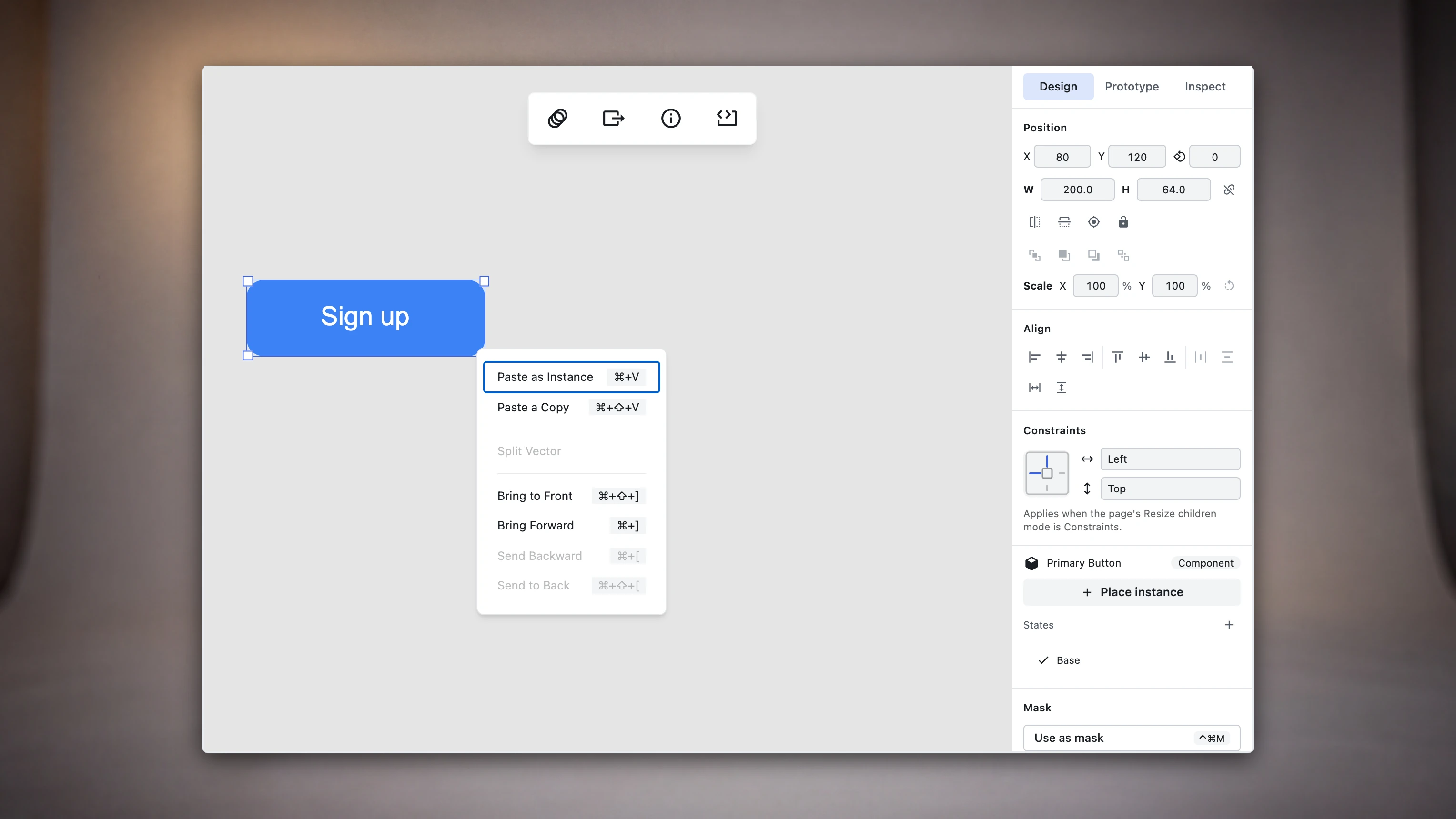
Plain Cmd/Ctrl+V on a copied master now pastes a linked instance — it tracks the master, and it lands as a page-level sibling. Cmd/Ctrl+Shift+V is Paste a copy, which is today's behaviour: an independent master, a deliberate fork. Both are in the canvas right-click menu, shown only when the clipboard actually holds a master, so the second one is discoverable rather than a shortcut you have to already know. Pasting ordinary layers is unchanged, and pasting an instance still stays linked to its original master exactly as before.
This is a deliberate change to what a familiar keystroke does, which is why it is a minor version bump and why it is written down here rather than left for you to notice.
It also came with a genuinely nasty bug, found on the way. Pasting while the master itself was selected resolved the paste parent to the master, so the copy landed inside the component — and because a master's addChild is a live structural link, that copy then fanned out into every instance as a real nested instance. With N instances on the page, one paste produced N+1 new visible copies and permanently rewrote the master's contents. The paste-into-the-selection behaviour is correct and intended for groups, so the fix is narrower and has no legitimate counter-reading: a layer is never pasted into itself or its own subtree.
Segmented controls that had quietly collapsed
Every segmented-control well mounted inside a column-shaped parent had shrunk from 24px to 14px — Boolean Operation, the four Stroke wells, Mask and Repeat. The cause was a shared style token whose "fill the available space along the parent's main axis" intent overrode the control height whenever the parent was a column. It's fixed at the token, not patched per call site, and the regression guard now measures a column-mounted well — the blind spot that let this through twice was that every existing check measured a row-mounted one.
The welcome screen's version dropdown is gone
The welcome screen's version switcher was a dropdown that let you navigate to old hosted snapshots of the editor. It is now inert static text showing the build number — no caret, no flyout, not a tab stop. The same dropdown is stripped from the footer.
Mobile: Hand and Select tool modes
v5.3.0 brought the viewing path to phones, and then reality found the gap: selecting a layer ate the pan gesture, because the transform widget would grab a touch drag and never give it back. On a narrow viewport there are now two touch modes on a floating canvas control — Hand (the default; taps never select, one finger pans, pinch zooms) and Select (taps select the layer under your finger, and one finger still pans). Underneath both, the transform widget is now touch-inert: on a touch pointer it never initiates a layer drag, resize or rotate, which is the actual fix. And a two-finger drag pans regardless of mode and regardless of what is under your fingers — a guaranteed escape hatch.
The fix keys off the pointer being a touch pointer, so every touch device gets it, including a touch screen at desktop width; only the mode control's visibility is tied to the narrow-viewport breakpoint. Mobile authoring remains deliberately out: Select mode grants tap-to-select and nothing more. No desktop behaviour changes on a mouse or pen.
Fixes you would have noticed
- The first character you typed went to the end. Create a text layer, type
Design in the browser, and you committedesign in the browserD. Not a race — reproduced identically with a 250 ms delay between keystrokes — and not subtle either: it is the most visible element on the page, rendered confidently and wrong, and it survived the commit. The cause was the editing field's own placeholder mechanism: the placeholder decoration is removed by the first keystroke, that removal is a structural DOM patch inside the editable, and the caret was lost back to offset 0 across it, so everything after the first character was inserted in front of it. Fixing it meant giving up that placeholder mechanism, which would have cost the "Enter Text Here" hint on a new empty text layer — the only cue that the layer is live and ready. That hint was not an acceptable price, so it is back, rendered outside the editable's DOM subtree where its appearance can never patch the editable again. (Found by the release's own user-acceptance run, on the second thing anybody does in a design tool.) - A rectangle you drew was invisible. Artboards are white, and a new shape's default fill was also white — so the shape you just dragged out left the canvas pixels literally unchanged, and the moment you deselected it your work appeared to have vanished. New shapes now default to a visible neutral grey, across rect, ellipse, line, polygon and path, and through the agent API's
layer.create()as well. Imported files are untouched: a white fill from a PSD, XD or.figis the author's intent and is preserved exactly. This is the kind of thing that never gets filed because everyone who works on the editor already knows to change the fill first. - Closing a pen path planted a duplicate anchor on the seam. Click, click, click, then click the first anchor to close — the shape closes and looks perfect, and it is committed with an extra point sitting exactly on top of the starting one. A triangle carried four anchors. The landmine goes off on the very next thing you do: drag that corner in vector edit and only one of the twins moves, tearing the closed shape open into a spike with an edge pinned to the phantom. Undo recovers the edit but not the duplicate, so it happens again on every attempt. Every pen-closed shape in every document carried this, and it is exactly the workflow — draw, close, refine — that this release's vector tools are for.
- The font notice followed you into Presentation mode. Open a file whose fonts were substituted (nearly always, for a file authored on someone else's machine) and a "Fonts Loading Issue" card appears bottom-right. Useful once. It never dismissed itself, and it stayed mounted when you entered Presentation — so a presenter walked a client through a full-screen deck with a warning card parked over the corner where the slide controls live. Advisory chrome is now suppressed for the duration of a presentation and restored on exit unless you dismissed it. The product already held this line for the paywall, which deliberately waits until after you exit; a font notice is strictly less important than a paywall and was doing what the paywall was explicitly built not to do.
- The selection box stayed behind when the layer moved. Every on-canvas edit overlay stopped tracking its layer's position — drag it, nudge it with the arrow keys, change X in the inspector, undo, or move it from the agent API, and the outline and handles stayed where the layer used to be. This was a regression we introduced ourselves earlier in this cycle: the multi-layer vector-edit work above dropped the container's model-change subscription. The fix restores it for all three overlay types at once, and covers the case where the move comes from an ancestor — which the deleted line never covered either.
- The bottom-right corner resize handle ignored horizontal drag. Pulling a corner diagonally only changed the height. The regression test drags a corner diagonally and asserts both dimensions changed; a single-axis assertion is exactly what let this through.
- Clicking the Select tool turned selection off. Activating Select — by the rail button or
S— from a shape-tool state left the editor silently dead: no transform handles, and canvas clicks did nothing, with no indication anything was wrong. Select is not a toggle; it is the default mode you return to, and activating it is now idempotent. - A shape created inside a scaled group landed in the wrong place. The matrix composition in the create path was reversed, so a new or pasted layer's world position was wrong under any non-translation parent transform. Both create sites now go through one shared helper, so the correct order has a single home rather than four copies.
- Outline Stroke left the old stroke behind. Converting a stroke to a fill disabled the single-stroke flag but left the multi-stroke list from v5.3.0's stroke rework intact — and the list is what gets read, so the stroke was still there.
- Text editing could throw on a stale selection. A path lookup into a replaced document now recovers to the root instead of throwing.
- Resizing a pattern fill snapped to the corner you weren't dragging. Object snapping during a pattern resize now keys only off the handle you actually have hold of.
- A lazily-loaded part of the editor could fail to load and stay dead. We caught
ChunkLoadErroron live production during our own smoke runs, on a chunk that serves a perfectly good200— and a chunk that fails to load means the feature behind it is gone for that session, with no recovery. Being honest about what we found: 60 controlled sessions across three different drivers reproduced it zero times, so we cannot claim to have watched a user hit it. What we could establish by reading the code is that thirteen boot-time dynamic imports and more than twenty file-open ones had no guard at all — a single transient network blip and that part of the editor was simply unavailable. Those now retry and recover, which is worth doing whether or not the original sighting was ours or the harness's. - A large PSD could again render incompletely until you touched the canvas. This is the return of a defect we shipped a fix for in v5.2 — and the way it came back is instructive. The original fix never actually corrected the underlying ordering (a cache-clear flag is raised before the node has ever cached, so the check falls through and the node caches anyway); it survived because an unrelated every-frame redraw happened to run the recovery pass for it. Earlier in this cycle we fixed a genuine 30-second stall by removing that redundant redraw — correct on its own terms — and the masked bug walked straight back out. It is now fixed at the source: the flag is resolved at the moment the cache is taken, so a correct first render needs no second pass at all. One honest residual: a separate staleness in the pattern cache for background image fills still produces a small whole-canvas difference between the first render and a redraw on documents of that shape. It is measured, isolated to its own cause, and tracked as its own defect rather than folded into this one or waved past by widening a threshold.
- Every
.fpexport of a from-scratch design downloaded asNew Project.fp. Create three designs without naming them and you got three identical filenames, distinguished only by their modification times. A project you start from scratch now has a real identity from the moment you begin: the top-left corner of the editor carries a project title chip — click it to rename the project right there, no account needed — and the name you give it is the name your export downloads as. Never rename it and the chip counts for you instead, so three designs save asUntitled 1.fp,Untitled 2.fpandUntitled 3.fprather than three copies ofNew Project.fp. Opening an existing PSD, XD or Figma file is unchanged: the export keeps the source file's name, exactly as it always did.
For scripts and agents
-
figpea-mcpnow fetches the contract from the editor. The editor serves its live tool manifest as a static artifact at/agent/contract.json, andfigpea-mcpfetches it at startup and registers the full tool set before any tab pairs — so an agent can see every tool immediately instead of discovering them after a connection. The fetch happens once per server run, is held in memory for the process lifetime, is never written to disk, and has an opt-out env var; if it fails, the server falls back to drilling the tab on connect rather than failing to start, and reconciles against what the connected tab actually advertises. There is no bundled snapshot, which is the thing that used to go stale.Alongside it, the contract now declares an envelope revision (
envVersion) describing the shape ofdescribe()'s return, the bridge frames and the result envelope — separate from the tool surface, which is generated at runtime.figpea-mcpdeclares which revisions it speaks and fails loudly and actionably on a mismatch. This is the guard for the failure that motivated it: the published package sat at0.1.0while the contract advanced through 22 minor versions and a major, and nothing anywhere said so. -
canvas.fit()andscreenshot({pixelRatio})are deterministic on nested.figlayers. Fitting and capturing a deeply-nested layer in a large Figma document produced unstable bounds run to run. Reproducible now, with no threshold widened to get there. -
The agent skill now comes from the runtime, so it cannot go stale. Figpea's reference guidance for
window.figpea— the authoring loop, recreating a reference faithfully, wiring interactions, the screenshot feedback loop, undo etiquette, entitlement boundaries, the canonical recipe — was a static markdown file that existed in three tracked copies. Because it was a copy, it drifted, and because it drifted it generated its own stream of work: eight separate requirements have now been spent on nothing but re-syncing it or repairing what a stale copy said. In August we found the installed copy stamped four minor versions and twenty-two contract bumps behind the real surface, which means every agent session in that window was being steered by guidance that predated the API it described. That was the third recorded occurrence, and the second after we shipped a byte-identity guard specifically to prevent it.So the file is inverted.
figpea.SKILL(selector?)is a new member on the public API that returns the reference body from the runtime — with the same progressive disclosuredescribe()uses (bare call for everything,SKILL("undo-etiquette")for one section,undefinedand never a throw for an unknown selector), behind a dynamic import so an agent that only callsdescribe()never downloads it. The same body is emitted as a static artifact at/agent/skill.mdon the editor origin, generated from the same source so the two cannot disagree, andfigpea-mcpexposes it as afigpea_skilltool sourced from there — because it has no page to evaluate against and must work before any tab pairs. The downloadableSKILL.mdshrinks to a transport-only bootstrap: how to reach the runtime, and nothing else. A file that only says "here is how to ask the product what it can do" has almost nothing left to go stale about. -
layer.create()now checks the values, not just the keys — and one bad path can no longer blind the whole session. These are two failure modes of the same hole, and we found them in our own output rather than in a bug report, which is the part worth telling.A build script authored 108 elements in a design file and reported 108/108 created, 0 build errors, publishable: yes, with every invariant green. Two of those elements were not on the canvas at all.
create()validated which props you passed but never what they were, so apointsarray of[x,y]pairs where the contract wants{x,y}objects returnedok: trueand a real layer id, acceptedsetPosition, exported, and reopened — withNaNbounds and nothing drawn. Every count still added up. One of the two invisible layers was even carrying a prototype interaction, so a hotspot was wired to a layer with no geometry. The only way to find out was to look at a picture. Geometry values are now validated, a bad one is rejected withinvalid_geometrynaming the offending prop and the shape it expected, nothing is created — and anok: truefromcreate()now guarantees finite bounds.The sharper sibling: one
layer.create('path', { path: '<malformed d>' })returnedok: trueand from that momentsession.layerTree()threw for the entire project, permanently, for every layer — and the throw escaped the result envelope, so a caller doing correctif (!r.ok)handling got an exception instead of an error code. LosinglayerTree()means an agent can still write but can no longer see, and the bad layer travels with the document through save and reopen, so the only recovery was to abandon the session. The trigger is not adversarial input: the callers of this API are LLM agents emitting SVG path data, and a syntactically wrongdstring is an everyday event. Now a malformeddis rejected up front, and the tree serializer is fault-contained — a layer whose bounds can't be computed reportsbounds: nullwith aboundsErrordiagnostic while every other layer serializes normally. Reading the document never throws.
The contract is at 1.14.0, including three new layer.* methods for the Paint tool's region-fill model (getRegionFills, setRegionFill, clearRegionFill), and it is documented in full on Agent API.
Pairing asks first
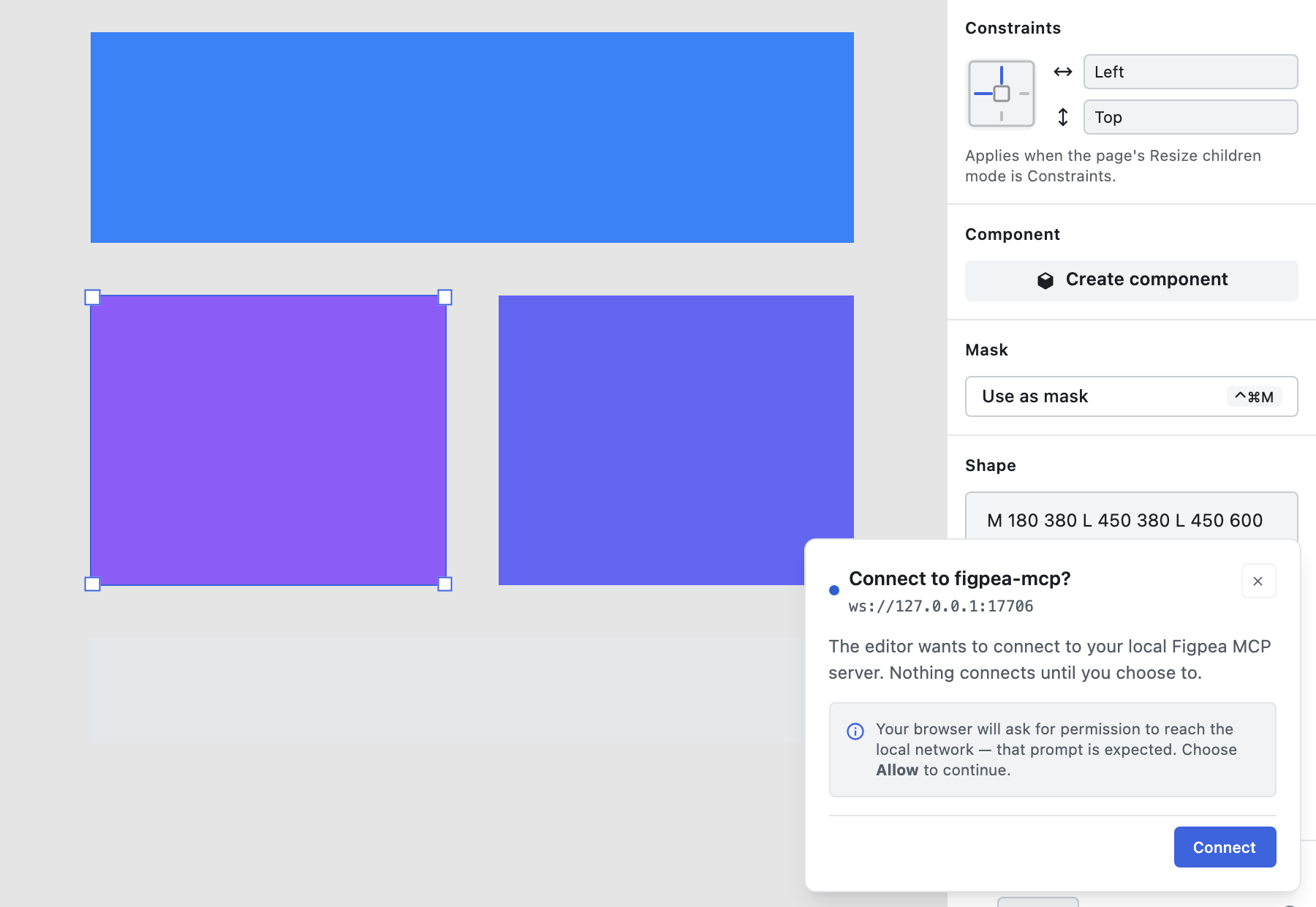
Loading the editor with bridge parameters no longer auto-dials a socket. It shows a notice naming what is connecting and where — at minimum the bridge port — with a Connect button, and nothing opens until you press it. That consent gate holds in every permission state and on every visit, including in browsers that don't implement Local Network Access at all.
Where the browser does expose the permission state, it tunes the copy only: explain the upcoming prompt when it will be asked, skip the explainer when permission is already granted, and show recovery instructions naming the setting to change when it has been denied — with Connect disabled until it is. On the other side, figpea-mcp's no_tab result now carries the full pairing URL and a human-readable next step, so an agent can relay it verbatim instead of guessing.
Diagnostics, and a way to send us a broken file
A failed parse now says something. parse-failed is the largest failure class in the product and it was recorded with no detail at all, which made it entirely unactionable — we could see that files were failing and had no way to learn anything from it. The event now carries a diagnostic signature: the parser stage that threw, a stable normalised error code, and the format version where the format exposes one, applied across the PSD, .fig and XD paths. The values are normalised so that identical root causes cluster to identical signatures rather than fragmenting into thousands of unique strings. Nothing file-derived travels — no file names, no contents, no bytes, by construction. This fixes no parser bug; it makes the bugs findable, and the fixes are separate work.
One new event, and one bucket split, both documented. We could tell how many people open a presentation and nothing at all about how long they stay in one — there was a switch-in event and no switch-out, and the nearest available signal implied an average presentation lasted 1.4 seconds, which is an attribution artifact rather than a measurement. There is now a presentation_closed event carrying elapsed milliseconds. Separately, authoring a prototype transition used to land in the same structure bucket as grouping, boolean ops and layer-type changes, so it was indistinguishable from a thousand other edits; interaction is now its own bucket. Both are in What We Collect, and neither carries a layer name or a value you set.
Crashes are now attributed to who caused them. Error telemetry had no origin attribution, so a browser extension's or an injected script's exception was recorded as Figpea's. Origin is now derived from the error's stack for both unhandled rejections and window.onerror. Note what this deliberately does not do: foreign errors are still reported, not suppressed — making the origin visible is the point, and any filtering is a decision to make from the data rather than before it exists.
You can now send us a file that won't open, from inside the editor. There are two halves to this. The intake is a public endpoint that accepts the diagnostic fields above, the file type and size, a description you write, an optional reply-to address, and — only if you ask for it — the file itself, uploaded directly to storage rather than through the serverless function so that files well past the 4.5 MB body ceiling actually succeed, up to 200 MB, routed to a human inbox with a time-limited signed download link.
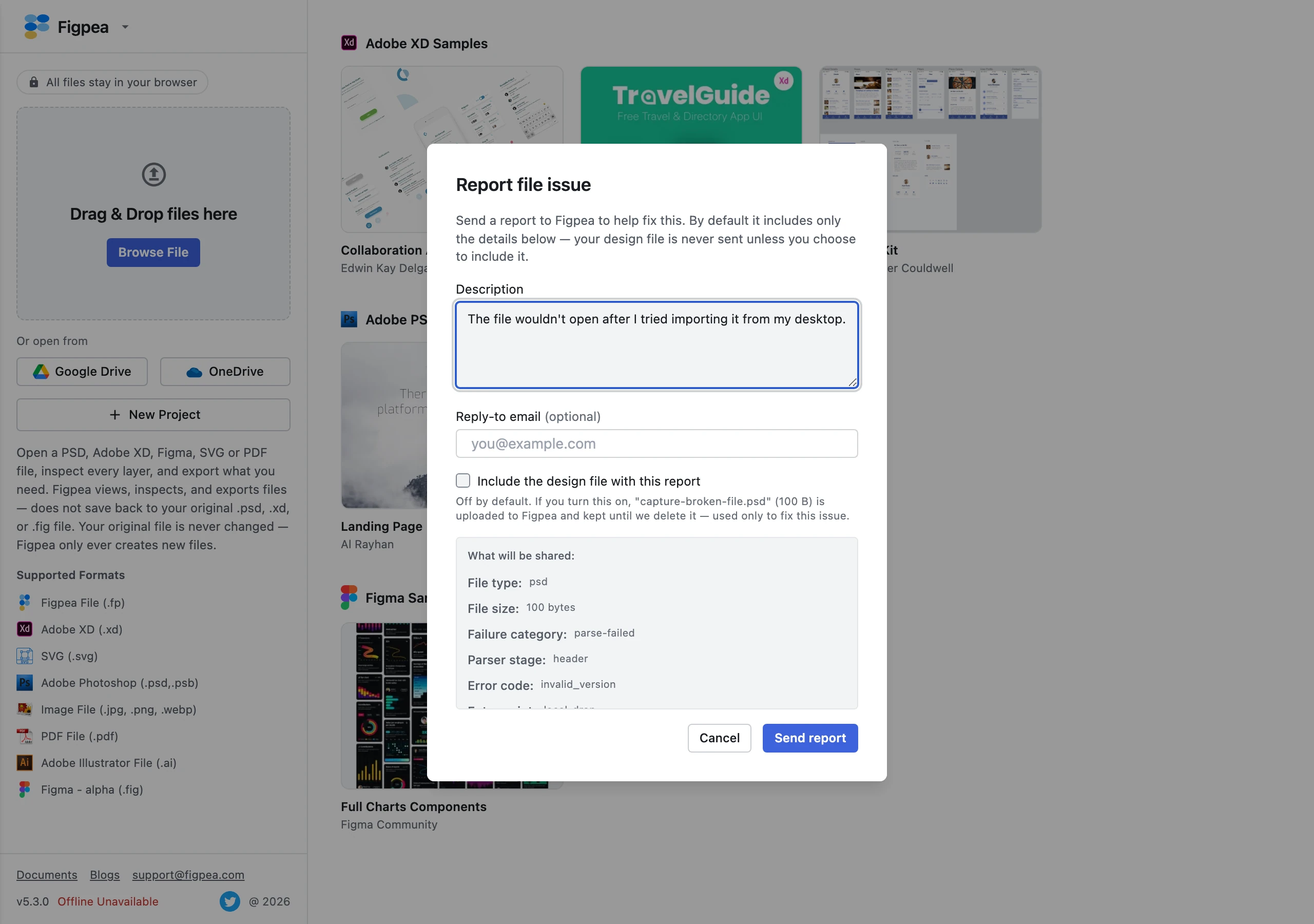
The other half is the surface, and until this release it was a mailto: link with a pre-filled subject that asked a user whose tool had just failed them to go and find the file and attach it by hand. For a webmail user that link opens nothing useful, with no feedback either way — and it was entirely unmeasured, so we genuinely cannot say whether it ever produced a single report.
It is now a real form in the modal. It reuses the file the editor is already holding from the failed open, so you are never asked to locate it again. Including that file is a checkbox that is off by default and is never remembered — consent is asked every time, never assumed. And the disclosure is guaranteed by construction rather than by care: the same field list renders both the "what will be shared" panel you can see in the shot above and the outgoing report body, with a test that fails if either side gains a field the other lacks. Submission has states you can act on — in progress, success, and a distinguishable failure (network, over the size cap, rate-limited, server) — and you are never shown a success state for a report that did not arrive. No file name, description text or reply-to address reaches our analytics.
One caveat we would rather state than let you discover: the file-attachment half depends on production storage credentials being provisioned, which is a deployment step for this release rather than something in the code. The default report — diagnostics only, no file — has no such dependency and works regardless. If storage is not reachable, the form tells you the submission failed instead of claiming it succeeded, which is the behaviour that matters.
This is the one place Figpea's "your files stay on your machine" claim now has an exception, so we have rewritten that claim everywhere it appeared rather than leaving it technically-true-if-you-squint. Submitting is explicit and voluntary; nothing is sent unless you choose to send it; and What We Collect documents exactly what a report contains and how long we keep it — indefinitely, deleted on request, which is what we actually do rather than an expiry we don't enforce.
Opening from Google Drive on Chrome-for-iOS now fails honestly. v5.3.0 fixed the Drive popup timing on mobile Safari and Chrome-for-iOS, and named one residual it did not resolve: a Google-side account-access gate on Chrome-for-iOS. We went back to establish whether that was fixable from our side, and it is not — Google blocks the account access this flow needs in that browser.
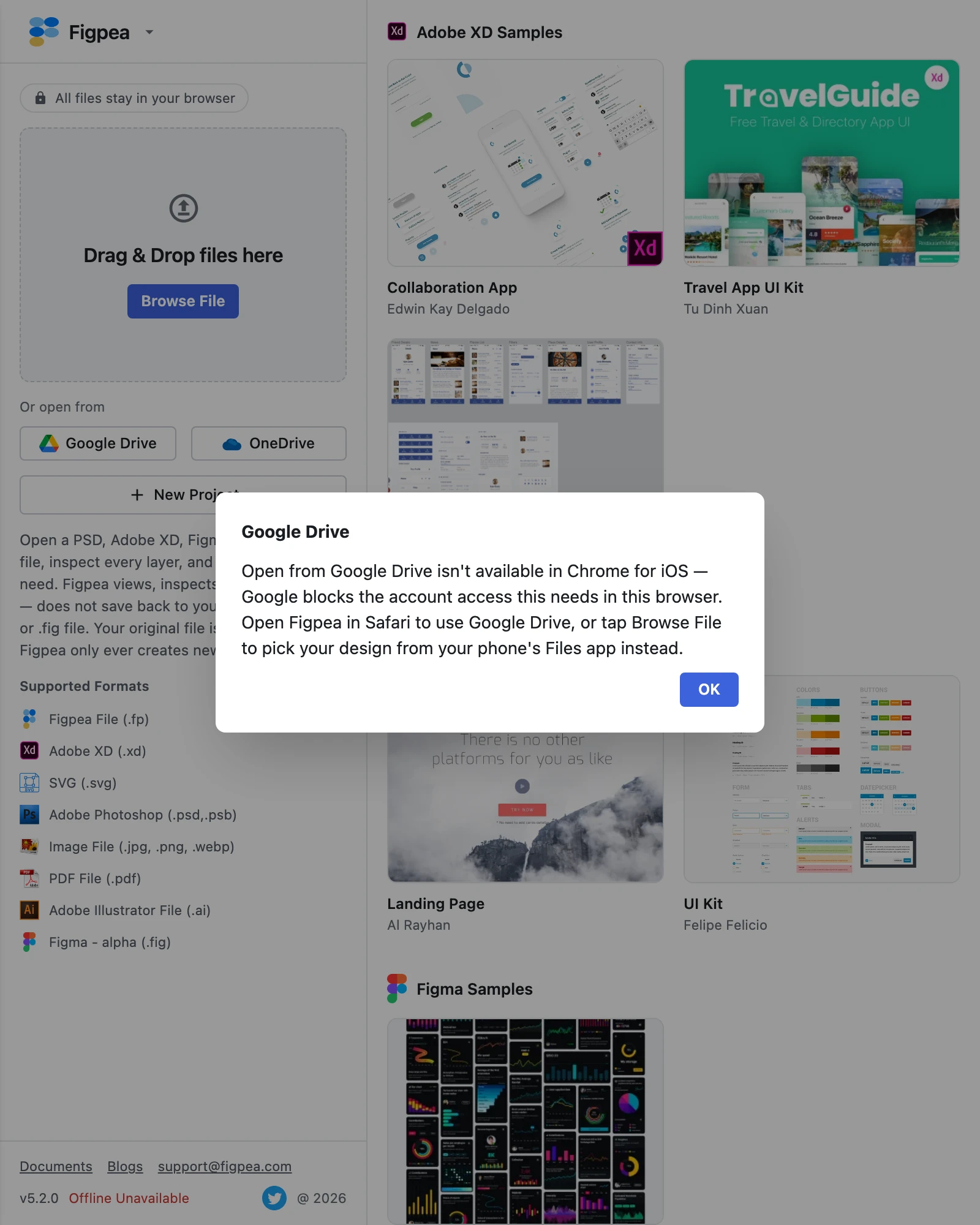
So it now says so before you commit to the flow, and tells you the two things that do work — open Figpea in Safari, or use Browse File and pick the design out of your phone's Files app. Failing honestly is a real fix; being stranded on a Google error page you cannot act on is not.
Site and docs
The homepage hero is now a two-column layout carrying a desktop, tablet and phone device trio showing real Figpea renders — actual captures of a design open in the editor at each size, not mockups. Below it, phone and tablet viewing is called out as its own differentiator, anchored to the formats it actually applies to.
The PSD landing cluster's search snippets were audited and fixed — titles, meta descriptions, canonicals and OG tags across /open-psd-online, /psd-viewer and the PSD blog post.
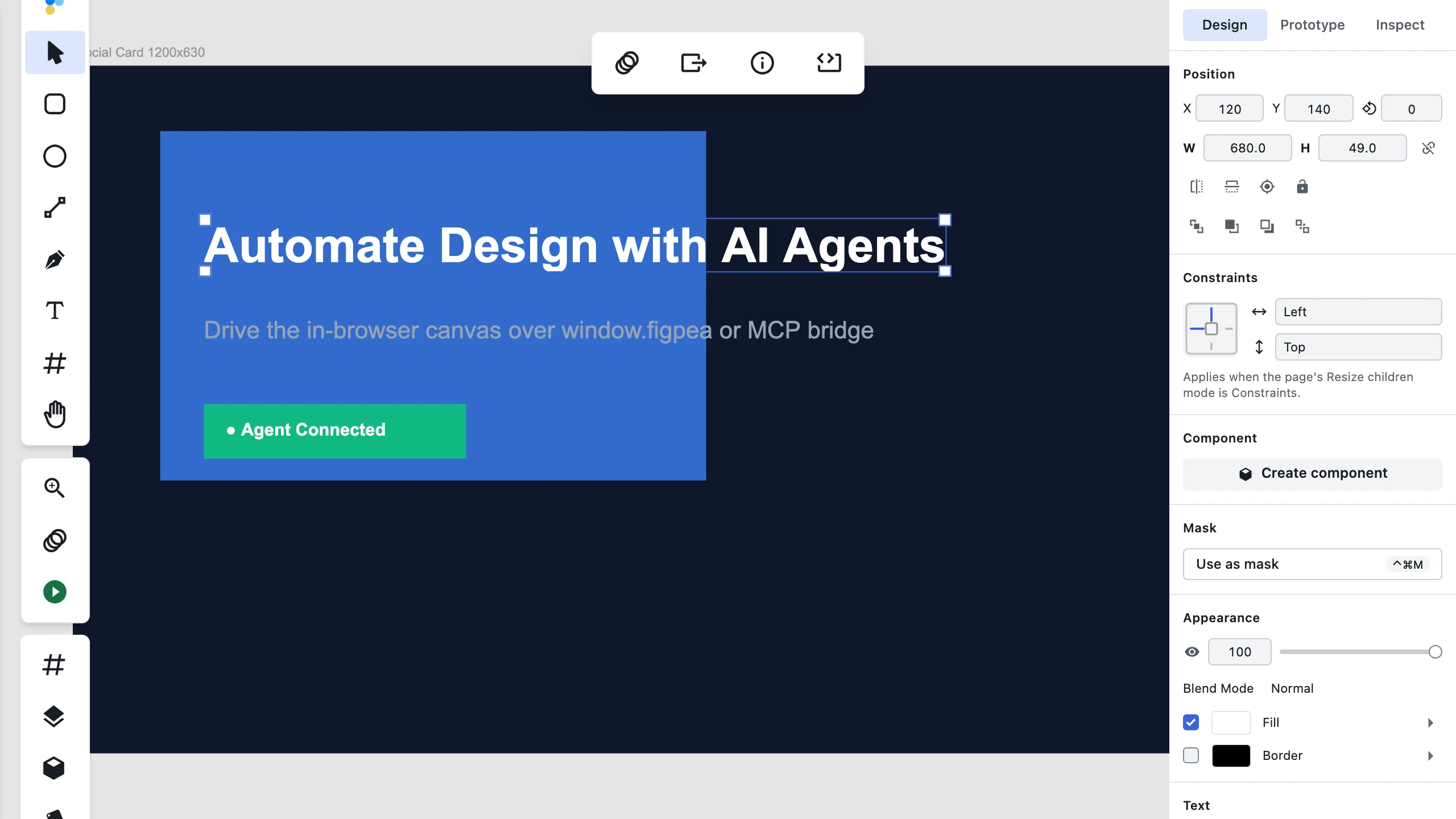
There is now a front door for the agent story: /ai-agents. figpea-mcp has been a published npm package for a while, and the site mentioned it precisely nowhere — no route, no nav entry, no install guide, absent from the sitemap and from llms.txt, reachable only via one line inside a July blog post. Its exhaustive method reference drew seven pageviews in sixty days, which is what a capability with a manual and no front door looks like. The new page carries what your agent can actually do in Figpea, the MCP client config, a three-step setup, example prompts, and links onward to the reference. There is a nav entry for it, and the homepage hero now carries a call-out — "Works with Claude Code, Cursor, and Codex" — pointing at it.
What the homepage deliberately does not do is reposition Figpea as an AI-first product. The H1 is unchanged. The agent story is a differentiator layered on top of what Figpea is — your agent can drive the same private, in-browser editor that opens stranded PSD, XD and Figma files — and it is not a new identity. The "prompt → UI" lane is crowded, generic, and not the thing we are good at; the wedge is.
On the docs side: the Path Editing guide documents Enter, multi-layer sessions, on-path insertion, the Lasso, the point bounding box, and now the Bend, Cut, Variable width and Paint tools plus point mirroring and the parametric corner radius — illustrated throughout with captures of the running editor, which is where most of this post's imagery comes from. Exporting covers the SVG profiles, font handling and interaction round-trip; Transitions notes what survives an export and now records that advisory chrome is suppressed during a presentation. Font Management covers CJK and complex-script fonts and the Fonts Loading Issue card. Advanced Layer Operations picks up the Repeat sliders and the Inspect tab; Components and Instances documents the new paste semantics. Opening Files and Basic Layer Operations pick up the new adjustment types, the colour modes, the Pages panel, the inspector tabs, the default shape fill and the broken-file report form. Mobile Design Viewer documents the Hand/Select modes and the Chrome-for-iOS steering. Agent API documents the static contract artifact, the envelope revision, guided pairing, the runtime skill surface, geometry validation and the region-fill methods, at contract 1.14.0. What We Collect picks up the parse-failure signature, the error-origin fields, the broken-file report intake and its report_submitted event.
Reliability
Two paragraphs, because none of it is visible. Two latent render-layer defects were proven with stacks and fixed before they became crashes: a resolution helper returned NaN for a zero-dimension layer, and sub-pixel cache canvases were being created on perfectly ordinary documents. Both are caught today by guards that happen to sit downstream, which is the kind of latent that becomes a production crash the moment somebody adds a call path. Separately, the contract artifact that figpea-mcp fetches was never generated in the one lane developers actually run, so a local editor served a 404 and every local agent session silently fell back to a two-tool cold start — and the guard meant to catch a stale artifact only ever checked whether the file was missing, never whether it was out of date. Production was unaffected throughout; the development lane was quietly wrong for weeks.
The PSD fidelity harness was rendering nested folder subtrees blank and scoring them as zero rather than flagging them — so parts of the corpus were being silently measured as contributing nothing, and a harness that reports a confident number about content it never drew is worse than one that fails. It renders them now, and a self-check makes a silently-blank child detectable rather than scoreable. Separately, the entire v3 unit suite was being broken on Node 24 by a userland path shim, which meant 82 test files were not running and every "green suite" claim in the pipeline was false for as long as that lasted. On the site, a package was in the lockfile but absent from a clean npm ci tree — exactly how Vercel installs — so the clean-install guard was catching a real deployment hazard. And six prod-smoke specs from the last release were failing against a production that was provably correct: the suite was reporting on itself rather than on the product, and they were rewritten against what actually ships.
Try it
Everything above is live now. Open Figpea, drag in an XD, PSD, SVG, PDF or Figma file, press Enter on a shape and have a go at the new vector tools. It's free to open, inspect and edit, a single 1× asset export is free, and you can present a whole deck; Pro covers batch export, any-scale extraction, and presenting without the post-exit prompt. And if a file won't open, please send it to us — there's finally somewhere for it to go.